> ## Documentation Index
> Fetch the complete documentation index at: https://docs.ticketspotapp.com/llms.txt
> Use this file to discover all available pages before exploring further.
# Event email delivery and engagement analytics
> Track event email delivery and engagement, inspect failures, review scheduled reminders, and export email activity in Ticket Spot.
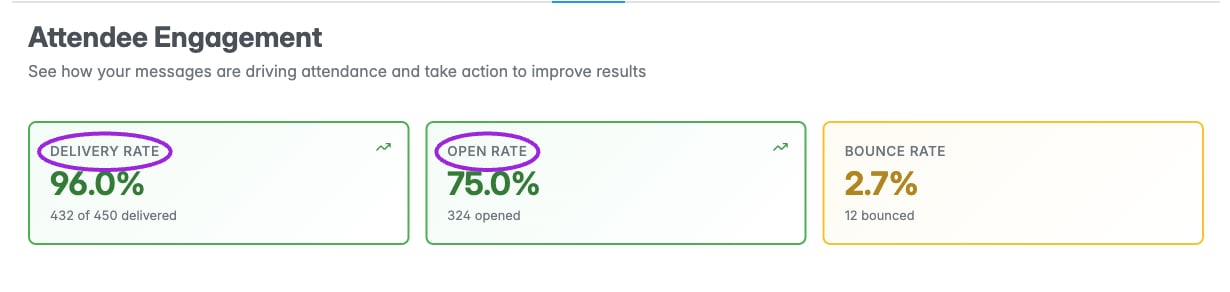
Open **Analytics**, choose an event or occurrence, and select **Email**. The report heading is **Attendee Engagement**. Set the range before comparing results. Screenshots use illustrative data; no messages were sent or reminders run for this documentation.
## Delivery and engagement
The top cards show **Delivery Rate**, **Open Rate**, and **Bounce Rate**. Delivery rate is delivered divided by sent; open rate is opened divided by delivered; bounce rate is hard bounces divided by sent. Counts represent tracked attendee engagement, and the overall totals deduplicate attendees across message types rather than simply adding every type’s count.
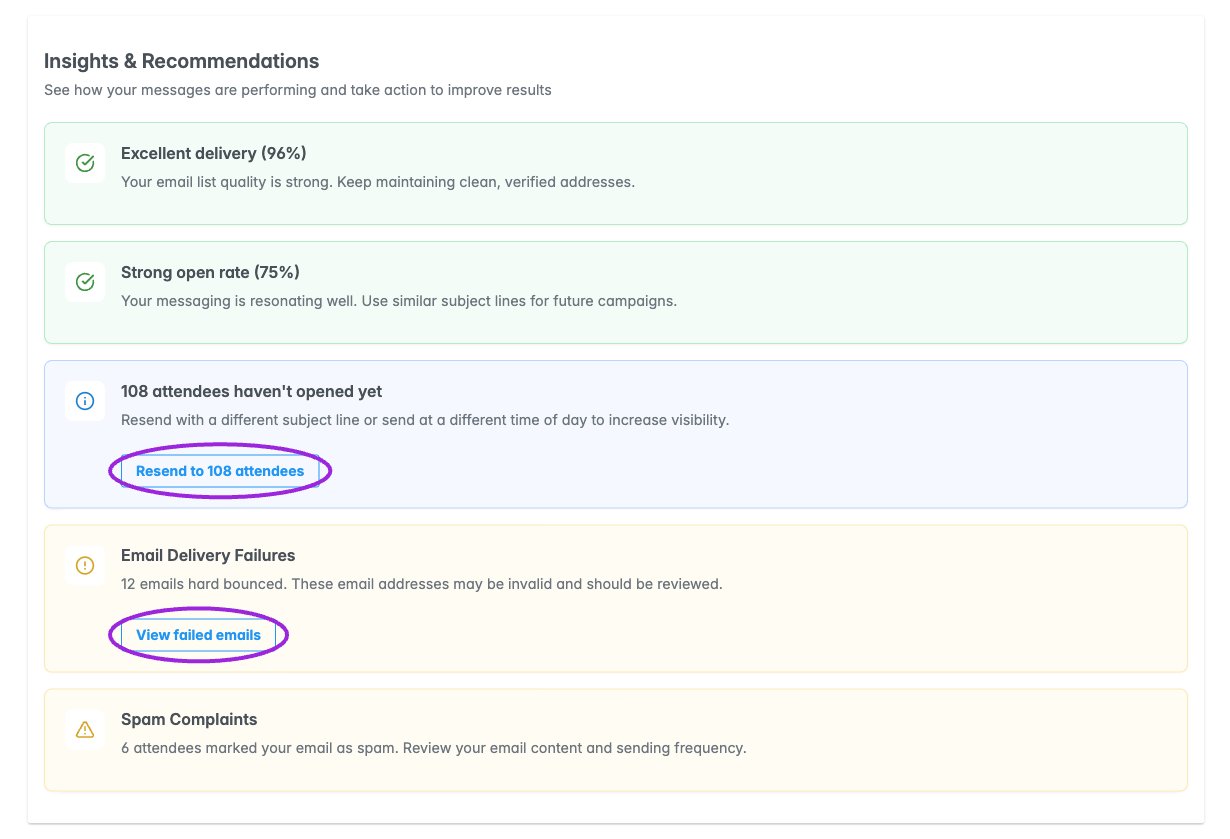
 **Insights & Recommendations** can highlight delivery failures, unopened messages, strong or weak open rates, and spam complaints. **View failed emails** opens a review dialog. A **Resend** shortcut leads toward campaign management; it does not send directly from the insight card. Review the campaign and recipients before sending. If that shortcut does not open the expected page in your installation, use the event’s **Email Communication** section.
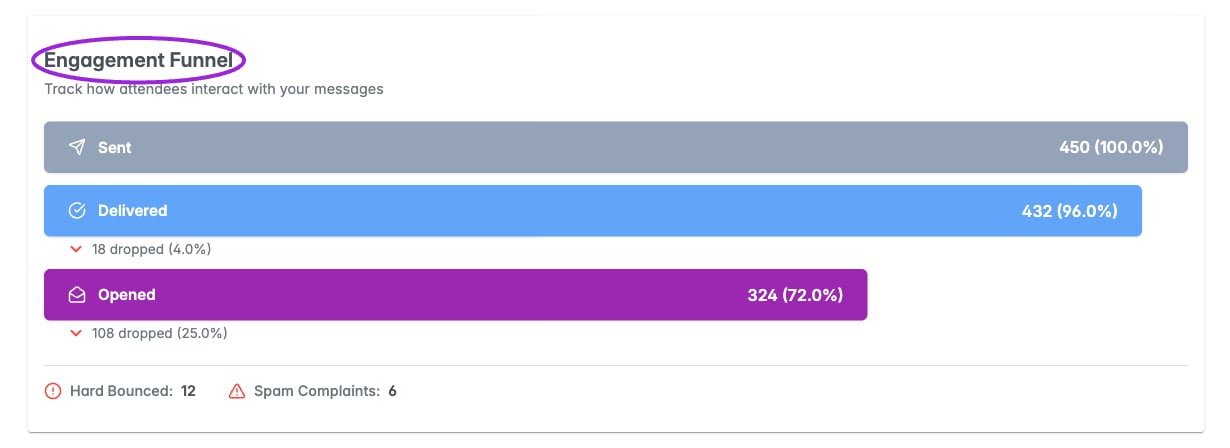
 The **Engagement Funnel** follows **Sent → Delivered → Opened** and shows drop-offs. Funnel percentages are relative to sent, so its Opened percentage can differ from the Open Rate card, which uses delivered as its denominator.
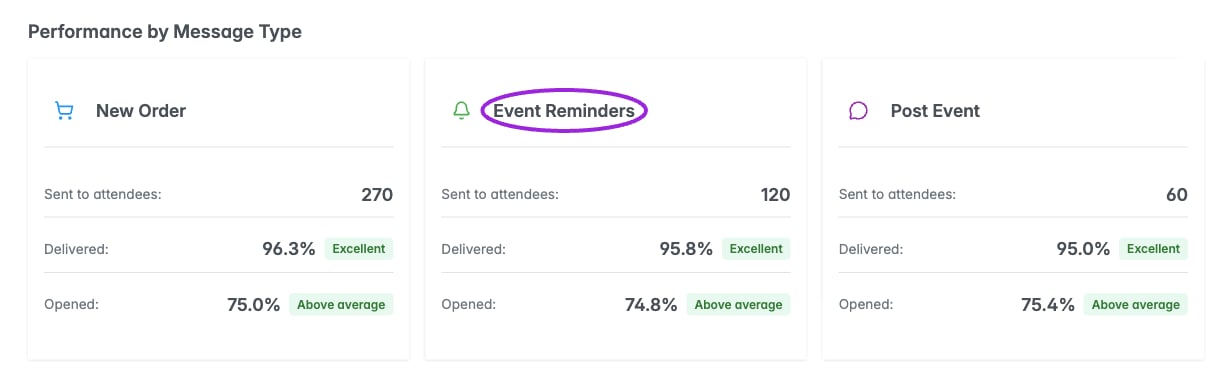
 ## Performance by Message Type
The three message-type cards are **New Order**, **Event Reminders**, and **Post Event**. Each can show sent/delivered/opened statistics or a scheduled-reminder state. A pending or scheduled reminder takes precedence over earlier statistics for that type.
## Performance by Message Type
The three message-type cards are **New Order**, **Event Reminders**, and **Post Event**. Each can show sent/delivered/opened statistics or a scheduled-reminder state. A pending or scheduled reminder takes precedence over earlier statistics for that type.
 A scheduled card shows its date, time, timezone, estimated attendee count, and state, including overdue or completed/sent information when applicable.
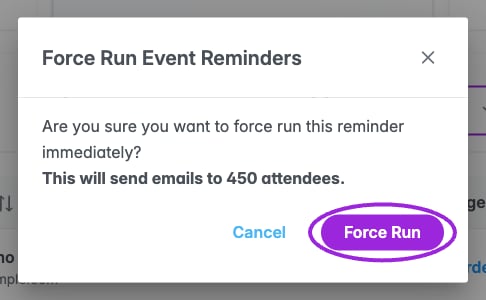
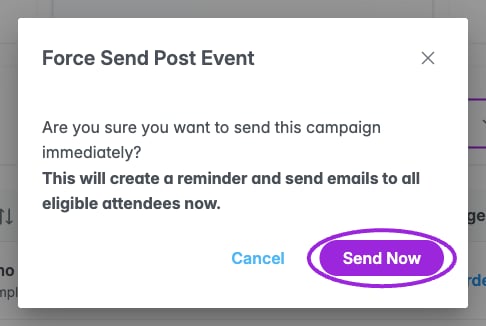
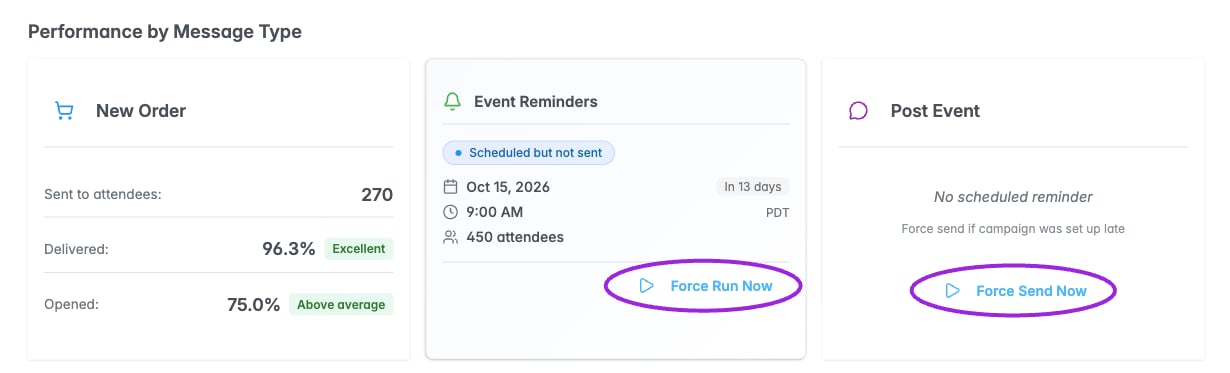 **Force Run Now** opens a confirmation for an existing scheduled reminder. Confirming runs that reminder immediately. **Force Send Now**, shown where there is no scheduled reminder/activity for the reminder or post-event type, opens a separate confirmation that creates a reminder and sends the campaign to eligible attendees. These actions send real email when confirmed; they are not preview controls.
 ## Detailed Activity Log
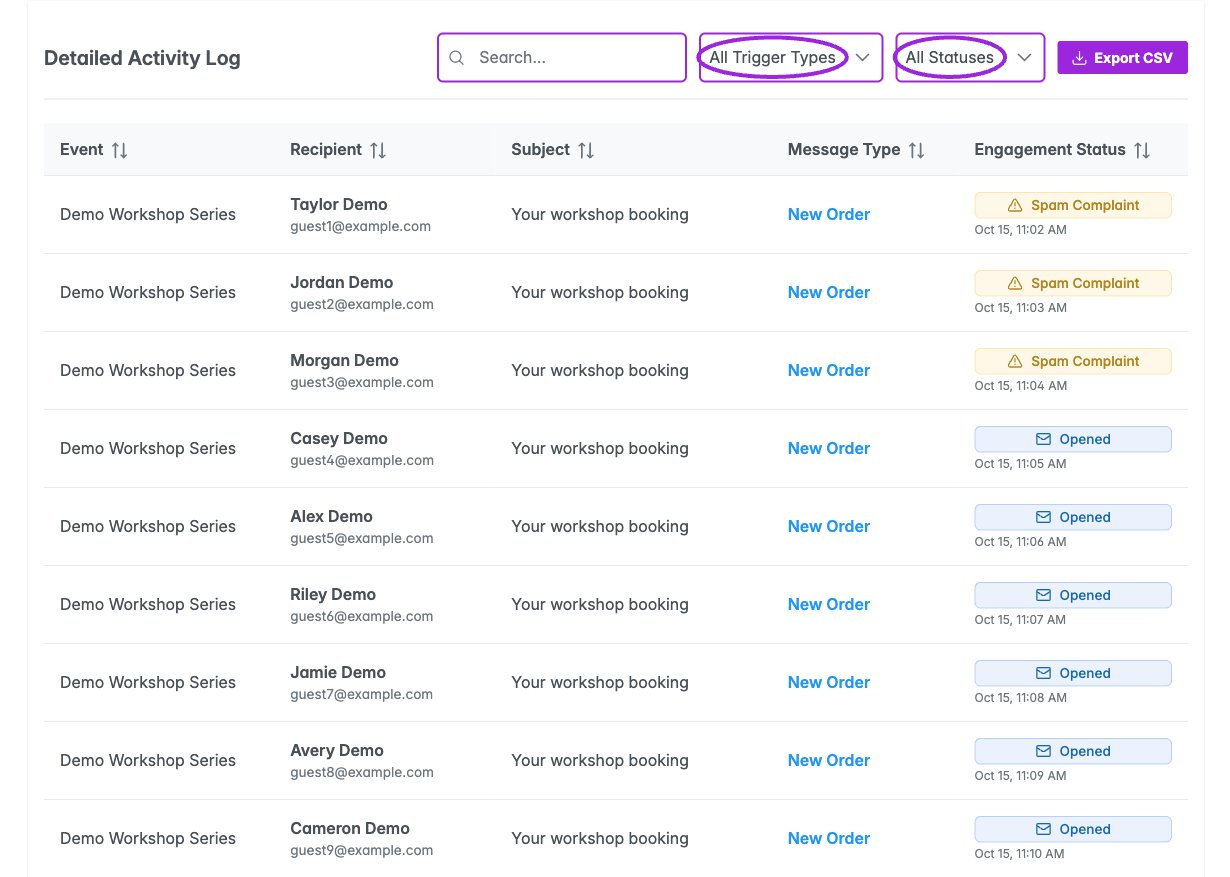
Search by attendee name, email, subject, or event title. Filter **All Trigger Types** to New Order, Event Reminder, or Post Event, and filter **All Statuses** to Sent, Delivered, Opened, Hard Bounce, or Spam Complaint. The filters narrow the returned activity records; they do not recalculate the summary cards.
Columns show **Event**, **Recipient**, **Subject**, **Message Type**, and **Engagement Status**, including the latest status timestamp. Sort the columns and use the twenty-row pagination. The visible status menu does not contain a separate Clicked option.
## Detailed Activity Log
Search by attendee name, email, subject, or event title. Filter **All Trigger Types** to New Order, Event Reminder, or Post Event, and filter **All Statuses** to Sent, Delivered, Opened, Hard Bounce, or Spam Complaint. The filters narrow the returned activity records; they do not recalculate the summary cards.
Columns show **Event**, **Recipient**, **Subject**, **Message Type**, and **Engagement Status**, including the latest status timestamp. Sort the columns and use the twenty-row pagination. The visible status menu does not contain a separate Clicked option.
 ## Review failed emails
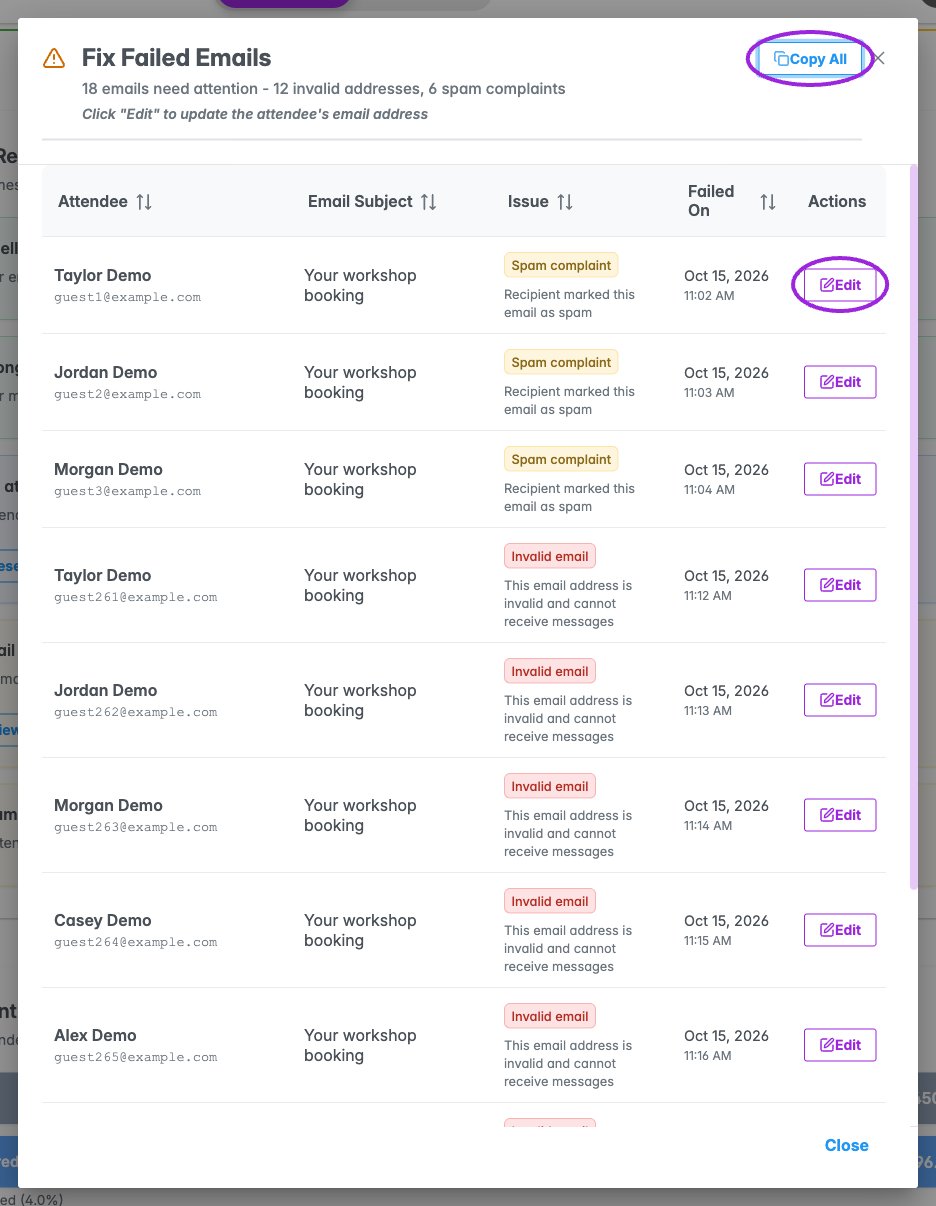
Choose **View failed emails** or the failed-delivery insight action. **Fix Failed Emails** lists hard bounces and spam complaints with the latest recorded date/time. Use **Copy All** or the per-row copy control to copy addresses. **Edit** opens the attendee record where you can correct an address when appropriate; it does not resend the failed email.
## Review failed emails
Choose **View failed emails** or the failed-delivery insight action. **Fix Failed Emails** lists hard bounces and spam complaints with the latest recorded date/time. Use **Copy All** or the per-row copy control to copy addresses. **Edit** opens the attendee record where you can correct an address when appropriate; it does not resend the failed email.
 ## Export and empty states
The activity table’s **Export CSV** sends the selected **message type** and the report’s range. It does **not** apply the table’s search or status filter. The top **Export CSV** exports the event/range without the table’s message-type selection. Neither export is limited to the visible twenty-row page.
The CSV includes event, recipient, subject, campaign/message type, latest status and time, plus available sent, delivered, opened, clicked, bounced, and spam-complaint timestamps. A report without activity can return an empty result. If messages are scheduled but not sent, scheduled cards can still appear while engagement is empty.
For delivery setup and translated subject/content defaults, see [Email Communication](/event-management/email-communication) and [Multilingual communications](/branding-and-design/multilingual-communications).
This documentation is built and hosted on [Mintlify](https://mintlify.com), a developer documentation platform.
## Export and empty states
The activity table’s **Export CSV** sends the selected **message type** and the report’s range. It does **not** apply the table’s search or status filter. The top **Export CSV** exports the event/range without the table’s message-type selection. Neither export is limited to the visible twenty-row page.
The CSV includes event, recipient, subject, campaign/message type, latest status and time, plus available sent, delivered, opened, clicked, bounced, and spam-complaint timestamps. A report without activity can return an empty result. If messages are scheduled but not sent, scheduled cards can still appear while engagement is empty.
For delivery setup and translated subject/content defaults, see [Email Communication](/event-management/email-communication) and [Multilingual communications](/branding-and-design/multilingual-communications).
This documentation is built and hosted on [Mintlify](https://mintlify.com), a developer documentation platform.