> ## Documentation Index
> Fetch the complete documentation index at: https://docs.ticketspotapp.com/llms.txt
> Use this file to discover all available pages before exploring further.
# Exclusive booking per time slot
> Reserve a whole time slot for one family or group, with automatic sold-out availability after their booking in Ticket Spot.
Give each family or group a time of their own. **Exclusive booking per time slot** accepts one booking for each time slot, then automatically marks that slot sold out across all ticket types. A booking can contain several tickets; buying just one ticket also reserves the whole slot.
Use it for private visits, tours, or other experiences where one group should have the time to themselves.
## Booking toggle
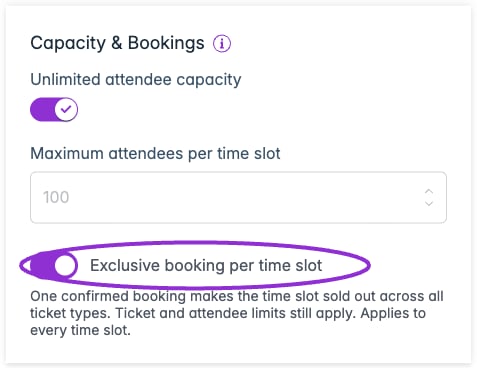
Open **Event Details → Capacity & Bookings** and enable **Exclusive booking per time slot**. It is off by default. Once enabled, one confirmed order reserves the entire slot, even when the order contains several ticket types. Save the event to apply the setting.
 ## Before you start
Use **Sell tickets** with a **Time-Based** schedule and Ticket Spot checkout. Free and paid ticket orders can reserve a slot. The setting is off by default. It applies to every time slot in the event and is managed on the main event.
Exclusive bookings require Ticket Spot checkout. Shopify, Ecwid, and other external store checkouts are not supported. A store-connected account can use this feature for events that use Ticket Spot checkout. Disconnect an existing external catalog product before enabling this option. Square payments inside Ticket Spot checkout are supported; Square catalog checkout is a separate integration.
### Shopify ticket selection
For date and time-slot selection on a Shopify product page, enable **Use Ticket Spot Selector** in **Shopify · Product linked → Product Page Settings**. Older screens call this **Use Advanced Ticket Selector**. Add the **Ticket Selector** app block to the product's assigned theme template, then save the settings and verify it appears on the storefront. Follow the [Shopify Ticket Selector setup guide](/plugins/shopify-ticket-selector#5-assign-the-template-to-the-linked-event-product).
The selector is required for Shopify's time-slot booking interface. It still uses Shopify checkout, so enabling it does not remove the exclusive-booking checkout limitation above. The Santa example below uses Ticket Spot checkout.
## Enable exclusive bookings
1. Open the main event's editor and select **Dates & Times**.
2. Choose **Time-Based**, then **Add Times**. Add your dates and available start/end times and create the schedule.
3. Return to **Event Details**. Under **Capacity & Bookings**, turn on **Exclusive booking per time slot**.
4. Configure ticket quantities and any combined attendee limit, then save the event.
5. Preview the date and time selector and check that each visit has the intended start and end time.
## One booking can include multiple tickets
A family might buy two child tickets and one infant ticket in the same order. All three belong to the chosen visit, and the entire slot becomes sold out once the booking is confirmed. Other time slots stay available.
| Setting | What it controls |
| - | - |
| **Exclusive booking per time slot** | One confirmed booking per slot, across every ticket type. |
| Ticket inventory and per-order quantities | How many tickets of each type can be bought. |
| **Maximum attendees per time slot** | The combined capacity available across ticket types. |
| **Unlimited attendee capacity** | Removes the combined attendee limit; the one-booking rule still applies. |
Do not set the attendee limit to one just to reserve a slot for one family. That would prevent a family from buying several ordinary child tickets. For example, set a maximum of **6** if each visit can accommodate six ticketed children in total. Separate limits of six on two age-based ticket types would otherwise allow up to twelve.
If accompanying adults need to count toward the limit, give them tickets too. For tickets that reserve more than one place, see [capacity used per ticket](/event-management/ticket-capacity).
## What happens during checkout?
Checkout temporarily holds an exclusive slot while the buyer completes their order. Another customer cannot reserve the same slot during that hold. An abandoned unpaid checkout normally has a 15-minute hold; a payment still being processed can keep the slot unavailable until its outcome is known.
Once confirmed, the booking closes the slot regardless of the number of tickets purchased. The rule also applies to manual attendee orders and waitlist purchases. If you enable the option after sales have started, slots with existing active attendees are already unavailable for another booking.
## Cancellations and reopening a slot
Cancel every attendee in the booking to make the slot available again. Cancelling just one child leaves the family's slot reserved. Refunding payment without cancelling attendance does not reopen the slot.
See [refunds and cancellations](/attendee-management/refunds-and-cancellations) for the organizer workflow. Check the buyer-facing availability after making a cancellation.
## Examples
### Santa's grotto
Follow the [Santa's grotto example](/bookings/santas-grotto) to create six 10-minute visits, add child and adult tickets, and see a confirmed booking make its selected time slot sold out.
## Related guides
* [Dates and time slots](/event-management/datetime)
* [Ticket quantities and pricing](/event-management/ticket-setup)
* [Timed entry, recurring classes, and passes](/event-management/timed-entry-and-passes)
This documentation is built and hosted on [Mintlify](https://mintlify.com), a developer documentation platform.
## Before you start
Use **Sell tickets** with a **Time-Based** schedule and Ticket Spot checkout. Free and paid ticket orders can reserve a slot. The setting is off by default. It applies to every time slot in the event and is managed on the main event.
Exclusive bookings require Ticket Spot checkout. Shopify, Ecwid, and other external store checkouts are not supported. A store-connected account can use this feature for events that use Ticket Spot checkout. Disconnect an existing external catalog product before enabling this option. Square payments inside Ticket Spot checkout are supported; Square catalog checkout is a separate integration.
### Shopify ticket selection
For date and time-slot selection on a Shopify product page, enable **Use Ticket Spot Selector** in **Shopify · Product linked → Product Page Settings**. Older screens call this **Use Advanced Ticket Selector**. Add the **Ticket Selector** app block to the product's assigned theme template, then save the settings and verify it appears on the storefront. Follow the [Shopify Ticket Selector setup guide](/plugins/shopify-ticket-selector#5-assign-the-template-to-the-linked-event-product).
The selector is required for Shopify's time-slot booking interface. It still uses Shopify checkout, so enabling it does not remove the exclusive-booking checkout limitation above. The Santa example below uses Ticket Spot checkout.
## Enable exclusive bookings
1. Open the main event's editor and select **Dates & Times**.
2. Choose **Time-Based**, then **Add Times**. Add your dates and available start/end times and create the schedule.
3. Return to **Event Details**. Under **Capacity & Bookings**, turn on **Exclusive booking per time slot**.
4. Configure ticket quantities and any combined attendee limit, then save the event.
5. Preview the date and time selector and check that each visit has the intended start and end time.
## One booking can include multiple tickets
A family might buy two child tickets and one infant ticket in the same order. All three belong to the chosen visit, and the entire slot becomes sold out once the booking is confirmed. Other time slots stay available.
| Setting | What it controls |
| - | - |
| **Exclusive booking per time slot** | One confirmed booking per slot, across every ticket type. |
| Ticket inventory and per-order quantities | How many tickets of each type can be bought. |
| **Maximum attendees per time slot** | The combined capacity available across ticket types. |
| **Unlimited attendee capacity** | Removes the combined attendee limit; the one-booking rule still applies. |
Do not set the attendee limit to one just to reserve a slot for one family. That would prevent a family from buying several ordinary child tickets. For example, set a maximum of **6** if each visit can accommodate six ticketed children in total. Separate limits of six on two age-based ticket types would otherwise allow up to twelve.
If accompanying adults need to count toward the limit, give them tickets too. For tickets that reserve more than one place, see [capacity used per ticket](/event-management/ticket-capacity).
## What happens during checkout?
Checkout temporarily holds an exclusive slot while the buyer completes their order. Another customer cannot reserve the same slot during that hold. An abandoned unpaid checkout normally has a 15-minute hold; a payment still being processed can keep the slot unavailable until its outcome is known.
Once confirmed, the booking closes the slot regardless of the number of tickets purchased. The rule also applies to manual attendee orders and waitlist purchases. If you enable the option after sales have started, slots with existing active attendees are already unavailable for another booking.
## Cancellations and reopening a slot
Cancel every attendee in the booking to make the slot available again. Cancelling just one child leaves the family's slot reserved. Refunding payment without cancelling attendance does not reopen the slot.
See [refunds and cancellations](/attendee-management/refunds-and-cancellations) for the organizer workflow. Check the buyer-facing availability after making a cancellation.
## Examples
### Santa's grotto
Follow the [Santa's grotto example](/bookings/santas-grotto) to create six 10-minute visits, add child and adult tickets, and see a confirmed booking make its selected time slot sold out.
## Related guides
* [Dates and time slots](/event-management/datetime)
* [Ticket quantities and pricing](/event-management/ticket-setup)
* [Timed entry, recurring classes, and passes](/event-management/timed-entry-and-passes)
This documentation is built and hosted on [Mintlify](https://mintlify.com), a developer documentation platform.