> ## Documentation Index
> Fetch the complete documentation index at: https://docs.ticketspotapp.com/llms.txt
> Use this file to discover all available pages before exploring further.
# Example: Santa's grotto in 10-minute slots
> Create 10-minute Santa visits that automatically reserve the entire slot for one family's booking, with ticket choices and attendee limits.
Let families choose a time, book their children's tickets together, and enjoy a private visit with Santa. Ticket Spot automatically marks the selected slot sold out after one confirmed booking, even when the family buys fewer tickets than the slot's attendee limit.
This example uses the **Ticket Spot Demo** account. The schedule is **19 December 2026, 10:00–11:00**, with six consecutive 10-minute visits. Use your own dates, opening hours, prices, and event timezone.
## 1. Create the event
From **Events**, choose **Create Event → Start from scratch**. Name the event **Santa's Grotto — 10-minute family visits**, select **Sell tickets**, and explain that all children in one family should be booked in the same order. Check the timezone and save the initial event so the remaining setup sections become available.
Use Ticket Spot checkout for exclusive bookings. For paid visits, connect a supported payment provider under **Get Paid**; see [accept payments](/account/get-paid). See [supported checkout and prerequisites](/bookings/exclusive-time-slots#before-you-start). Leave **Hide Event from Event Listing** and **Not discoverable via search engines and Ticket Spot Event Discovery** off for a visit you want people to find. The Demo example is live. For store-connected accounts, use **⋯ → Change to Live** to publish on Ticket Spot without creating an external store product.
For a Shopify product page with date and time-slot selection, **Use Ticket Spot Selector** must be enabled, and the product's assigned theme template must contain the **Ticket Selector** app block. Older screens call the switch **Use Advanced Ticket Selector**. Follow [Shopify Ticket Selector setup](/plugins/shopify-ticket-selector). This Demo's exclusive-booking test uses Ticket Spot checkout; see [the current checkout requirements](/bookings/exclusive-time-slots#before-you-start).
## 2. Add 10-minute visits
Open **Dates & Times**, select **Time-Based**, then **Add Times**. In **Manual Entry**, choose your date and add these **Available Time Slots** using **Add Time Slot**:
| Start | End |
| - | - |
| 10:00 | 10:10 |
| 10:10 | 10:20 |
| 10:20 | 10:30 |
| 10:30 | 10:40 |
| 10:40 | 10:50 |
| 10:50 | 11:00 |
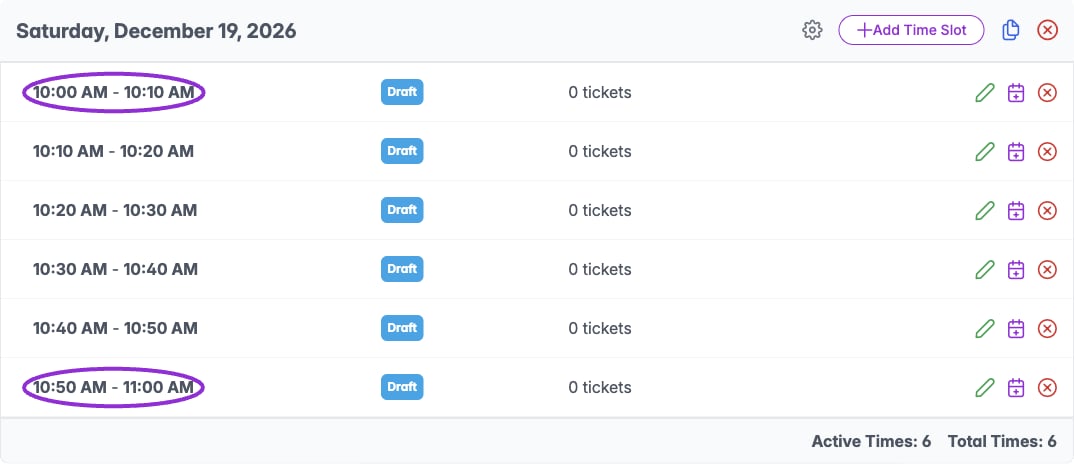
Each row is a separately bookable visit. Adding one 10:00–11:00 range creates one hour-long slot; it does not split it into 10-minute visits. Leave gaps between slots if Santa needs breaks or time to reset.
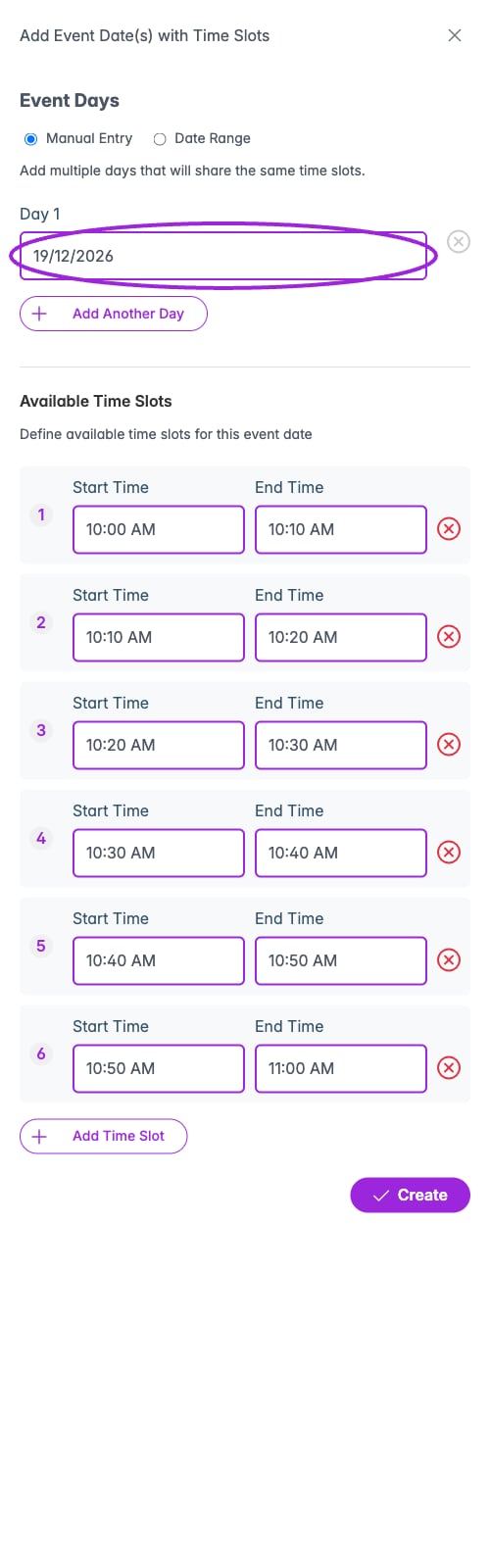 Select **Create**, save the event, and review the saved schedule. For more days with the same times, use **Add Another Day** or **Date Range** and select the appropriate weekdays.
 ## 3. Reserve each slot for one family
Return to **Event Details → Capacity & Bookings** and enable **Exclusive booking per time slot**. Save the event. The setting applies to all the event's time slots; change it on the main event rather than on an individual visit.
## 3. Reserve each slot for one family
Return to **Event Details → Capacity & Bookings** and enable **Exclusive booking per time slot**. Save the event. The setting applies to all the event's time slots; change it on the main event rather than on an individual visit.
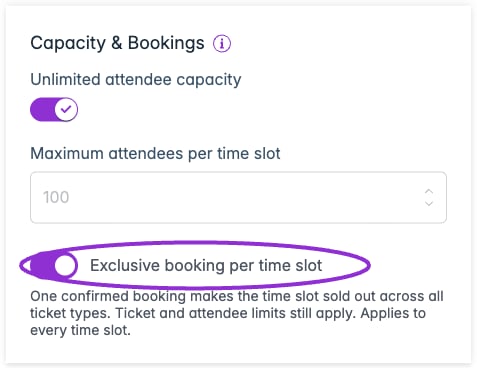 Leave **Unlimited attendee capacity** enabled if ticket limits are sufficient. If you need a combined maximum, turn it off and set **Maximum attendees per time slot**, for example **6** for six ticketed children across all age categories. Accompanying adults count only if they also have tickets that reserve capacity.
## 4. Add your ticket choices
Open **Tickets** and set your prices and quantities. You can offer a single child ticket or separate age-based tickets. All types share the same exclusive visit: they do not create separate family bookings at the same time.
The Demo event has two ticket choices:
| Ticket | Price | Inventory | Maximum per order |
| - | - | - | - |
| **Child visit** | **\$15** | **6** | **6** |
| **Accompanying adult** | **Free** | **6** | **6** |
Include all children and accompanying adults in the same family order. If you also set a combined attendee maximum of six, the total adult and child selection must fit within that limit.
Keep per-order limits appropriate for a single family. Explain whether parents need tickets and what the visit includes. See [ticket setup](/event-management/ticket-setup) for pricing and quantity controls.
## 5. Publish and check the booking experience
Preview the event and select the date. Confirm that visitors can choose **10:00, 10:10, 10:20, 10:30, 10:40, or 10:50**, and that the order summary uses the selected time.
Publish only when your event is ready. Before opening real sales, verify with your own test booking that:
* One order can contain the family's permitted combination of tickets.
* A confirmed booking for 10:00 makes the whole 10:00–10:10 slot unavailable, even if only one child ticket was booked.
* Other time slots remain available.
* Cancelling all attendees reopens the slot. A refund alone or cancelling only one child does not.
### Completed Demo booking
We published this event and completed order **4KHAUYRU** for **one Child visit and one Accompanying adult** at **10:00–10:10 on 19 December 2026**. A 100% test discount reduced the total to **\$0**; no card was charged. The screenshots show the local Ticket Spot checkout connected to the saved Demo event.
Leave **Unlimited attendee capacity** enabled if ticket limits are sufficient. If you need a combined maximum, turn it off and set **Maximum attendees per time slot**, for example **6** for six ticketed children across all age categories. Accompanying adults count only if they also have tickets that reserve capacity.
## 4. Add your ticket choices
Open **Tickets** and set your prices and quantities. You can offer a single child ticket or separate age-based tickets. All types share the same exclusive visit: they do not create separate family bookings at the same time.
The Demo event has two ticket choices:
| Ticket | Price | Inventory | Maximum per order |
| - | - | - | - |
| **Child visit** | **\$15** | **6** | **6** |
| **Accompanying adult** | **Free** | **6** | **6** |
Include all children and accompanying adults in the same family order. If you also set a combined attendee maximum of six, the total adult and child selection must fit within that limit.
Keep per-order limits appropriate for a single family. Explain whether parents need tickets and what the visit includes. See [ticket setup](/event-management/ticket-setup) for pricing and quantity controls.
## 5. Publish and check the booking experience
Preview the event and select the date. Confirm that visitors can choose **10:00, 10:10, 10:20, 10:30, 10:40, or 10:50**, and that the order summary uses the selected time.
Publish only when your event is ready. Before opening real sales, verify with your own test booking that:
* One order can contain the family's permitted combination of tickets.
* A confirmed booking for 10:00 makes the whole 10:00–10:10 slot unavailable, even if only one child ticket was booked.
* Other time slots remain available.
* Cancelling all attendees reopens the slot. A refund alone or cancelling only one child does not.
### Completed Demo booking
We published this event and completed order **4KHAUYRU** for **one Child visit and one Accompanying adult** at **10:00–10:10 on 19 December 2026**. A 100% test discount reduced the total to **\$0**; no card was charged. The screenshots show the local Ticket Spot checkout connected to the saved Demo event.
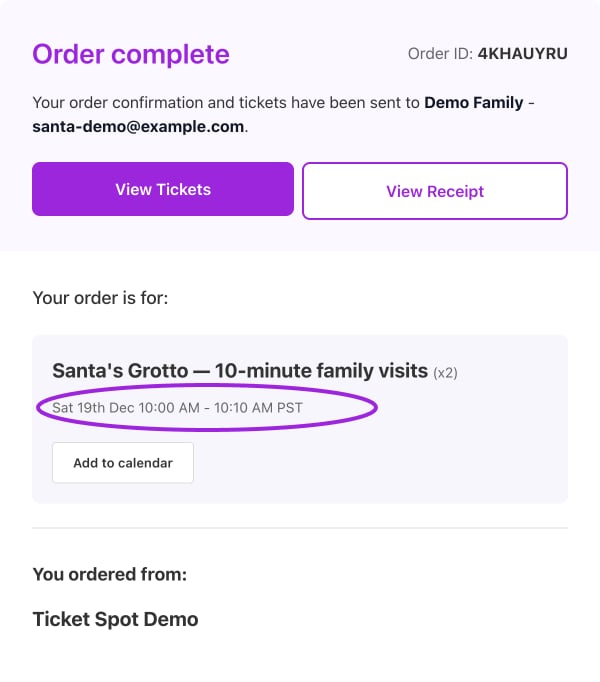 Opening checkout in a fresh browser session showed **10:00 sold out**, with **10:10, 10:20, 10:30, 10:40, and 10:50 still available**. Clicking the sold-out time could not advance to tickets; choosing 10:10 could. Only two tickets were booked, so the slot closed because of exclusive booking, not because its ticket inventory was exhausted.
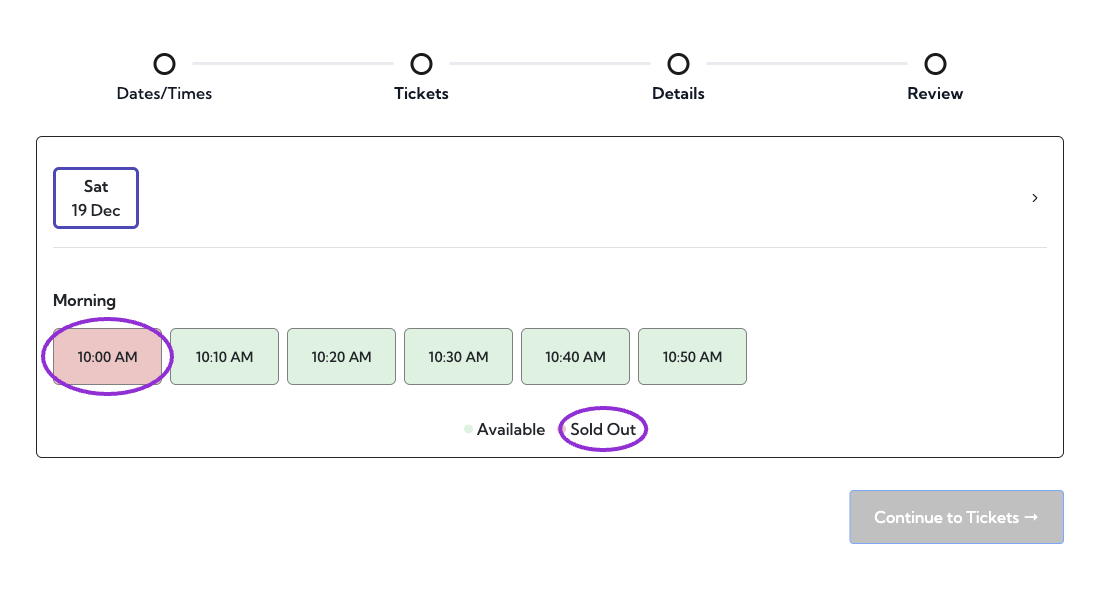 The Demo booking remains in place to show the blocked slot. Cancellation and reopening are separate checks; see [exclusive time-slot bookings](/bookings/exclusive-time-slots) for those rules and temporary checkout holds.
## Tell families what to expect
Use this wording on your event page or in your promotion:
> A little time just for your family. Choose a 10-minute visit with Santa and book all your children's tickets together. Once your booking is confirmed, that time is reserved for you.
## Related guides
* [How exclusive time-slot bookings work](/bookings/exclusive-time-slots)
* [Configure dates and times](/event-management/datetime)
* [Set up tickets](/event-management/ticket-setup)
* [Manage bookings and orders](/attendee-management/managing-orders)
This documentation is built and hosted on [Mintlify](https://mintlify.com), a developer documentation platform.
The Demo booking remains in place to show the blocked slot. Cancellation and reopening are separate checks; see [exclusive time-slot bookings](/bookings/exclusive-time-slots) for those rules and temporary checkout holds.
## Tell families what to expect
Use this wording on your event page or in your promotion:
> A little time just for your family. Choose a 10-minute visit with Santa and book all your children's tickets together. Once your booking is confirmed, that time is reserved for you.
## Related guides
* [How exclusive time-slot bookings work](/bookings/exclusive-time-slots)
* [Configure dates and times](/event-management/datetime)
* [Set up tickets](/event-management/ticket-setup)
* [Manage bookings and orders](/attendee-management/managing-orders)
This documentation is built and hosted on [Mintlify](https://mintlify.com), a developer documentation platform.