> ## Documentation Index
> Fetch the complete documentation index at: https://docs.ticketspotapp.com/llms.txt
> Use this file to discover all available pages before exploring further.
# Customize the attendee ticket page
> Control attendee editing, order details, ticket documents, and available actions on the attendee ticket page.
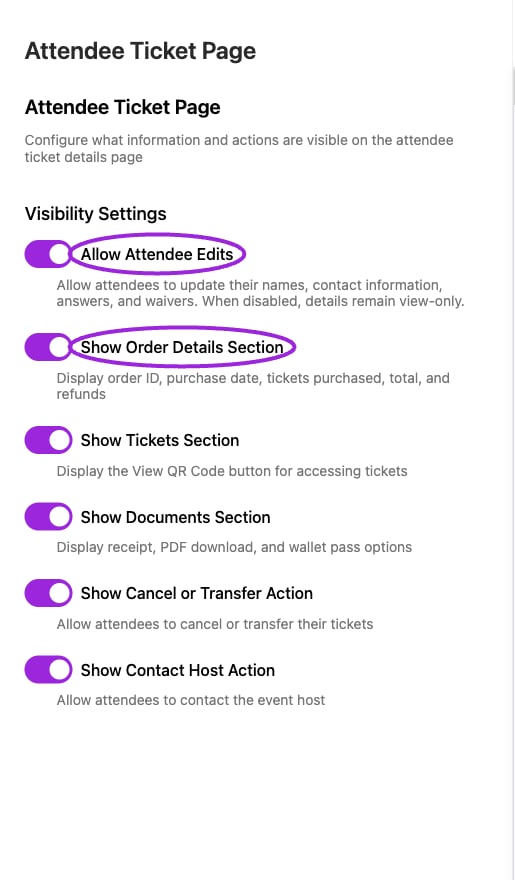
Use **Design → Attendee Ticket Page** to configure the information and actions attendees see when opening their ticket details. This design section is available on Business and higher.
## Configure visibility
 1. Select the correct site and open **Design**.
2. Select **Attendee Ticket Page**.
3. Under **Visibility Settings**, set the controls below.
4. Wait for **Successfully updated attendee page settings** after each change. These switches save immediately; a failed update restores the previous value.
| Option | Effect |
| - | - |
| **Allow Attendee Edits** | Allows editing names, contact information, answers, and waivers. When off, details are view-only. |
| **Show Order Details Section** | Displays order ID, purchase date, purchased tickets, total, and refunds. |
| **Show Tickets Section** | Displays the View QR Code control. |
| **Show Documents Section** | Displays receipt, PDF download, and wallet-pass options where available. |
| **Show Cancel or Transfer Action** | Displays the cancel/transfer action. Event eligibility and cancellation/transfer settings still matter. |
| **Show Contact Host Action** | Displays the option to contact the host. |
These settings control presentation. Showing a document section does not create a missing document or enable a feature excluded by the ticket or plan.
## Verify as an attendee
1. Select the correct site and open **Design**.
2. Select **Attendee Ticket Page**.
3. Under **Visibility Settings**, set the controls below.
4. Wait for **Successfully updated attendee page settings** after each change. These switches save immediately; a failed update restores the previous value.
| Option | Effect |
| - | - |
| **Allow Attendee Edits** | Allows editing names, contact information, answers, and waivers. When off, details are view-only. |
| **Show Order Details Section** | Displays order ID, purchase date, purchased tickets, total, and refunds. |
| **Show Tickets Section** | Displays the View QR Code control. |
| **Show Documents Section** | Displays receipt, PDF download, and wallet-pass options where available. |
| **Show Cancel or Transfer Action** | Displays the cancel/transfer action. Event eligibility and cancellation/transfer settings still matter. |
| **Show Contact Host Action** | Displays the option to contact the host. |
These settings control presentation. Showing a document section does not create a missing document or enable a feature excluded by the ticket or plan.
## Verify as an attendee
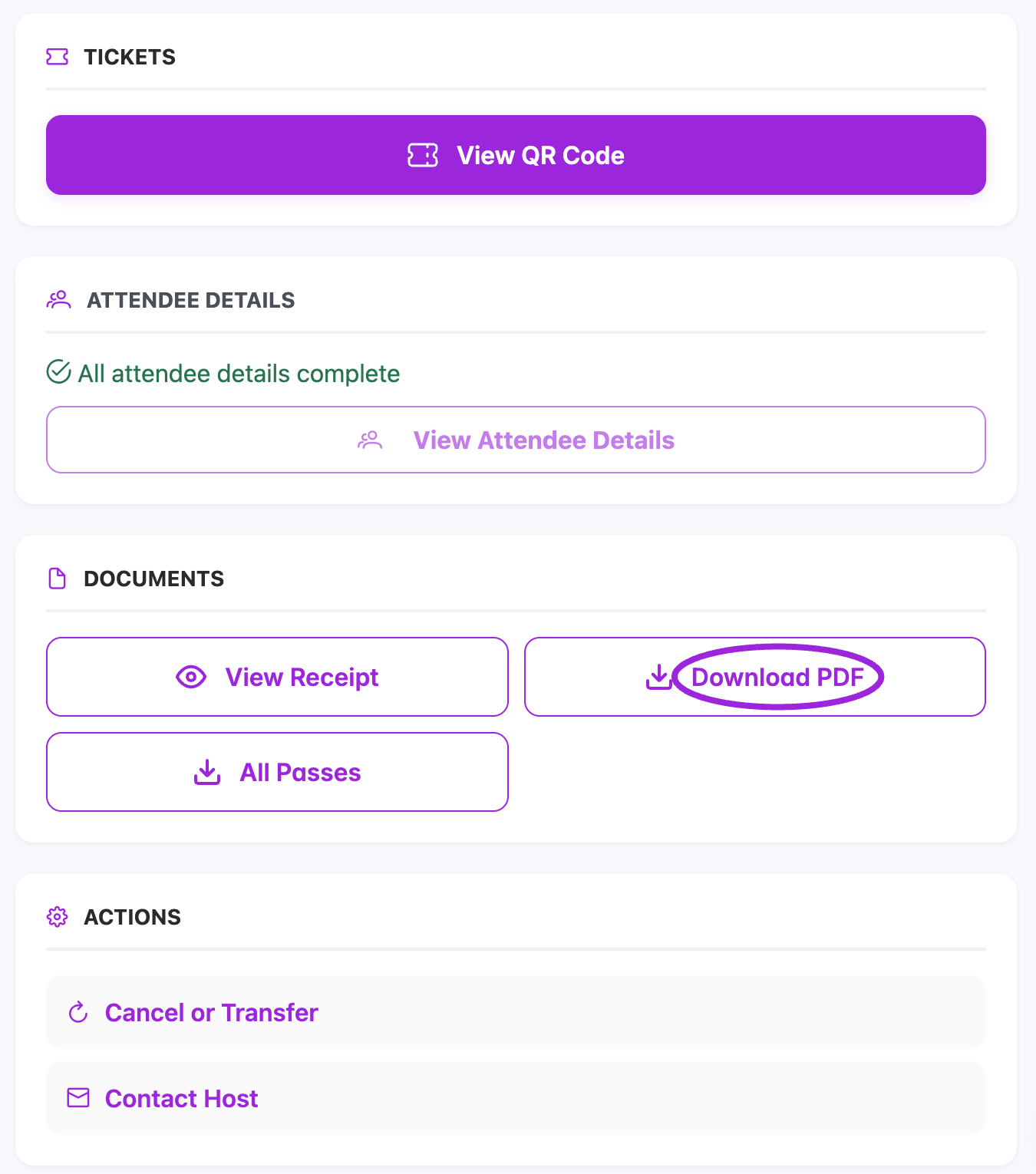 Open a test attendee's ticket page and check the visible sections. With edits disabled, confirm that details are view-only. If you hide Tickets or Documents, consider how attendees will otherwise obtain their QR code before the event.
## Related guides
* [Viewing tickets](../attendee-portal/viewing-your-tickets)
* [QR codes and wallets](../attendee-portal/qr-code-digital-wallets)
* [Cancel or transfer requests](../attendee-portal/cancel-transfer-event)
This documentation is built and hosted on [Mintlify](https://mintlify.com), a developer documentation platform.
Open a test attendee's ticket page and check the visible sections. With edits disabled, confirm that details are view-only. If you hide Tickets or Documents, consider how attendees will otherwise obtain their QR code before the event.
## Related guides
* [Viewing tickets](../attendee-portal/viewing-your-tickets)
* [QR codes and wallets](../attendee-portal/qr-code-digital-wallets)
* [Cancel or transfer requests](../attendee-portal/cancel-transfer-event)
This documentation is built and hosted on [Mintlify](https://mintlify.com), a developer documentation platform.