> ## Documentation Index
> Fetch the complete documentation index at: https://docs.ticketspotapp.com/llms.txt
> Use this file to discover all available pages before exploring further.
# Design your Ticket Spot experience
> Start with brand colors and a logo, then customize widgets, event pages, tickets, emails, and the attendee ticket page.
Set up **Brand** first so your widget and attendee emails use your brand colors. Basic brand identity is available on **all plans**. Individual design features, custom domains, and removal of Ticket Spot branding have their own plan requirements.
## Navigation
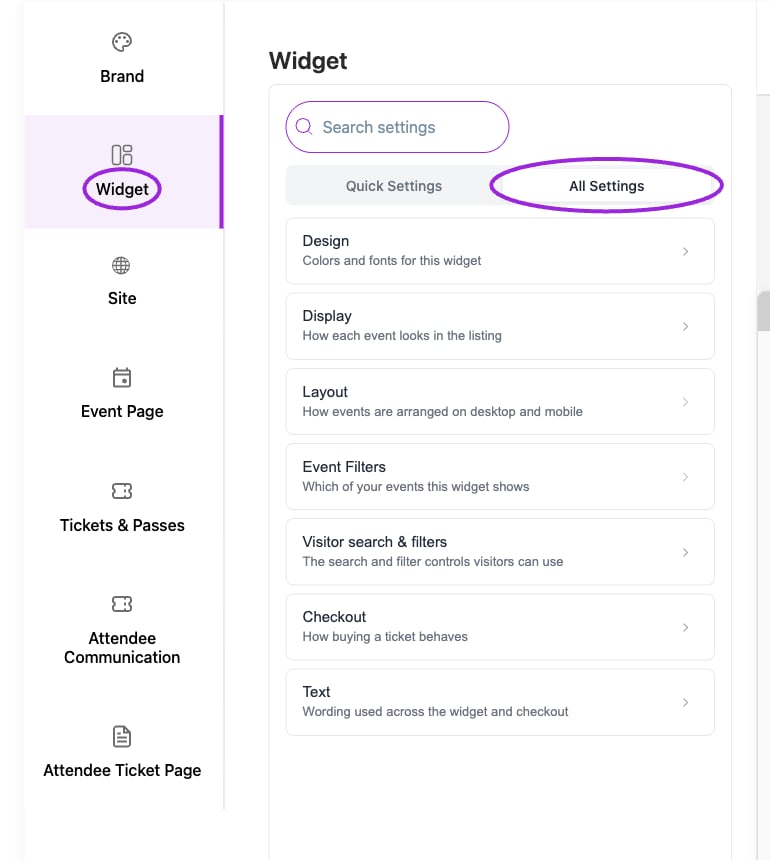
Choose the correct site, then click **Design** in the navigation. The sidebar contains these seven areas:
| Area | What to configure | Guide |
| - | - | - |
| **Brand** / **Brand Design** | Shared logo, primary color, text color, and brand font. Start here. | [Set up your brand](./brand-design) |
| **Widget** | Widget design, display, desktop/mobile layout, event filters, visitor search, checkout, and text. | [Widget customization](./widget-customization-overview) |
| **Site** | Site landing-page header image, heading, subheading, colors, and subscription section. | [Site design](./site-design) |
| **Event Page** | Hosted event-page buttons, colors, visible sections, sharing, and private-event messages. | [Event page design](./event-page-design) |
| **Tickets & Passes** | Ticket PDF, receipt PDF, membership PDF, Apple Pass, and Star/Boca print layouts. | [Tickets and passes](./tickets-and-passes) |
| **Attendee Communication** | Email templates, checkout-result screens, Shopify thank-you presentation, POS confirmation, and kiosk presentation. | [Communication design](./attendee-communication-design) |
| **Attendee Ticket Page** | Which details, documents, editing controls, and actions attendees can see. | [Attendee ticket page](./attendee-ticket-page) |
## Recommended setup order
1. Upload your logo and set your colors in **Brand**.
2. Review the Widget, Event Page, Email, and Apple Wallet brand previews. Not every surface uses the same font or styling controls.
3. Configure **Widget**, then the **Site** and **Event Page** surfaces you use.
4. Configure tickets/passes and attendee communication.
5. Review the attendee ticket page and make a test registration to check the complete experience.
## Preview and save
Use **Desktop Preview** and **Mobile Preview** where offered. A preview is a way to inspect presentation, not evidence that a payment, email, or check-in has been completed. Most design field changes save automatically; wait for the update to finish before leaving. Custom ticket layouts use their own **Save** button. Brand color changes and attendee ticket-page visibility switches report their result.
Some previews depend on an existing event. Create an event first if an event preview is empty. Shopify Thank You Page and Self Check-In Kiosk do not have the same template preview as emails; inspect those surfaces in their actual flow.
For the detailed field inventory across the design templates, see [Design option reference](./design-options-reference).
## Find every control
Start with [Quick Settings](./quick-settings), or use **Search settings** and **All Settings** in the widget editor. The [widget overview](./widget-customization-overview) links every category's option reference. Use [Multilingual communications](./multilingual-communications) for attendee-language email/ticket text and the [design option reference](./design-options-reference) for non-widget surfaces.
## Current controls
 This documentation is built and hosted on [Mintlify](https://mintlify.com), a developer documentation platform.