> ## Documentation Index
> Fetch the complete documentation index at: https://docs.ticketspotapp.com/llms.txt
> Use this file to discover all available pages before exploring further.
# Design tickets, membership passes, and printed tickets
> Choose and customize ticket PDFs, receipt PDFs, membership PDFs, Apple passes, and Star or Boca print layouts.
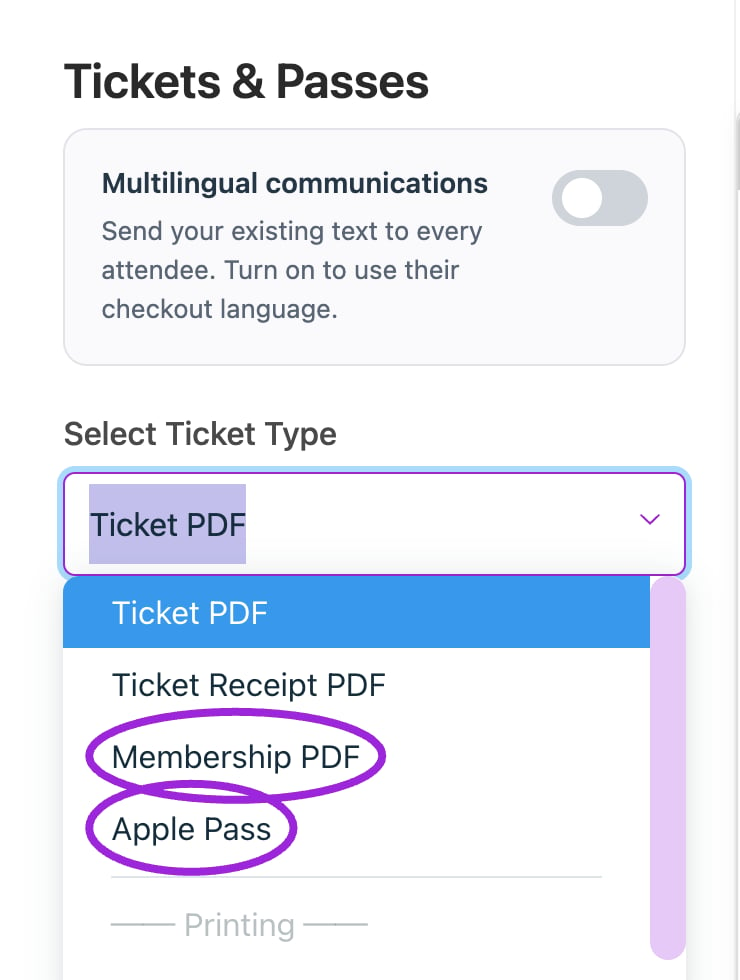
Open **Design → Tickets & Passes**, then choose **Select Ticket Type**. Each option controls a different document or pass; changing one does not mean every other format changes with it.
## Choose a format
 | Select Ticket Type | What it controls |
| - | - |
| **Ticket PDF** | The attendee ticket PDF, with basic display settings and the custom ticket designer where enabled. |
| **Ticket Receipt PDF** | Receipt details and labels, including customer, order date, payment, tax, and total. |
| **Membership PDF** | Membership identification, validity, QR code, benefits, and related labels. |
| **Apple Pass** | Visibility of venue, date/time, ticket, attendee, QR code, logo, and site name on the pass. |
| **Star MC Print3** | The Star thermal ticket layout. |
| **Boca Printer** | The Boca ticket layout. |
Selecting a print design does not connect a printer. Match the format to the printer used at your venue and test a physical print before event day.
## Ticket PDF
| Select Ticket Type | What it controls |
| - | - |
| **Ticket PDF** | The attendee ticket PDF, with basic display settings and the custom ticket designer where enabled. |
| **Ticket Receipt PDF** | Receipt details and labels, including customer, order date, payment, tax, and total. |
| **Membership PDF** | Membership identification, validity, QR code, benefits, and related labels. |
| **Apple Pass** | Visibility of venue, date/time, ticket, attendee, QR code, logo, and site name on the pass. |
| **Star MC Print3** | The Star thermal ticket layout. |
| **Boca Printer** | The Boca ticket layout. |
Selecting a print design does not connect a printer. Match the format to the printer used at your venue and test a physical print before event day.
## Ticket PDF
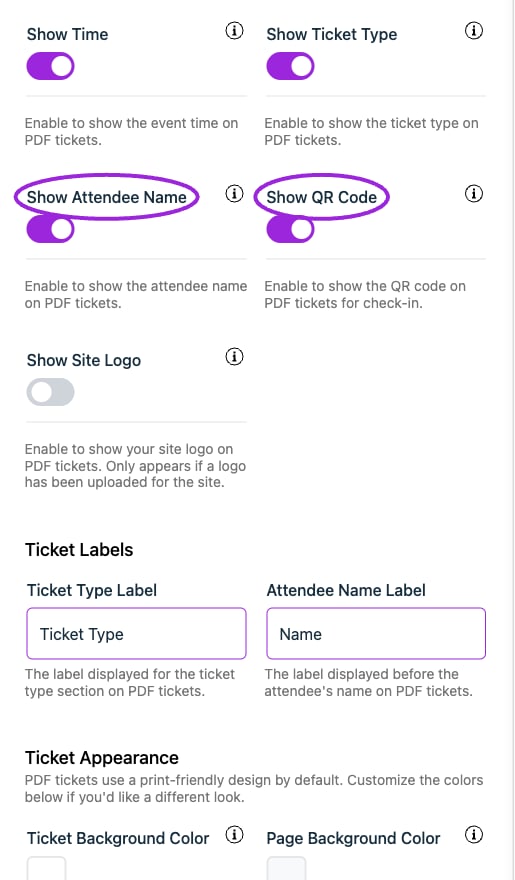 Use the basic controls to show or hide venue, date, time, ticket type, attendee name, QR code, and site logo. Customize the ticket-type and attendee-name labels, ticket/page backgrounds, event-name and detail text colors, and shadow.
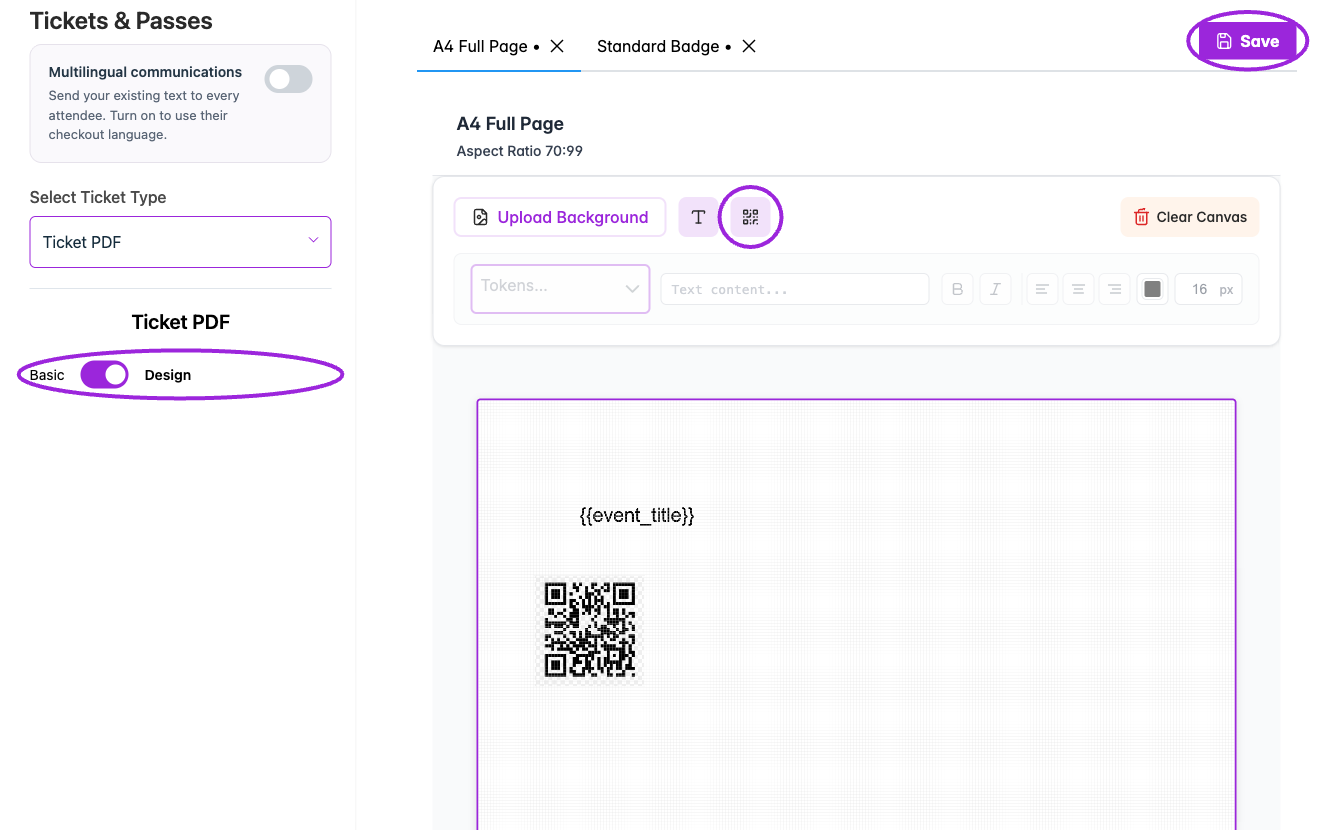
For a custom design on Business Plus, switch to **Design**, choose a print-format tab, and arrange text, QR codes, and a background on its canvas. The selected format supplies the dimensions. Personalization tokens insert event and attendee details; retain them rather than replacing them with one test attendee's name. Click the designer's **Save** button and verify an actual PDF. See the [custom designer walkthrough](./ticket-and-receipt-attachment-design#custom-ticket-designer).
Use the basic controls to show or hide venue, date, time, ticket type, attendee name, QR code, and site logo. Customize the ticket-type and attendee-name labels, ticket/page backgrounds, event-name and detail text colors, and shadow.
For a custom design on Business Plus, switch to **Design**, choose a print-format tab, and arrange text, QR codes, and a background on its canvas. The selected format supplies the dimensions. Personalization tokens insert event and attendee details; retain them rather than replacing them with one test attendee's name. Click the designer's **Save** button and verify an actual PDF. See the [custom designer walkthrough](./ticket-and-receipt-attachment-design#custom-ticket-designer).
 ## Membership PDF
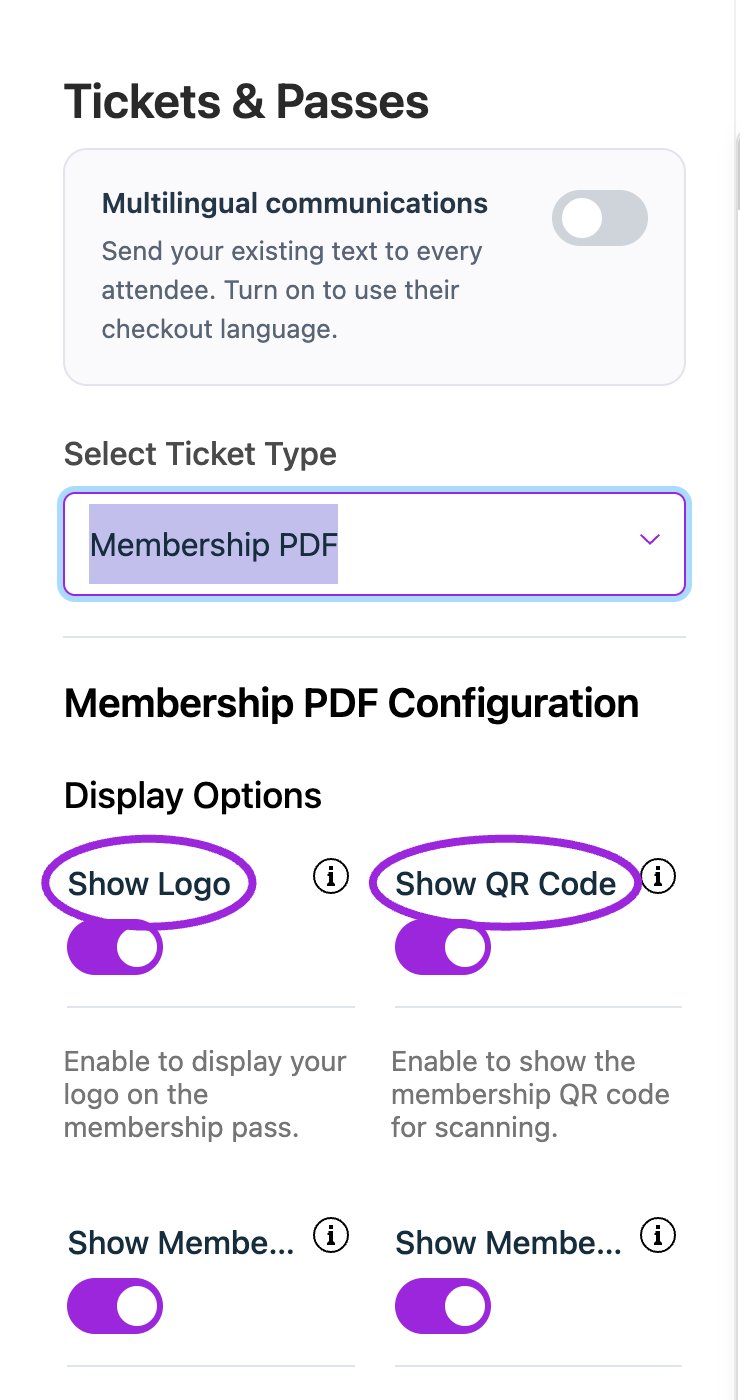 1. Choose **Membership PDF**.
2. Set visibility for logo, QR code, member email, member number, valid-from date, benefits, and footer note.
3. Set the header, QR, member-number, status, valid-from/until, access, entries-per-event, benefits, and footer labels.
4. Wait for the settings update and inspect a test member's PDF.
1. Choose **Membership PDF**.
2. Set visibility for logo, QR code, member email, member number, valid-from date, benefits, and footer note.
3. Set the header, QR, member-number, status, valid-from/until, access, entries-per-event, benefits, and footer labels.
4. Wait for the settings update and inspect a test member's PDF.
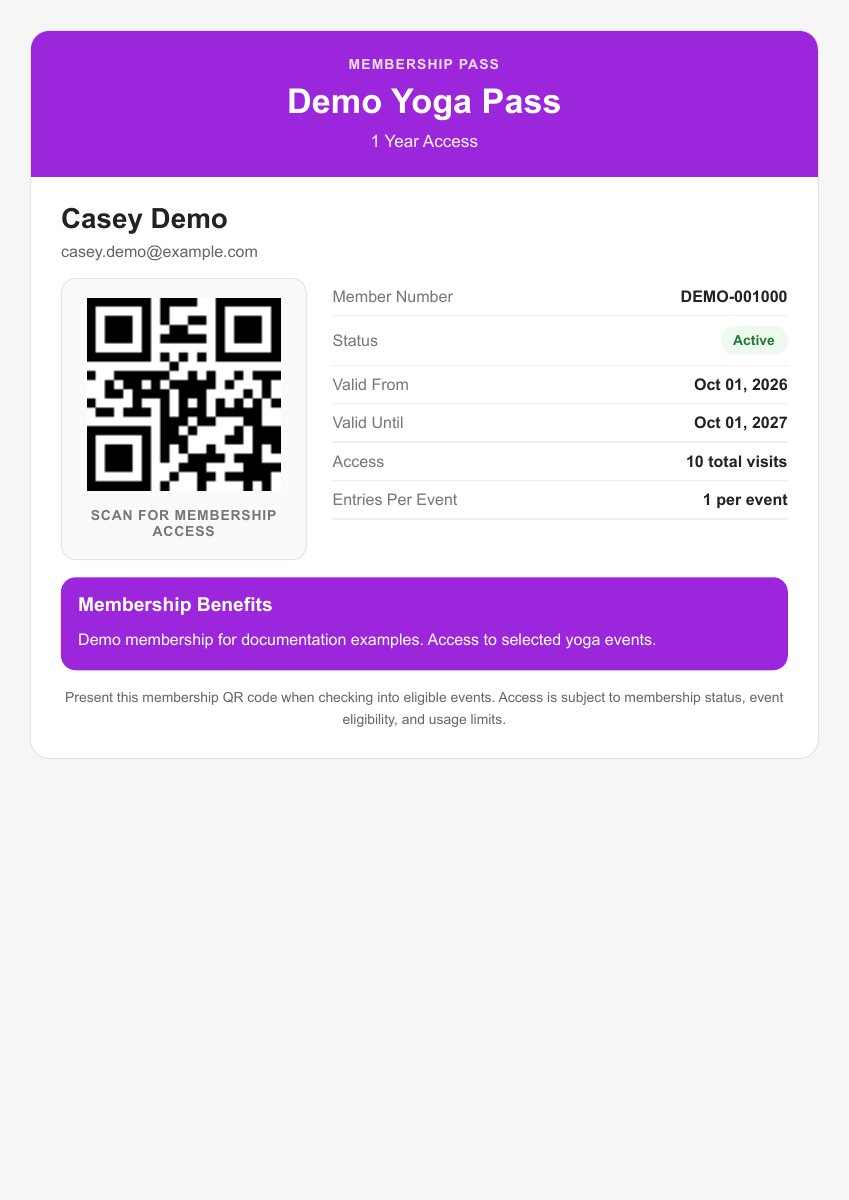 The design labels do not change membership duration or visit allowances. Configure those in [Memberships](../memberships/create-membership).
## Save and test delivery
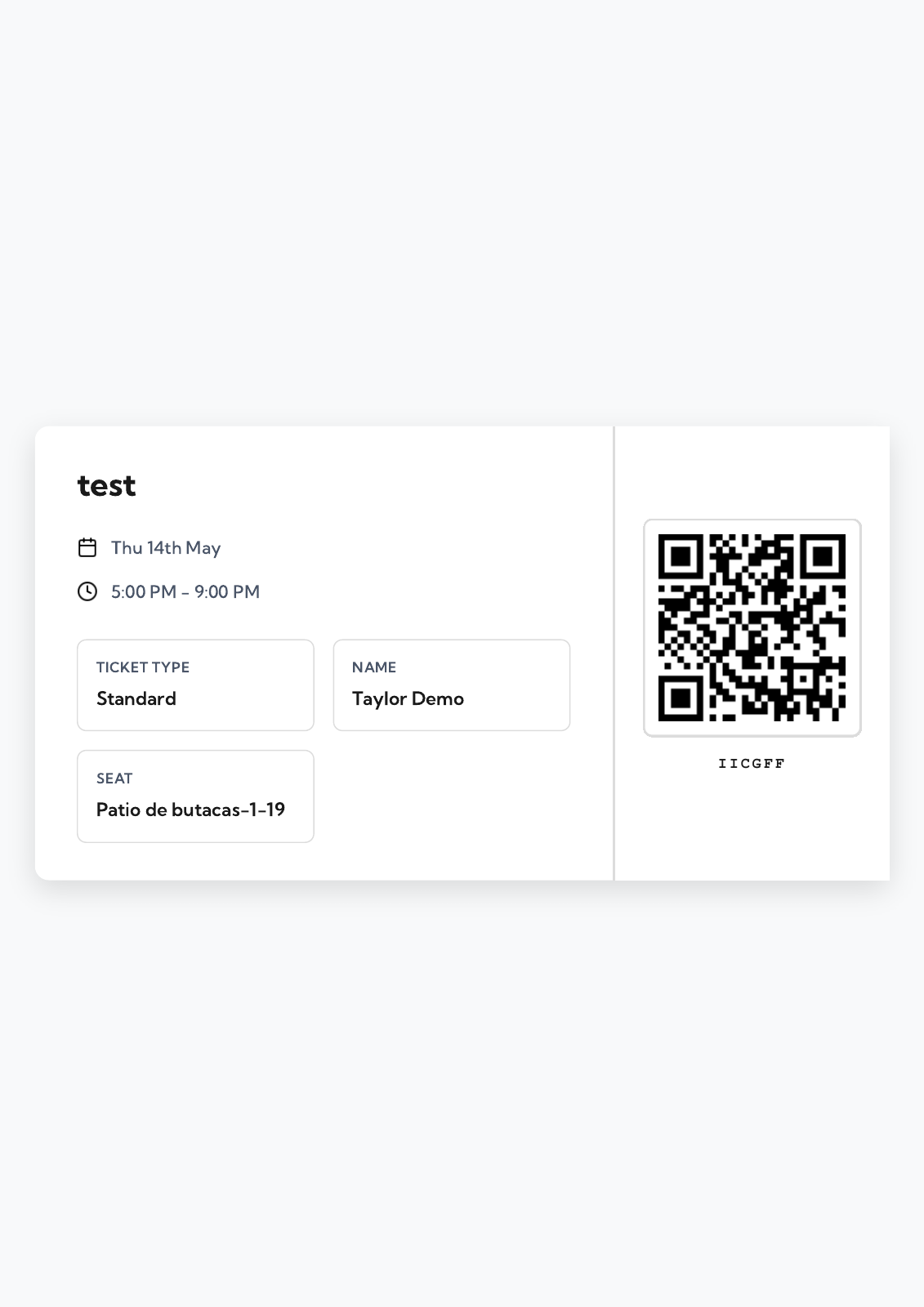
Wait for the settings update to finish and inspect the selected preview. Download a real test ticket, receipt, or membership PDF to verify actual data and legibility. Keep QR codes large and clear enough to scan. Check the pass on a device and printed tickets on the actual printer.
See [Ticket and receipt attachment design](./ticket-and-receipt-attachment-design) for the existing field walkthrough and [Design option reference](./design-options-reference) for the complete template option list.
This documentation is built and hosted on [Mintlify](https://mintlify.com), a developer documentation platform.
The design labels do not change membership duration or visit allowances. Configure those in [Memberships](../memberships/create-membership).
## Save and test delivery
Wait for the settings update to finish and inspect the selected preview. Download a real test ticket, receipt, or membership PDF to verify actual data and legibility. Keep QR codes large and clear enough to scan. Check the pass on a device and printed tickets on the actual printer.
See [Ticket and receipt attachment design](./ticket-and-receipt-attachment-design) for the existing field walkthrough and [Design option reference](./design-options-reference) for the complete template option list.
This documentation is built and hosted on [Mintlify](https://mintlify.com), a developer documentation platform.