> ## Documentation Index
> Fetch the complete documentation index at: https://docs.ticketspotapp.com/llms.txt
> Use this file to discover all available pages before exploring further.
# Widget display options reference
> Find every display control for event listings, dates, images, recurring sessions, checkout steps, memberships, and add-ons.
Open **Design → Widget → All Settings → Display**. Use the section names below or **Search settings**. These controls affect presentation and selection flow; configure ticket prices, capacity, and sales windows in the event editor.
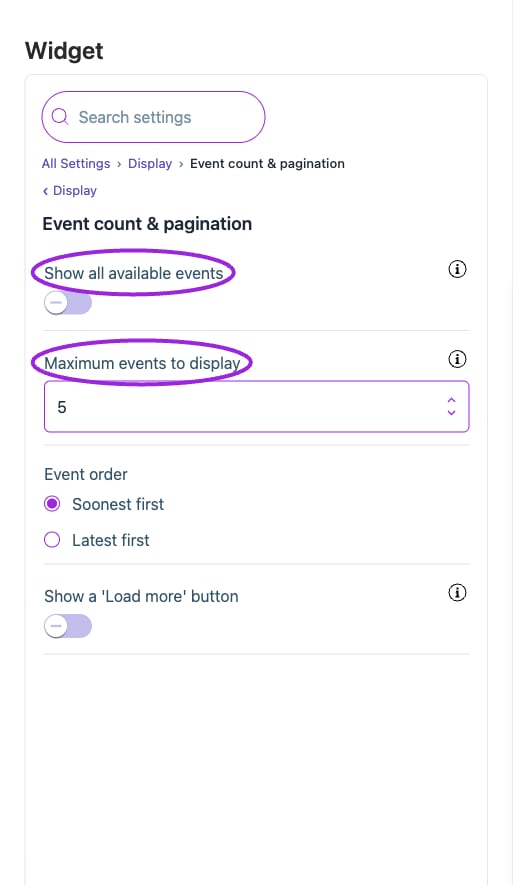
**Show all available events** overrides **Maximum events to display**, but still respects the site's plan limit and event filters. **Show a 'Load more' button** reveals **Events per load**; it does not increase those limits. Turning on **Show every occurrence of a recurring event** changes which dates are listed.
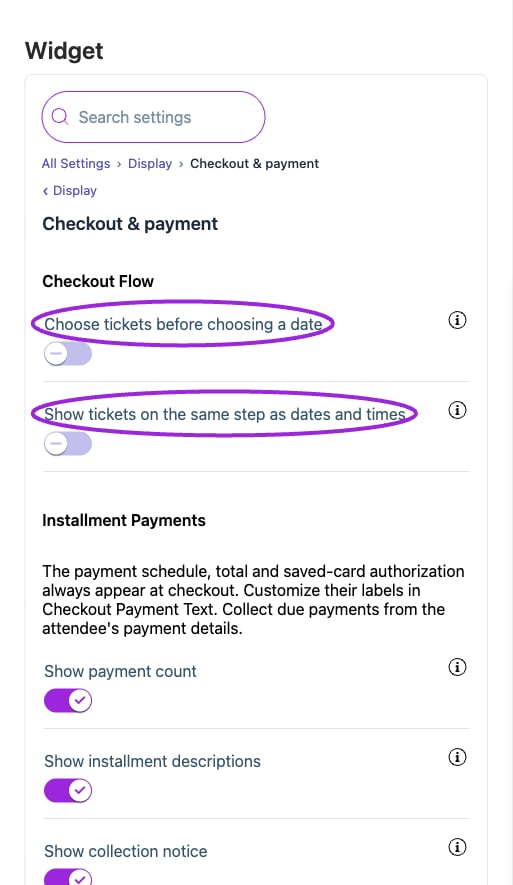
**Choose tickets before choosing a date** takes priority over **Show tickets on the same step as dates and times**. Both apply to events requiring a date/time selection. With ticket-first selection, dates must have availability for all chosen ticket types. Date-first combined checkout displays tickets below the selected date/time.
For a multi-session event, **Offer an all-sessions pass** and **Offer single sessions** control the choices presented. If both are off, checkout selects the all-sessions option and skips date/time selection. Verify that choice against the event's [whole-event pass setup](/event-management/day-specific-tickets).
Some settings appear only after a related option is enabled: end time and time format need start time; city needs venue; event-link wording needs an event link; add-on, membership, and installment presentation needs the corresponding feature on the event. Optional installment notices do not remove the mandatory payment schedule and authorization.
## Checkout & payment
 | Option | Control | What it changes |
| - | - | - |
| **Choose tickets before choosing a date** | Setting | For series/recurring events with date/time selection, allow customers to select ticket types and quantities first (e.g., 2x Overnight, 1x General Admission) before choosing a date/time. Only dates where ALL selected tickets are available will be shown. NOTE: This feature only works for events that require date/time selection (series, recurring, or time-based events). Disabled by default. |
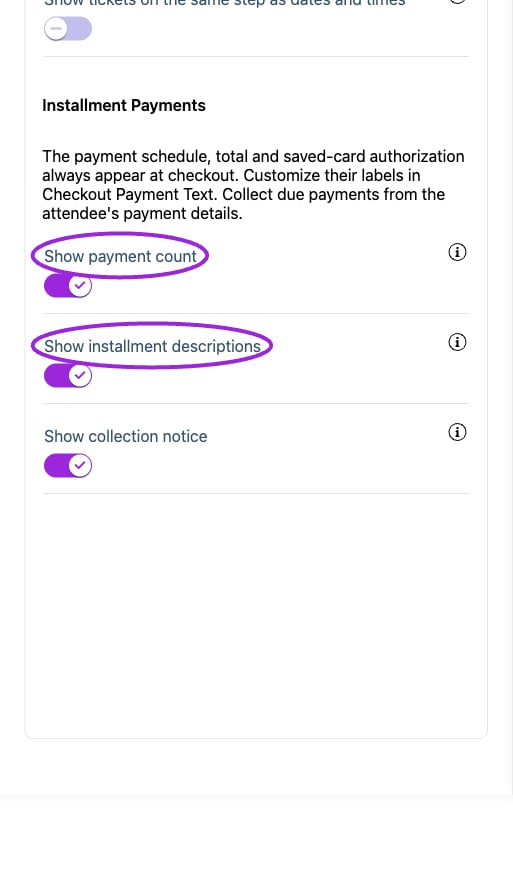
| **Show collection notice** | Setting | Show your optional collection notice alongside the mandatory payment schedule and authorization. |
| **Show installment descriptions** | Setting | Show the descriptions configured in each ticket's installment plan. |
| **Show payment count** | Setting | Show the number of payments for each ticket plan. |
| **Show tickets on the same step as dates and times** | Setting | Put date, time and ticket selection on one checkout step: once a visitor picks a date and time, the tickets for it appear below instead of on a separate step. Only applies to events that ask for a date and time, and not when 'Choose tickets before choosing a date' is on. |
## Date & time
| Option | Control | What it changes |
| - | - | - |
| **Choose tickets before choosing a date** | Setting | For series/recurring events with date/time selection, allow customers to select ticket types and quantities first (e.g., 2x Overnight, 1x General Admission) before choosing a date/time. Only dates where ALL selected tickets are available will be shown. NOTE: This feature only works for events that require date/time selection (series, recurring, or time-based events). Disabled by default. |
| **Show collection notice** | Setting | Show your optional collection notice alongside the mandatory payment schedule and authorization. |
| **Show installment descriptions** | Setting | Show the descriptions configured in each ticket's installment plan. |
| **Show payment count** | Setting | Show the number of payments for each ticket plan. |
| **Show tickets on the same step as dates and times** | Setting | Put date, time and ticket selection on one checkout step: once a visitor picks a date and time, the tickets for it appear below instead of on a separate step. Only applies to events that ask for a date and time, and not when 'Choose tickets before choosing a date' is on. |
## Date & time
 | Option | Control | What it changes |
| - | - | - |
| **Convert times to the visitor's timezone** | Setting | Shows each event in the timezone of whoever is viewing it, rather than the timezone it was created in. |
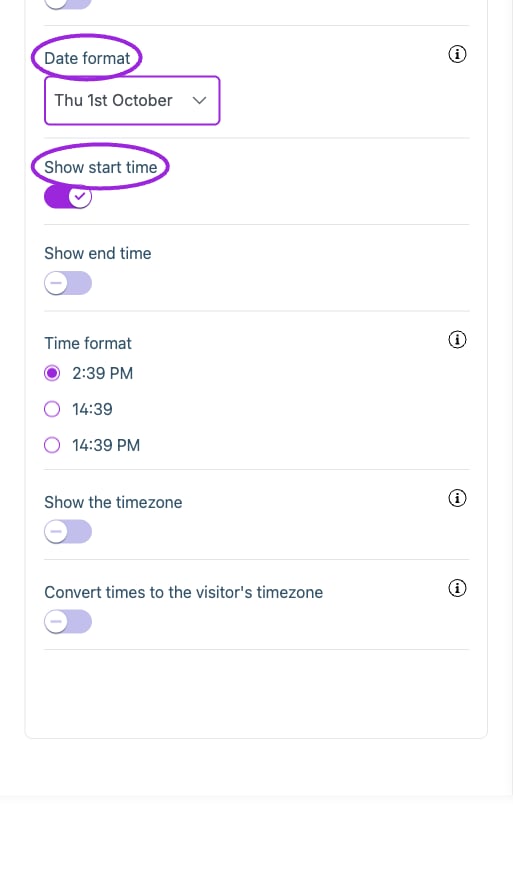
| **Date format** | Setting | How event dates are written in the listing. Options are shown using today's date. |
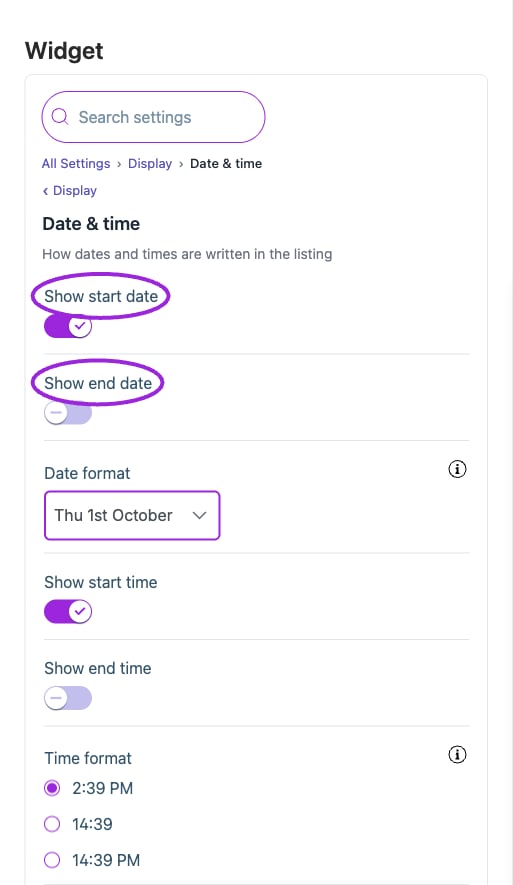
| **Show end date** | Setting | Show the event's end date in the widget listing. |
| **Show end time** | Setting | Show the event's end time in the widget listing. |
| **Show start date** | Setting | Show the event's start date in the widget listing. |
| **Show start time** | Setting | Show the event's start time in the widget listing. |
| **Show the timezone** | Setting | Adds the event's timezone next to the time, e.g. '7:00 PM EST'. |
| **Time format** | Setting | How event times are written. Options are shown using the current time. |
## Event count & pagination
| Option | Control | What it changes |
| - | - | - |
| **Convert times to the visitor's timezone** | Setting | Shows each event in the timezone of whoever is viewing it, rather than the timezone it was created in. |
| **Date format** | Setting | How event dates are written in the listing. Options are shown using today's date. |
| **Show end date** | Setting | Show the event's end date in the widget listing. |
| **Show end time** | Setting | Show the event's end time in the widget listing. |
| **Show start date** | Setting | Show the event's start date in the widget listing. |
| **Show start time** | Setting | Show the event's start time in the widget listing. |
| **Show the timezone** | Setting | Adds the event's timezone next to the time, e.g. '7:00 PM EST'. |
| **Time format** | Setting | How event times are written. Options are shown using the current time. |
## Event count & pagination
 | Option | Control | What it changes |
| - | - | - |
| **Event order** | Setting | Choose Soonest first or Latest first. |
| **Events per load** | Setting | How many more events each click of the button loads. |
| **Maximum events to display** | Setting | A fixed number of events to show. The listing never displays more than this. |
| **Show a 'Load more' button** | Setting | Shows a few events at a time with a button to load the rest, instead of the whole listing at once. |
| **Show all available events** | Setting | Shows every event available to this widget, ignoring the maximum below. |
## Event description
| Option | Control | What it changes |
| - | - | - |
| **Event order** | Setting | Choose Soonest first or Latest first. |
| **Events per load** | Setting | How many more events each click of the button loads. |
| **Maximum events to display** | Setting | A fixed number of events to show. The listing never displays more than this. |
| **Show a 'Load more' button** | Setting | Shows a few events at a time with a button to load the rest, instead of the whole listing at once. |
| **Show all available events** | Setting | Shows every event available to this widget, ignoring the maximum below. |
## Event description
 | Option | Control | What it changes |
| - | - | - |
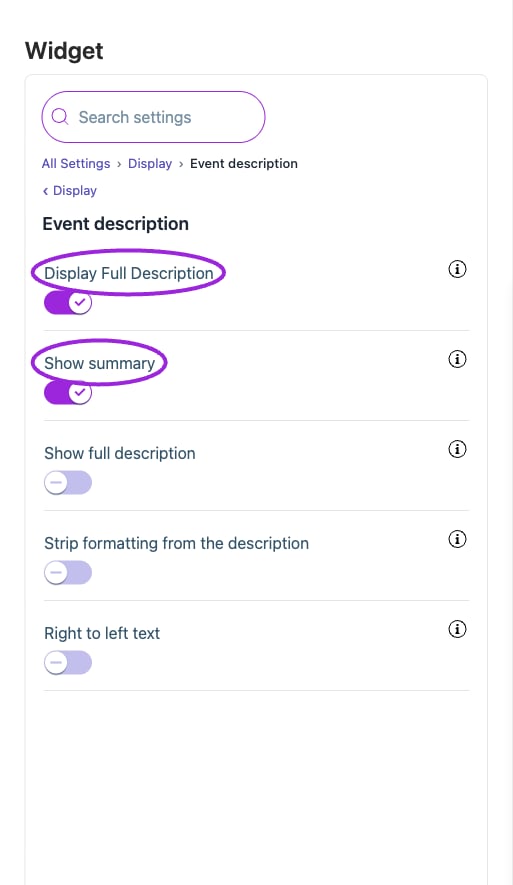
| **Description length (characters)** | Setting | Use the slider to determine how many characters of the description you'd like to display |
| **Display Full Description** | Setting | Show the complete event description. |
| **Enable 'Show More' Button** | Setting | Toggle this option to include a 'Show More' button when there is additional text beyond the character limit that users can view. |
| **Right to left text** | Setting | Enable right-to-left text direction for languages such as Arabic or Hebrew. |
| **Show full description** | Setting | Since Eventbrite has a summary and description input you can choose to also display the description |
| **Show summary** | Setting | If your event app (such as Eventbrite) has a summary feature then you can enable it |
| **Strip formatting from the description** | Setting | Ignore any bold, links or other HTML in the event description and show it as plain text. |
| **What the 'More' button does** | Setting | Choose whether you'd like the 'More' button to reveal additional description text or link directly to the event URL when clicked. |
## Event details
| Option | Control | What it changes |
| - | - | - |
| **Description length (characters)** | Setting | Use the slider to determine how many characters of the description you'd like to display |
| **Display Full Description** | Setting | Show the complete event description. |
| **Enable 'Show More' Button** | Setting | Toggle this option to include a 'Show More' button when there is additional text beyond the character limit that users can view. |
| **Right to left text** | Setting | Enable right-to-left text direction for languages such as Arabic or Hebrew. |
| **Show full description** | Setting | Since Eventbrite has a summary and description input you can choose to also display the description |
| **Show summary** | Setting | If your event app (such as Eventbrite) has a summary feature then you can enable it |
| **Strip formatting from the description** | Setting | Ignore any bold, links or other HTML in the event description and show it as plain text. |
| **What the 'More' button does** | Setting | Choose whether you'd like the 'More' button to reveal additional description text or link directly to the event URL when clicked. |
## Event details
 | Option | Control | What it changes |
| - | - | - |
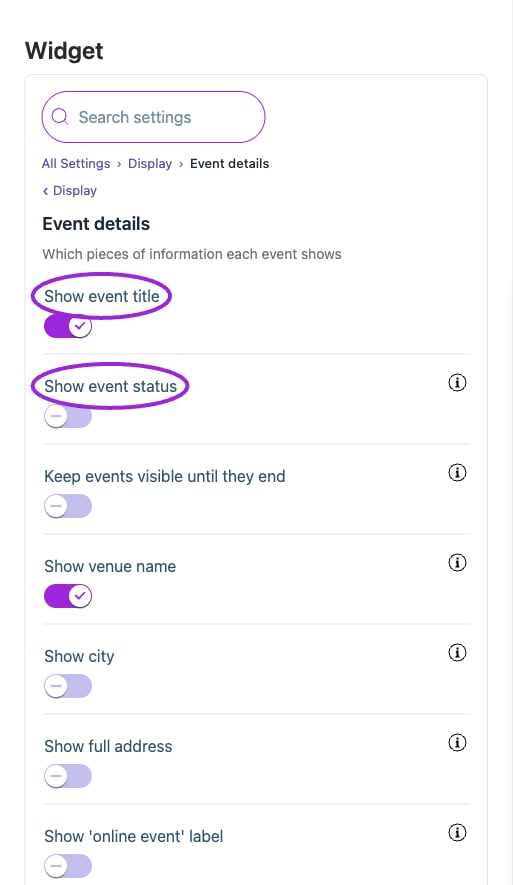
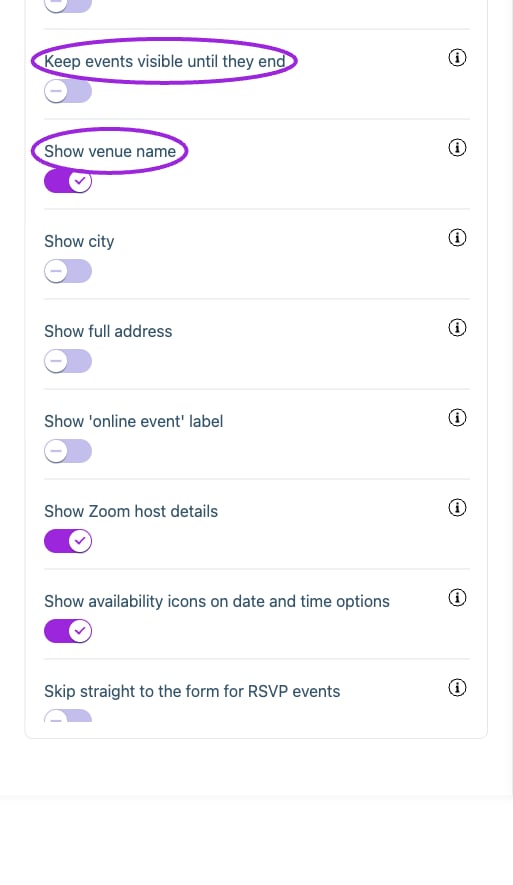
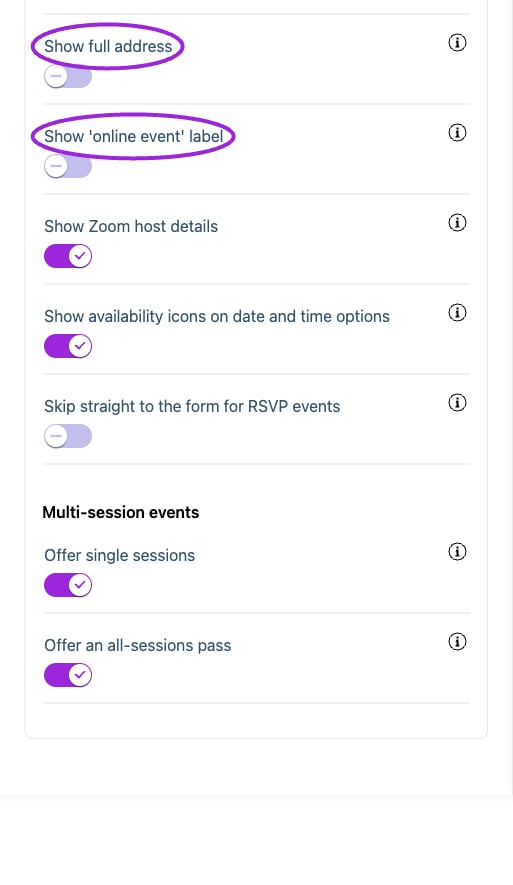
| **Keep events visible until they end** | Setting | Keep an event in the listing while it is running, instead of removing it once it has started. |
| **Offer an all-sessions pass** | Setting | Let customers buy access to every session at once, such as a full weekend pass. If both this and the single-session option are off, an all-sessions pass is selected automatically and date and time selection is skipped. |
| **Offer single sessions** | Setting | Let customers buy an individual session, such as one day of a festival. If both this and the all-sessions option are off, an all-sessions pass is selected automatically and date and time selection is skipped. |
| **Show 'online event' label** | Setting | Choose whether to display a label indicating that the event is online when it is indeed an online event. |
| **Show availability icons on date and time options** | Setting | Mark each date or time option as on sale or sold out when visitors choose one. |
| **Show city** | Setting | Add the city to the venue name |
| **Show event status** | Setting | Enable the display of the event status, indicating whether it's 'on sale' or 'postponed'. |
| **Show event title** | Setting | Show the event title in the widget listing. |
| **Show full address** | Setting | Replace the venue name with its complete address |
| **Show venue name** | Setting | Show only the name of the venue |
| **Show Zoom host details** | Setting | Show who is hosting the Zoom meeting for online events. |
| **Skip straight to the form for RSVP events** | Setting | For RSVP events, show only the form instead of taking visitors through the usual checkout steps. |
## Header & actions
| Option | Control | What it changes |
| - | - | - |
| **Keep events visible until they end** | Setting | Keep an event in the listing while it is running, instead of removing it once it has started. |
| **Offer an all-sessions pass** | Setting | Let customers buy access to every session at once, such as a full weekend pass. If both this and the single-session option are off, an all-sessions pass is selected automatically and date and time selection is skipped. |
| **Offer single sessions** | Setting | Let customers buy an individual session, such as one day of a festival. If both this and the all-sessions option are off, an all-sessions pass is selected automatically and date and time selection is skipped. |
| **Show 'online event' label** | Setting | Choose whether to display a label indicating that the event is online when it is indeed an online event. |
| **Show availability icons on date and time options** | Setting | Mark each date or time option as on sale or sold out when visitors choose one. |
| **Show city** | Setting | Add the city to the venue name |
| **Show event status** | Setting | Enable the display of the event status, indicating whether it's 'on sale' or 'postponed'. |
| **Show event title** | Setting | Show the event title in the widget listing. |
| **Show full address** | Setting | Replace the venue name with its complete address |
| **Show venue name** | Setting | Show only the name of the venue |
| **Show Zoom host details** | Setting | Show who is hosting the Zoom meeting for online events. |
| **Skip straight to the form for RSVP events** | Setting | For RSVP events, show only the form instead of taking visitors through the usual checkout steps. |
## Header & actions
 | Option | Control | What it changes |
| - | - | - |
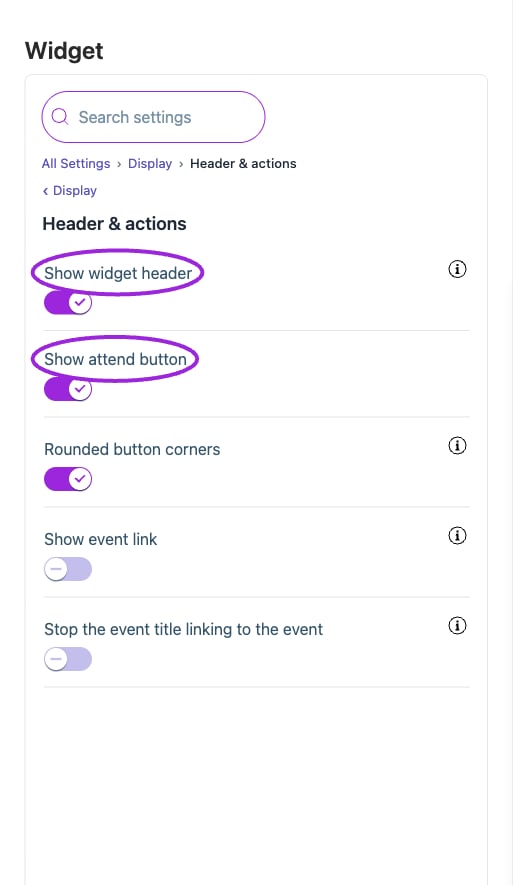
| **Event link label** | Setting | Customize the label shown for the event link. |
| **Rounded button corners** | Setting | Choose whether to display the attend button with rounded or square corners. |
| **Show attend button** | Setting | Turn on to show the attend/buy button; turn off to hide it. |
| **Show event link** | Setting | Show a link to the event page or Shopify product if a URL is available. |
| **Show widget header** | Setting | Choose whether to include a header at the top of the widget. |
| **Stop the event title linking to the event** | Setting | By default the event title is a link to the event page. Turn this on to show the title as plain text. |
## Hosts & attendees
| Option | Control | What it changes |
| - | - | - |
| **Event link label** | Setting | Customize the label shown for the event link. |
| **Rounded button corners** | Setting | Choose whether to display the attend button with rounded or square corners. |
| **Show attend button** | Setting | Turn on to show the attend/buy button; turn off to hide it. |
| **Show event link** | Setting | Show a link to the event page or Shopify product if a URL is available. |
| **Show widget header** | Setting | Choose whether to include a header at the top of the widget. |
| **Stop the event title linking to the event** | Setting | By default the event title is a link to the event page. Turn this on to show the title as plain text. |
## Hosts & attendees
 | Option | Control | What it changes |
| - | - | - |
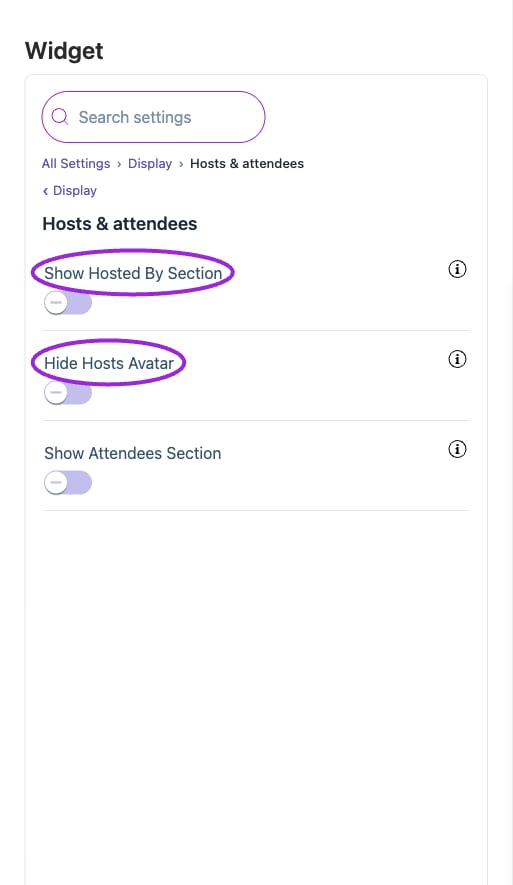
| **Attendees Label** | Setting | Label text for the attendees section |
| **Hide Hosts Avatar** | Setting | Hide the host’s avatar and show only their name. |
| **Hosted By Label** | Setting | Label text for the host/organizer section |
| **Show Attendees Section** | Setting | Display the list of attendees or attendee count on the widget. |
| **Show Hosted By Section** | Setting | Display the event host/organizer information on the widget. |
## Images
| Option | Control | What it changes |
| - | - | - |
| **Attendees Label** | Setting | Label text for the attendees section |
| **Hide Hosts Avatar** | Setting | Hide the host’s avatar and show only their name. |
| **Hosted By Label** | Setting | Label text for the host/organizer section |
| **Show Attendees Section** | Setting | Display the list of attendees or attendee count on the widget. |
| **Show Hosted By Section** | Setting | Display the event host/organizer information on the widget. |
## Images
 | Option | Control | What it changes |
| - | - | - |
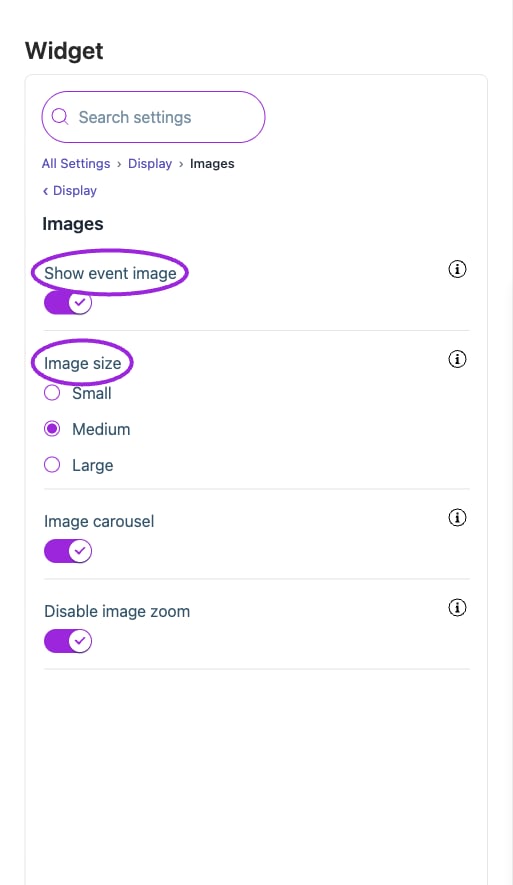
| **Disable image zoom** | Setting | Stop visitors enlarging an event image by clicking it. |
| **Image carousel** | Setting | Toggle the image carousel feature to automatically transition through selected images or manually navigate using arrows. |
| **Image size** | Setting | Choose the size of the event image that appears in your event listing. |
| **Show event image** | Setting | Show the image attached to each event in the listing. |
## Memberships
| Option | Control | What it changes |
| - | - | - |
| **Disable image zoom** | Setting | Stop visitors enlarging an event image by clicking it. |
| **Image carousel** | Setting | Toggle the image carousel feature to automatically transition through selected images or manually navigate using arrows. |
| **Image size** | Setting | Choose the size of the event image that appears in your event listing. |
| **Show event image** | Setting | Show the image attached to each event in the listing. |
## Memberships
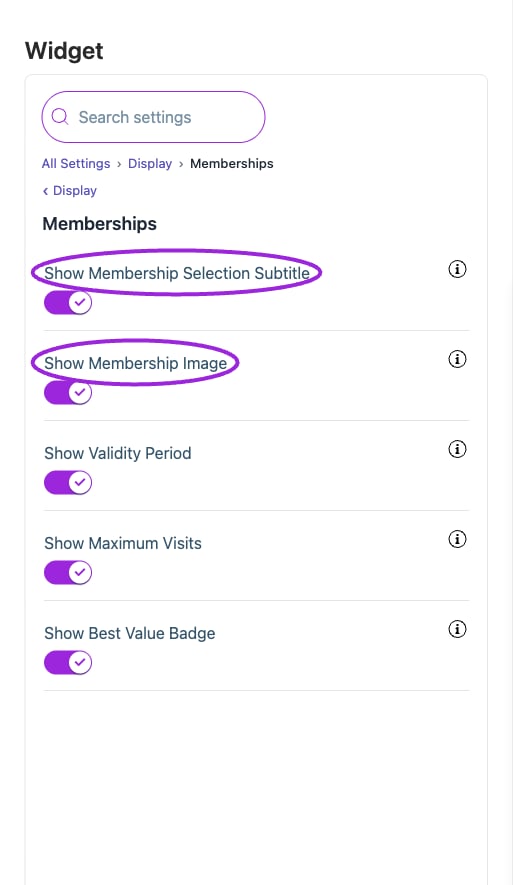 | Option | Control | What it changes |
| - | - | - |
| **Show Best Value Badge** | Setting | Display featured/best value badge on memberships with marked as featured |
| **Show Maximum Visits** | Setting | Display visit limits (e.g., '10 total visits', 'Unlimited visits') |
| **Show Membership Image** | Setting | Display membership images if available |
| **Show Membership Selection Subtitle** | Setting | Display the subtitle explaining membership benefits (e.g., 'Purchase memberships for multi-event access') |
| **Show Validity Period** | Setting | Display membership duration (e.g., '1 Year', 'Lifetime') |
## Recurring events
| Option | Control | What it changes |
| - | - | - |
| **Show Best Value Badge** | Setting | Display featured/best value badge on memberships with marked as featured |
| **Show Maximum Visits** | Setting | Display visit limits (e.g., '10 total visits', 'Unlimited visits') |
| **Show Membership Image** | Setting | Display membership images if available |
| **Show Membership Selection Subtitle** | Setting | Display the subtitle explaining membership benefits (e.g., 'Purchase memberships for multi-event access') |
| **Show Validity Period** | Setting | Display membership duration (e.g., '1 Year', 'Lifetime') |
## Recurring events
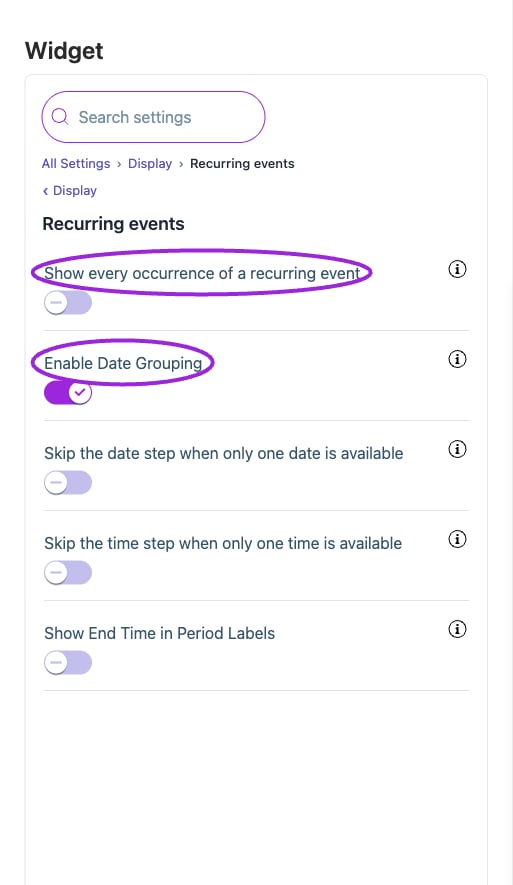 | Option | Control | What it changes |
| - | - | - |
| **Enable Date Grouping** | Setting | Enable this option to group recurring events under a date selector. This allows attendees to easily select and view events based on their preferred dates. You can choose different display layouts from the Layouts section to customize how dates are presented to users. |
| **Events per Series** | Setting | Set the number of events to display per recurring series |
| **Show End Time in Period Labels** | Setting | Display the end time in time period labels (e.g., 'Morning 6:00 AM - 12:00 PM' instead of just 'Morning'). This helps users understand the exact time ranges for each period. |
| **Show every occurrence of a recurring event** | Setting | Toggle this switch to choose between displaying only the next upcoming occurrence of each event, or all scheduled occurrences. |
| **Skip the date step when only one date is available** | Setting | For multi-session events only: Automatically select the access type when only one date is available, skipping the date selector. This creates a seamless experience when there's only a single session option. |
| **Skip the time step when only one time is available** | Setting | Automatically select and hide the time period selector when only one time slot is available for the selected date. Users will still be able to choose between different dates if multiple are available. |
## Submit event request
| Option | Control | What it changes |
| - | - | - |
| **Enable Date Grouping** | Setting | Enable this option to group recurring events under a date selector. This allows attendees to easily select and view events based on their preferred dates. You can choose different display layouts from the Layouts section to customize how dates are presented to users. |
| **Events per Series** | Setting | Set the number of events to display per recurring series |
| **Show End Time in Period Labels** | Setting | Display the end time in time period labels (e.g., 'Morning 6:00 AM - 12:00 PM' instead of just 'Morning'). This helps users understand the exact time ranges for each period. |
| **Show every occurrence of a recurring event** | Setting | Toggle this switch to choose between displaying only the next upcoming occurrence of each event, or all scheduled occurrences. |
| **Skip the date step when only one date is available** | Setting | For multi-session events only: Automatically select the access type when only one date is available, skipping the date selector. This creates a seamless experience when there's only a single session option. |
| **Skip the time step when only one time is available** | Setting | Automatically select and hide the time period selector when only one time slot is available for the selected date. Users will still be able to choose between different dates if multiple are available. |
## Submit event request
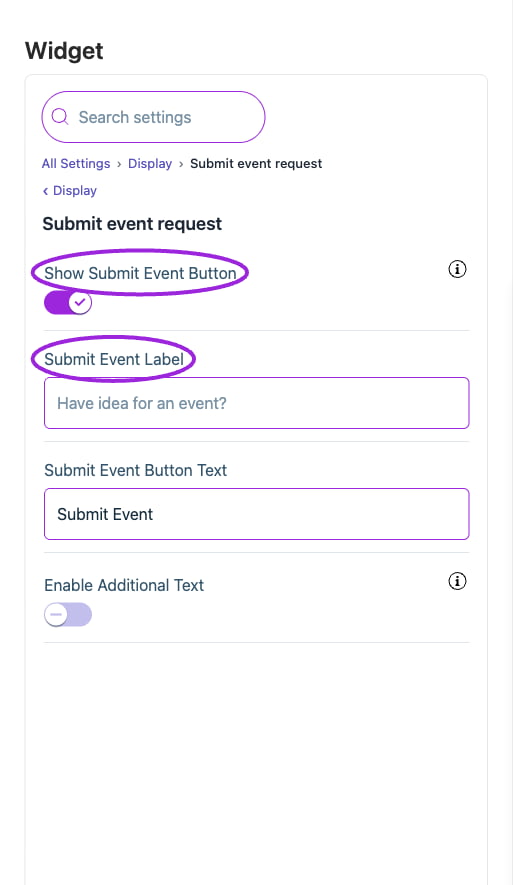 | Option | Control | What it changes |
| - | - | - |
| **Additional Text** | Setting | Additional text displayed below the submit event button |
| **Enable Additional Text** | Setting | Show additional descriptive text below the submit event button |
| **Show Submit Event Button** | Setting | Display a button that allows visitors to submit event ideas or requests. |
| **Submit Event Button Text** | Setting | Text displayed on the submit event button |
| **Submit Event Label** | Setting | Text displayed above the submit event button |
## Visitor engagement
| Option | Control | What it changes |
| - | - | - |
| **Additional Text** | Setting | Additional text displayed below the submit event button |
| **Enable Additional Text** | Setting | Show additional descriptive text below the submit event button |
| **Show Submit Event Button** | Setting | Display a button that allows visitors to submit event ideas or requests. |
| **Submit Event Button Text** | Setting | Text displayed on the submit event button |
| **Submit Event Label** | Setting | Text displayed above the submit event button |
## Visitor engagement
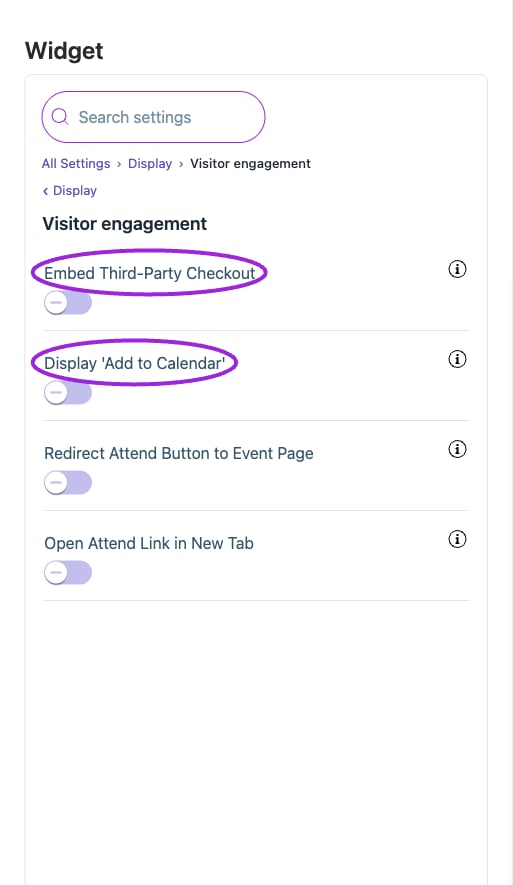 | Option | Control | What it changes |
| - | - | - |
| **Display 'Add to Calendar'** | Setting | Enable your users to save the event to their own calendar. |
| **Embed Third-Party Checkout** | Setting | Enable the integration of third-party checkout services (e.g., Eventbrite) within the app to streamline ticket purchasing. Clicking RSVP will show and facilitate the checkout process using the third-party service. |
| **Open Attend Link in New Tab** | Setting | When enabled, clicking the Attend/RSVP button will open the link in a new browser tab, keeping the current page open. When disabled, the link opens in the same window, replacing the current page. |
| **Redirect Attend Button to Event Page** | Setting | When enabled, clicking the Attend/RSVP button in the widget will redirect users to the full event page instead of opening the checkout modal. Users can view complete event details and proceed with checkout directly from the event page. |
## Workshops & add-ons
| Option | Control | What it changes |
| - | - | - |
| **Display 'Add to Calendar'** | Setting | Enable your users to save the event to their own calendar. |
| **Embed Third-Party Checkout** | Setting | Enable the integration of third-party checkout services (e.g., Eventbrite) within the app to streamline ticket purchasing. Clicking RSVP will show and facilitate the checkout process using the third-party service. |
| **Open Attend Link in New Tab** | Setting | When enabled, clicking the Attend/RSVP button will open the link in a new browser tab, keeping the current page open. When disabled, the link opens in the same window, replacing the current page. |
| **Redirect Attend Button to Event Page** | Setting | When enabled, clicking the Attend/RSVP button in the widget will redirect users to the full event page instead of opening the checkout modal. Users can view complete event details and proceed with checkout directly from the event page. |
## Workshops & add-ons
 | Option | Control | What it changes |
| - | - | - |
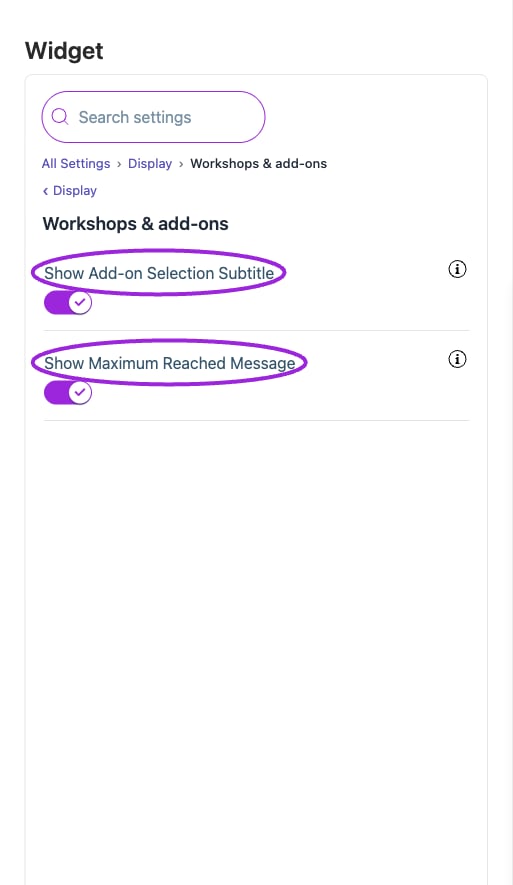
| **Show Add-on Selection Subtitle** | Setting | Display the subtitle showing selection requirements (e.g., 'Select 1 / 3 workshops required') |
| **Show Maximum Reached Message** | Setting | Display a message when the maximum number of add-ons has been selected |
## Save and verify
Wait for the setting update to finish, check the preview, and open the installed widget to confirm the result. If a control is unavailable, review its prerequisite, site type, and plan. [Return to widget setup](./widget-customization-overview).
This documentation is built and hosted on [Mintlify](https://mintlify.com), a developer documentation platform.
| Option | Control | What it changes |
| - | - | - |
| **Show Add-on Selection Subtitle** | Setting | Display the subtitle showing selection requirements (e.g., 'Select 1 / 3 workshops required') |
| **Show Maximum Reached Message** | Setting | Display a message when the maximum number of add-ons has been selected |
## Save and verify
Wait for the setting update to finish, check the preview, and open the installed widget to confirm the result. If a control is unavailable, review its prerequisite, site type, and plan. [Return to widget setup](./widget-customization-overview).
This documentation is built and hosted on [Mintlify](https://mintlify.com), a developer documentation platform.