> ## Documentation Index
> Fetch the complete documentation index at: https://docs.ticketspotapp.com/llms.txt
> Use this file to discover all available pages before exploring further.
# Create Event
This guide walks you through the complete process of creating an event in **Ticket Spot**. You’ll set up core **event details**, **configure tickets**, **customize emails**, **manage waitlists**, **add custom fields**, **assign hosts**, and adjust **display settings**—everything required to build a seamless attendee experience.
By completing these steps, you ensure your event is organized, easy for attendees to navigate, and ready to go live without any missing information.
Let’s get started 🚀
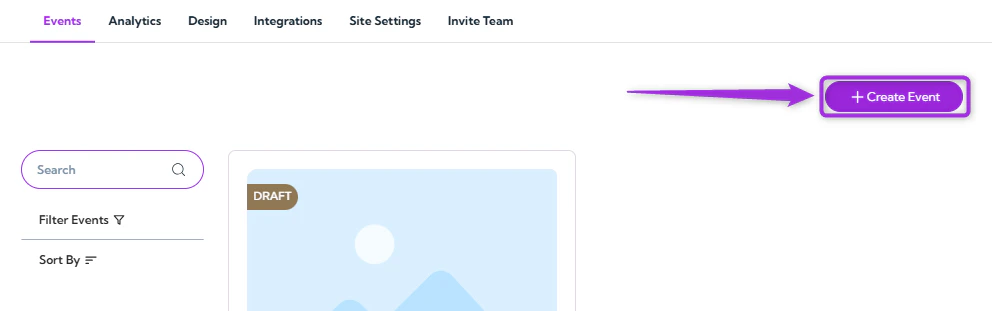
**Step 1**: Log in to your **Ticket Spot** account and click on the **Create Event** button.
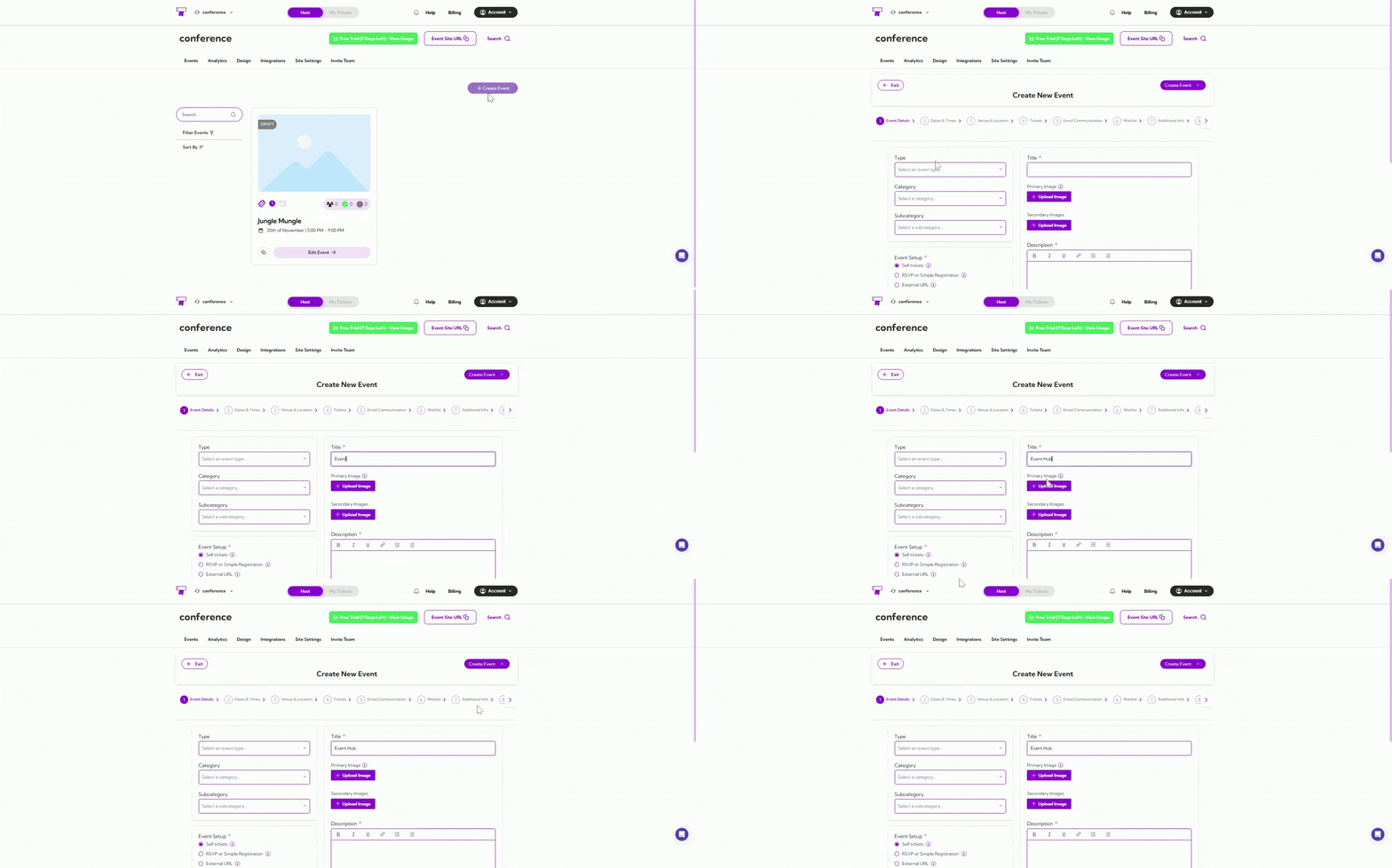
 **Step 2**: Enter your basic event details in the form shown below. The table explains what each field means and how it’s used.
| Ref. | Field Name | Description | Reference |
| ---- | ------------------------ | ------------------------------------------------------------------------------------------------------------- | --------------------------------------------------------- |
| 1. | **Event Details** | Add event title, description, categories, visibility, and main branding info. | [See more](../event-management/eventdetails) |
| 2. | **Dates & Times** | Set the event start/end date, timezone, recurring schedule (if needed), and check-in timing. | [See more](../event-management/datetime) |
| 3. | **Venue & Location** | Choose the venue type (in-person, online, or hybrid) and add the address, maps, directions, or meeting links. | [See more](../event-management/venuelocation) |
| 4. | **Tickets** | Add free/paid tickets, set quantities, sale windows, fees, and ticket-level settings. | [See more](../event-management/ticket-setup) |
| 5. | **Email Communication** | Edit confirmation emails, reminders, and cancellation notices, and add dynamic tokens. | [See more](../event-management/email-communication) |
| 6. | **Waitlist** | Enable waitlist, add rules, auto-approval options, and attendee notification settings. | [See more](../event-management/waitlist) |
| 7. | **Additional Info** | Use Quick Add or Custom Questions to collect additional attendee information. | [See more](../event-management/additional-information) |
| 8. | **Checkout Complete** | Edit the success message shown after purchase and apply personalization tokens. | [See more](../event-management/checkout-complete-message) |
| 9. | **Tags & Custom Fields** | Add tags for search visibility and create custom fields for internal data tracking. | [See more](../event-management/tags-and-custom-fields) |
| 10. | **Hosts** | Add hosts, special guests, or event-level managers to a specific event. | [See more](../event-management/hosts) |
| 11. | **Display Settings** | Toggle host visibility, attendee list display, and override widget or page text. | [See more](../event-management/display-settings) |
**Step 2**: Enter your basic event details in the form shown below. The table explains what each field means and how it’s used.
| Ref. | Field Name | Description | Reference |
| ---- | ------------------------ | ------------------------------------------------------------------------------------------------------------- | --------------------------------------------------------- |
| 1. | **Event Details** | Add event title, description, categories, visibility, and main branding info. | [See more](../event-management/eventdetails) |
| 2. | **Dates & Times** | Set the event start/end date, timezone, recurring schedule (if needed), and check-in timing. | [See more](../event-management/datetime) |
| 3. | **Venue & Location** | Choose the venue type (in-person, online, or hybrid) and add the address, maps, directions, or meeting links. | [See more](../event-management/venuelocation) |
| 4. | **Tickets** | Add free/paid tickets, set quantities, sale windows, fees, and ticket-level settings. | [See more](../event-management/ticket-setup) |
| 5. | **Email Communication** | Edit confirmation emails, reminders, and cancellation notices, and add dynamic tokens. | [See more](../event-management/email-communication) |
| 6. | **Waitlist** | Enable waitlist, add rules, auto-approval options, and attendee notification settings. | [See more](../event-management/waitlist) |
| 7. | **Additional Info** | Use Quick Add or Custom Questions to collect additional attendee information. | [See more](../event-management/additional-information) |
| 8. | **Checkout Complete** | Edit the success message shown after purchase and apply personalization tokens. | [See more](../event-management/checkout-complete-message) |
| 9. | **Tags & Custom Fields** | Add tags for search visibility and create custom fields for internal data tracking. | [See more](../event-management/tags-and-custom-fields) |
| 10. | **Hosts** | Add hosts, special guests, or event-level managers to a specific event. | [See more](../event-management/hosts) |
| 11. | **Display Settings** | Toggle host visibility, attendee list display, and override widget or page text. | [See more](../event-management/display-settings) |
 ## Publishing Your Event
After completing all event setup steps, review your event details and click **Publish Event**. Publishing makes your event visible to attendees across your site, widgets, and any shared links.
You can also preview exactly how the event will look on your site—just click **Event Page** or copy the event site link to see the live view before sharing it with attendees.
## Publishing Your Event
After completing all event setup steps, review your event details and click **Publish Event**. Publishing makes your event visible to attendees across your site, widgets, and any shared links.
You can also preview exactly how the event will look on your site—just click **Event Page** or copy the event site link to see the live view before sharing it with attendees.
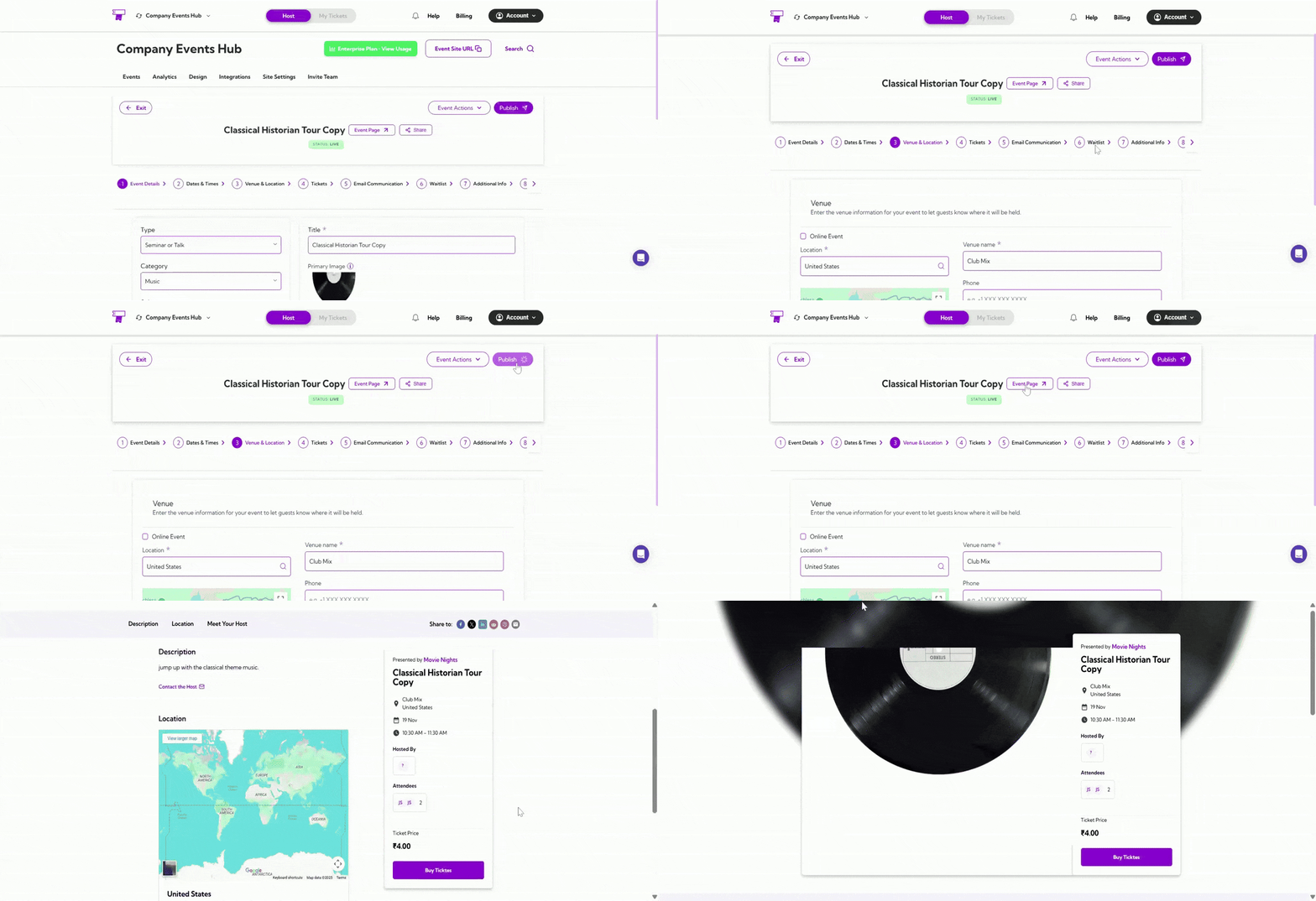 Once published, you can always return to the event to **update settings**, **edit tickets**, or **unpublish** the event if needed.