> ## Documentation Index
> Fetch the complete documentation index at: https://docs.ticketspotapp.com/llms.txt
> Use this file to discover all available pages before exploring further.
# Create and monitor event tracking links
> Track event views, ticket sales, and revenue from campaign-specific links created in the event editor.
Create a separate tracking link for each newsletter, social campaign, partner, or printed flyer. Use the generated URL to compare the results of each promotion.
## Before you start
Save your event before creating a link. Tracking Links is available on Business with up to **3 links per event**, and on Business+ and higher with unlimited links. Use the correct site and an event you can edit.
## Navigation
1. Open **Events** and edit your saved event.
2. Select **Tracking Links** in the event editor. This is an event-level setting, not the main Analytics tab.
3. For a recurring series, edit the parent event; this step is hidden on individual child events.
## Create a link
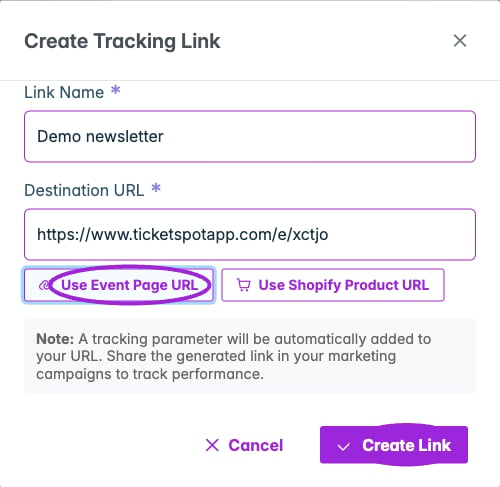 1. Click **Create Tracking Link** when the list is empty, or **Create Link** above an existing list.
2. Complete the fields in **Create Tracking Link**:
| Field | What to enter |
| - | - |
| **Link Name** | A recognizable campaign name, such as September Newsletter or Partner Flyer. |
| **Destination URL** | The full page address, starting with `https://` or `http://`. |
| **Use Event Page URL** | Fills in the event page URL when the event has one. |
| **Use Shopify Product URL** | Fills in the linked product URL for a Shopify site when that URL is available. |
3. Click **Create Link** in the dialog.
4. Find the new row and use **Copy URL** beside its Tracking URL.
5. Share that generated URL. Ticket Spot adds the tracking parameter for you; sharing the original destination URL does not identify this campaign.
## Review performance
1. Click **Create Tracking Link** when the list is empty, or **Create Link** above an existing list.
2. Complete the fields in **Create Tracking Link**:
| Field | What to enter |
| - | - |
| **Link Name** | A recognizable campaign name, such as September Newsletter or Partner Flyer. |
| **Destination URL** | The full page address, starting with `https://` or `http://`. |
| **Use Event Page URL** | Fills in the event page URL when the event has one. |
| **Use Shopify Product URL** | Fills in the linked product URL for a Shopify site when that URL is available. |
3. Click **Create Link** in the dialog.
4. Find the new row and use **Copy URL** beside its Tracking URL.
5. Share that generated URL. Ticket Spot adds the tracking parameter for you; sharing the original destination URL does not identify this campaign.
## Review performance
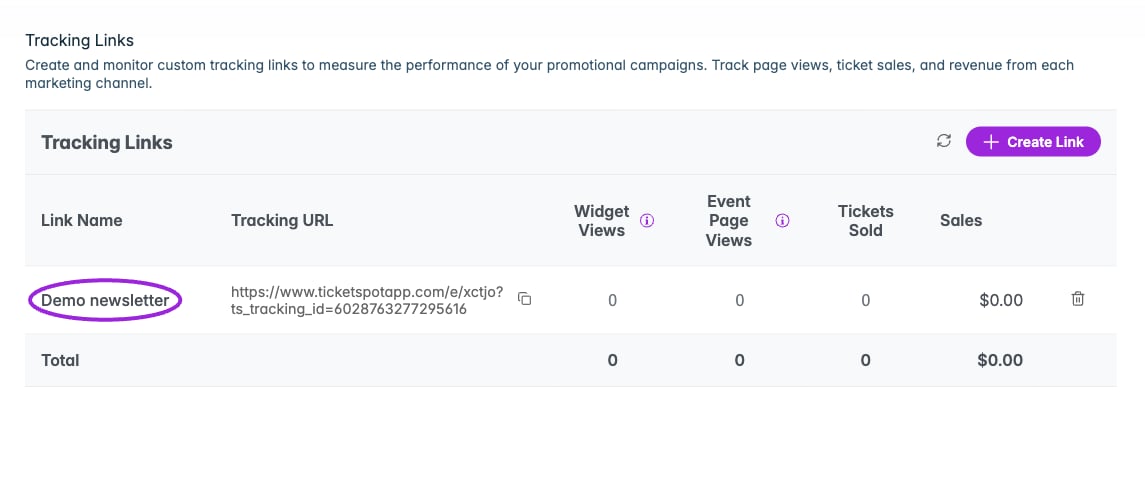 Return to **Tracking Links** and click **Refresh tracking data** to reload the results.
| Column | What it shows |
| - | - |
| **Link Name** | The name you assigned to this promotion. |
| **Tracking URL** | The generated link to copy and distribute. |
| **Widget Views** | Widget views attributed to the link. |
| **Event Page Views** | Event page views attributed to the link. |
| **Tickets Sold** | Tickets attributed to the link. |
| **Sales** | Attributed sales amount. |
Nonzero view and ticket counts can be opened for more detail. Views and tickets are different measures; do not read views as unique purchasers.
## Test before sharing
Open the copied tracking URL, confirm it reaches the intended event or Shopify product, and run a test registration through that page. Return to the editor and refresh the table to check attribution. A destination URL being accepted does not establish that an unrelated external checkout sends tracking data to Ticket Spot.
If the link cannot be created, check that the event is saved, both required fields are filled in, and the URL is complete. If **Create Link** is disabled, check your plan's link limit. If a quick-fill button is absent, confirm that the corresponding event or Shopify product URL exists.
## Delete a link
Click **Delete link** on its row, then confirm **Delete**, or choose **Cancel** to keep it. Check where the URL is being used before deleting a campaign link.
## Related guides
* [Manage events](./manage-events)
* [Sales analytics](../analytics/sales-analytics)
* [Connect Shopify](../plugins/connect-shopify)
This documentation is built and hosted on [Mintlify](https://mintlify.com), a developer documentation platform.
Return to **Tracking Links** and click **Refresh tracking data** to reload the results.
| Column | What it shows |
| - | - |
| **Link Name** | The name you assigned to this promotion. |
| **Tracking URL** | The generated link to copy and distribute. |
| **Widget Views** | Widget views attributed to the link. |
| **Event Page Views** | Event page views attributed to the link. |
| **Tickets Sold** | Tickets attributed to the link. |
| **Sales** | Attributed sales amount. |
Nonzero view and ticket counts can be opened for more detail. Views and tickets are different measures; do not read views as unique purchasers.
## Test before sharing
Open the copied tracking URL, confirm it reaches the intended event or Shopify product, and run a test registration through that page. Return to the editor and refresh the table to check attribution. A destination URL being accepted does not establish that an unrelated external checkout sends tracking data to Ticket Spot.
If the link cannot be created, check that the event is saved, both required fields are filled in, and the URL is complete. If **Create Link** is disabled, check your plan's link limit. If a quick-fill button is absent, confirm that the corresponding event or Shopify product URL exists.
## Delete a link
Click **Delete link** on its row, then confirm **Delete**, or choose **Cancel** to keep it. Check where the URL is being used before deleting a campaign link.
## Related guides
* [Manage events](./manage-events)
* [Sales analytics](../analytics/sales-analytics)
* [Connect Shopify](../plugins/connect-shopify)
This documentation is built and hosted on [Mintlify](https://mintlify.com), a developer documentation platform.