> ## Documentation Index
> Fetch the complete documentation index at: https://docs.ticketspotapp.com/llms.txt
> Use this file to discover all available pages before exploring further.
# Eventbrite
Organizers can easily import their existing **Eventbrite** events and tickets into **Ticket Spot** while transitioning to our fee-free platform. This integration lets you manage all your events in one place, without switching between multiple platforms.
Let’s get started 🚀
## Prerequisites
Before setting up the integration, make sure you have:
* ✅ An active **[Ticket Spot](https://ticketspotapp.com/)** account with access to the **Integrations** page.
* ✅ An active **[Eventbrite](https://www.eventbrite.com/blogquick-start-guide/)** organizer account to authorize and import your events.
## Integration
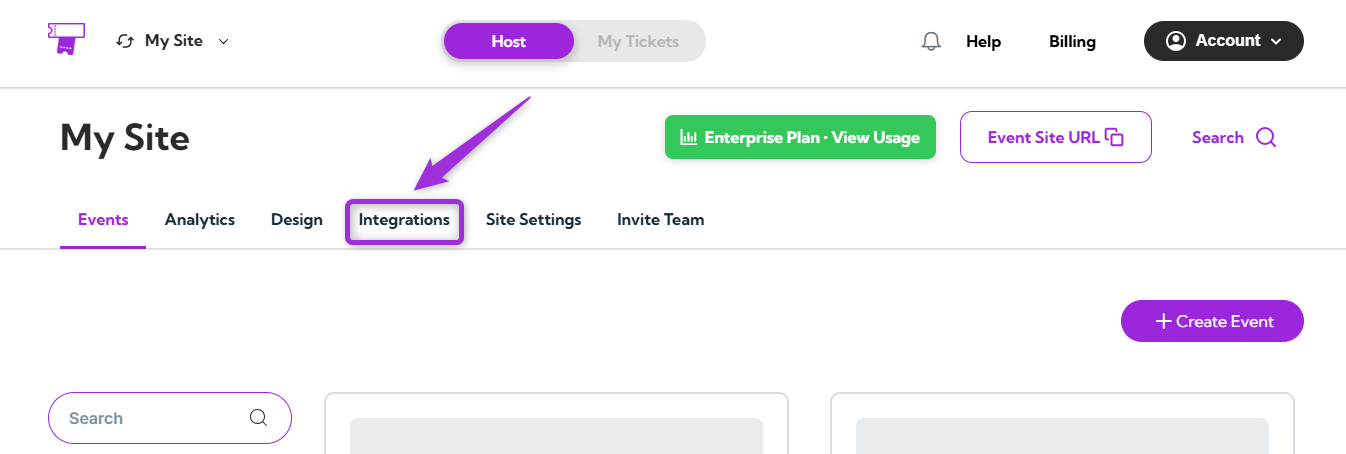
**Step 1:** Log in to your **Ticket Spot** account and click on the **Integrations** tab from the top navigation bar to open the integrations page.
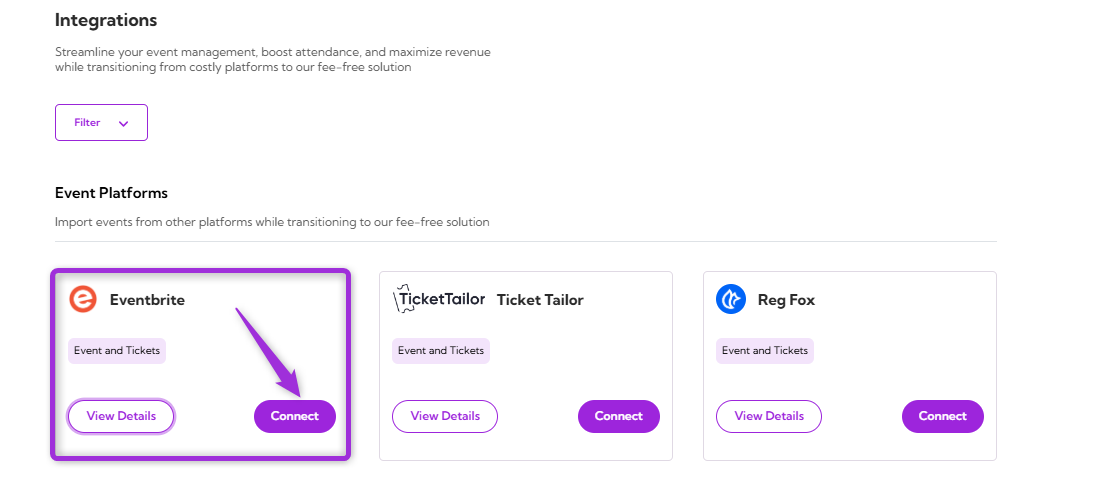
 **Step 2:** Find the **Eventbrite** platform under the **Event Platforms** category and click on the **Connect** button to open the integration setup window.
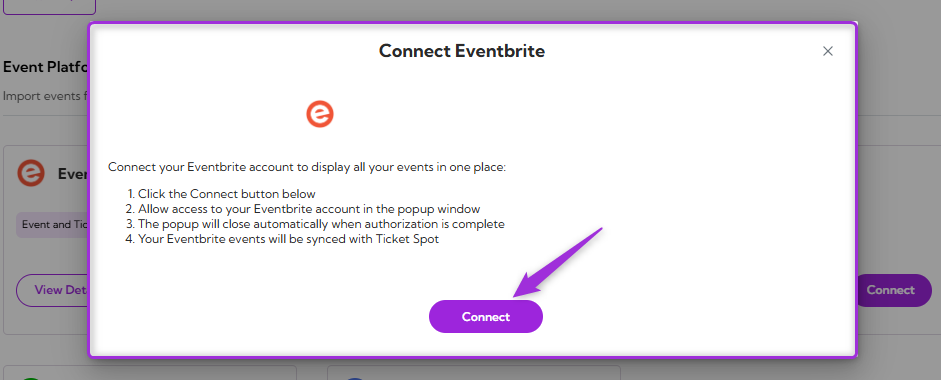
 **Step 3:** Click on the **Connect** button again to proceed.
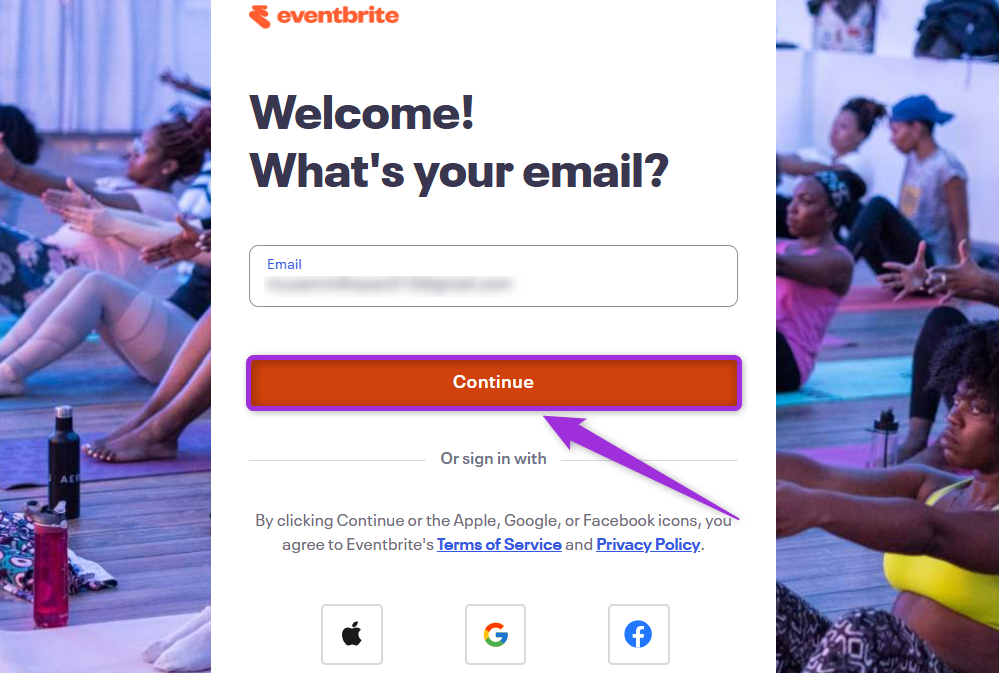
 **Step 4:** Authenticate the connection to your **Eventbrite** account by entering your sign-in credentials.
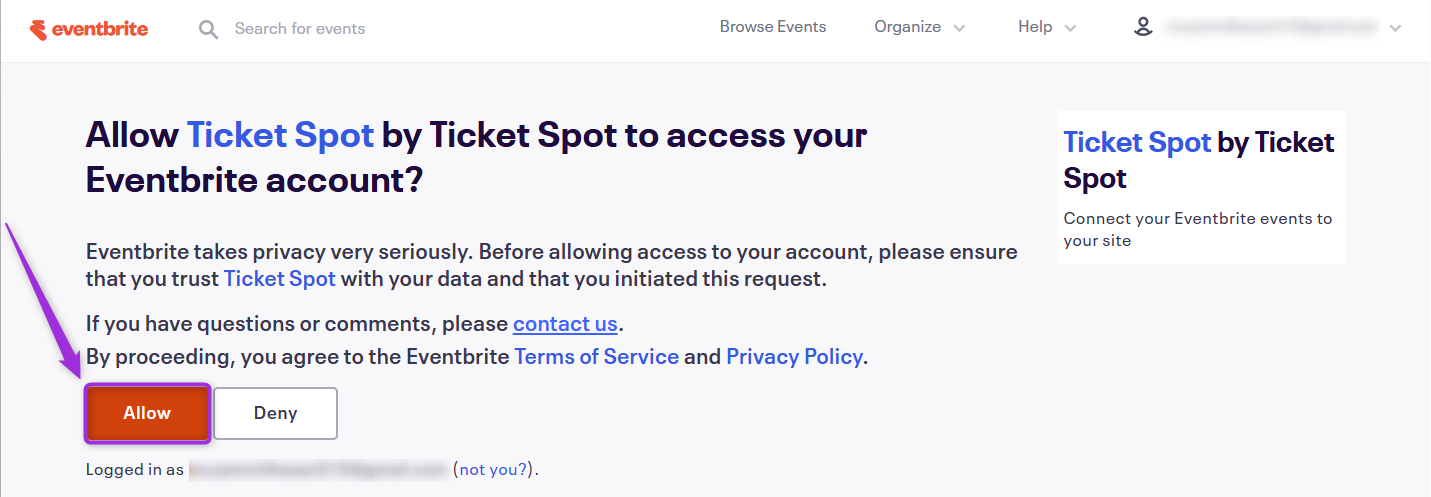
 **Step 5:** Review the required permissions to understand what **Ticket Spot** can access and manage in your **Eventbrite** account. Then, click **Allow** to finish connecting your account.
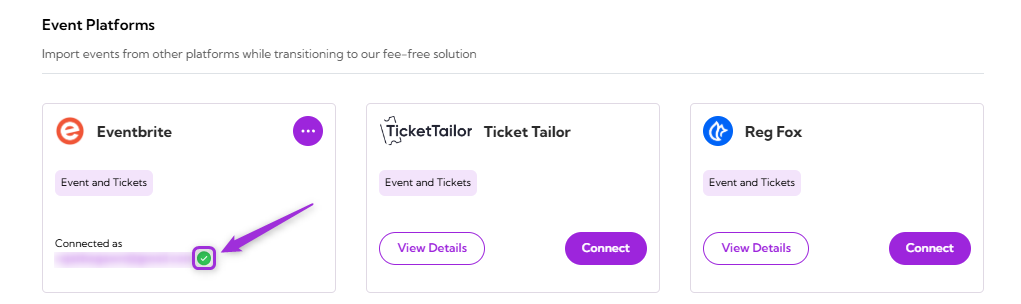
 **Step 6:** Once the integration is successfully connected, a **green check mark** will appear. This confirms that the **Eventbrite integration** is active in **Ticket Spot**.
 ## View Details
Review the connection details for your **Eventbrite integration**, including the linked organizer account and current status.\
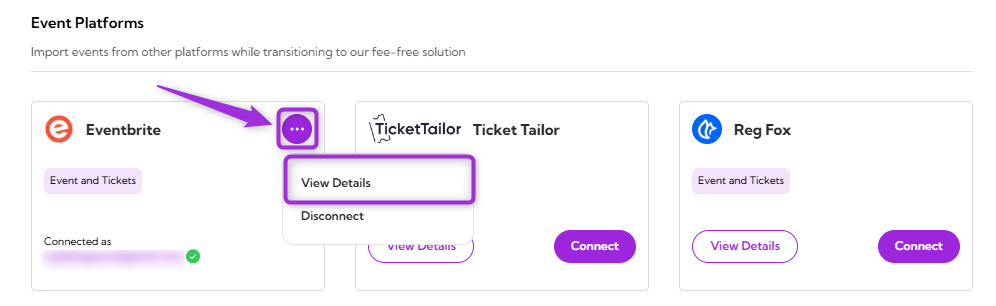
To view details, click the horizontal **ellipsis (⋯)** icon on the **Eventbrite integration** tile and select **View Details** from the dropdown menu.
## View Details
Review the connection details for your **Eventbrite integration**, including the linked organizer account and current status.\
To view details, click the horizontal **ellipsis (⋯)** icon on the **Eventbrite integration** tile and select **View Details** from the dropdown menu.
 ## Disconnect
Remove the existing connection between your **Eventbrite** account and **Ticket Spot**.\
Once disconnected, **Ticket Spot** will no longer be connected to the **Eventbrite** platform.
Click the horizontal **ellipsis (⋯)** icon on the **Eventbrite integration** tile and select **Disconnect** from the dropdown menu.
## Disconnect
Remove the existing connection between your **Eventbrite** account and **Ticket Spot**.\
Once disconnected, **Ticket Spot** will no longer be connected to the **Eventbrite** platform.
Click the horizontal **ellipsis (⋯)** icon on the **Eventbrite integration** tile and select **Disconnect** from the dropdown menu.
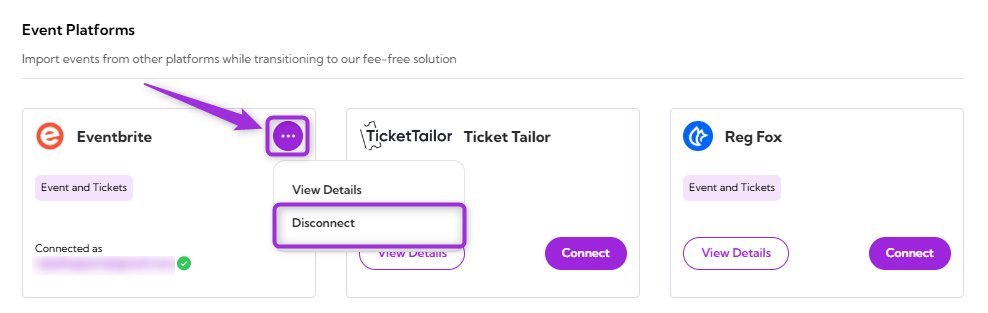 Your **Eventbrite integration** will be successfully disconnected from **Ticket Spot**.