> ## Documentation Index
> Fetch the complete documentation index at: https://docs.ticketspotapp.com/llms.txt
> Use this file to discover all available pages before exploring further.
# Create and configure a membership
> Set membership pricing, duration, visit limits, available inventory, assigned events, images, and member numbers.
Create the membership before applying it to tickets or adding it to an event.
## Navigation
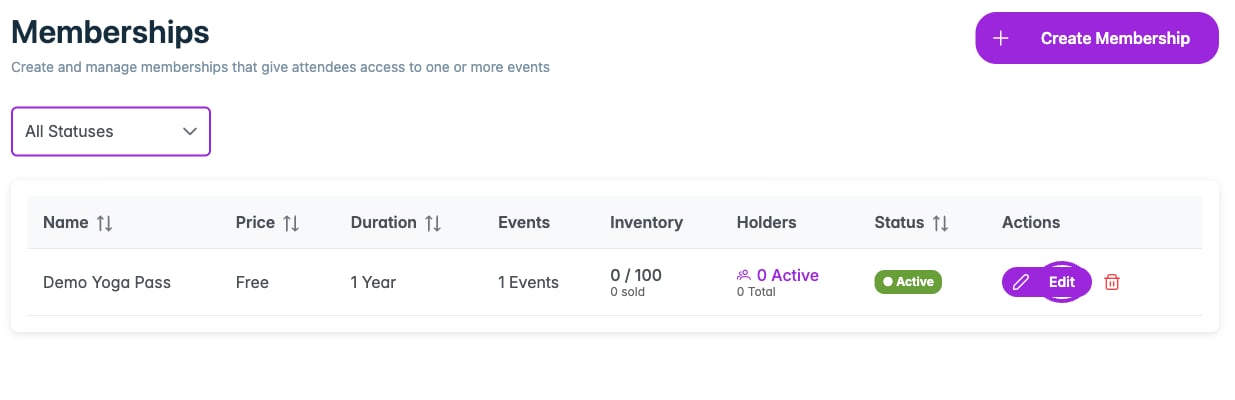 1. Select the correct site in your dashboard.
2. Open **Memberships** in the top navigation.
3. Click **Create Membership**, or **Get Started** if the site has no memberships yet.
The editor contains **Details**, **Pricing**, **Access Rules**, **Events**, **Images**, and **Advanced Settings** tabs.
## Details
1. Select the correct site in your dashboard.
2. Open **Memberships** in the top navigation.
3. Click **Create Membership**, or **Get Started** if the site has no memberships yet.
The editor contains **Details**, **Pricing**, **Access Rules**, **Events**, **Images**, and **Advanced Settings** tabs.
## Details
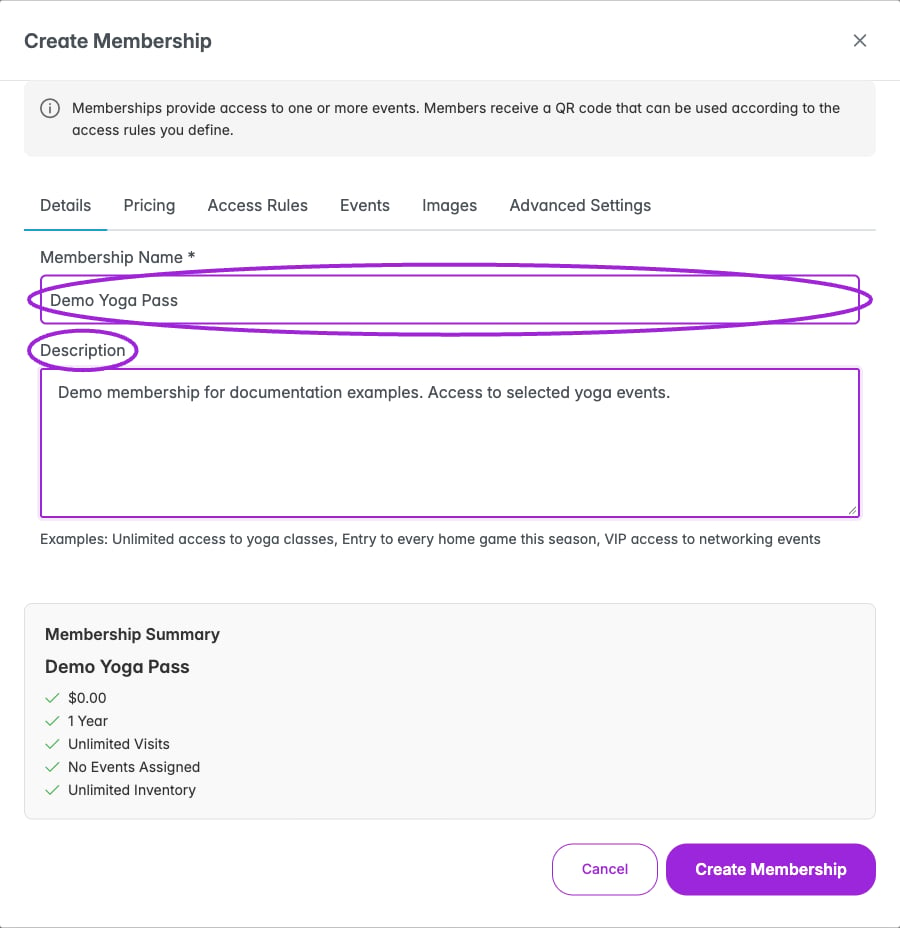 | Field | What to set |
| - | - |
| **Membership Name** | Required. Use a name attendees recognize, such as Annual Pass or Ten-Class Package. |
| **Description** | Explain included benefits, eligible events, and visit limits. |
| **Status** | When editing an existing membership, choose Active or Inactive. |
## Pricing
| Field | What to set |
| - | - |
| **Membership Name** | Required. Use a name attendees recognize, such as Annual Pass or Ten-Class Package. |
| **Description** | Explain included benefits, eligible events, and visit limits. |
| **Status** | When editing an existing membership, choose Active or Inactive. |
## Pricing
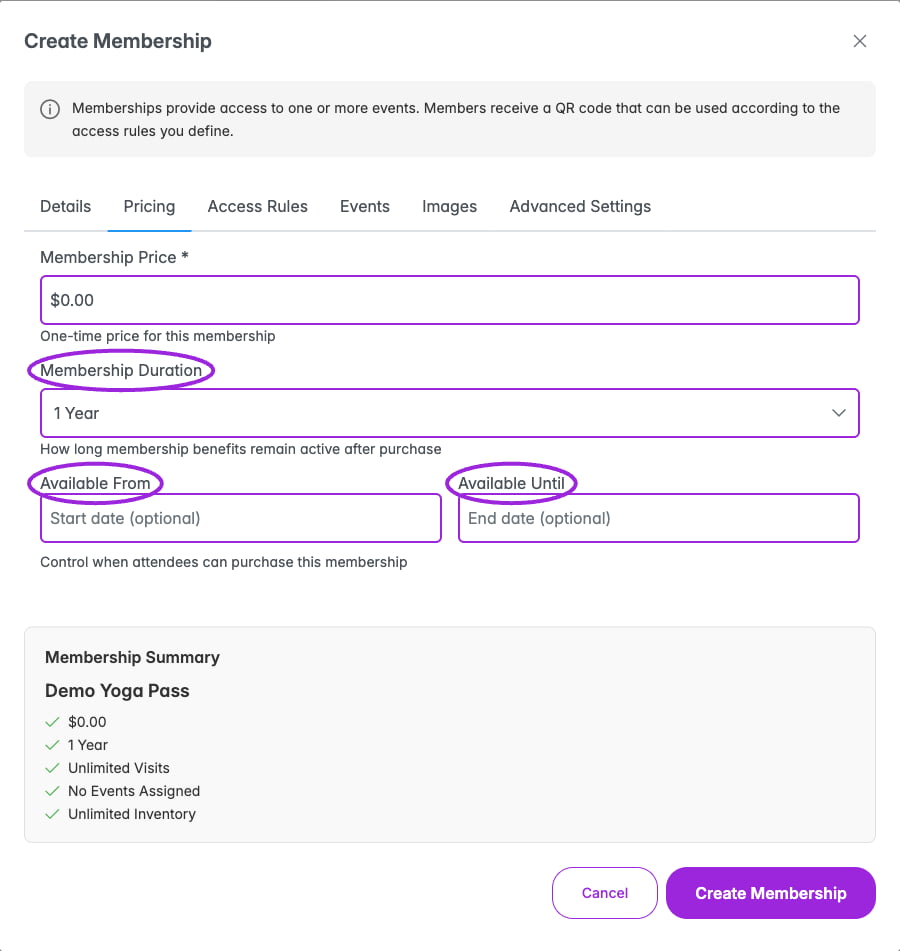 | Field | What to set |
| - | - |
| **Membership Price** | The one-time membership price. Enter the amount shown in the editor's currency. |
| **Membership Duration** | How long benefits remain active after purchase: 30 Days, 90 Days, 6 Months, 1 Year, or Lifetime Access. |
| **Available From** | Optional date and time when purchases can begin. |
| **Available Until** | Optional date and time when purchases end. |
The sales window controls when someone can buy. The duration controls their benefits after purchase; these are different settings.
## Access Rules
| Field | What to set |
| - | - |
| **Membership Price** | The one-time membership price. Enter the amount shown in the editor's currency. |
| **Membership Duration** | How long benefits remain active after purchase: 30 Days, 90 Days, 6 Months, 1 Year, or Lifetime Access. |
| **Available From** | Optional date and time when purchases can begin. |
| **Available Until** | Optional date and time when purchases end. |
The sales window controls when someone can buy. The duration controls their benefits after purchase; these are different settings.
## Access Rules
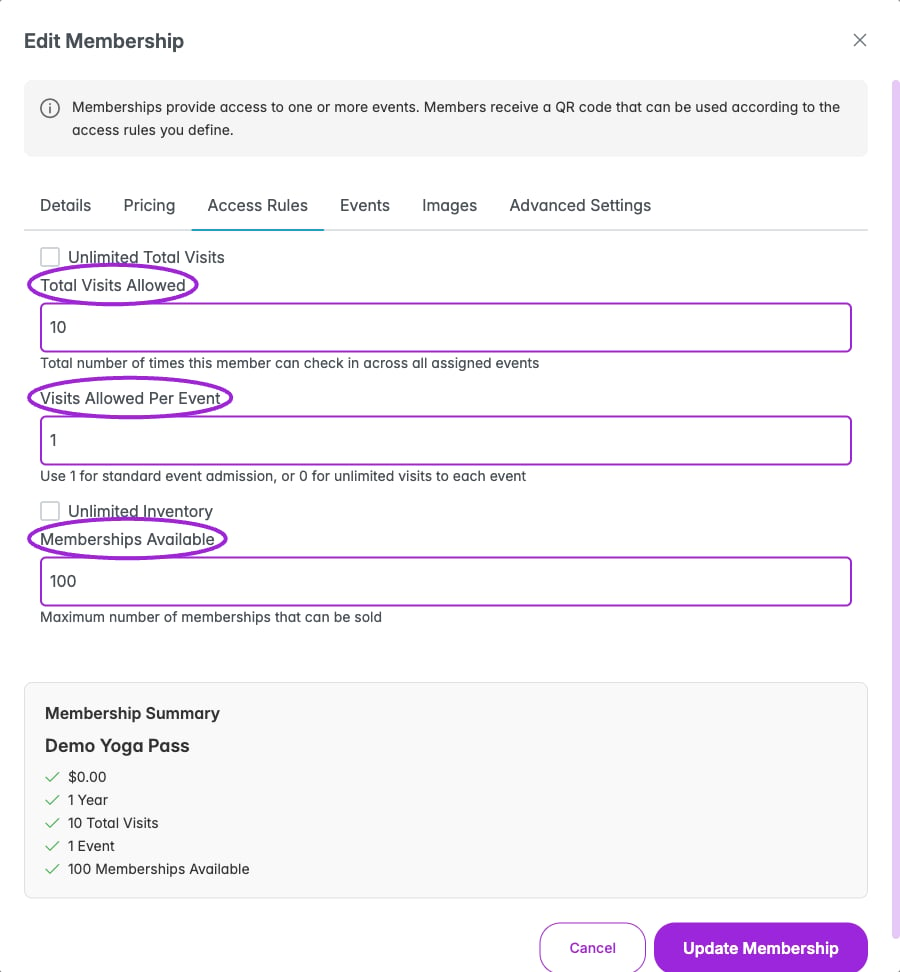 | Field | What to set |
| - | - |
| **Unlimited Total Visits** | Enable for no overall visit limit across assigned events. |
| **Total Visits Allowed** | With unlimited visits off, enter the total permitted check-ins across all assigned events, such as 10. |
| **Visits Allowed Per Event** | Enter 1 for one admission per event, or 0 for unlimited visits to each event. |
| **Unlimited Inventory** | Enable if there is no limit on the number of memberships sold. |
| **Memberships Available** | With unlimited inventory off, enter the maximum number of memberships for sale. |
A limited number of memberships for sale is not the same as a holder's allowed visits. Set each independently.
## Events
| Field | What to set |
| - | - |
| **Unlimited Total Visits** | Enable for no overall visit limit across assigned events. |
| **Total Visits Allowed** | With unlimited visits off, enter the total permitted check-ins across all assigned events, such as 10. |
| **Visits Allowed Per Event** | Enter 1 for one admission per event, or 0 for unlimited visits to each event. |
| **Unlimited Inventory** | Enable if there is no limit on the number of memberships sold. |
| **Memberships Available** | With unlimited inventory off, enter the maximum number of memberships for sale. |
A limited number of memberships for sale is not the same as a holder's allowed visits. Set each independently.
## Events
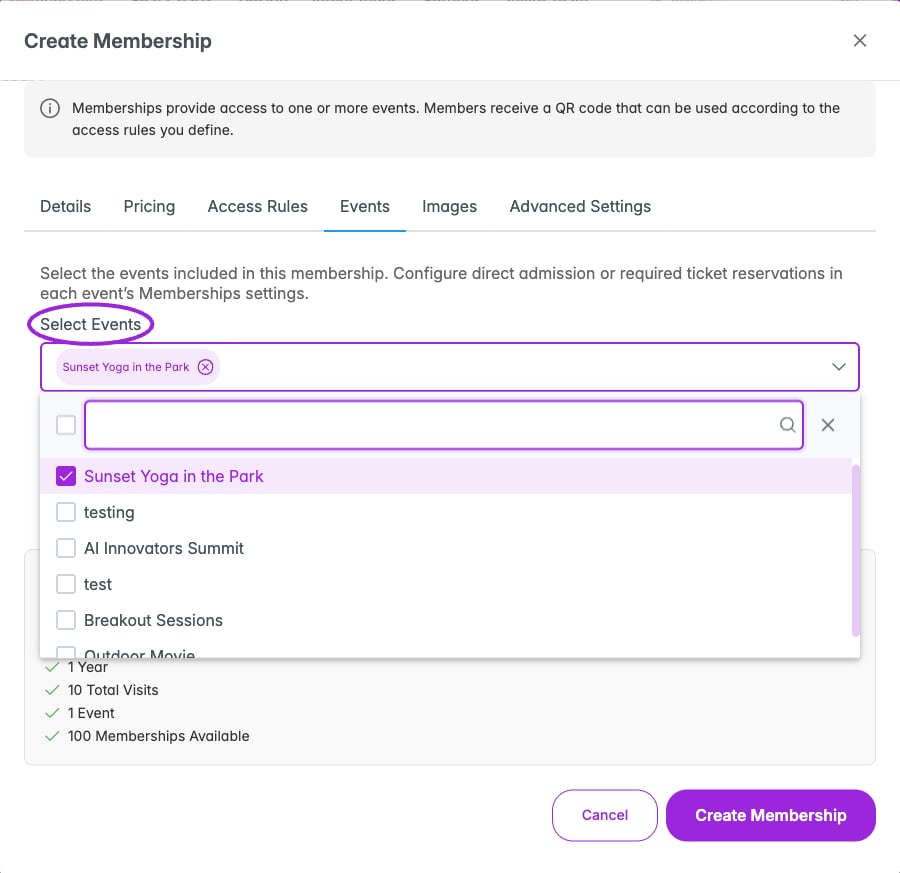 Open **Events**, then use **Select Events** to choose the events the membership admits holders to. Search the list if needed and review the selected event names. Review each event's **Memberships → Edit settings** to choose direct QR admission or a required ticket reservation, checkout availability, entry limits, and check-in windows.
If no events are assigned, members cannot use the membership for event admission. You can also [assign it from an existing event](./assign-to-events).
## Images
Open **Events**, then use **Select Events** to choose the events the membership admits holders to. Search the list if needed and review the selected event names. Review each event's **Memberships → Edit settings** to choose direct QR admission or a required ticket reservation, checkout availability, entry limits, and check-in windows.
If no events are assigned, members cannot use the membership for event admission. You can also [assign it from an existing event](./assign-to-events).
## Images
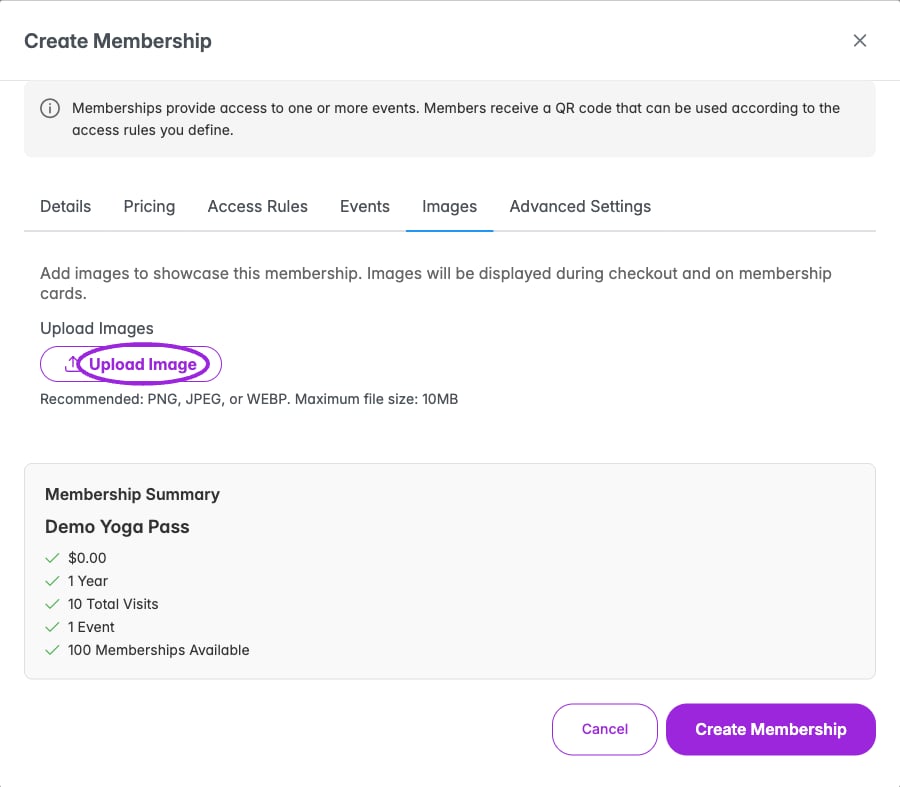 Open **Images** and upload images to represent the membership. They appear during checkout and on membership cards. Remove an unwanted image using its remove control.
## Advanced Settings: member numbers
Open **Images** and upload images to represent the membership. They appear during checkout and on membership cards. Remove an unwanted image using its remove control.
## Advanced Settings: member numbers
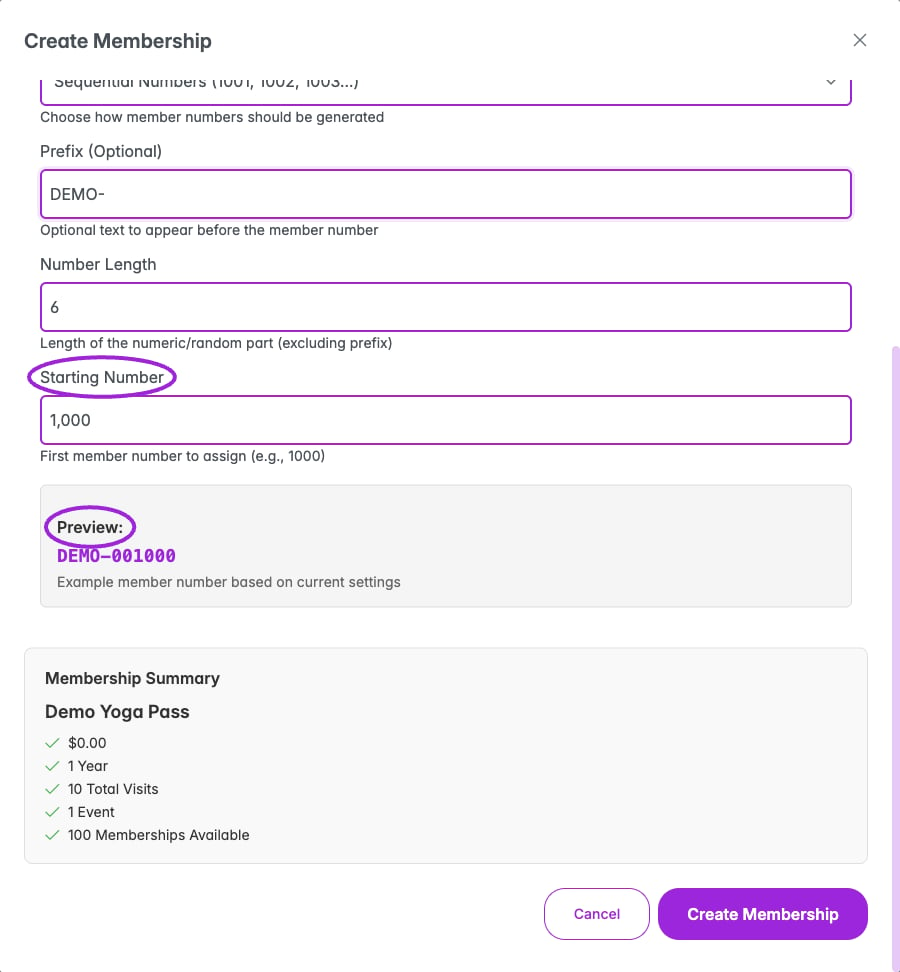
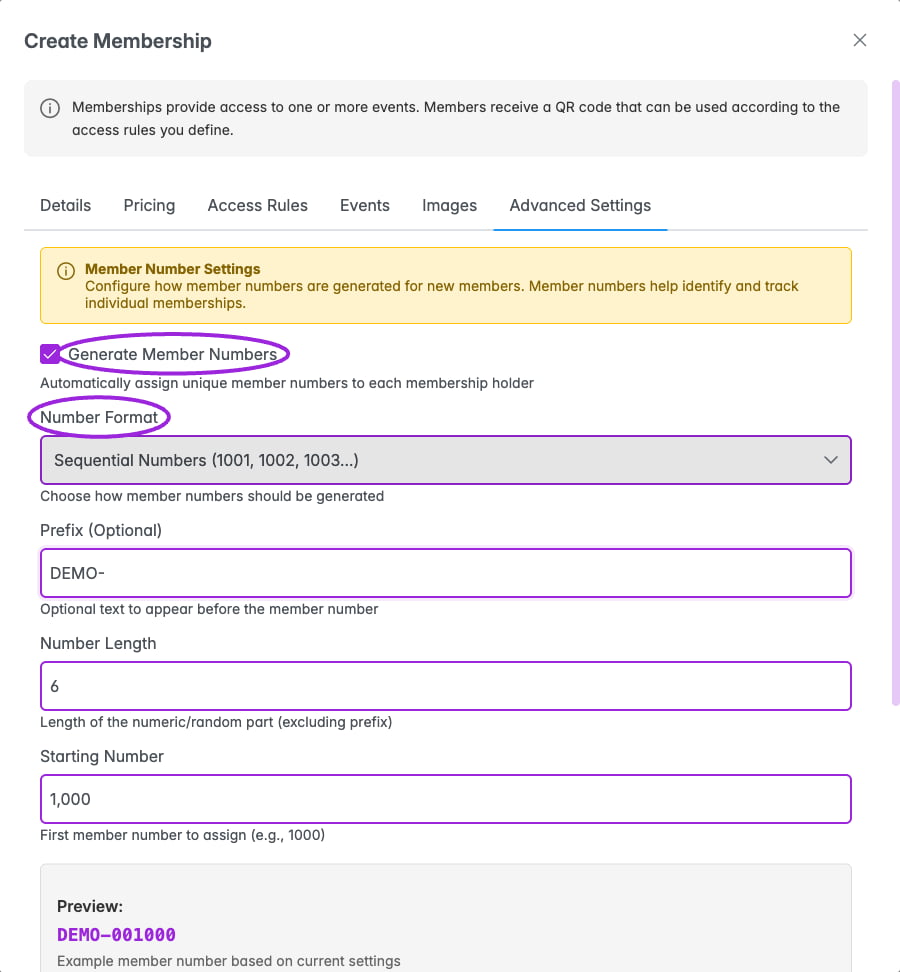 Enable **Generate Member Numbers** to assign an identifying number to new holders.
| Field | Options or meaning |
| - | - |
| **Number Format** | Sequential Numbers, Random Numbers, Random Alphabetical (no vowels), or Random Alpha-Numeric. |
| **Prefix (Optional)** | Text before the number, such as M- or MEMBER-; up to 10 characters. |
| **Number Length** | Length of the numeric/random portion, excluding the prefix; 4–12 characters. |
| **Starting Number** | For sequential numbers, the first number to assign, such as 1000. |
| **Preview** | Check the example number before saving. |
## Save and verify
1. Click **Create Membership**, or **Update Membership** when editing.
2. Wait for completion, then check the row on the Memberships page.
3. Reopen **Edit** and verify duration, visit limits, and assigned events.
4. Continue with [event assignment](./assign-to-events) and [ticket access/pricing](./ticket-access-and-pricing) as needed.
This documentation is built and hosted on [Mintlify](https://mintlify.com), a developer documentation platform.
Enable **Generate Member Numbers** to assign an identifying number to new holders.
| Field | Options or meaning |
| - | - |
| **Number Format** | Sequential Numbers, Random Numbers, Random Alphabetical (no vowels), or Random Alpha-Numeric. |
| **Prefix (Optional)** | Text before the number, such as M- or MEMBER-; up to 10 characters. |
| **Number Length** | Length of the numeric/random portion, excluding the prefix; 4–12 characters. |
| **Starting Number** | For sequential numbers, the first number to assign, such as 1000. |
| **Preview** | Check the example number before saving. |
## Save and verify
1. Click **Create Membership**, or **Update Membership** when editing.
2. Wait for completion, then check the row on the Memberships page.
3. Reopen **Edit** and verify duration, visit limits, and assigned events.
4. Continue with [event assignment](./assign-to-events) and [ticket access/pricing](./ticket-access-and-pricing) as needed.
This documentation is built and hosted on [Mintlify](https://mintlify.com), a developer documentation platform.