> ## Documentation Index
> Fetch the complete documentation index at: https://docs.ticketspotapp.com/llms.txt
> Use this file to discover all available pages before exploring further.
# Sell memberships without tickets
> Create an always-available membership checkout, customize its confirmation, and deliver membership PDFs and Apple Wallet passes.
Use **Sell memberships** to offer annual passes, visit packages, or club memberships on their own. Buyers choose a membership, enter their details, and complete payment without choosing an event ticket.
You need **Business or higher** and an active [membership program](./create-membership). Membership prices are one-time prices; a one-year validity period does not create an automatically renewing subscription.
## Create the membership sales event
1. Open **Events → Create Event**.
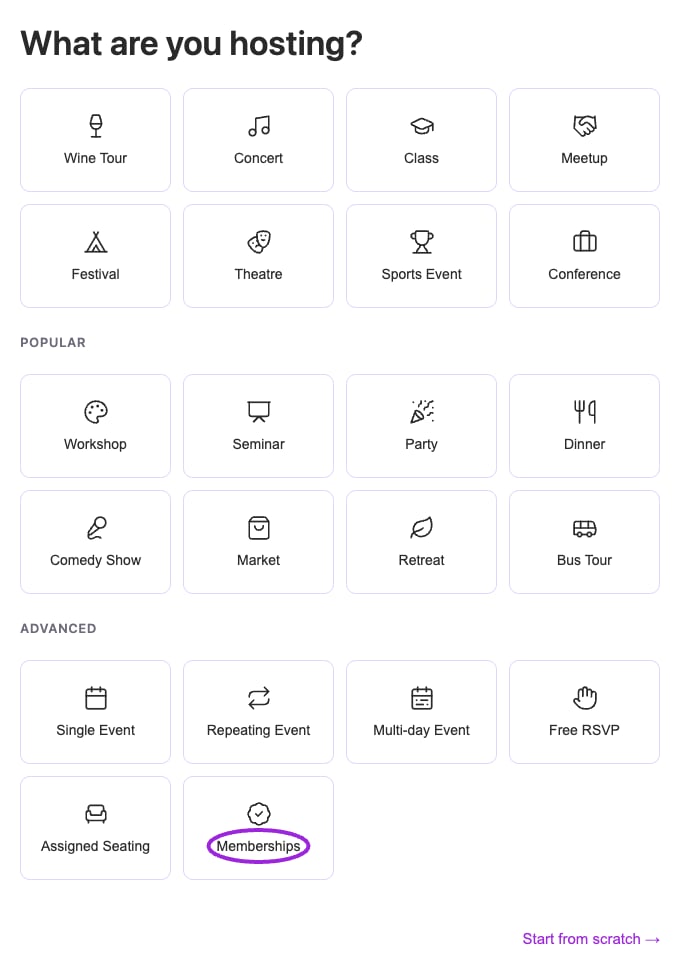
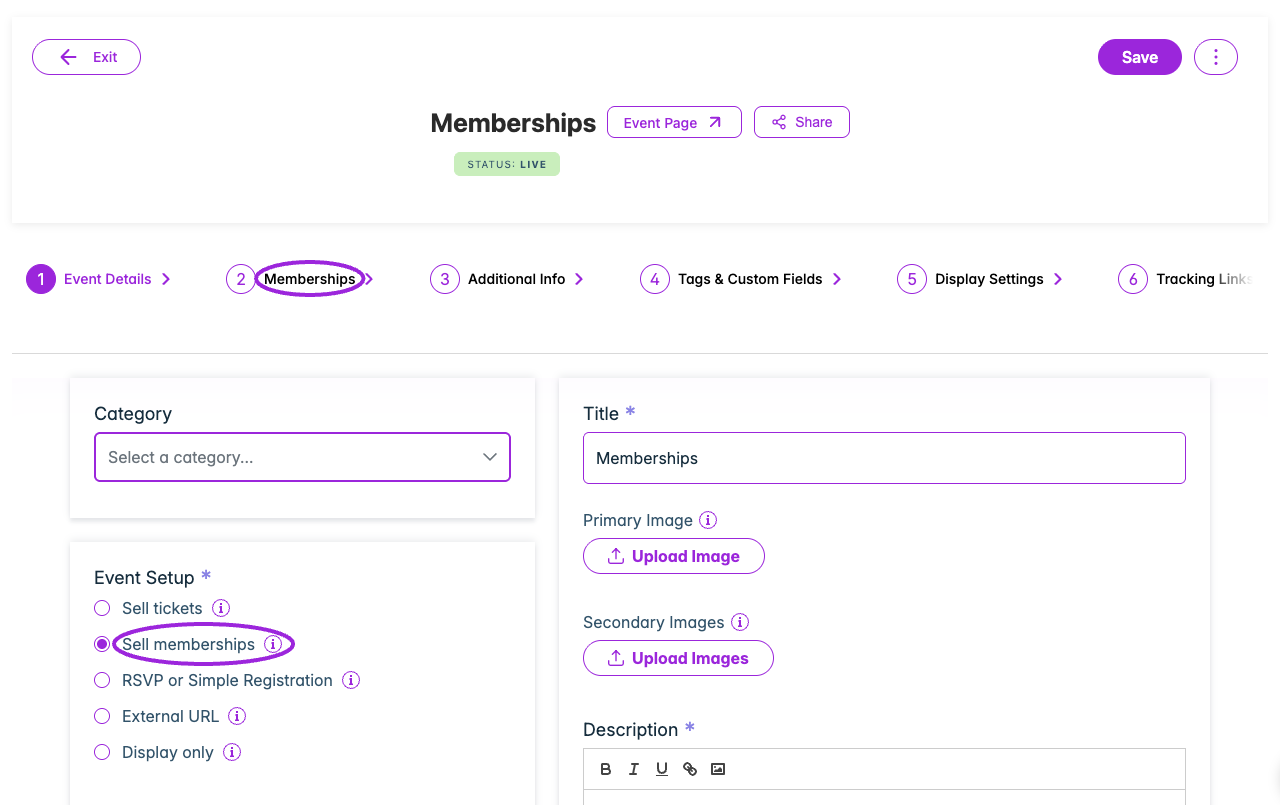
2. In onboarding, choose **Browse more templates → Advanced → Memberships**. This opens the membership sales editor directly, without date or ticket questions. If you already have the full editor open, choose **Sell memberships** under **Event Setup**.
3. Enter a title, description, and any images you want buyers to see.
4. Save the event. Its **Memberships** tab opens automatically so you can choose what to sell.
 There is no event date or time for buyers to choose. The event remains available while it is published. Each membership still follows its own inventory, active status, and optional sales start/end dates.
Create a separate sales event if the existing event is recurring or already has attendees. This keeps its reservations and admission settings intact.
## Customize the event page button
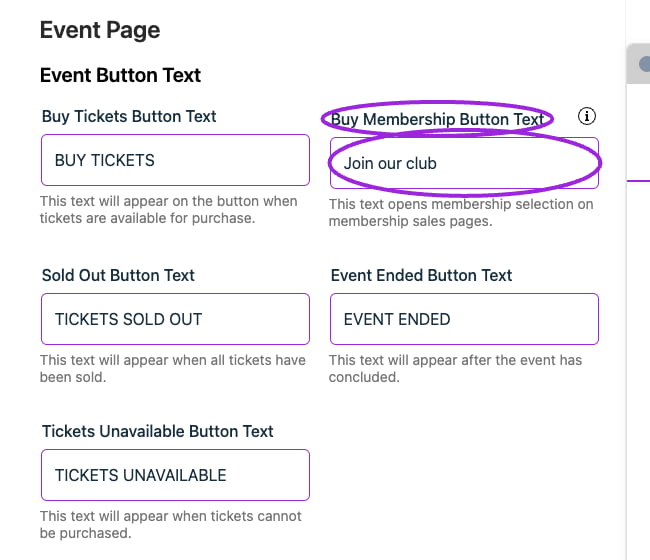
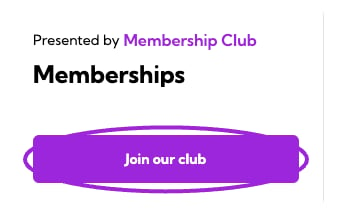
Open **Design → Event Page → Event Button Text** and set **Buy Membership Button Text**. The default is **BUY MEMBERSHIP**. This label is used for events set up to sell memberships; ticket events keep their Buy Tickets wording. An event-specific button label takes precedence when one is set.
There is no event date or time for buyers to choose. The event remains available while it is published. Each membership still follows its own inventory, active status, and optional sales start/end dates.
Create a separate sales event if the existing event is recurring or already has attendees. This keeps its reservations and admission settings intact.
## Customize the event page button
Open **Design → Event Page → Event Button Text** and set **Buy Membership Button Text**. The default is **BUY MEMBERSHIP**. This label is used for events set up to sell memberships; ticket events keep their Buy Tickets wording. An event-specific button label takes precedence when one is set.
 Membership pages hide event dates, times, venues, and ticket-price details on desktop and mobile. The browser title and sharing metadata also omit placeholder event dates. Membership validity dates still appear during checkout and on the issued pass.
 ## Choose the memberships to sell
1. Open the saved event's **Memberships** tab.
2. Select **Add Membership** and choose an active membership.
3. Enable **Available during checkout**, then add it.
4. Repeat for other memberships you want to offer.
5. Publish the event and use **Share** or your event widget to open its checkout.
## Choose the memberships to sell
1. Open the saved event's **Memberships** tab.
2. Select **Add Membership** and choose an active membership.
3. Enable **Available during checkout**, then add it.
4. Repeat for other memberships you want to offer.
5. Publish the event and use **Share** or your event widget to open its checkout.
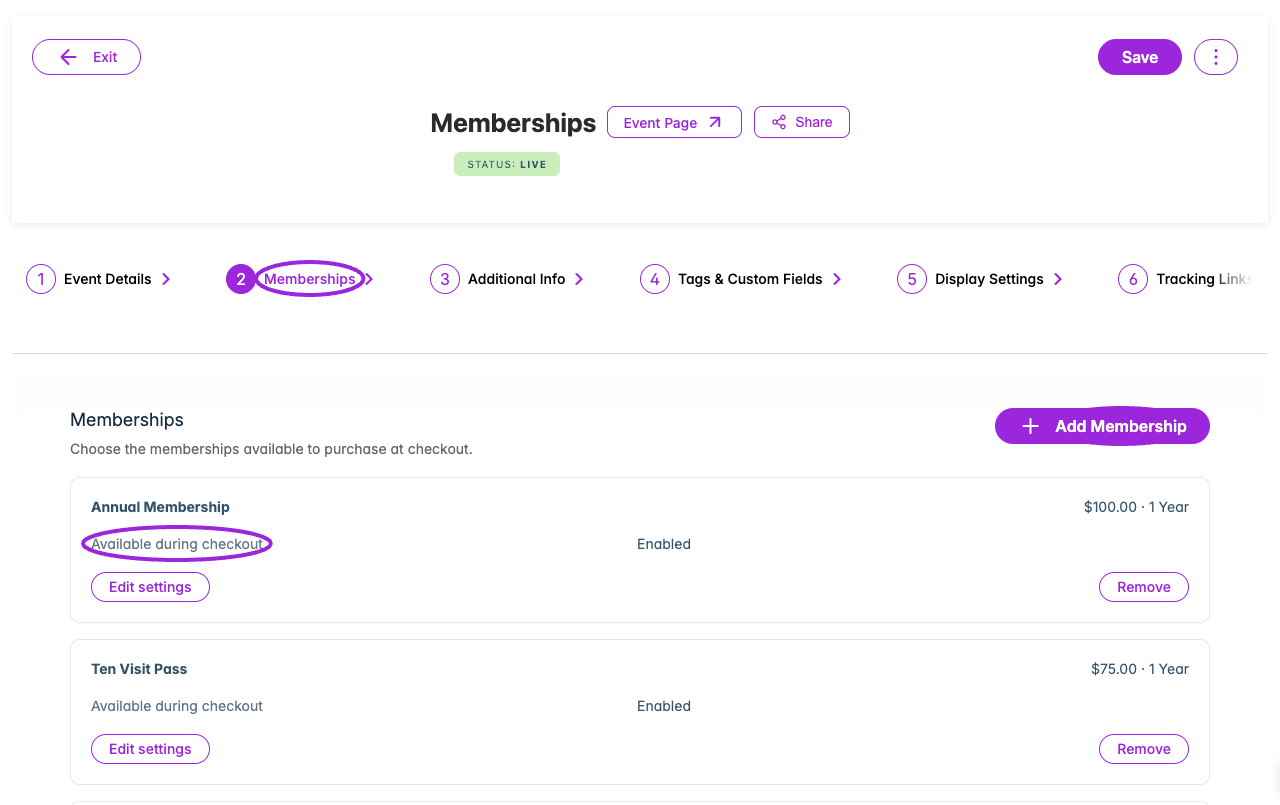 Offering a membership here does not grant admission to this sales event. Separately [assign the membership to the real events](./assign-to-events) where its benefits should apply.
## Check the buyer experience
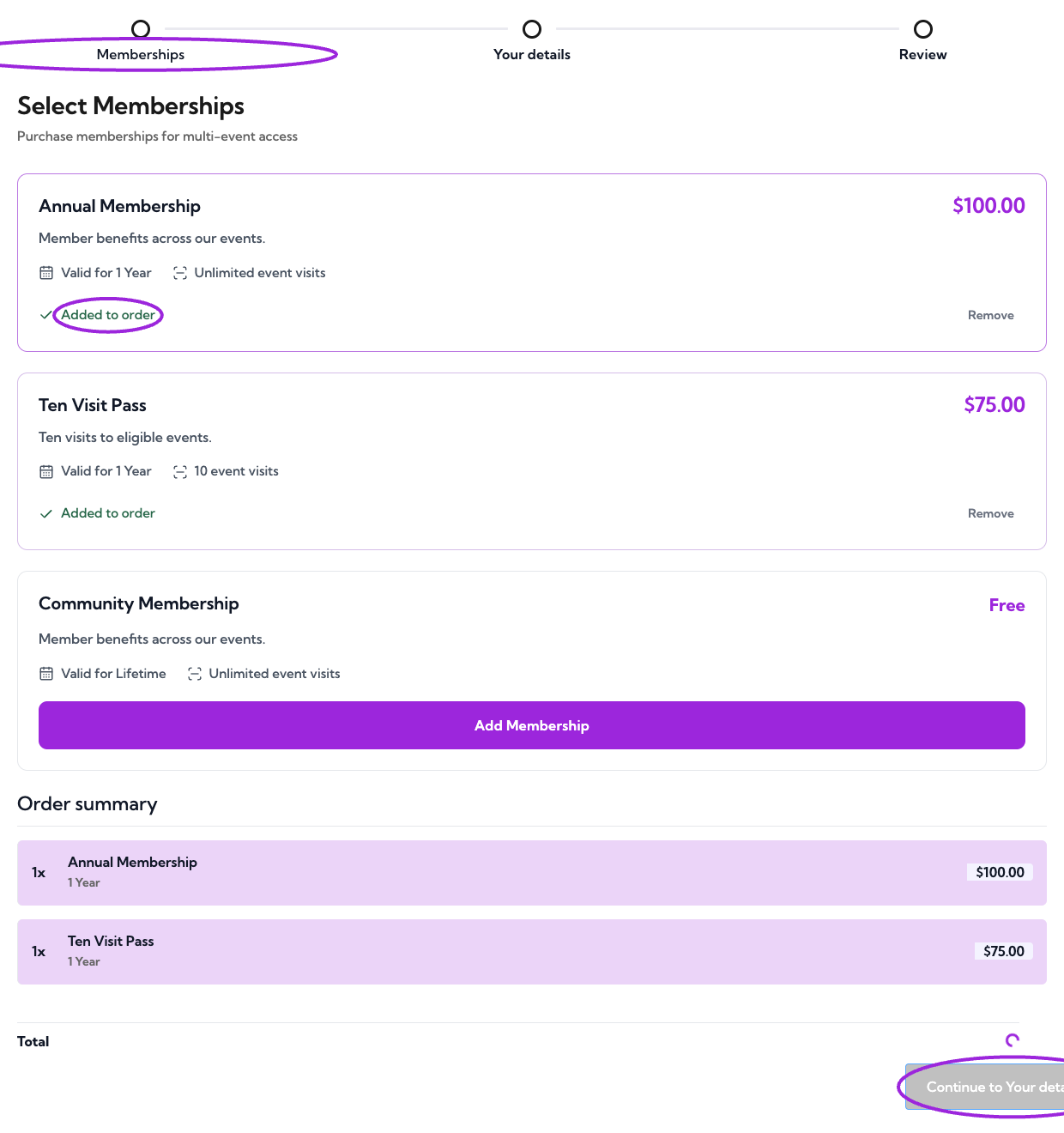
The checkout has three steps: **Memberships → Your details → Review**. The review includes payment for paid memberships, or **Confirm membership** for a free membership. A ticket selection is never required.
Offering a membership here does not grant admission to this sales event. Separately [assign the membership to the real events](./assign-to-events) where its benefits should apply.
## Check the buyer experience
The checkout has three steps: **Memberships → Your details → Review**. The review includes payment for paid memberships, or **Confirm membership** for a free membership. A ticket selection is never required.
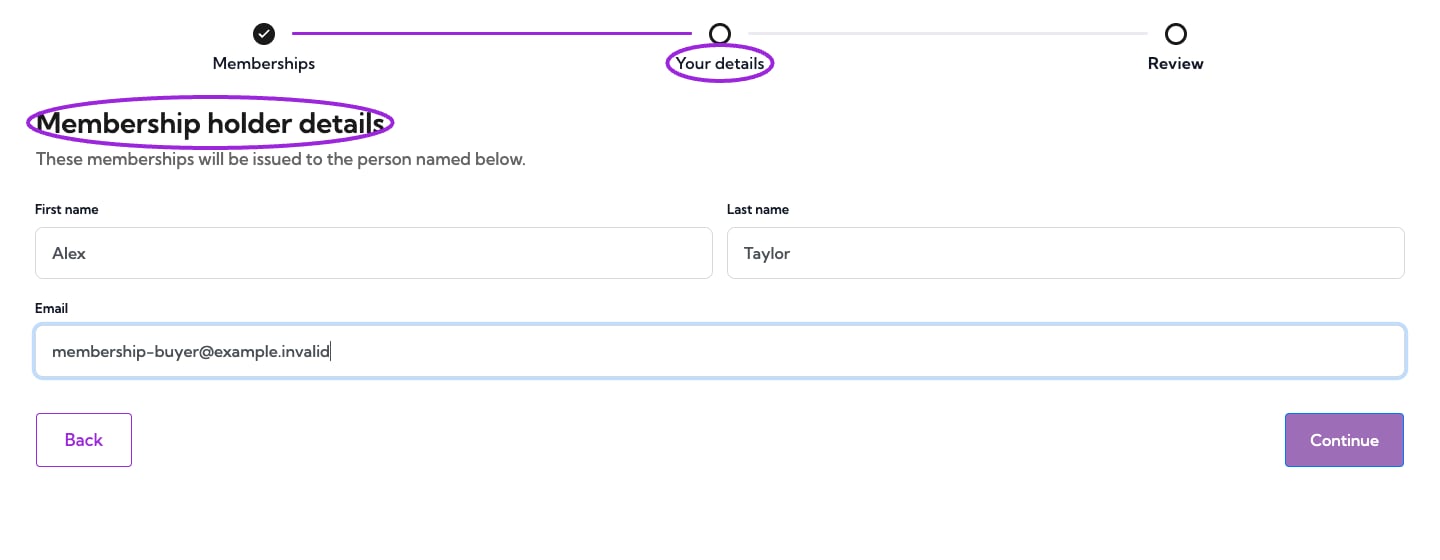
 The person entered under **Your details** becomes the holder of every membership in this order. Use **Additional Info** in the event editor for any extra purchaser questions you need.
 After completion, the confirmation shows each purchased membership, its holder, member reference, validity dates, and allowance. Event dates, venue information, calendar links, and ticket details are hidden.
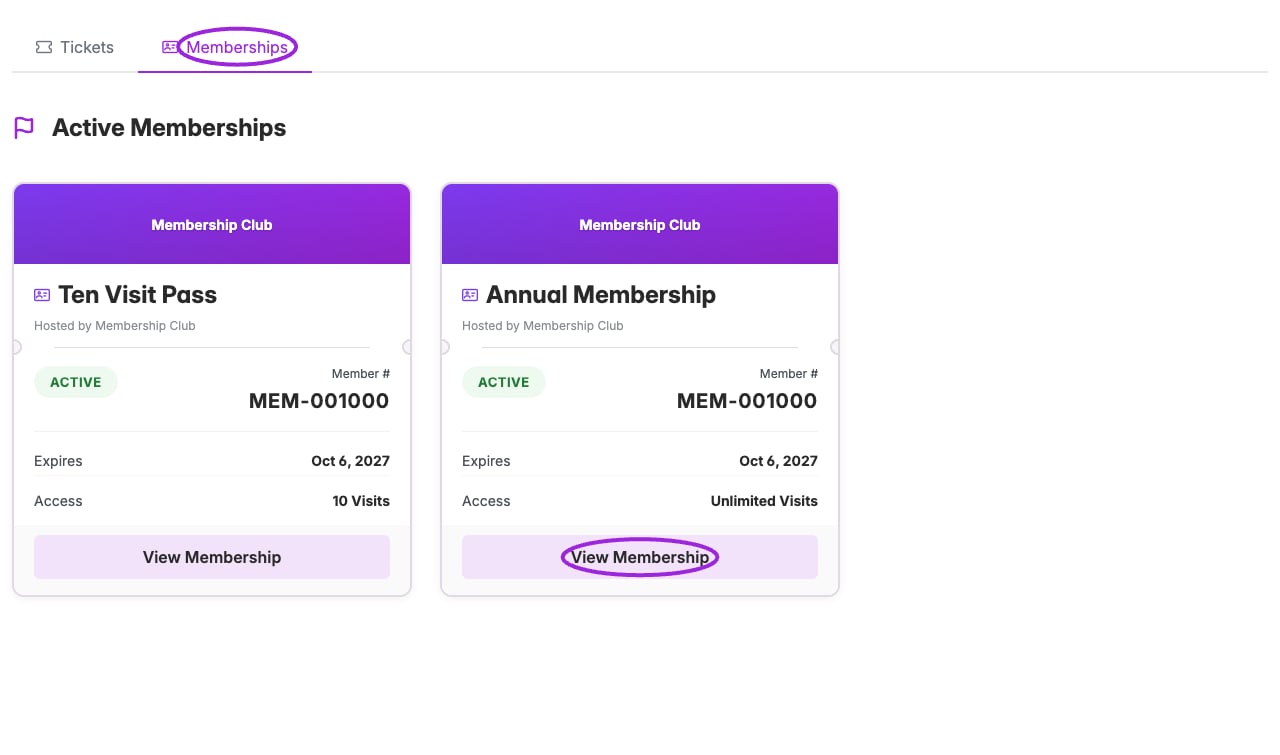
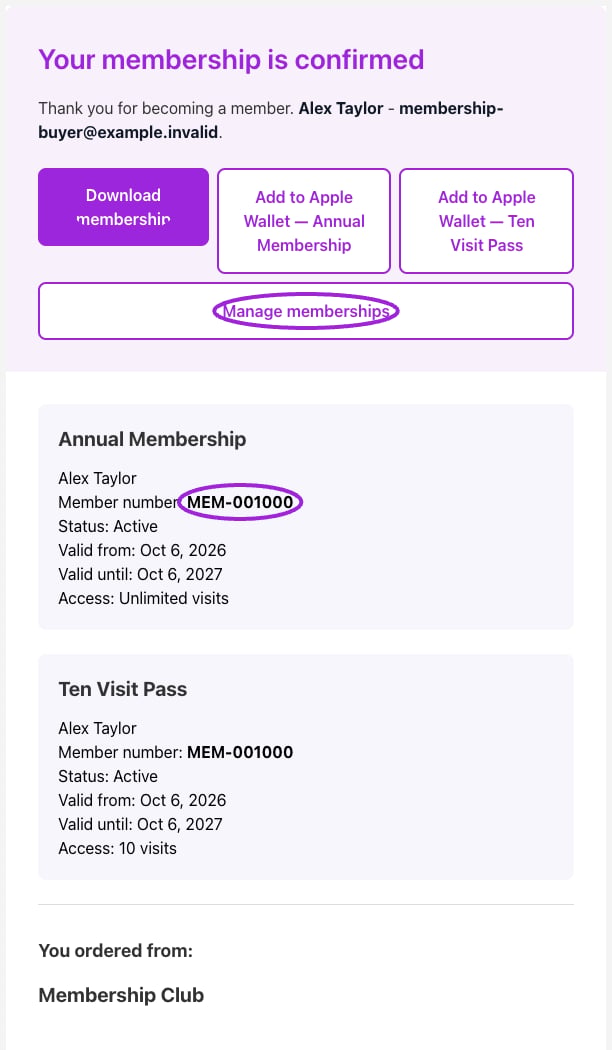 **Download membership** downloads the order's membership PDF. Several memberships are combined into one PDF. Apple Wallet provides a separate pass for each membership where Wallet is available on your plan. **Manage memberships** opens the member portal after sign-in; an order with several memberships opens the Memberships tab.
 ## Customize the confirmation
Open **Design → Attendee Communication → Membership Order Confirmation**. This controls both the dedicated confirmation email and the checkout confirmation.
## Customize the confirmation
Open **Design → Attendee Communication → Membership Order Confirmation**. This controls both the dedicated confirmation email and the checkout confirmation.
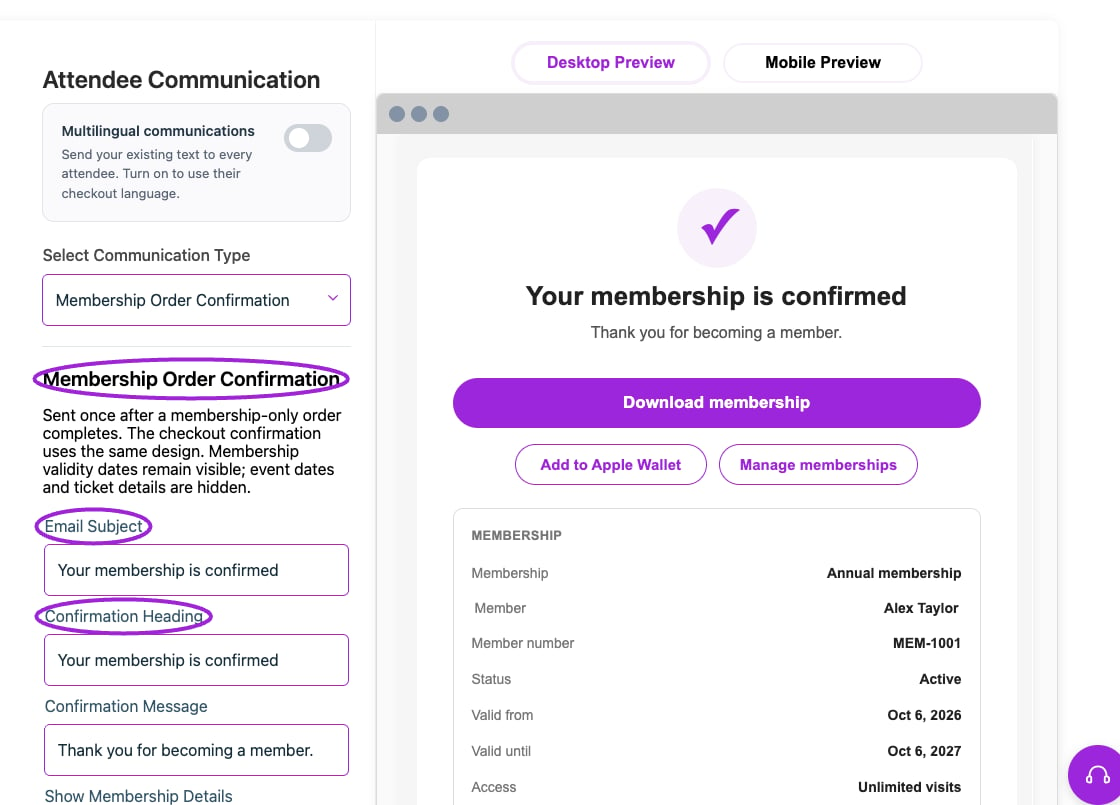 * Set the email subject, confirmation heading, and message.
* Choose whether to show membership details, member references, validity, and access allowances.
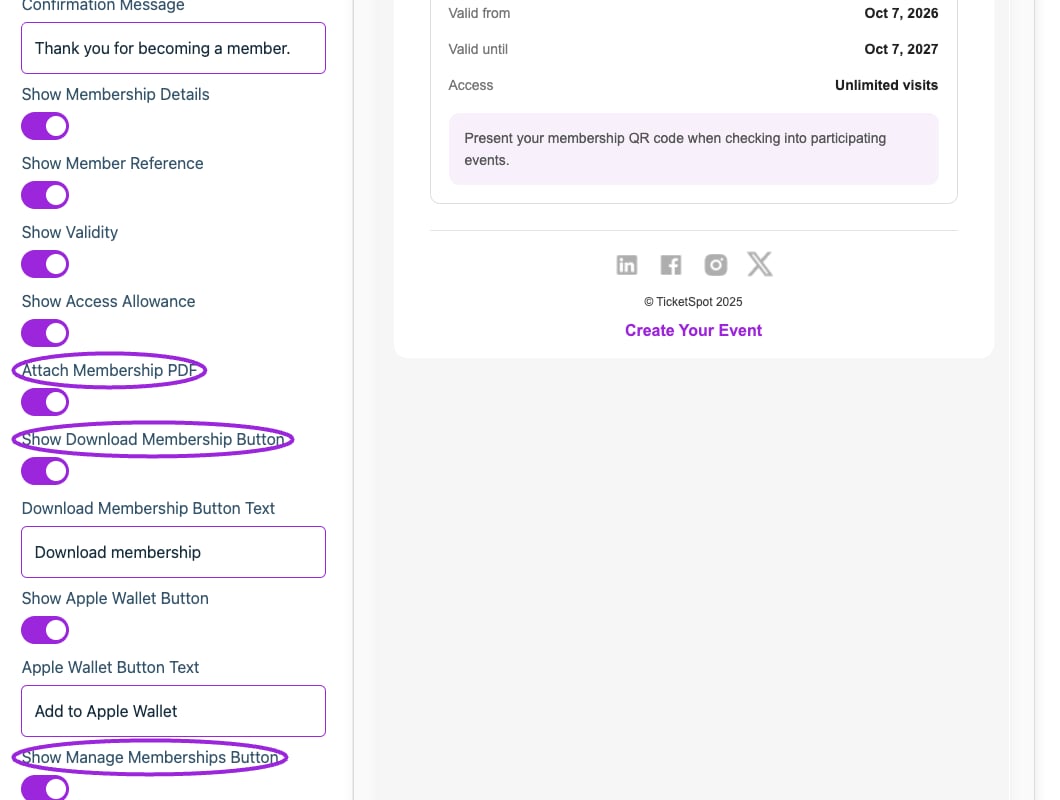
* Enable **Attach Membership PDF** to include the actual membership PDF in the email.
* Choose the Download membership, Apple Wallet, and Manage memberships buttons and their labels.
* Set the email subject, confirmation heading, and message.
* Choose whether to show membership details, member references, validity, and access allowances.
* Enable **Attach Membership PDF** to include the actual membership PDF in the email.
* Choose the Download membership, Apple Wallet, and Manage memberships buttons and their labels.
 The member reference uses the holder's member number, or its membership-holder reference when numbering is disabled. It identifies the issued membership, rather than the program's catalogue ID.
### Send confirmations in the buyer's language
Turn on **Multilingual communications**, select **Membership Order Confirmation**, and choose an **Editing language**. The subject, heading, message, button text, and membership labels have supplied translations in all 18 supported languages. You can override the text for each language using the same controls as other confirmations.
Delivery and the checkout confirmation use the buyer's saved checkout language. Regional preferences use the base language where needed; English is the fallback. Turning multilingual communications off keeps your saved translations and uses your default text. Membership plan names and custom text are not automatically translated.
The dedicated email is sent after a completed membership-only order. These sales events have no Email Communication or SMS Communication tabs and do not schedule event reminders. Orders containing event tickets and memberships keep the regular ticket order confirmation.
For the PDF itself, use **Design → Tickets & Passes → Membership PDF**. Your [brand colors and logo](../branding-and-design/brand-design) also apply to membership confirmations.
## Manage the issued memberships
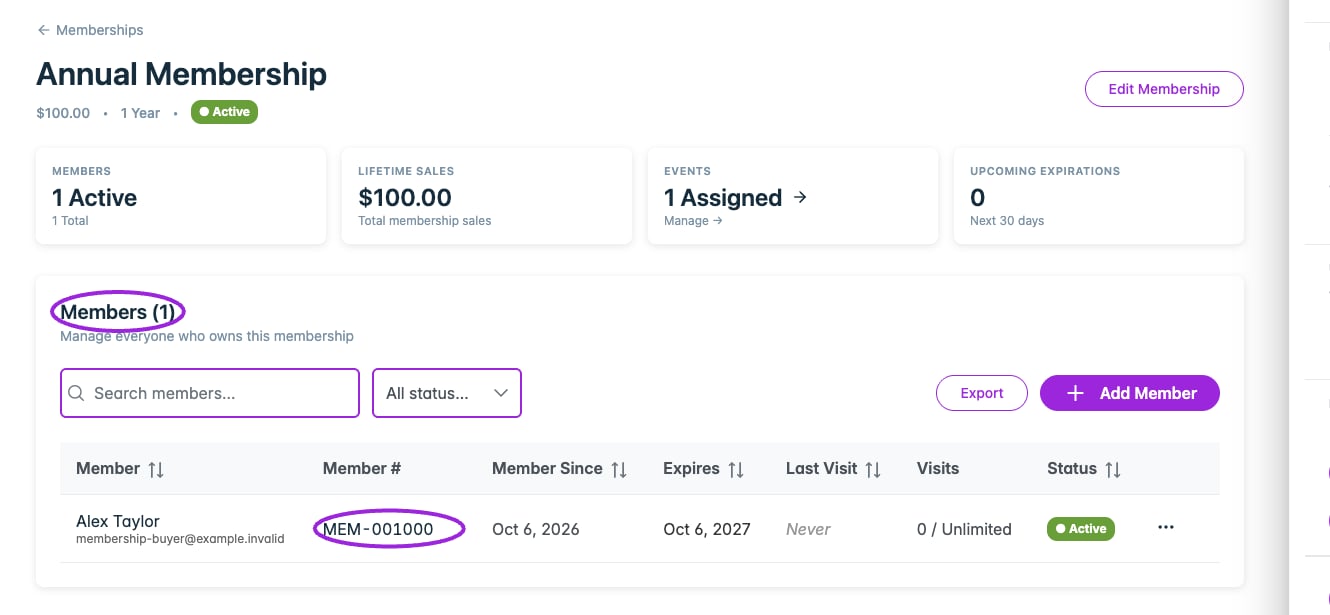
Open **Memberships**, select **View Members** for a program, and review the holder's details. Purchases create membership holders without adding event attendees or consuming admission capacity.
The member reference uses the holder's member number, or its membership-holder reference when numbering is disabled. It identifies the issued membership, rather than the program's catalogue ID.
### Send confirmations in the buyer's language
Turn on **Multilingual communications**, select **Membership Order Confirmation**, and choose an **Editing language**. The subject, heading, message, button text, and membership labels have supplied translations in all 18 supported languages. You can override the text for each language using the same controls as other confirmations.
Delivery and the checkout confirmation use the buyer's saved checkout language. Regional preferences use the base language where needed; English is the fallback. Turning multilingual communications off keeps your saved translations and uses your default text. Membership plan names and custom text are not automatically translated.
The dedicated email is sent after a completed membership-only order. These sales events have no Email Communication or SMS Communication tabs and do not schedule event reminders. Orders containing event tickets and memberships keep the regular ticket order confirmation.
For the PDF itself, use **Design → Tickets & Passes → Membership PDF**. Your [brand colors and logo](../branding-and-design/brand-design) also apply to membership confirmations.
## Manage the issued memberships
Open **Memberships**, select **View Members** for a program, and review the holder's details. Purchases create membership holders without adding event attendees or consuming admission capacity.
 See [Manage members](./manage-members) for holder actions and [Ticket access and pricing](./ticket-access-and-pricing) for using a membership when reserving real event tickets.
This documentation is built and hosted on [Mintlify](https://mintlify.com), a developer documentation platform.
See [Manage members](./manage-members) for holder actions and [Ticket access and pricing](./ticket-access-and-pricing) for using a membership when reserving real event tickets.
This documentation is built and hosted on [Mintlify](https://mintlify.com), a developer documentation platform.