> ## Documentation Index
> Fetch the complete documentation index at: https://docs.ticketspotapp.com/llms.txt
> Use this file to discover all available pages before exploring further.
# Add Ticket Spot to WordPress
> Install the WordPress plugin and publish a Ticket Spot event widget using its generated shortcode.
The Ticket Spot WordPress plugin displays your event widget inside a WordPress page or post.
Install the Ticket Spot plugin in WordPress, then activate it. If installing from a supplied ZIP, use **Plugins → Add New → Upload Plugin**, upload the package, and activate it.
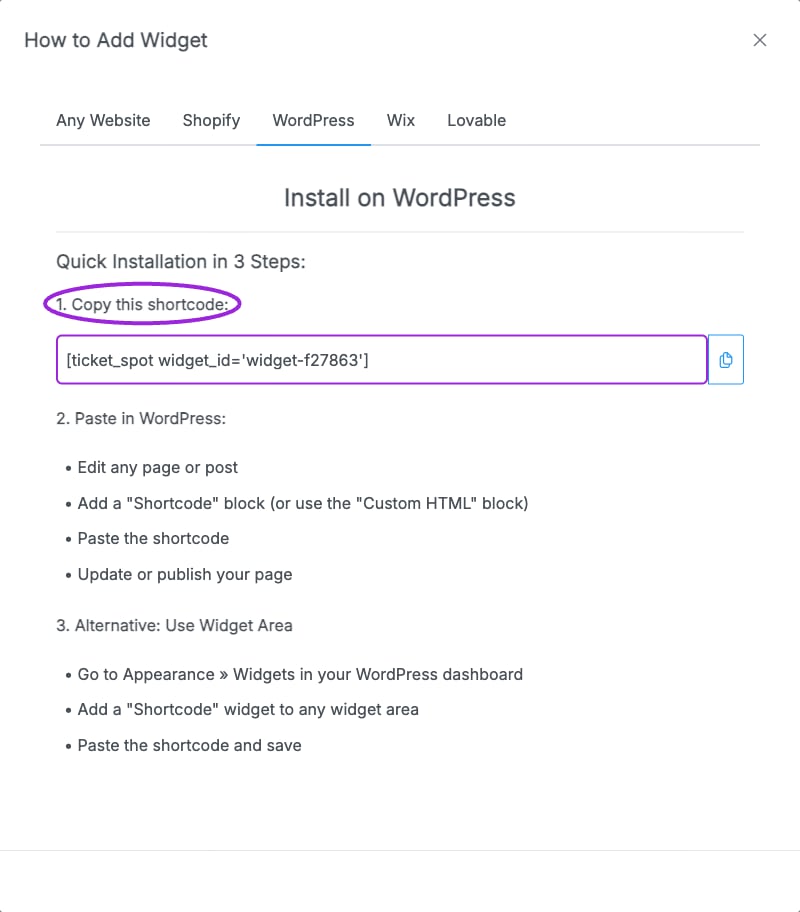
Open **Settings → Ticket Spot**, sign in, and choose or create the Ticket Spot site for this website. In Ticket Spot, open **Design → Widget**, choose the widget in **Editing Widget**, then open **Installation → WordPress** and copy its generated shortcode.
Edit the WordPress page and add a **Shortcode** block. Paste the generated shortcode. Its format is:
```text theme={null}
[ticket_spot widget_id="YOUR_WIDGET_ID"]
```
Use your actual widget ID, not an event ID or site ID.
Update or publish the page and open it as a visitor. Verify the event list loads, an event opens, and ticket selection reaches the expected checkout. Check desktop and mobile views.
 Set your [Brand colors and logo](/branding-and-design/brand-design) first, then adjust [Widget design](/branding-and-design/widget-customization-overview). Update events in Ticket Spot without replacing the shortcode each time.
If the page shows literal shortcode text, check that the plugin is active and the shortcode is in a Shortcode block. If no events appear, verify the widget ID, event visibility, and widget filters. After changes, refresh any WordPress page cache.
This documentation is built and hosted on [Mintlify](https://mintlify.com), a developer documentation platform.
Set your [Brand colors and logo](/branding-and-design/brand-design) first, then adjust [Widget design](/branding-and-design/widget-customization-overview). Update events in Ticket Spot without replacing the shortcode each time.
If the page shows literal shortcode text, check that the plugin is active and the shortcode is in a Shortcode block. If no events appear, verify the widget ID, event visibility, and widget filters. After changes, refresh any WordPress page cache.
This documentation is built and hosted on [Mintlify](https://mintlify.com), a developer documentation platform.