> ## Documentation Index
> Fetch the complete documentation index at: https://docs.ticketspotapp.com/llms.txt
> Use this file to discover all available pages before exploring further.
# Site Settings
The **Site Settings** page is where you set the main details of your event site. Here, you can update your site name, site URL, and a short description that appears on your public pages. These settings help visitors quickly understand who you are and what your event site is about.
Let’s get started 🚀
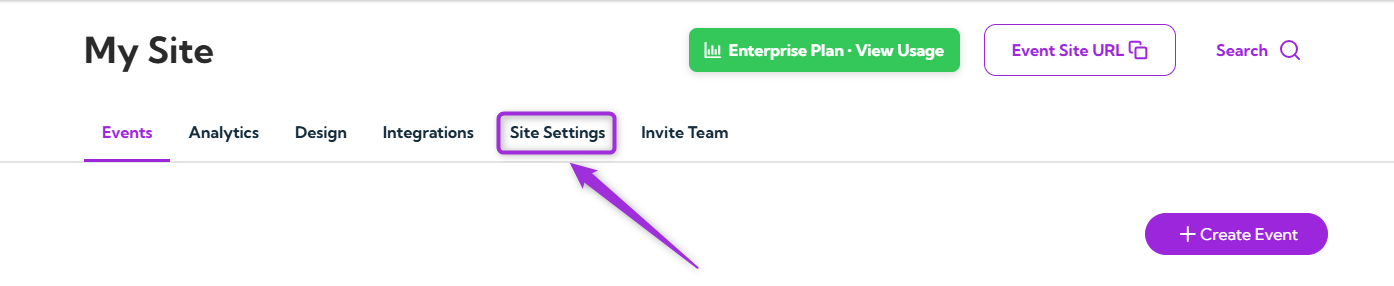
**Step 1**: Log in to your **Ticket Spot** account and click on the **Site Settings** tab from the top navigation bar.
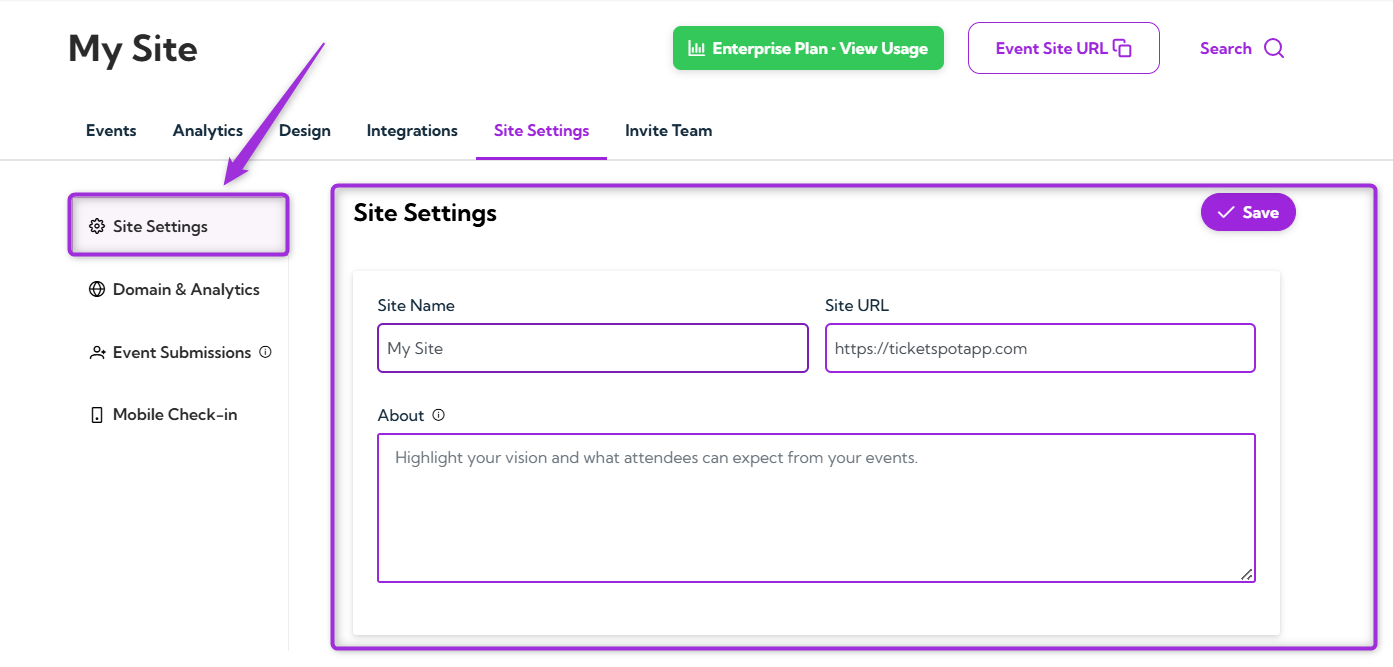
 **Step 2**: Select the **Site Settings** option from the left sidebar to view and edit your site name, URL, and description fields.
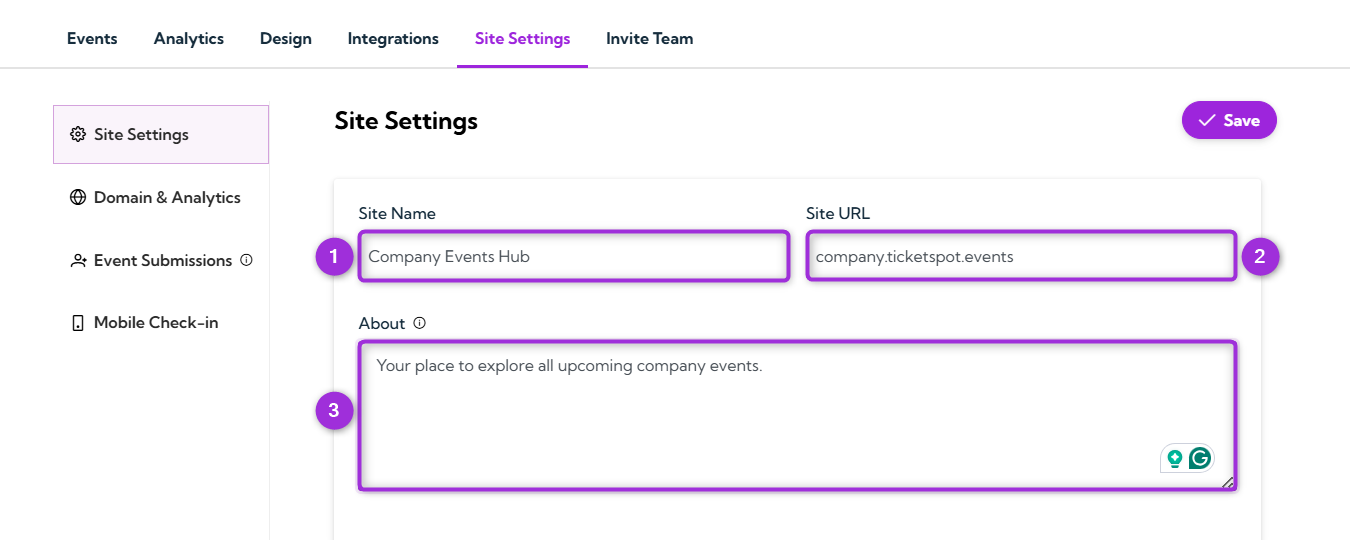
 **Step 3**: When the Site Settings page opens, you’ll see three fields you can update. Here’s what each field does:
| **Field** | **Description** | **Example** |
| ------------- | -------------------------------------------------------------------------------------------------------- | -------------------------------------------------- |
| **Site Name** | The name displayed on your event site. It appears in the header and public pages. | Company Events Hub |
| **Site URL** | The link visitors use to access your event site. | company.ticketspot.events |
| **About** | A short description that explains what your site or organization is about. This appears on public pages. | Your place to explore all upcoming company events. |
**Step 3**: When the Site Settings page opens, you’ll see three fields you can update. Here’s what each field does:
| **Field** | **Description** | **Example** |
| ------------- | -------------------------------------------------------------------------------------------------------- | -------------------------------------------------- |
| **Site Name** | The name displayed on your event site. It appears in the header and public pages. | Company Events Hub |
| **Site URL** | The link visitors use to access your event site. | company.ticketspot.events |
| **About** | A short description that explains what your site or organization is about. This appears on public pages. | Your place to explore all upcoming company events. |
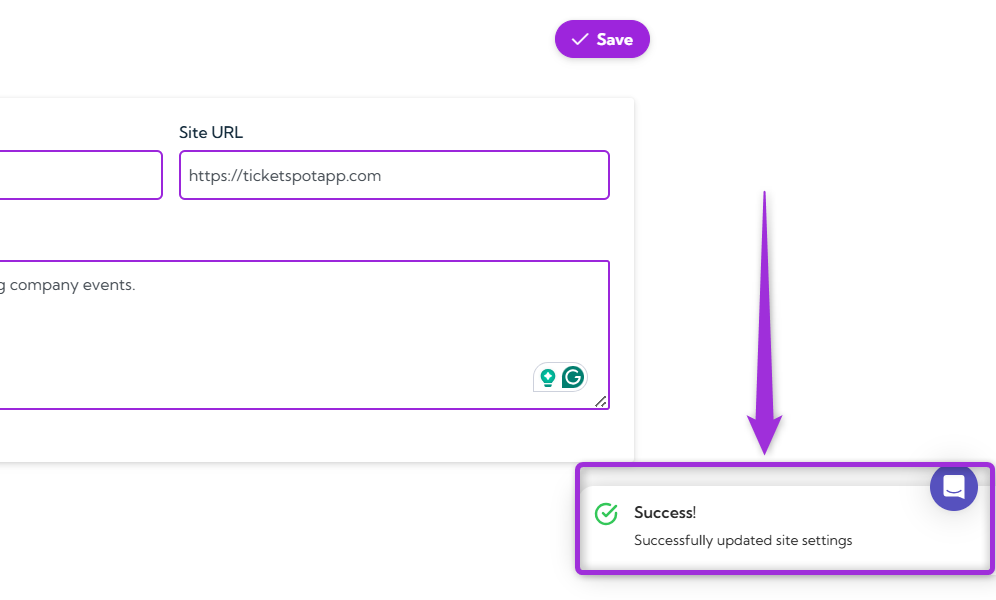
 **Step 4**: Review your site details and click the **Save** button in the top-right corner to apply your changes.
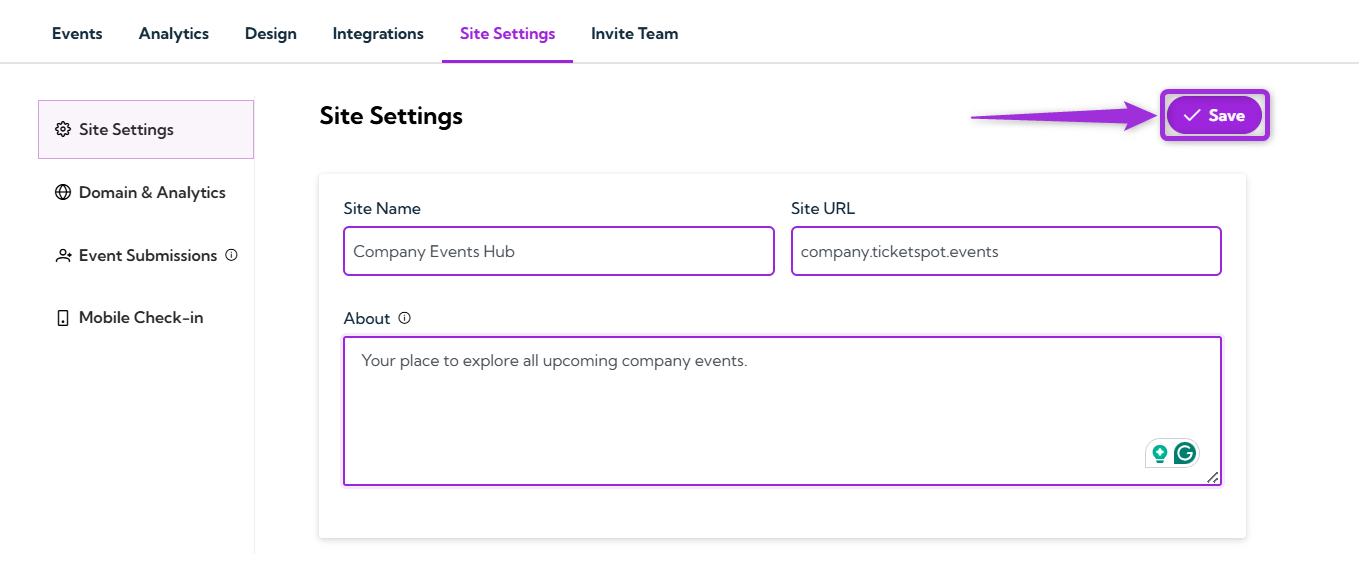 After saving, a confirmation message will appear to show that your site settings have been successfully updated.
 ## Best Practices
* **Use a clear site name** so visitors can quickly understand what your event site represents.
* **Keep your About section short and helpful** to give visitors a quick overview of your site or organization.
* **Review your URL** before sharing it publicly to make sure it’s correct.
* **Update your information regularly** to keep your event site accurate and up to date.
## Best Practices
* **Use a clear site name** so visitors can quickly understand what your event site represents.
* **Keep your About section short and helpful** to give visitors a quick overview of your site or organization.
* **Review your URL** before sharing it publicly to make sure it’s correct.
* **Update your information regularly** to keep your event site accurate and up to date.