
Import products
- Connect your Shopify store.
- Open Products in Ticket Spot and click Import from Shopify.
- Search for your merchandise, select products, and click Import products. You can import up to 20 products at a time.
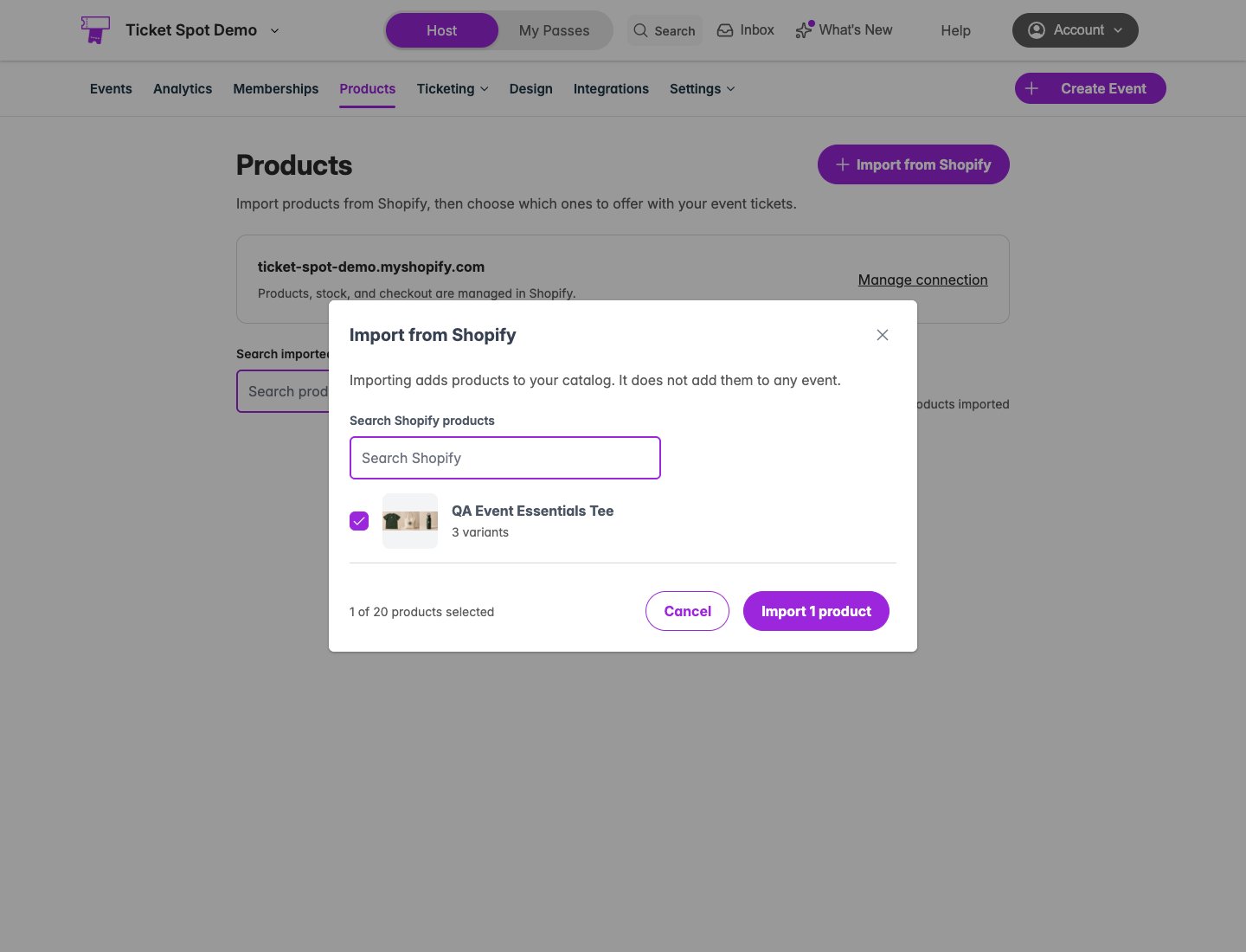
Import merchandise from the connected Shopify store. These screenshots use an isolated development-store QA product.
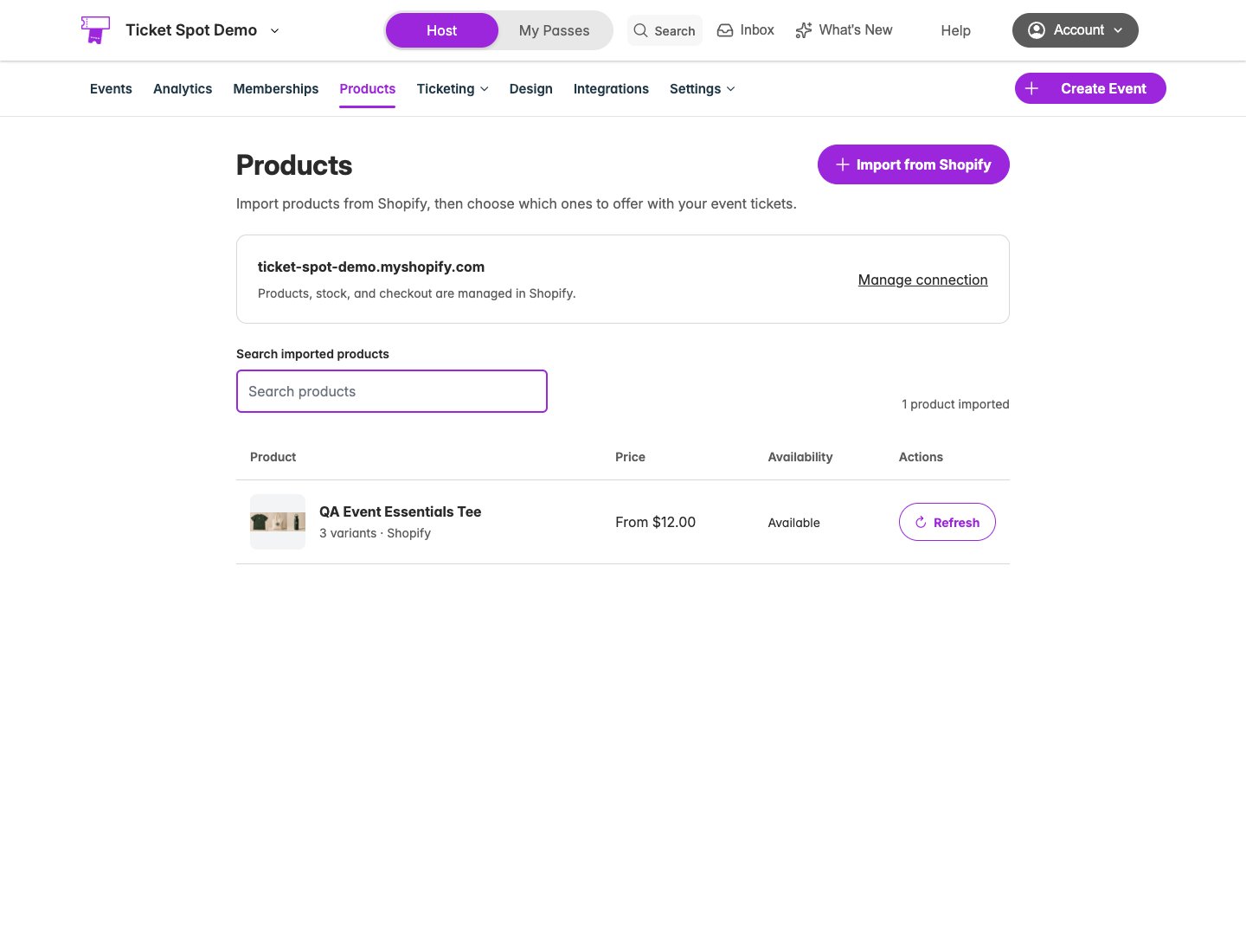
Imported products show their image, variants, price, and availability.
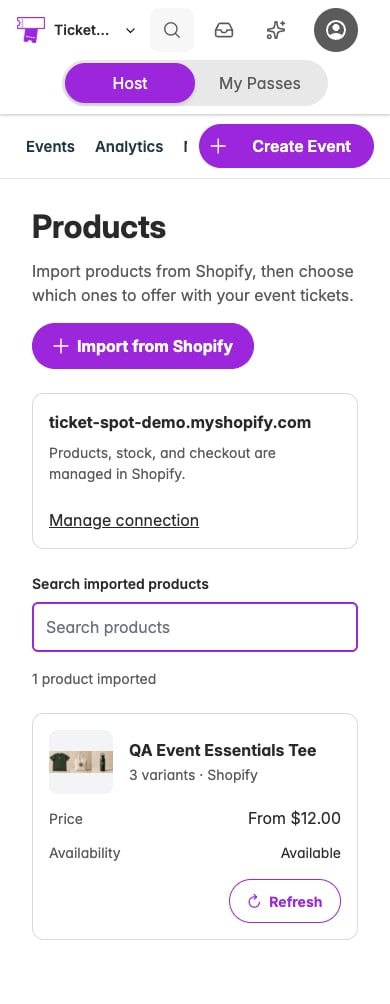
On a phone, product cards keep price, availability, and refresh controls visible.
Assign products to an event
- Open a saved event that sells tickets and choose Products.
- Turn on Show products during checkout.
- Click Add products, choose catalog products, then click Done.
- Choose the variants to offer and set Maximum per order for each product. The limit applies across all its variants combined.
- Use the arrow buttons to change the product order, or turn off Visible to hide a product.
- Use Save in the event header to save your changes, or Publish when the event is ready to go live. Product settings are included in both actions.
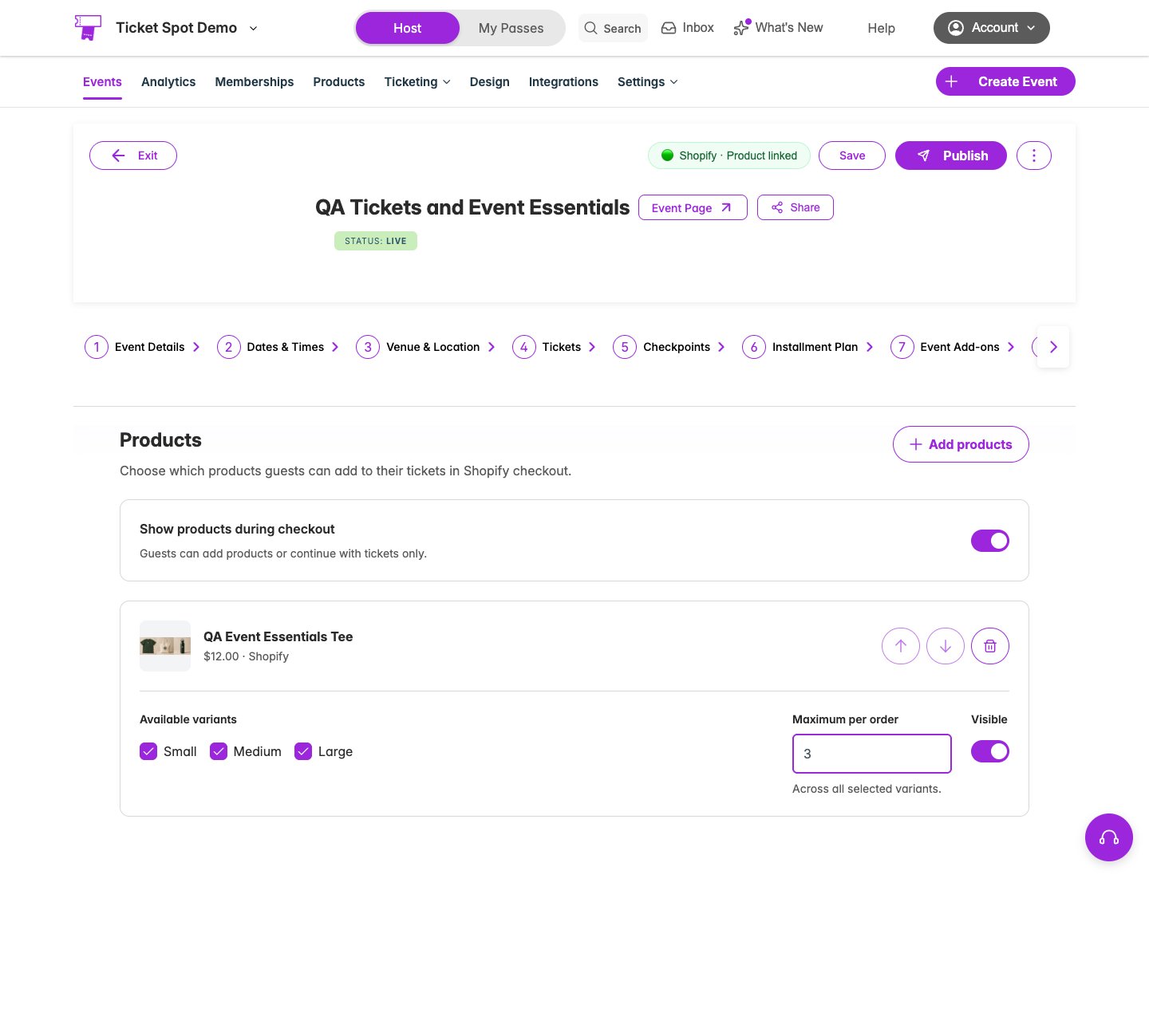
Use the event header’s Save or Publish to apply product settings. This demo event offers three sizes and allows up to three items per order.
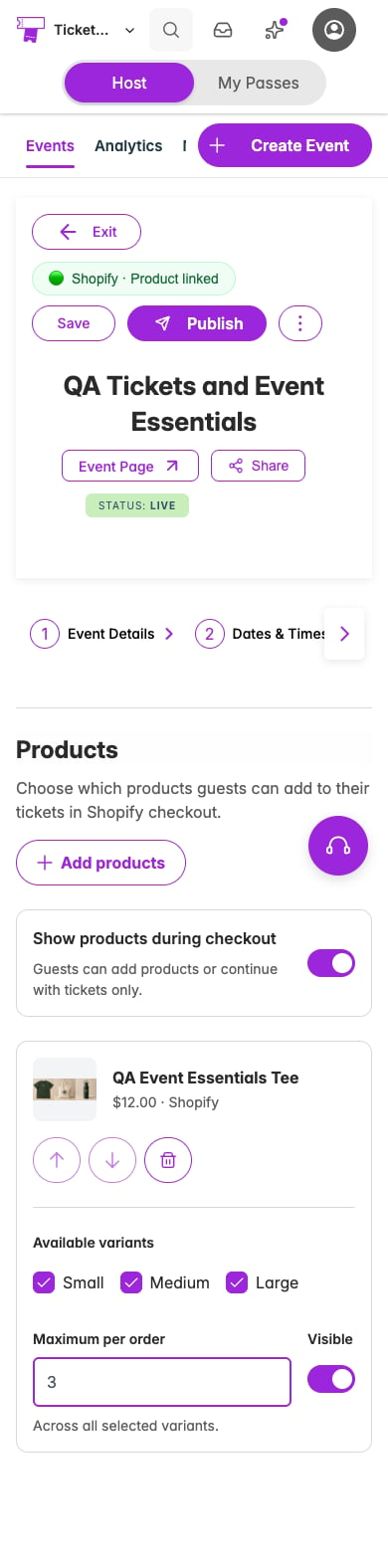
On a phone, Save and Publish stay in the event header and product controls remain grouped together.
Check the buyer flow
Publish your event to Shopify and use the Ticket Selector app block. Guests select tickets, then see Products after any event add-ons and before attendee details. They can continue without adding products. For a product with several variants, guests must choose an option before adding it. They can change quantities and remove items. The summary displays selected products with their images, variants, quantities, and prices.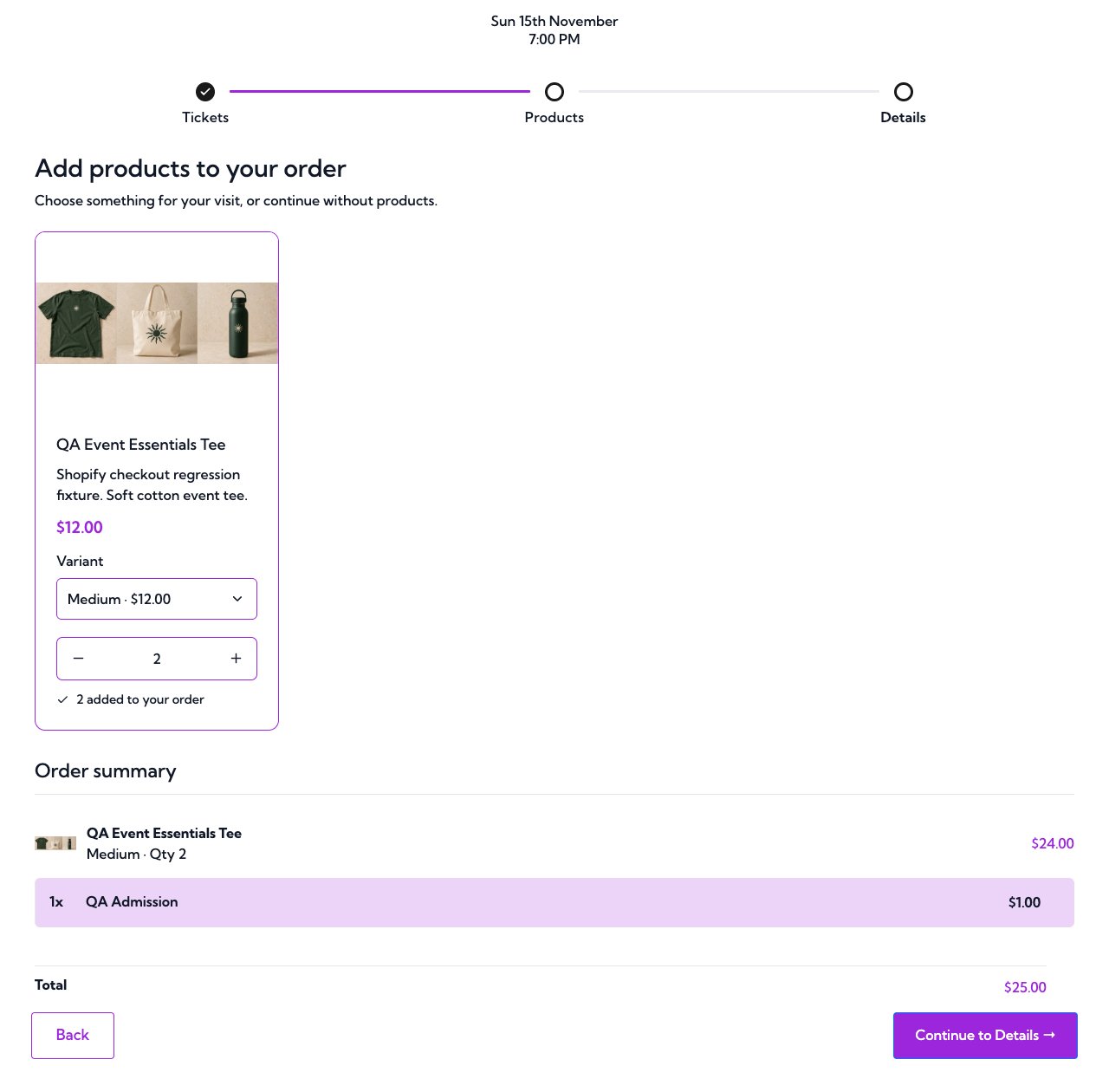
One $1 admission ticket and two $12 Medium tees appear together in the summary.
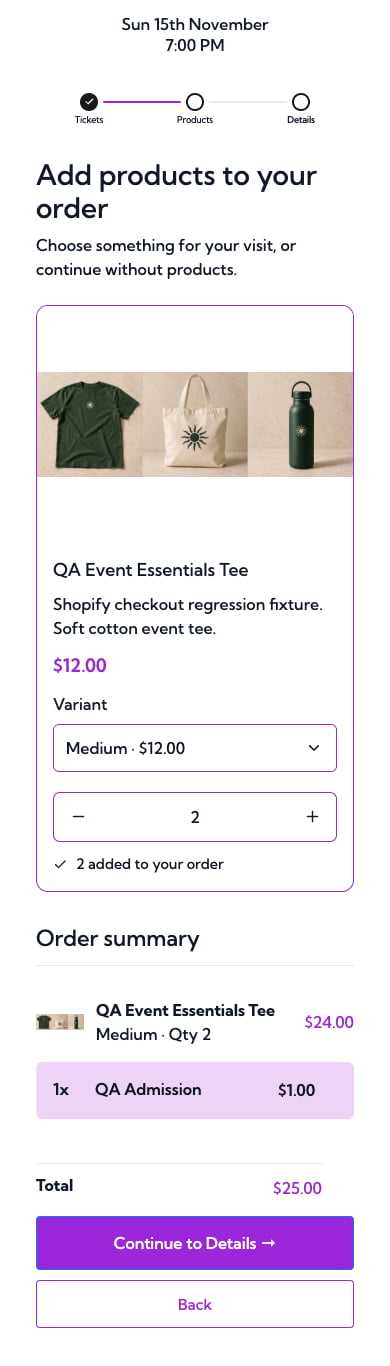
The same selection and summary adapt to a phone screen.
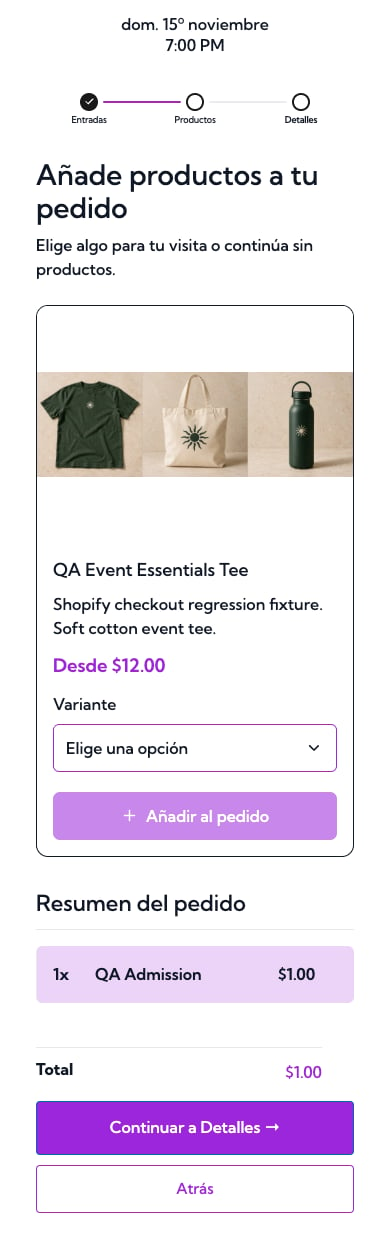
Product interface text follows the selected widget language. Product names and variant titles come from your Shopify catalog.
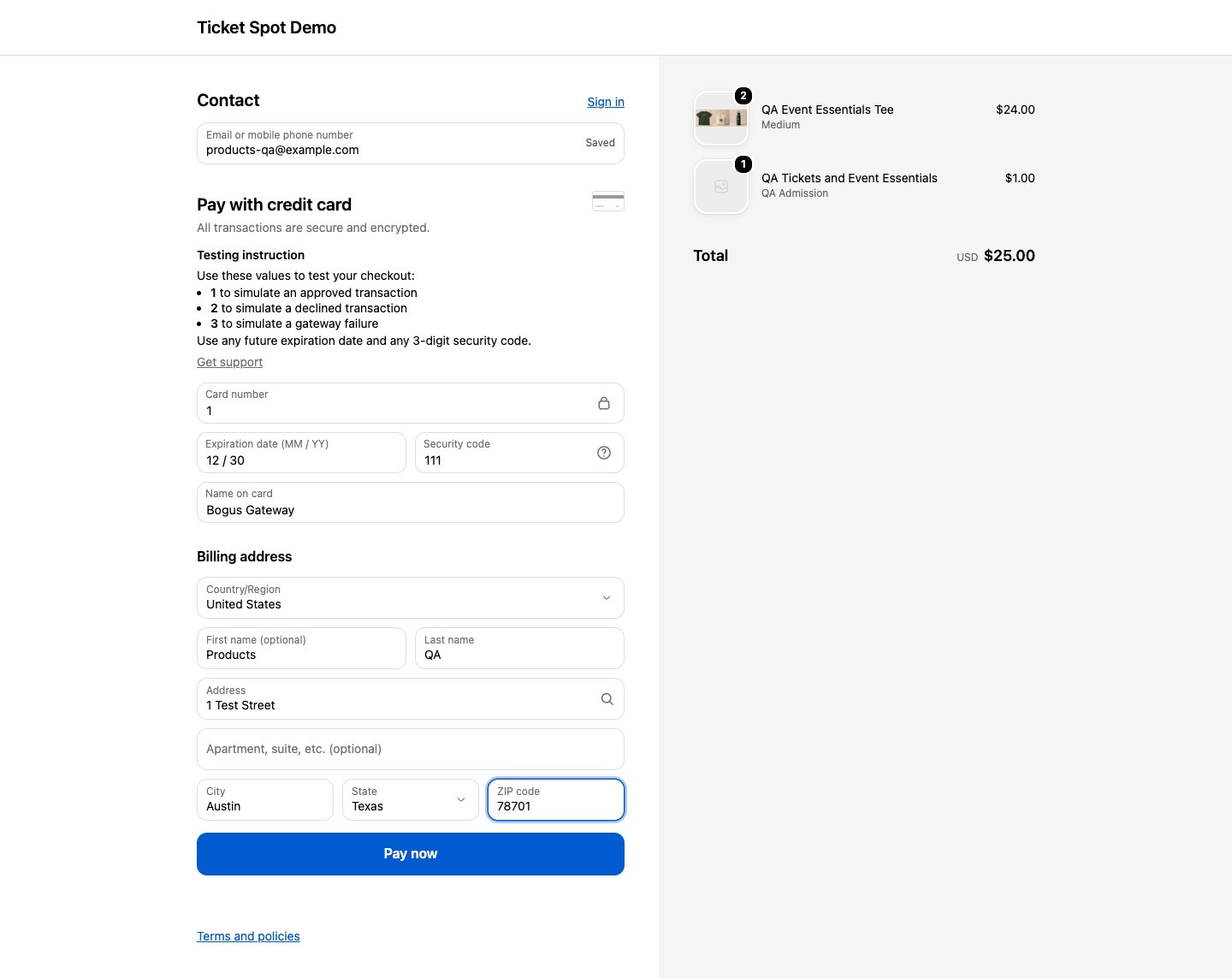
The real Shopify development checkout contains both the admission ticket and the selected merchandise. The Test Payment Gateway is used for this example.
View purchased products
After Shopify confirms payment, open the ticket order in Ticket Spot. The Products section shows the merchandise, variant, quantity, paid line amount, and Shopify order ID alongside the attendees and any event add-ons.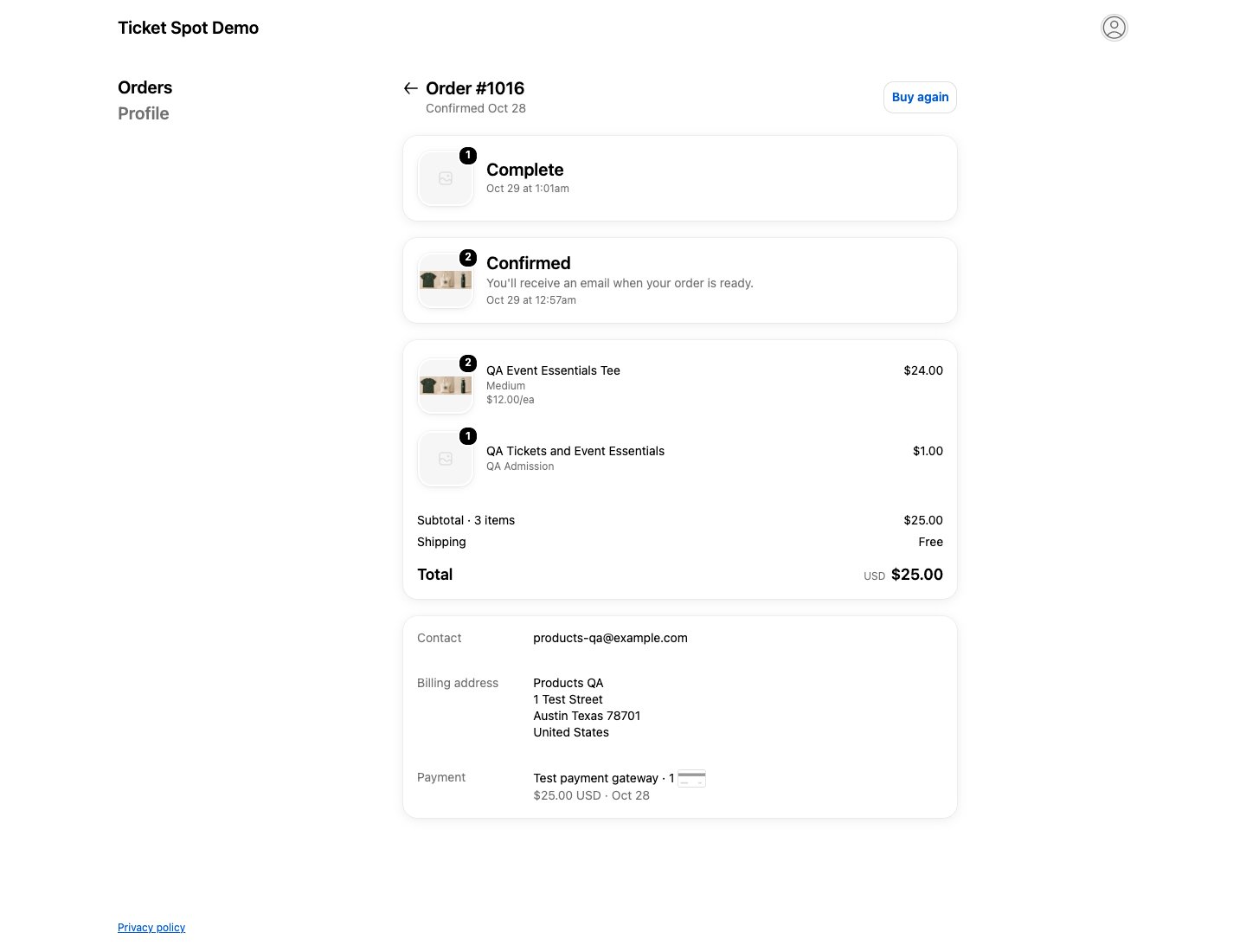
The completed Shopify test order contains both tickets and products. Ticket fulfillment and merchandise fulfillment stay separate.
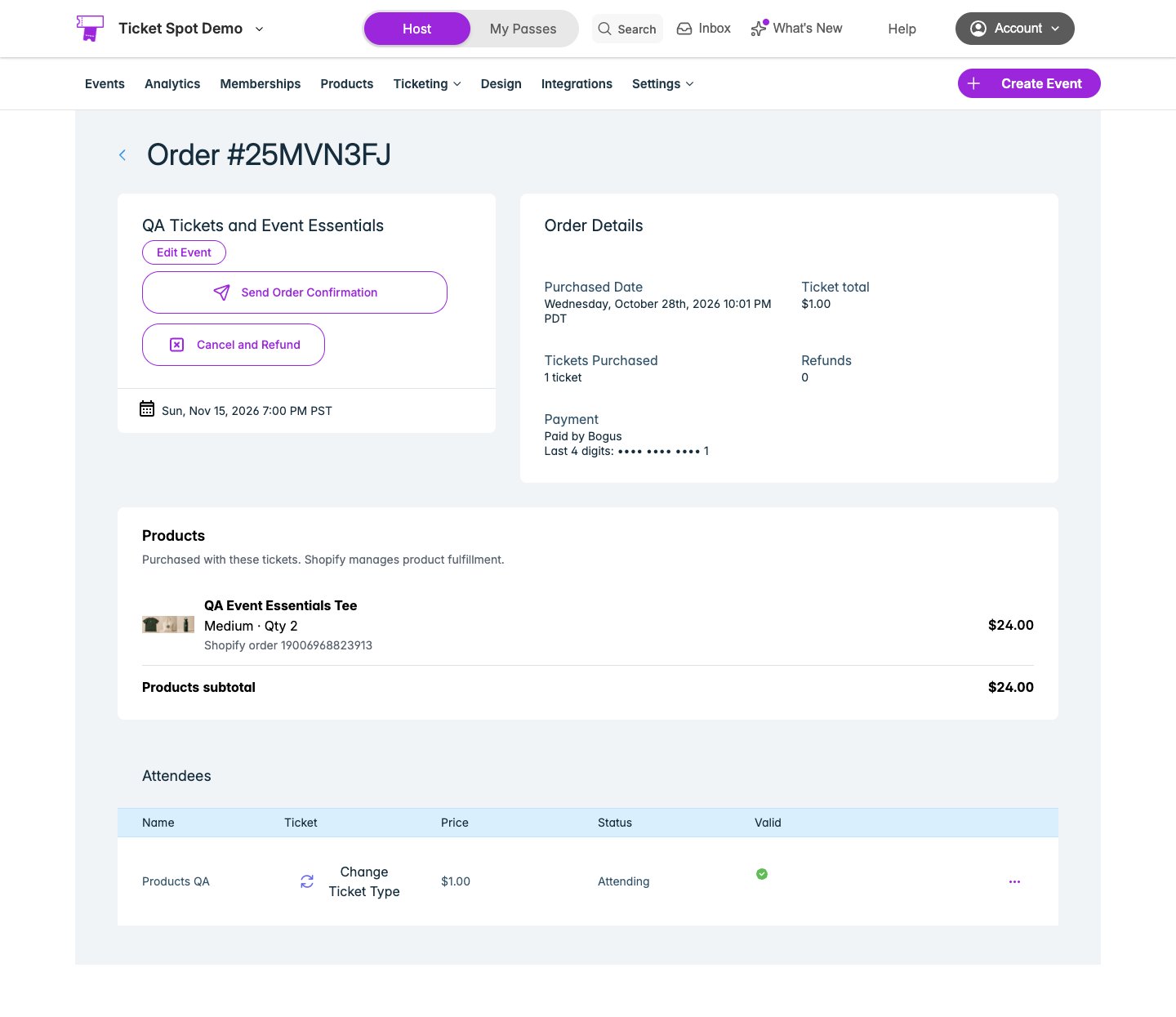
The paid ticket order stores two Medium tees with their Shopify order reference and a separate merchandise subtotal.
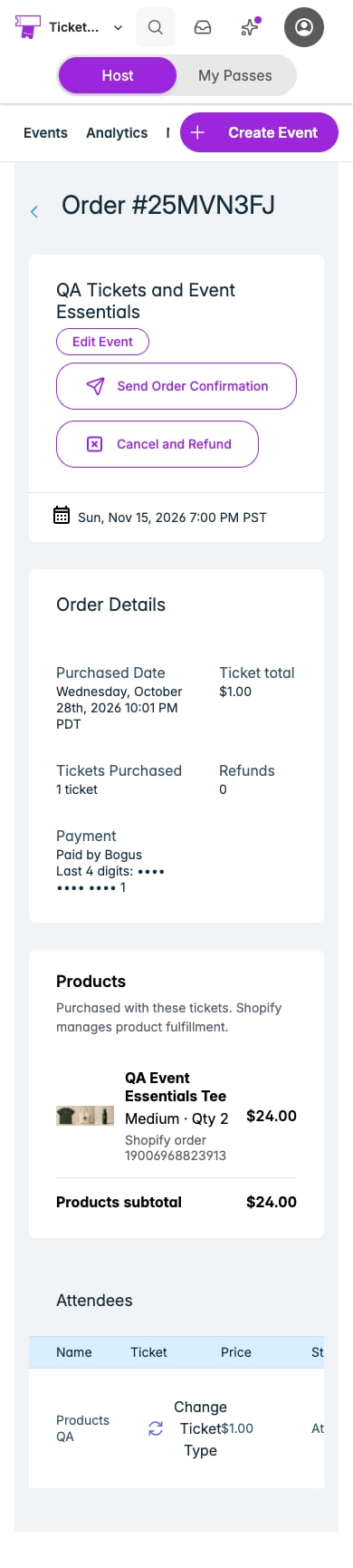
Purchased products and their amounts remain readable on a phone. The attendee table scrolls separately.
Match your widget colors
In the widget design settings, open the checkout Products controls. Customize product titles, descriptions, prices, card backgrounds and borders, selected states, variant controls, quantity controls, and add buttons. The defaults follow your existing widget palette: color-5 supplies text and color-6 supplies accents. Product copy is also available in the checkout text settings.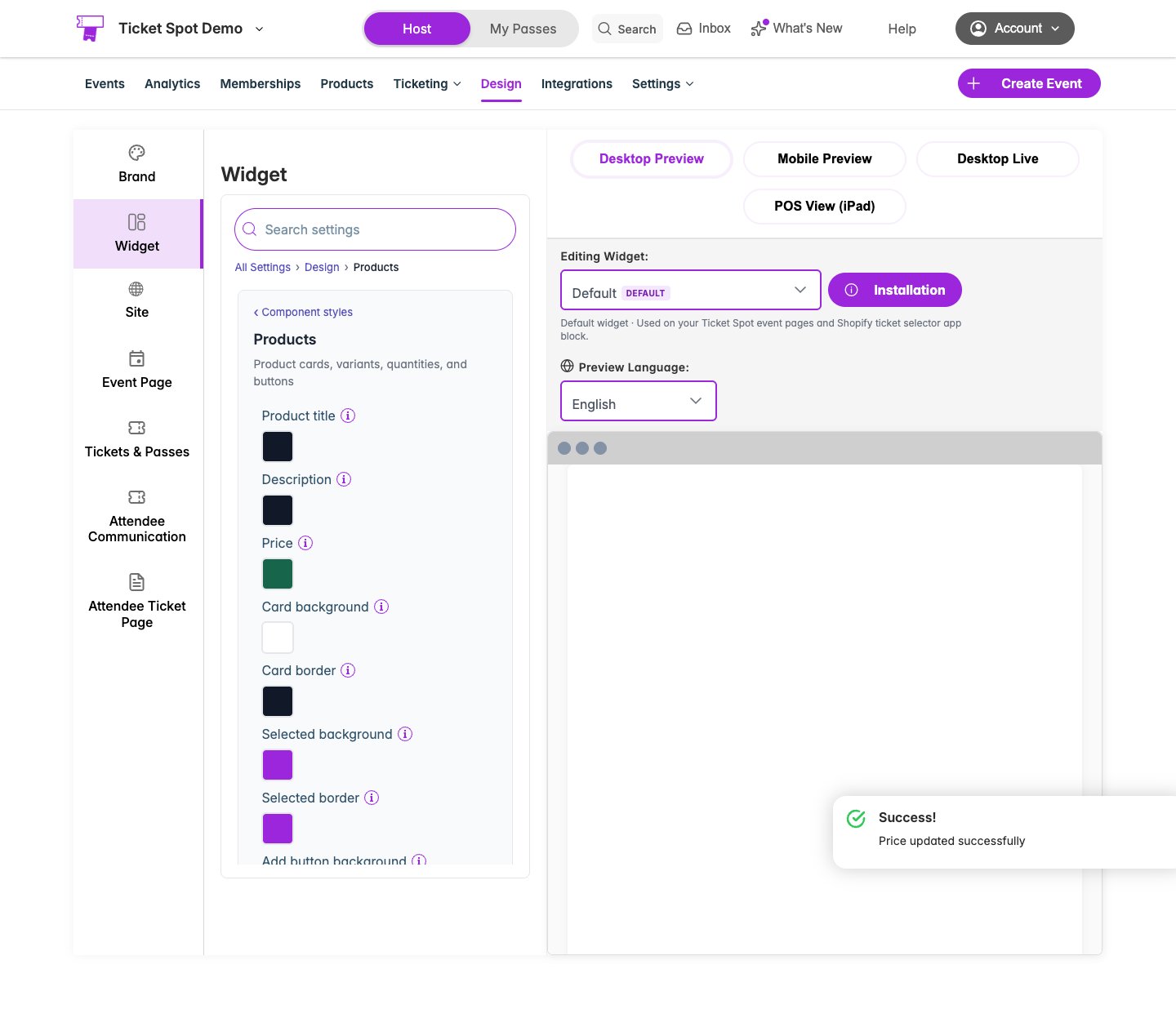
Product controls follow the existing widget design settings. This example saves a green price override.
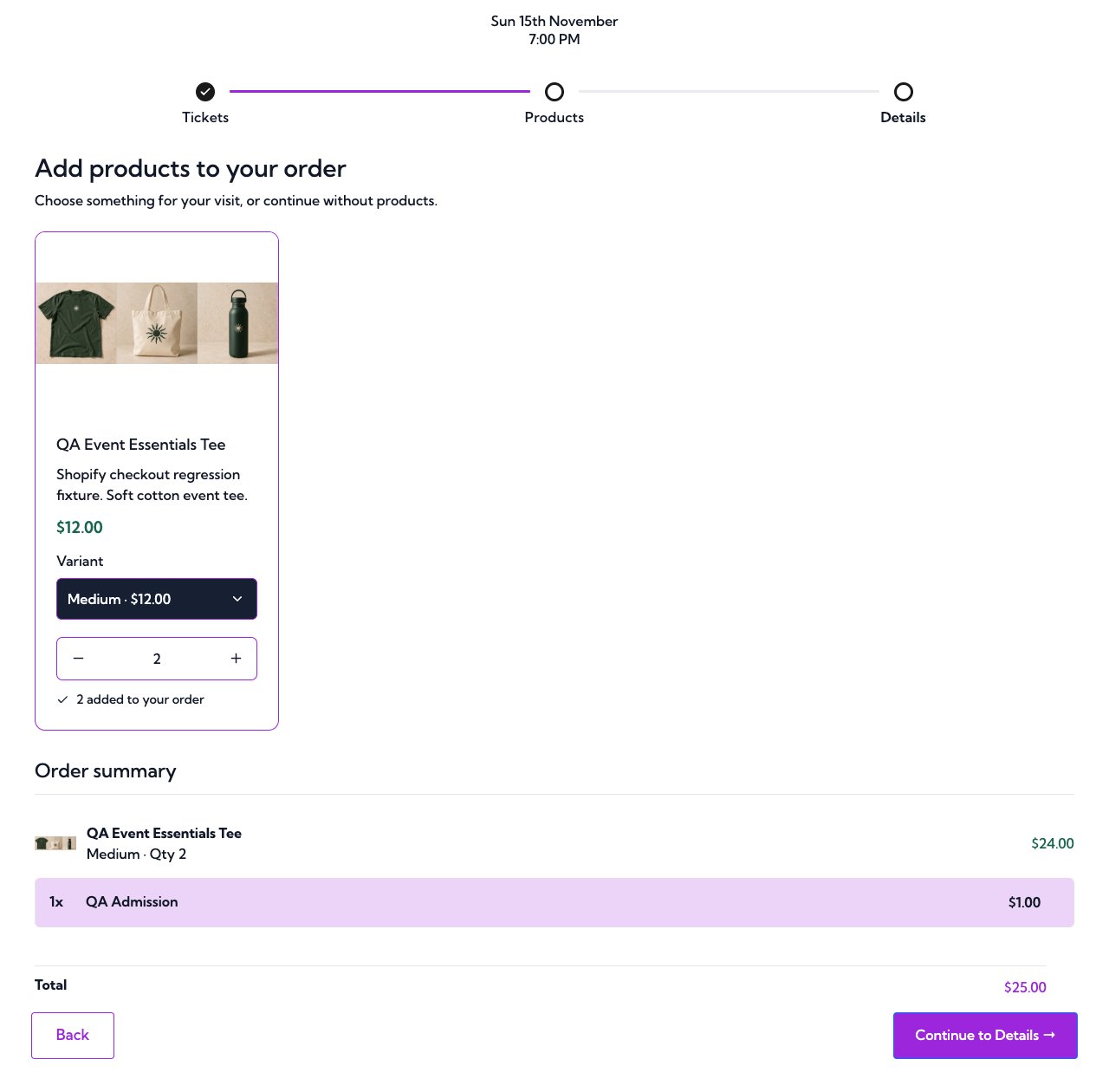
Product color settings style prices and the variant selector while retaining the widget accent colors.
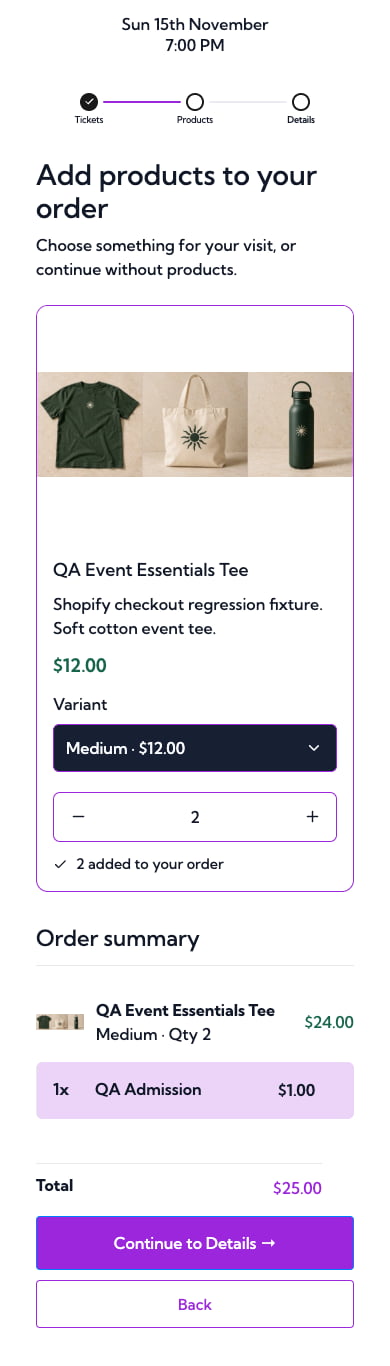
The variant arrow and text follow the selector text color on mobile, with space reserved on either side.