
Let’s get started 🚀
Navigation
Step 1: Click on the site name in the top-left corner, open the dropdown menu, and select + Add New Site to start adding a new site.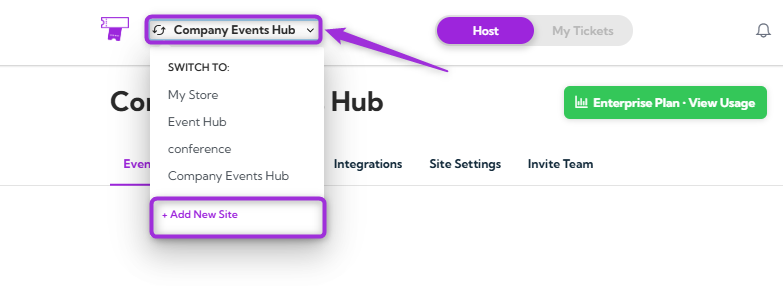
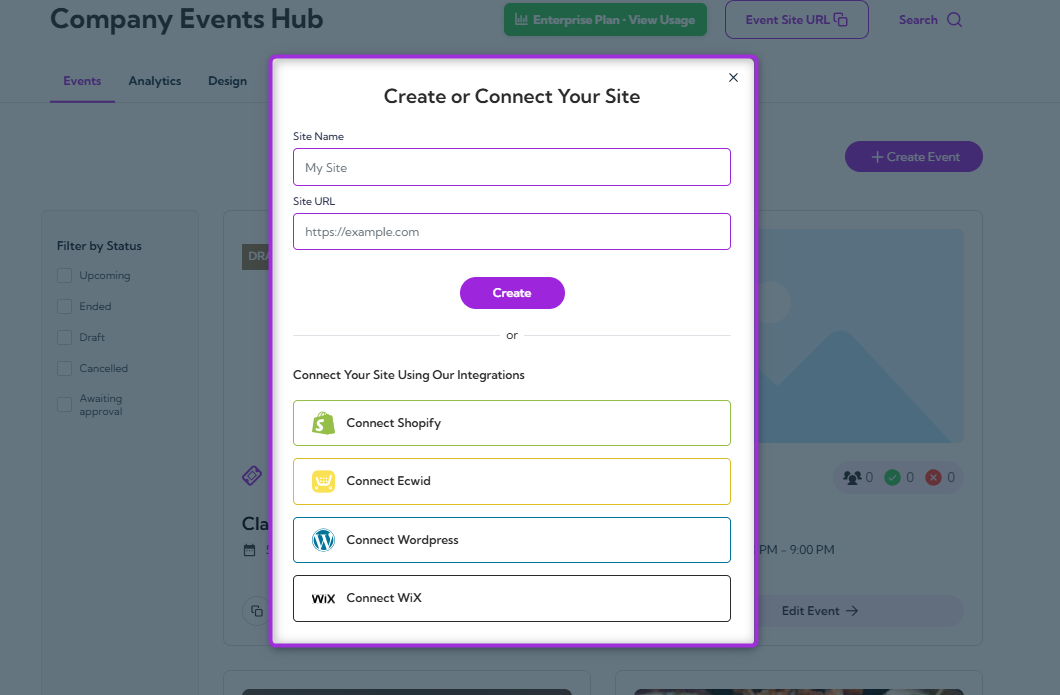
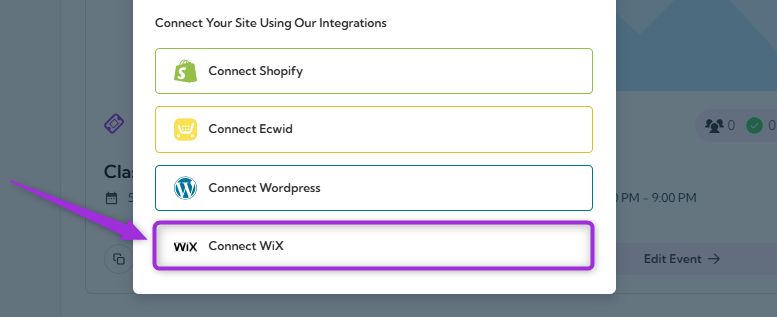
Install the Ticket Spot App
You can install Ticket Spot on Wix using either method below:Option 1: Install Directly from Ticket Spot
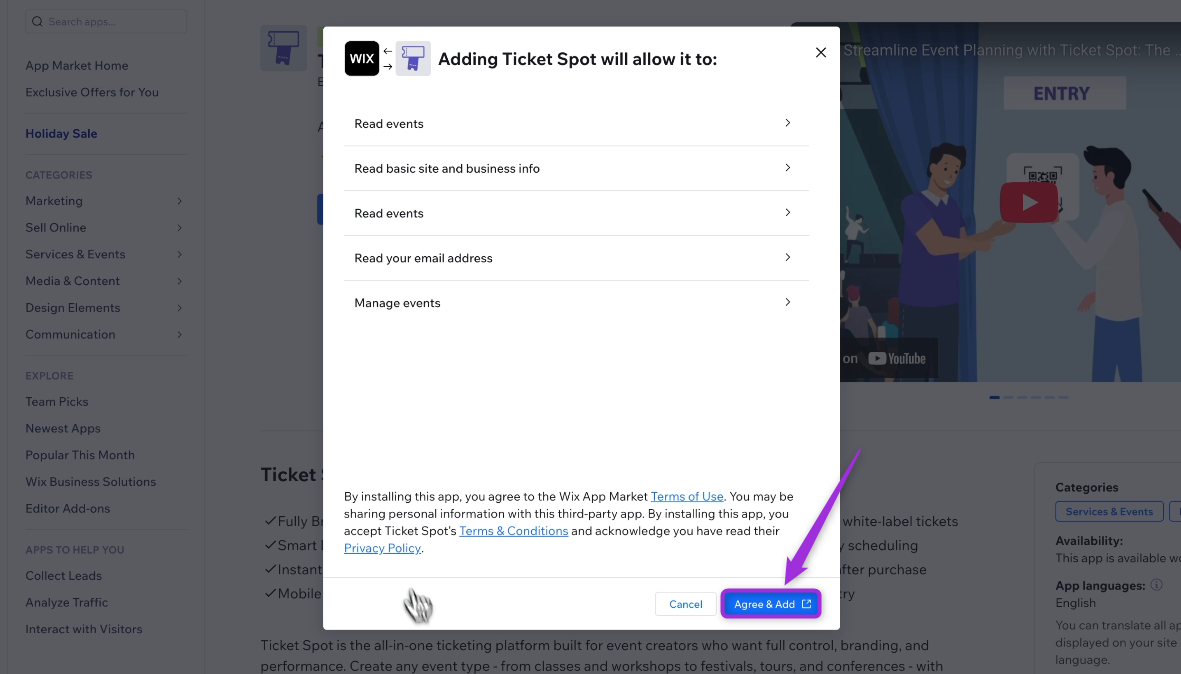
From the Ticket Spot app, click Connect with Wix. You’ll be redirected to the Wix App Market—then click Add to Site.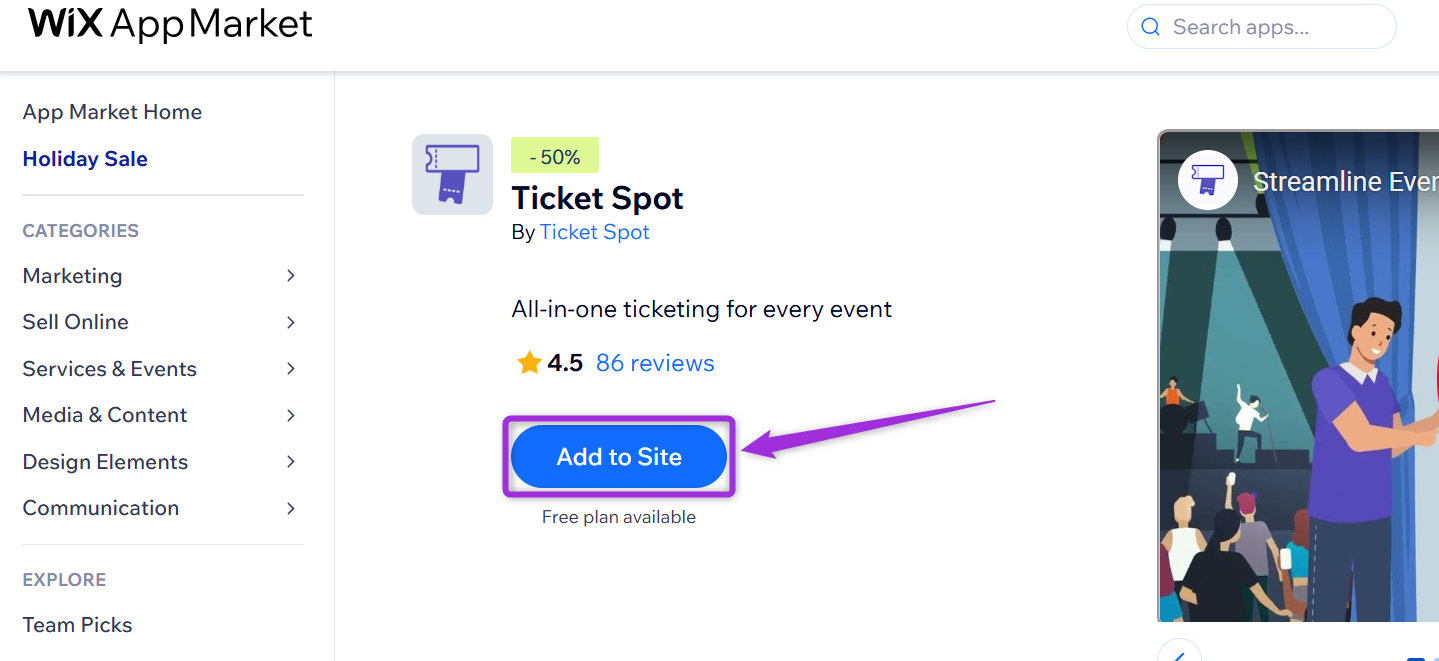
Option 2: Install from the Wix App Market
From your Wix dashboard, open the App Market, search for Ticket Spot and click Add to Site to install the app.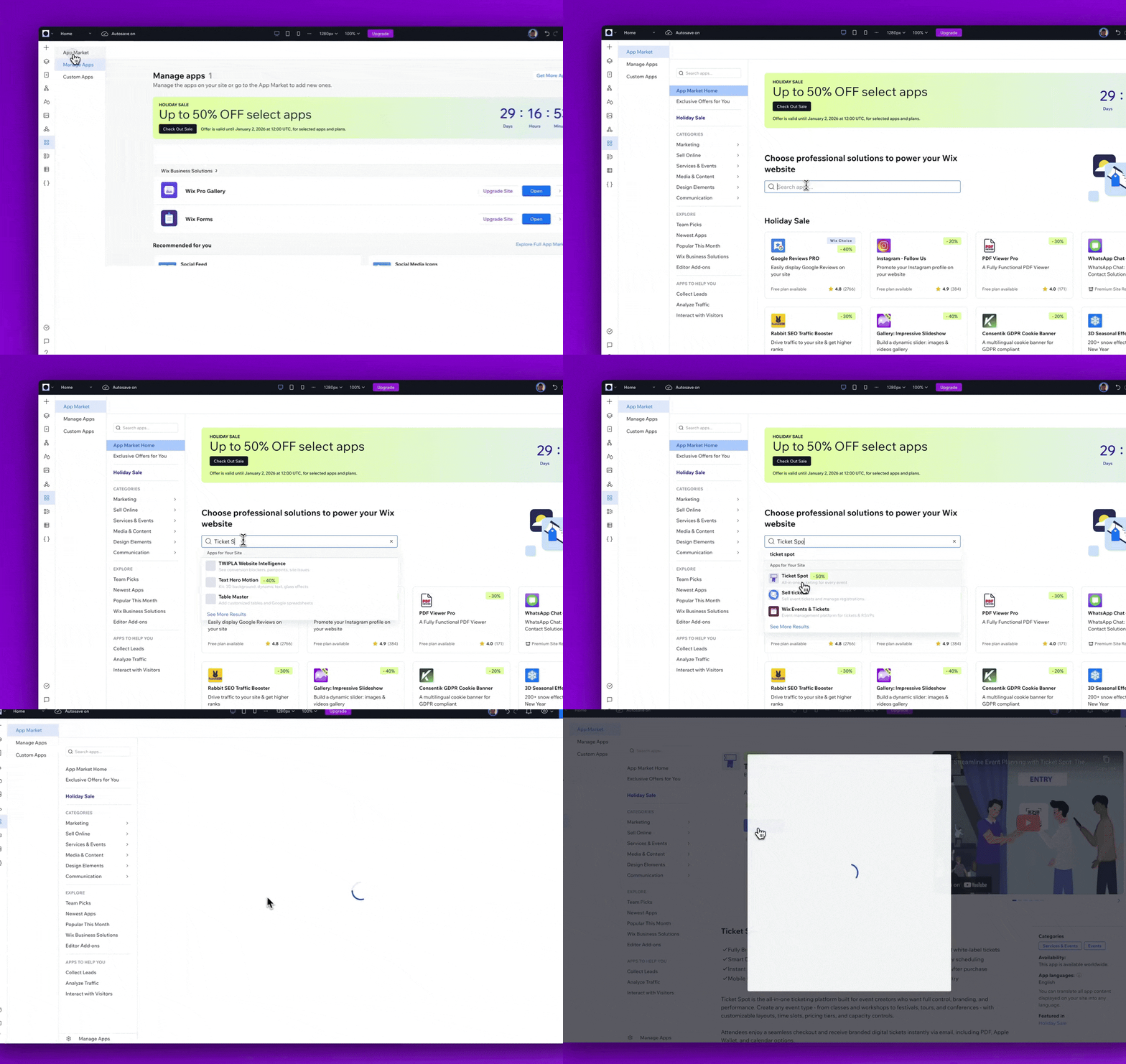
Open Event Management in Wix
After installing Ticket Spot, Wix displays a few sample events by default. To access your event dashboard, go to Settings and then click on Event Management.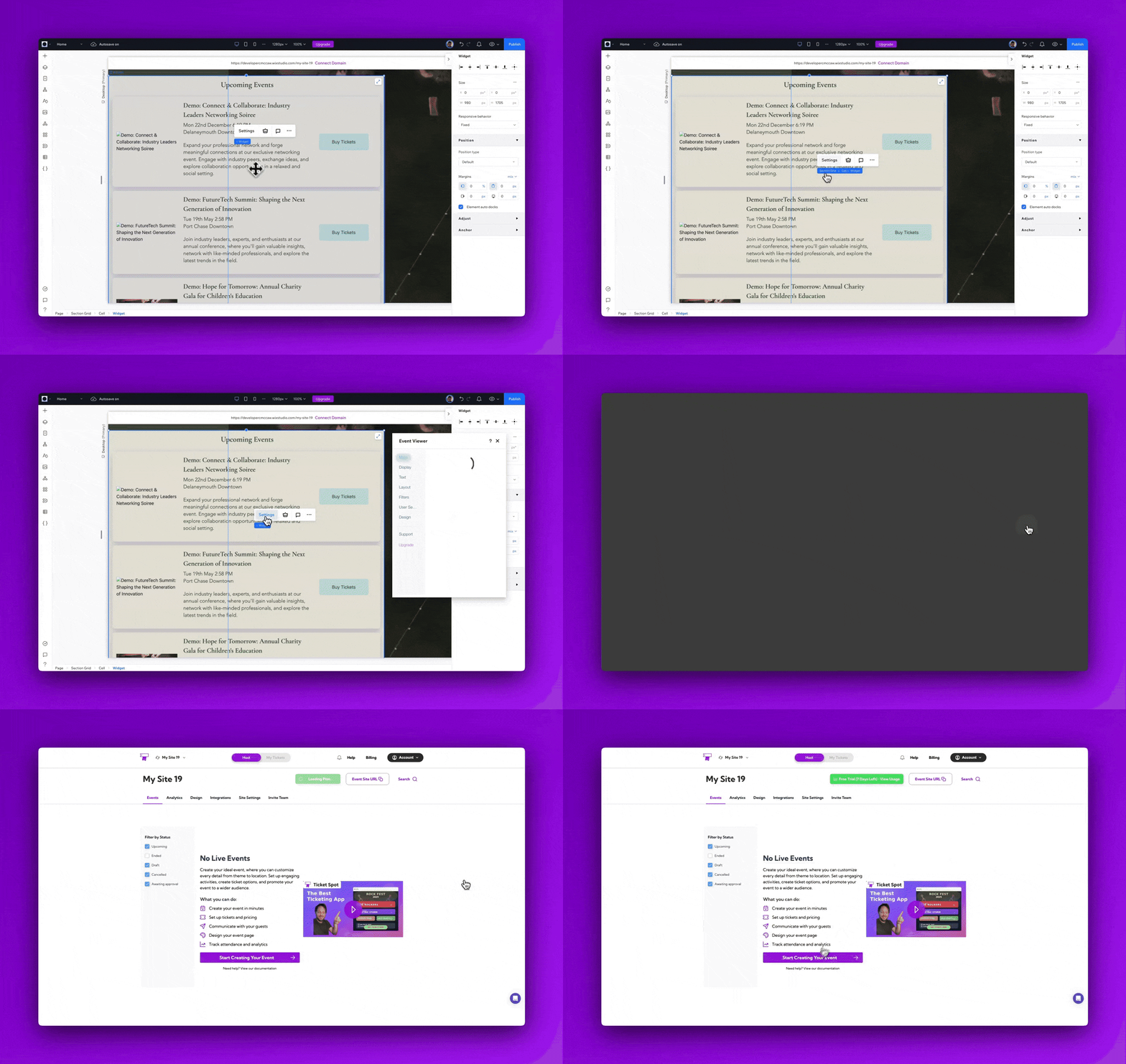
Create Your Event
To create your event, enter the basic details, such as the event name, date, time, and venue. These fields help set up your event in Ticket Spot and prepare it for publishing.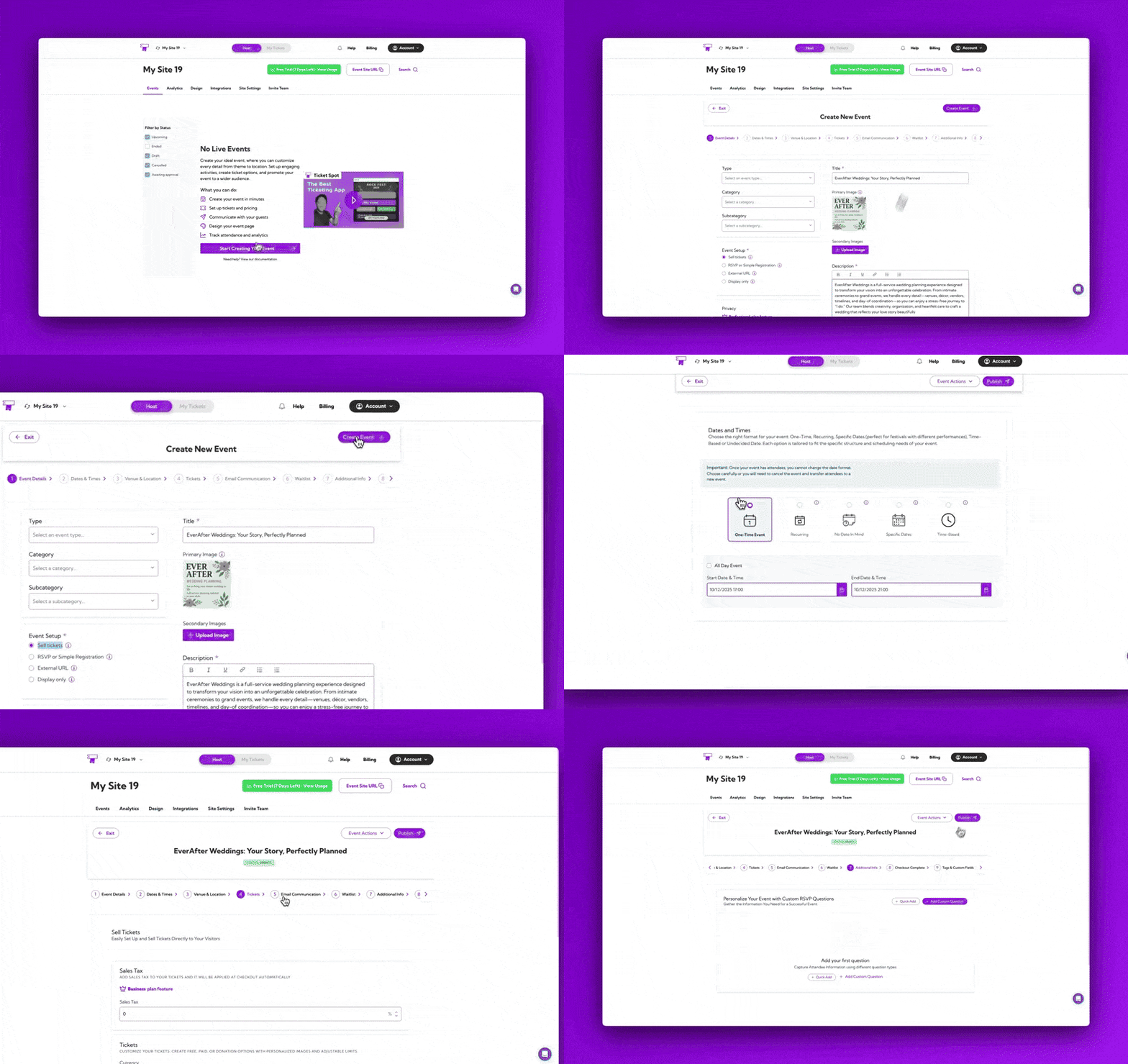
For a full step-by-step walkthrough, please refer to our guide: How to Create an Event with Ticket Spot.
Publish Your Event
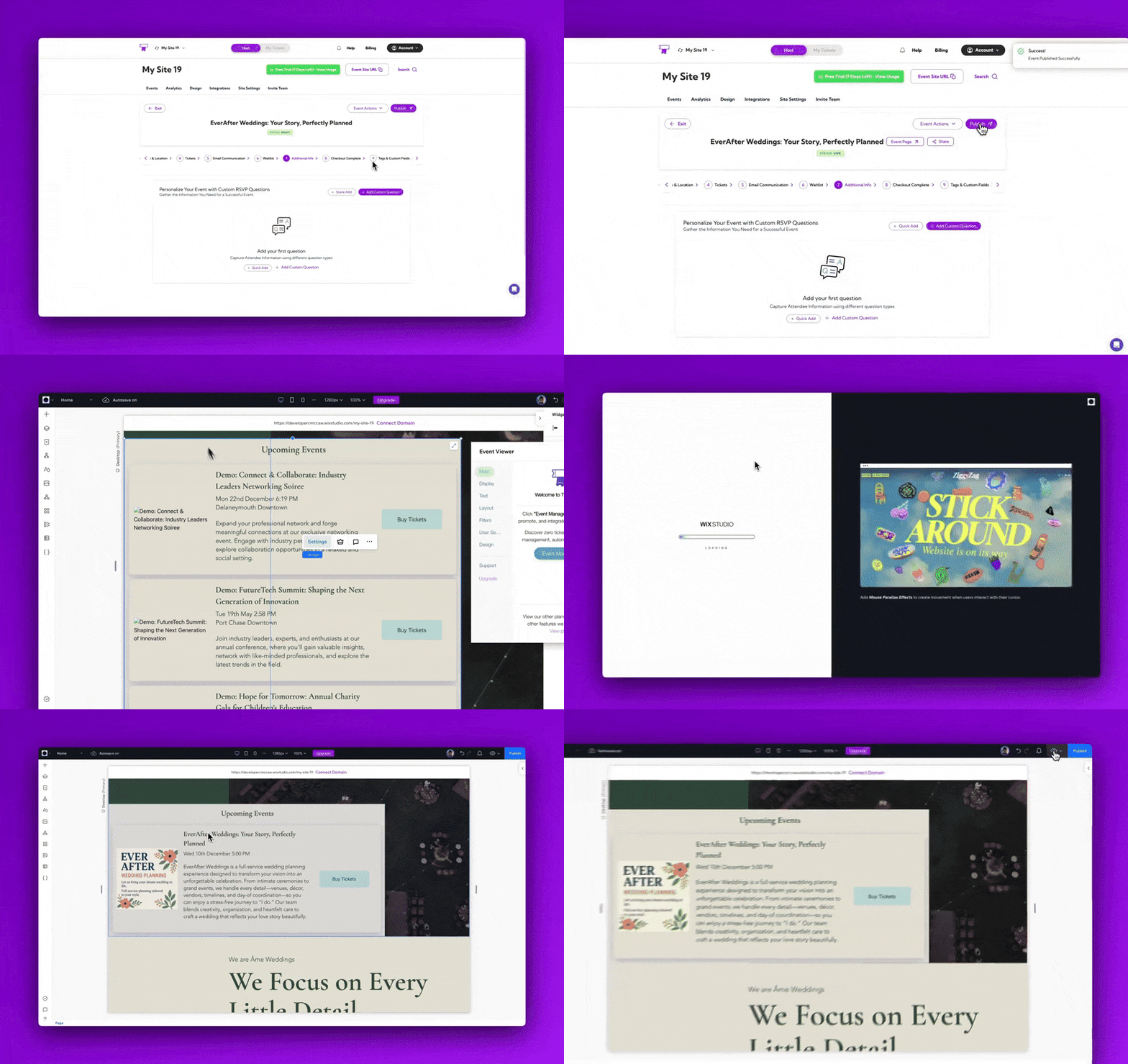
Once your event details are configured—such as the title, date, tickets, and venue—you need to publish the event so it becomes active on your Wix site.- Click on the Publish button to make your event live.
- You can view your event on the Ticket Spot event page or directly inside the Wix Editor.
- Your newly created event will appear automatically and will be ready for customers to view and purchase tickets.
Check Out the Event
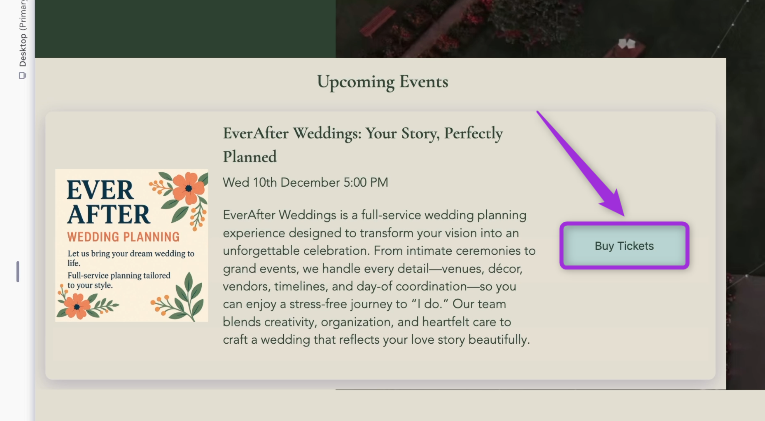
Open your event on your Wix site and purchase a ticket directly from the event page to complete the process.- Click on the Buy Tickets button to complete the ticket purchase.
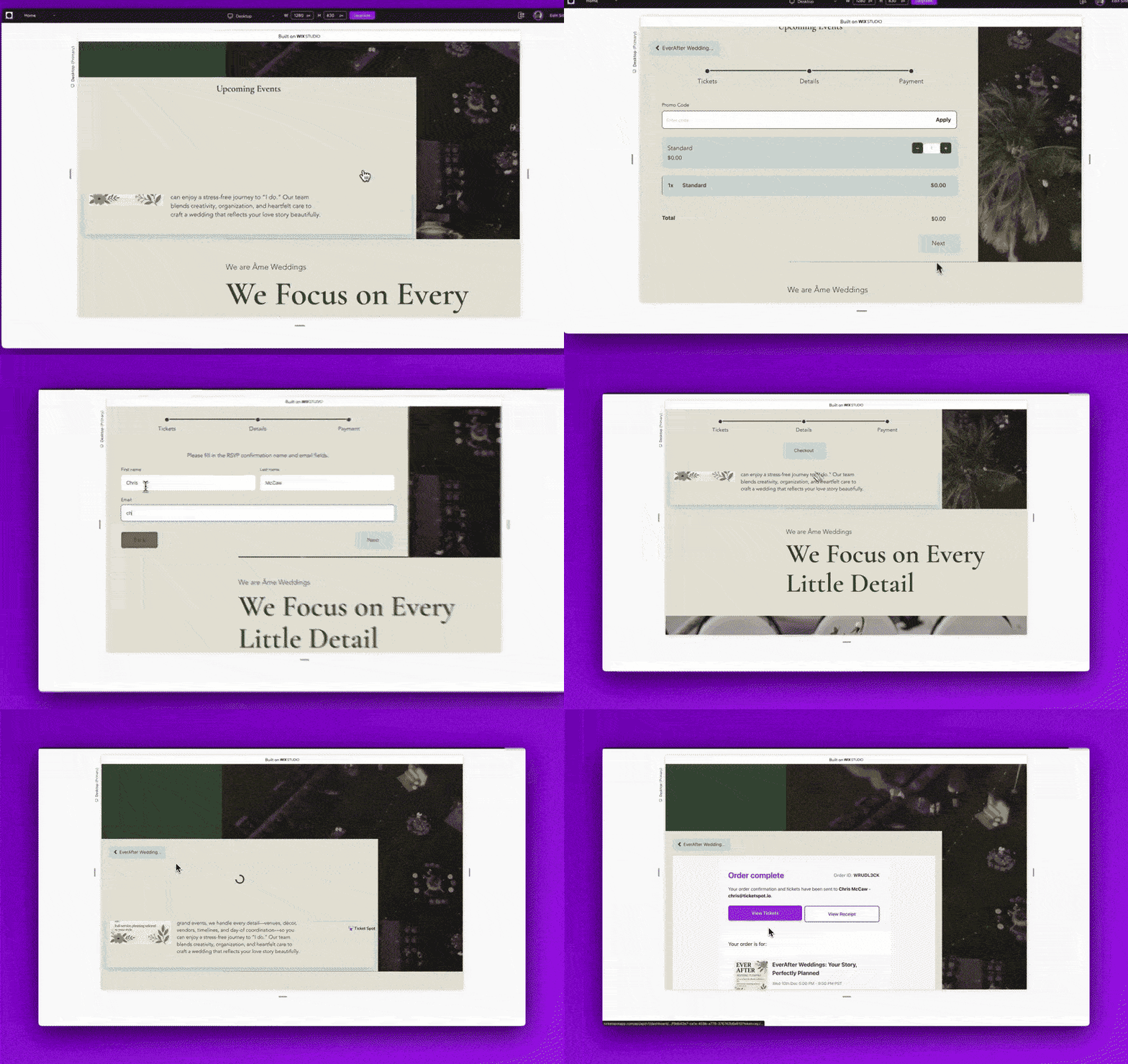
- Select the ticket you want to purchase, enter the required attendee details, proceed with the payment, and complete your ticket order.
View Your Tickets After Purchase
After completing your order, the confirmation page displays View Tickets and View Receipt. You can also click Add to Calendar to save the event to your personal calendar.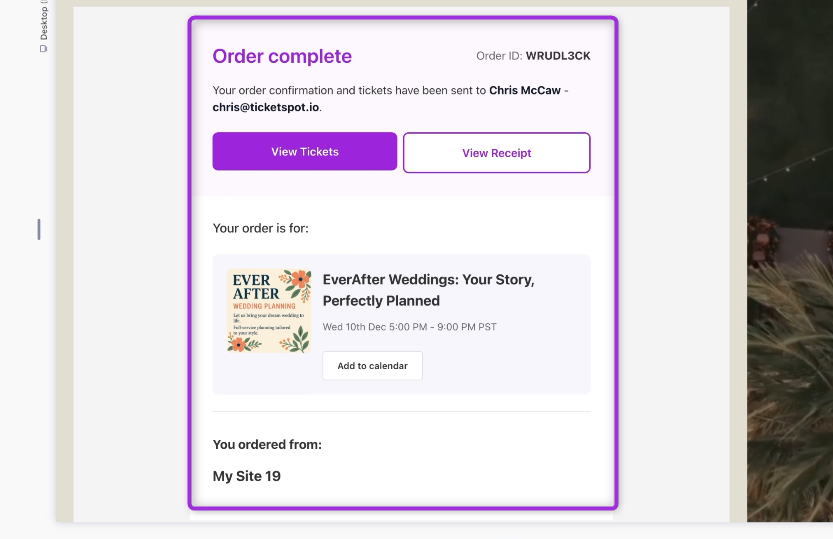
View Attendees in Your Dashboard
Once the purchase was completed, Wix automatically sent the attendee and order details to Ticket Spot. Click on the Manage Attendees buttonto view attendees of your event.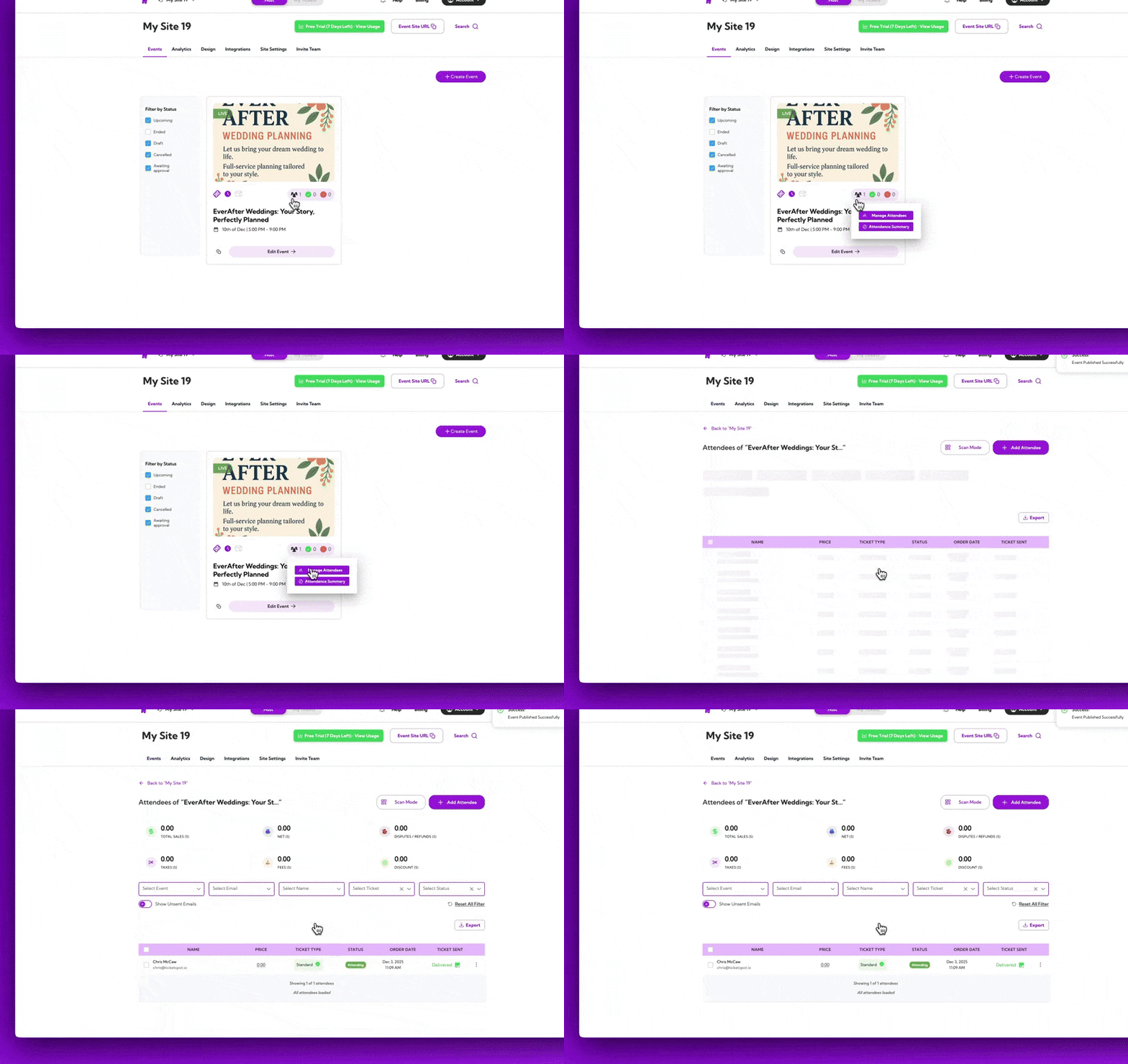
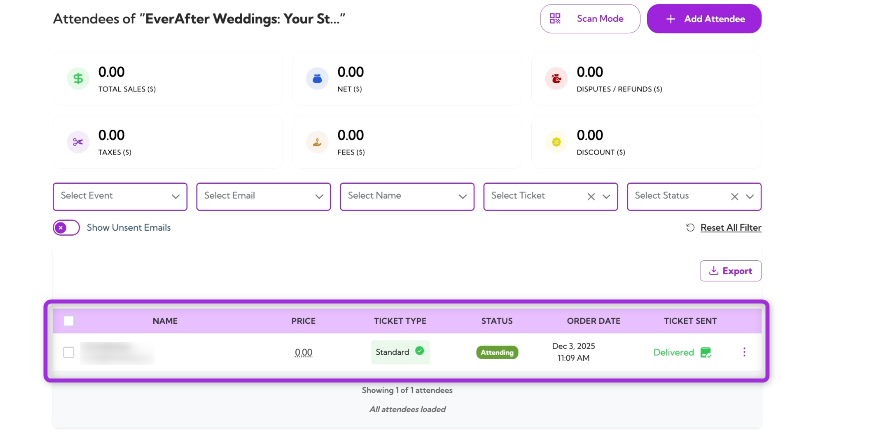
Learn more: Explore the full Attendee Management guide for detailed steps.
Customize Ticket & Email Design
Ticket Spot gives you full control over the look and feel of the tickets, receipts, and attendee emails your customers receive. In the Design section, you can update the ticket receipt layout, customize the ticket pass with its QR code, and change text, labels, and colors to match your brand. You can also customize attendee-facing emails—show or hide specific components, adjust wording, and tune the overall appearance to create a consistent experience across your event communications.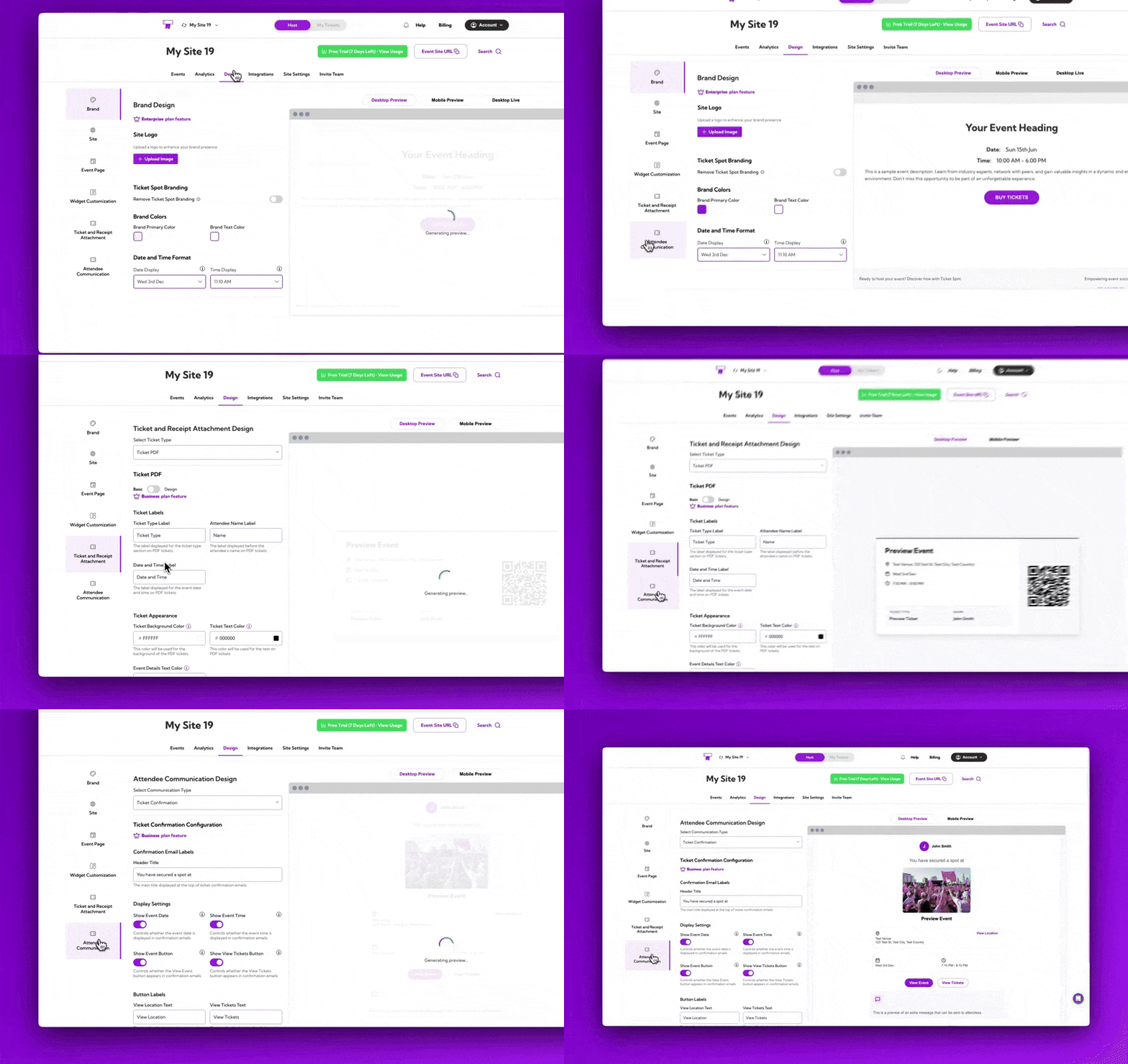
Learn more:
Ticket & Receipt Design →
Attendee Communication Design →
Track Event Performance with Analytics
Analytics dashboard helps you understand how your event is performing. You can view ticket sales trends, monitor check-in activity, and identify any abandoned carts so you can follow up with potential attendees. This gives you a clear picture of engagement throughout your event lifecycle and helps you take action where needed.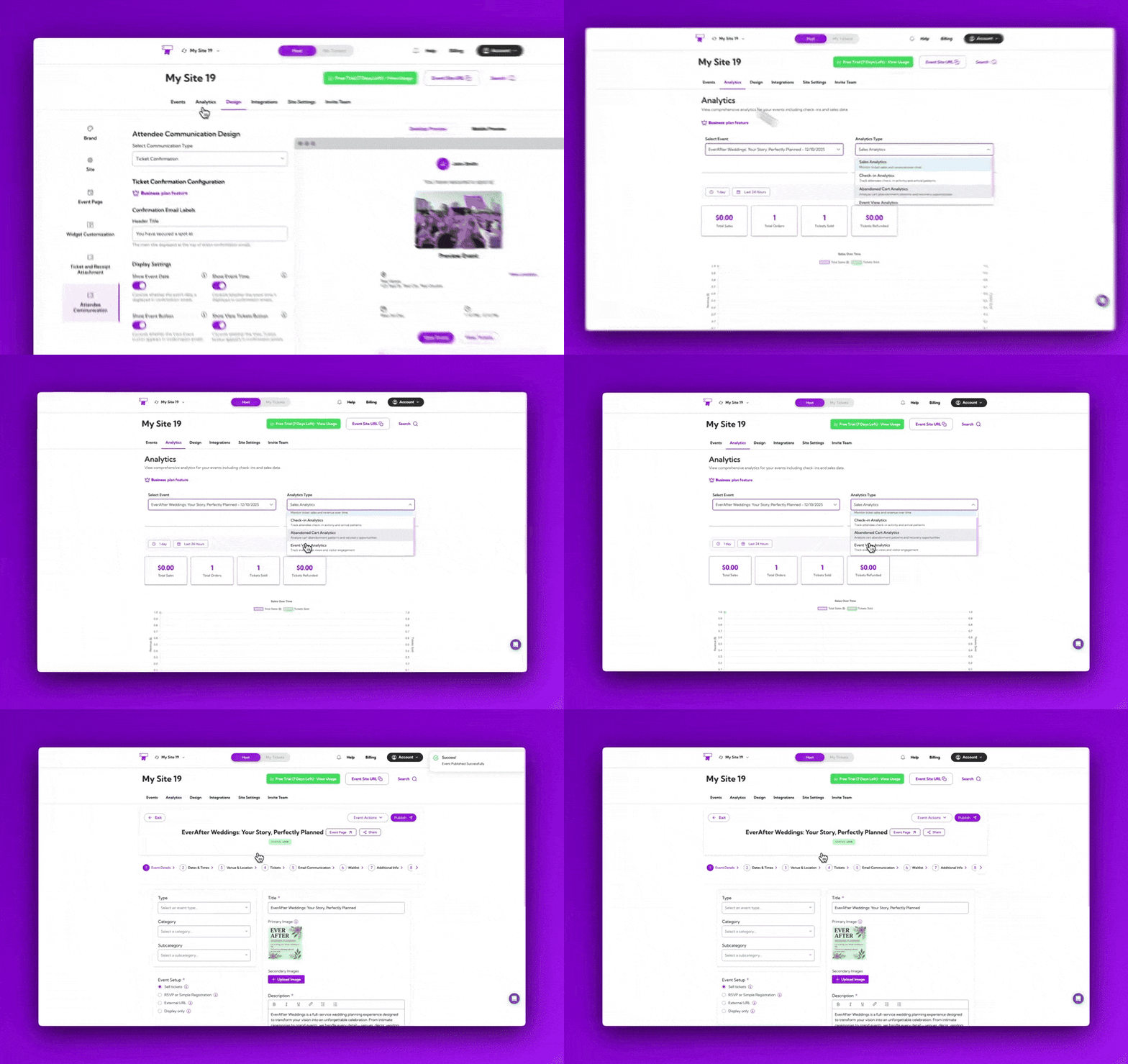
Learn more: Analytics Overview →Together, Wix and Ticket Spot give you a complete ticketing solution—making it easy to create events, sell tickets, manage attendees, and deliver a smooth experience to your customers, all from your website.