
Read the list’s delivery indicators
Use More filters → Email not sent / SMS not sent to find registrations needing review. Delivery indicators summarize the recorded state; they are not an audit of every message.
Email overview and activity
The Email tab shows Total Emails Sent, First Email Sent, First Delivery to Inbox, and First Email Open. A dash means that date has not been recorded.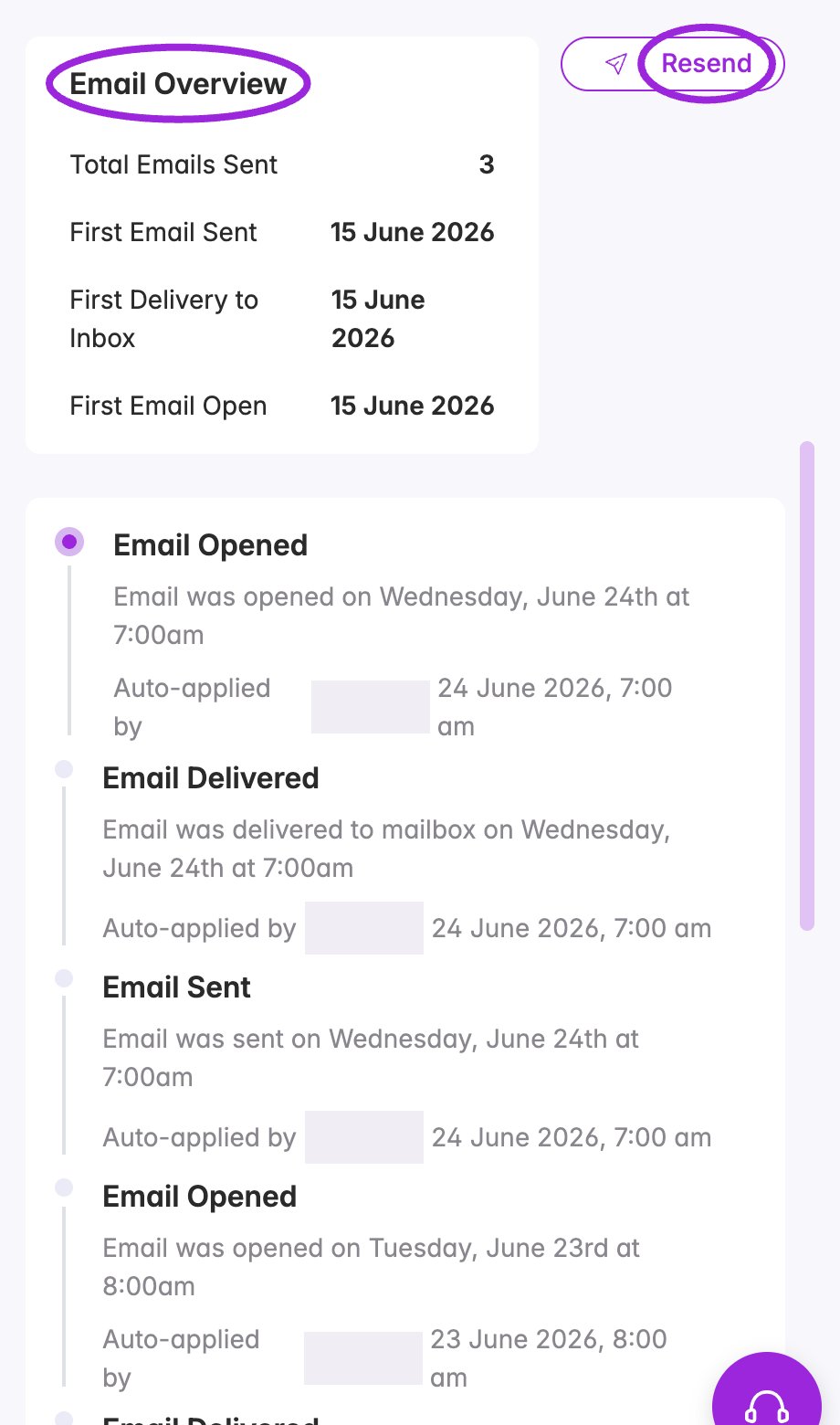
Review recorded email delivery events before resending a confirmation. Personal information is concealed.
Resend from the attendee’s Email tab
- Check the attendee’s email under Contact Information and correct it if needed.
- Open Email → Resend.
- In Resend Ticket Confirmation, review the displayed recipient and ticket/QR-code message.
- Choose Send to submit, or Cancel to leave without sending. Wait for security verification if the button says Loading….
- Review the send result and return to the delivery history to check subsequent delivery events.
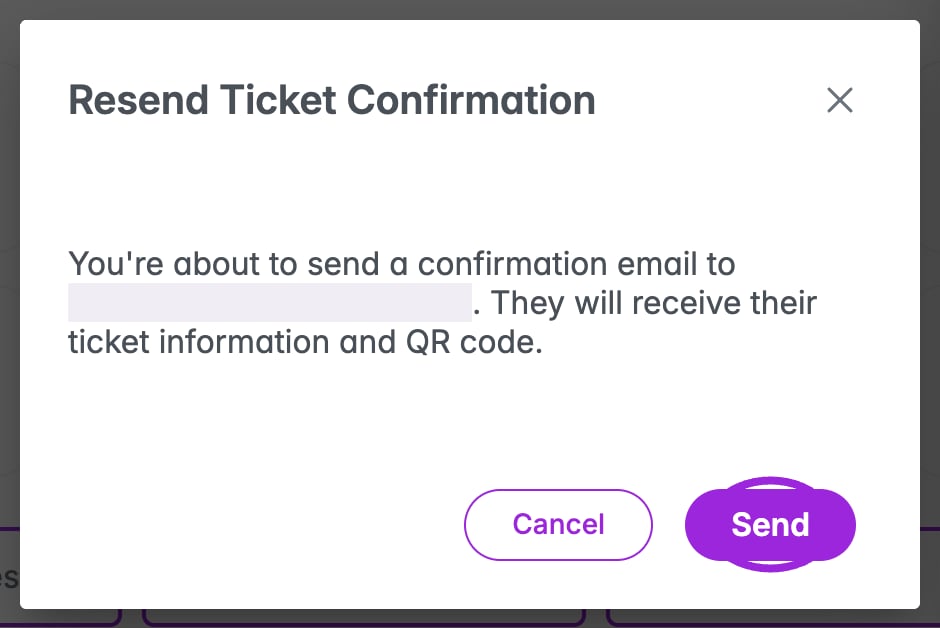
Review the recipient before sending another ticket confirmation. This dialog was captured without sending a message.
Email tickets for an order
Open View Order → Email Tickets. Send Order Confirmation explicitly applies to all attendees in that order and uses the personalized template configured in the event’s Communication settings. Review the order’s attendee cards first, then choose Send, or Cancel to close without sending.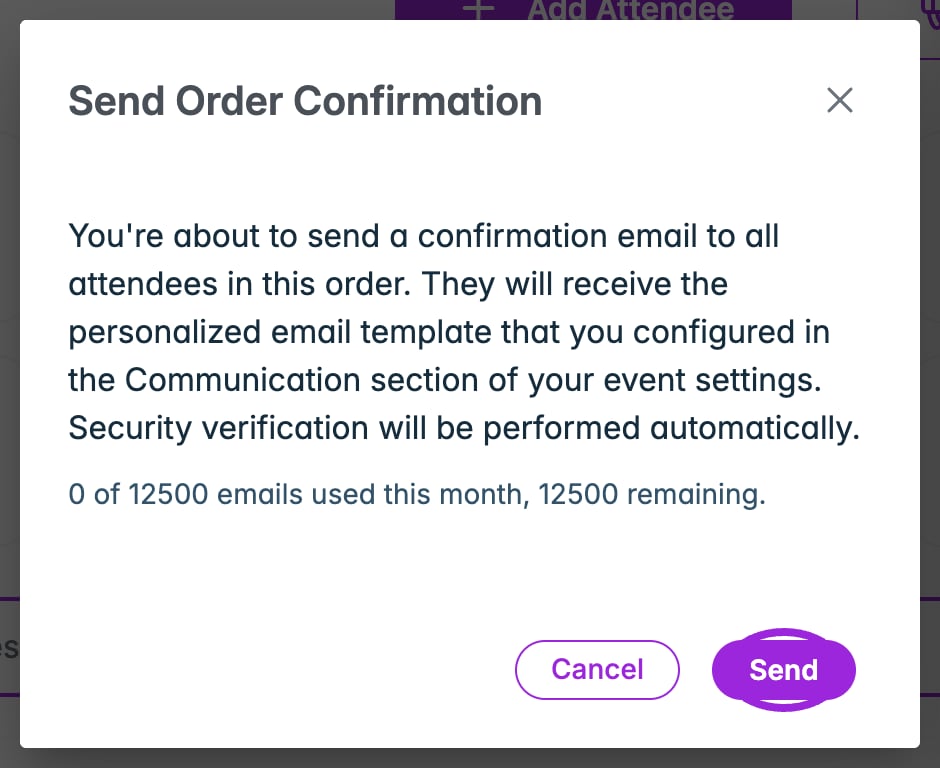
Email Tickets resends the configured order confirmation to the order's attendees. No email was sent for this capture.
Send tickets from the bulk toolbar
Select attendee checkboxes, choose Send Tickets, and review Resend Ticket Confirmations and its count before submitting Send Tickets. The header checkbox only selects currently loaded rows; changing filters clears the selection.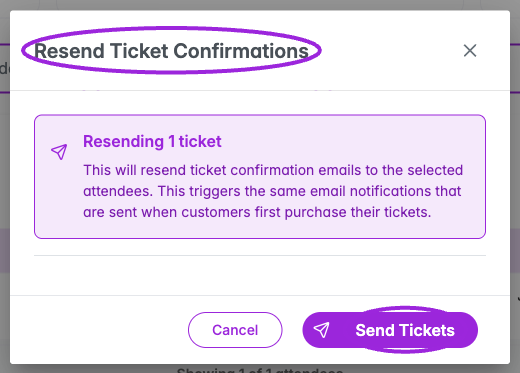
Review the selected count before resending ticket confirmations.
SMS overview and activity
The SMS tab shows Total SMS Sent, First SMS Sent, and First Delivery to Device. First Failure appears when a failure is recorded. The timeline contains recorded SMS activities and timestamps.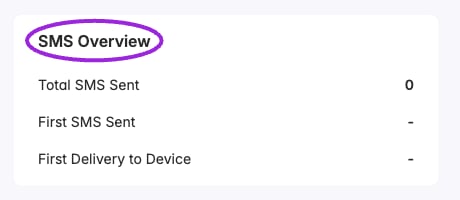
The SMS tab reports recorded sends and delivery. A zero count or dash indicates no recorded activity for this Demo attendee.
Send a separate announcement
Use Send Announcement → Create Announcement on the Attendee Dashboard for a new message. Choose the event/occurrence, Email, SMS, or Email + SMS, and the recipient-status groups. Write the channel-specific content, review available credits, and choose any ticket actions or PDF attachments for the email. Review the recipients before the final Send Announcement. Follow the announcement instructions and screenshots for the complete form.Troubleshoot a missing ticket confirmation
- Find the attendee and check their email/phone and booked event.
- Inspect the correct channel’s timeline and any failure reason. A dash means no date is recorded, not proof of a successful or failed delivery.
- Check the event’s communication configuration, account allowance, and recipient’s spam folder or SMS opt-out state as appropriate.
- Correct contact information if necessary. Then use the relevant confirmation action and review its recipient scope.
- Recheck the timeline after sending. Contact support with the order reference and recorded failure if the issue persists.