
Navigation and prerequisites
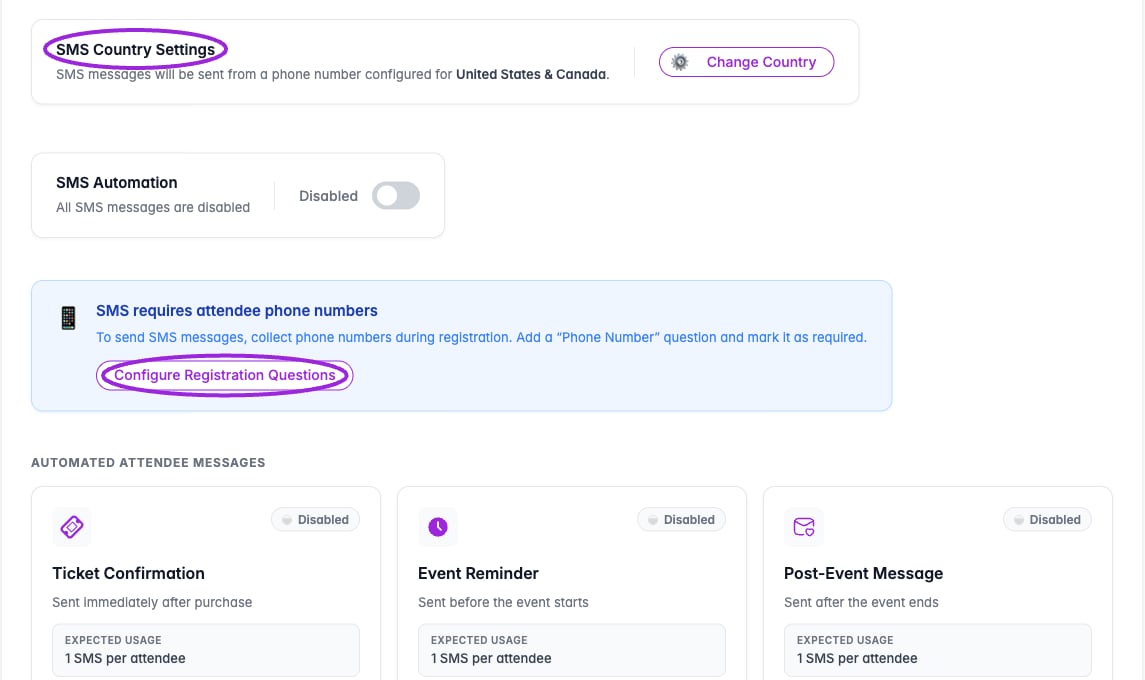
Review SMS Country Settings and collect a required Phone Number registration question before enabling automated SMS messages.
- Open Events and edit a saved event.
- In Additional Info, collect a Phone Number question mapped to the attendee’s phone property.
- Open SMS Communication. If the phone question is missing, use Configure Registration Questions from the warning.
- Review SMS Country Settings and use Change Country if needed.
Choose a message
Configure and enable
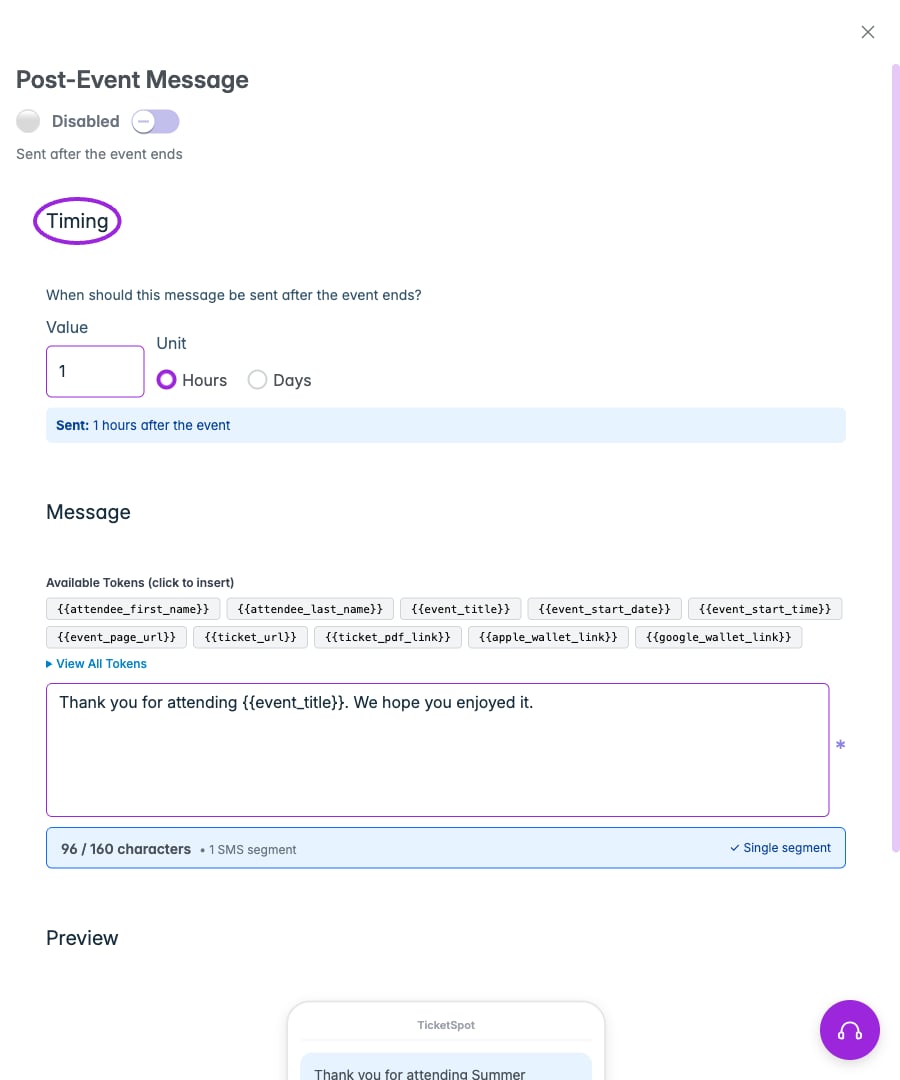
Post-Event Message schedules Hours or Days after the event ends. Review the message and preview before using Save & Enable.
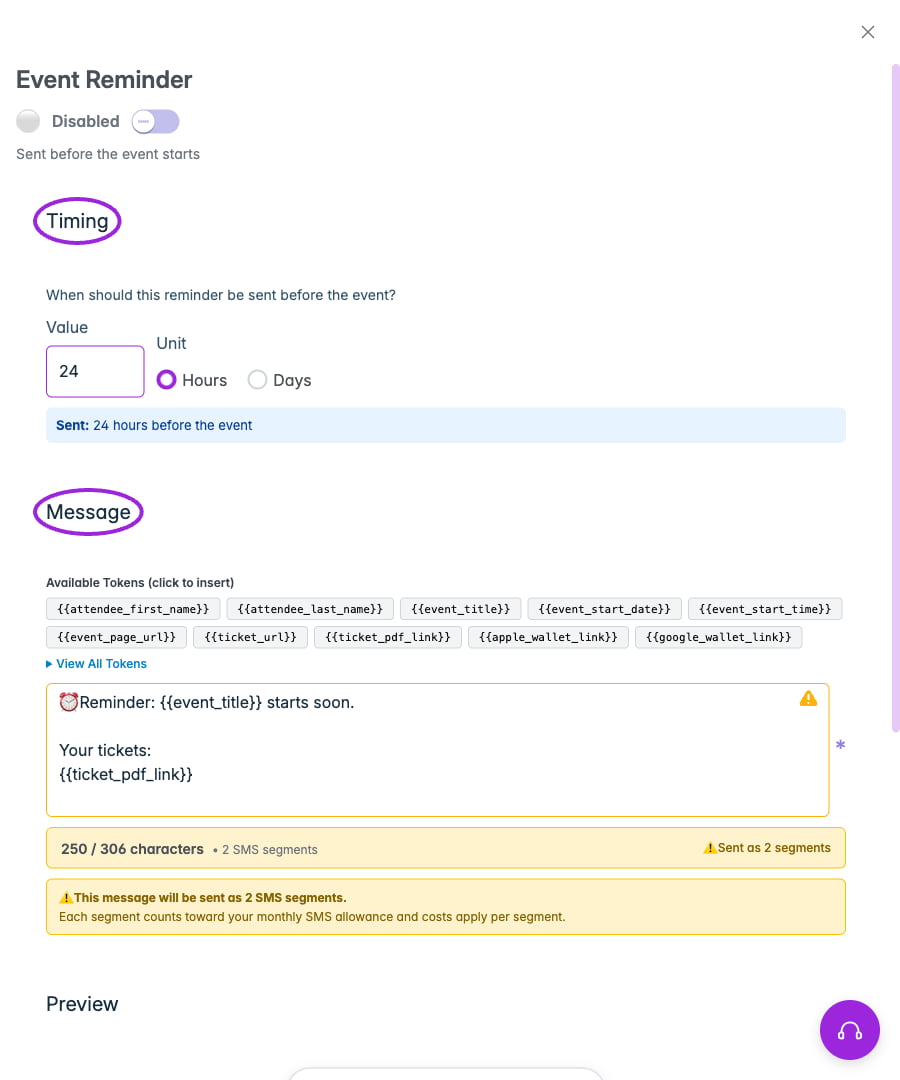
Event Reminder lets you choose Hours or Days before the event and insert supported personalization tokens into the message.
- Click Setup Message or Edit Message on the relevant card.
- Enter the Message and use personalization tokens where needed.
- For reminders and post-event messages, set Timing → Value and Unit (Hours or Days). Reminders are before the event; post-event messages are after it ends.
- Review Preview and the SMS segment count before enabling it. Inserted links and longer messages can use multiple segments; each segment counts toward your SMS allowance.
- Click Save & Enable, or Save SMS Message when already enabled.
- Check the card’s Enabled/Disabled state.
Preview, tokens and test-message controls
Preview, tokens and test-message controls
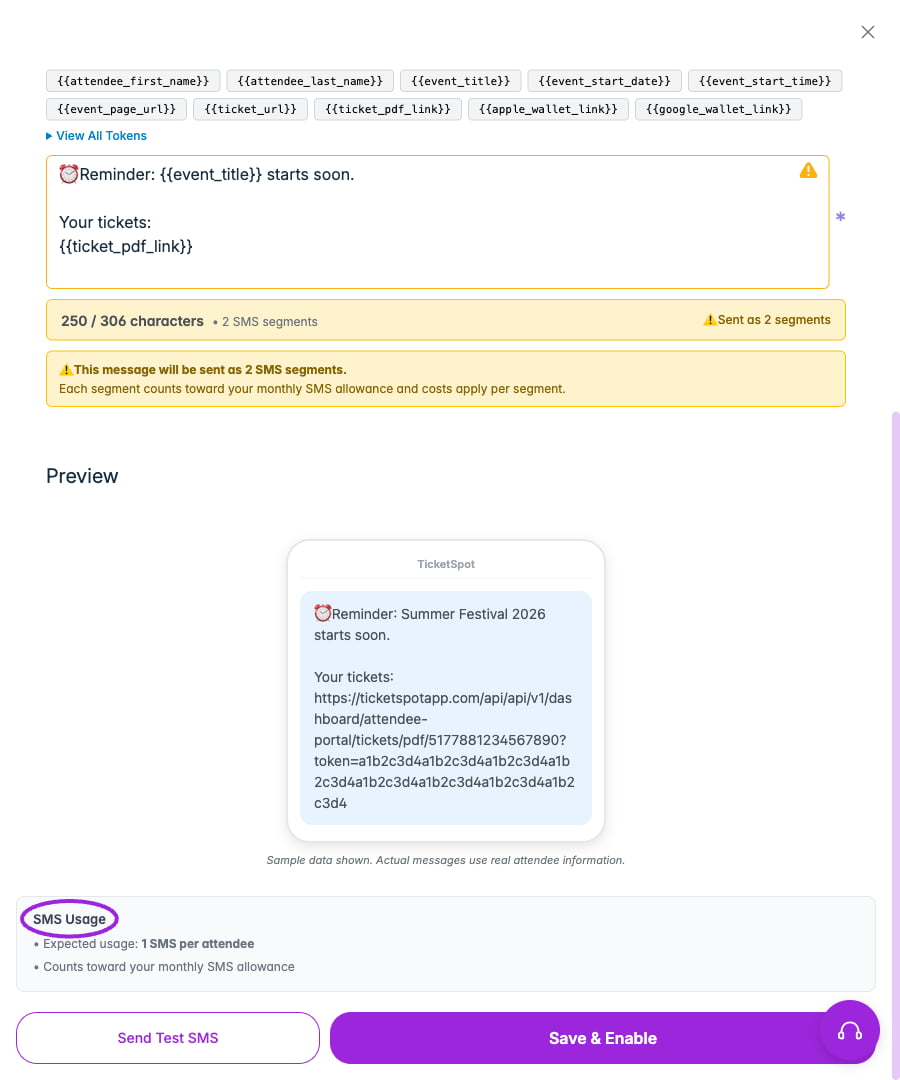
Review the rendered Preview and SMS segment count. Long messages and inserted links can consume more than one segment; each segment counts toward SMS usage.
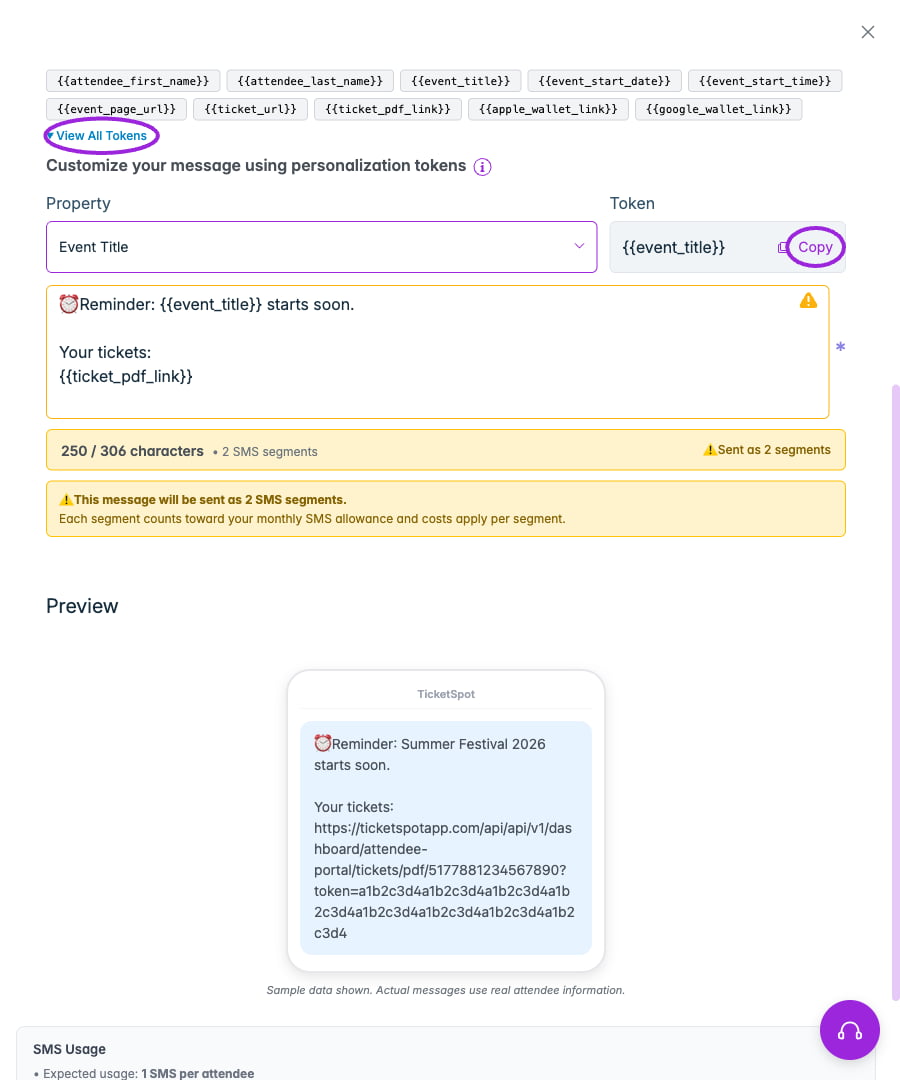
Click a quick token to insert it, or open View All Tokens to choose a property and copy its template token.
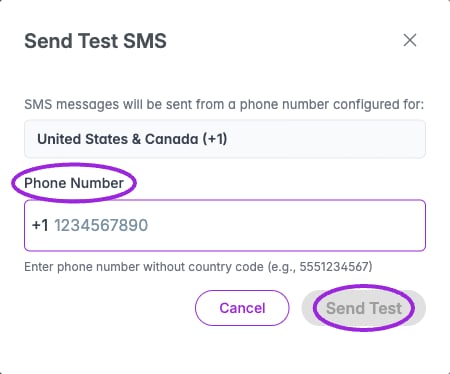
Send Test SMS asks for a phone number without the displayed country code. Sending the test is a separate action; this example has not sent a message.