
Read the order summary
Order Information shows the event date and time, order ID, purchase date, and an order badge. Use the financial totals and individual attendee/payment records to check a refund or transfer; the Successful header badge alone does not establish the current payment or refund outcome.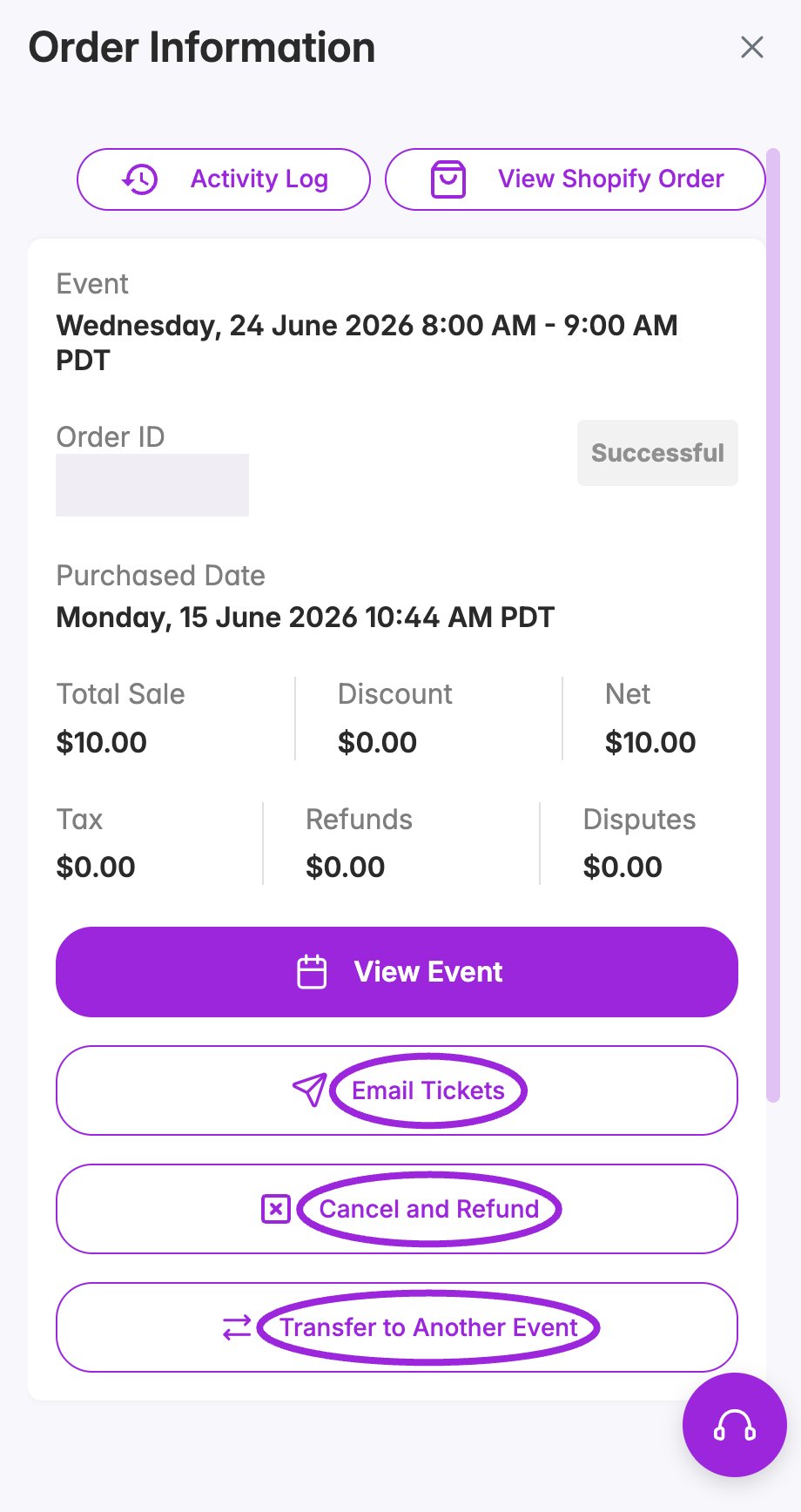
The order drawer groups purchase totals and booking actions. Personal details and the order number are concealed.
Every order action
Use the X at the top right to close the drawer. Scroll inside it to reach the attendee cards and any additional sections.
Attendees in the order
Each attendee card shows their name, ticket type, ticket indicator, and displayed ticket price. Use the person icon to open the individual record, or Change Ticket Type to choose another ticket for that attendee. Review the financial summary for the actual order totals; changing a ticket type does not reprice the order.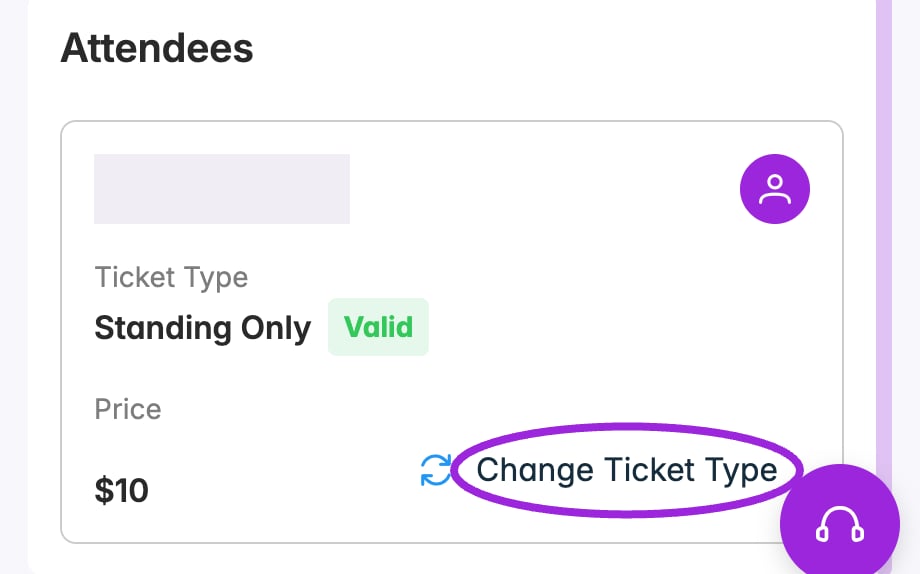
Scroll below the order actions to open an attendee or change their ticket type. Identity is concealed.
Add-ons
When the order includes add-ons, the Add-ons section separates them from the main event’s attendees. Each card can show the add-on event, attendee, selected occurrence, ticket type, and price, or Included for an included add-on.- Select a linked add-on title or its person icon to open the add-on attendee.
- Use Main Event to return to the main booking’s attendee.
- Older orders can show Not assigned when an add-on exists but has no linked attendee. In that case there is no attendee shortcut to open.