
Cancel and refund an order
- Open View Order and check the order ID, attendees, amounts, and previous refunds.
- Select Cancel and Refund to open Cancel Order and Process Refund.
- Leave Process full refund to customer selected to request a refund. For Shopify, review the attendee selection described below.
- Enter the required Reason for Cancellation.
- Review the scope and confirm using Confirm or the displayed Refund [amount] button. Choose Cancel or close the dialog to leave without submitting.
- Read the result, reopen the order, and review the affected attendees and refund amount. If the result is uncertain, check the payment provider before trying again.
Shopify attendee selection and restocking
For a Shopify site, the dialog includes Select Attendees to Refund. Non-refunded attendees are initially selected. Use their checkboxes or Select All / Deselect All, then check the selected count and Total Refund Amount. Attendees already marked refunded are disabled. At least one attendee must be selected to submit a Shopify refund.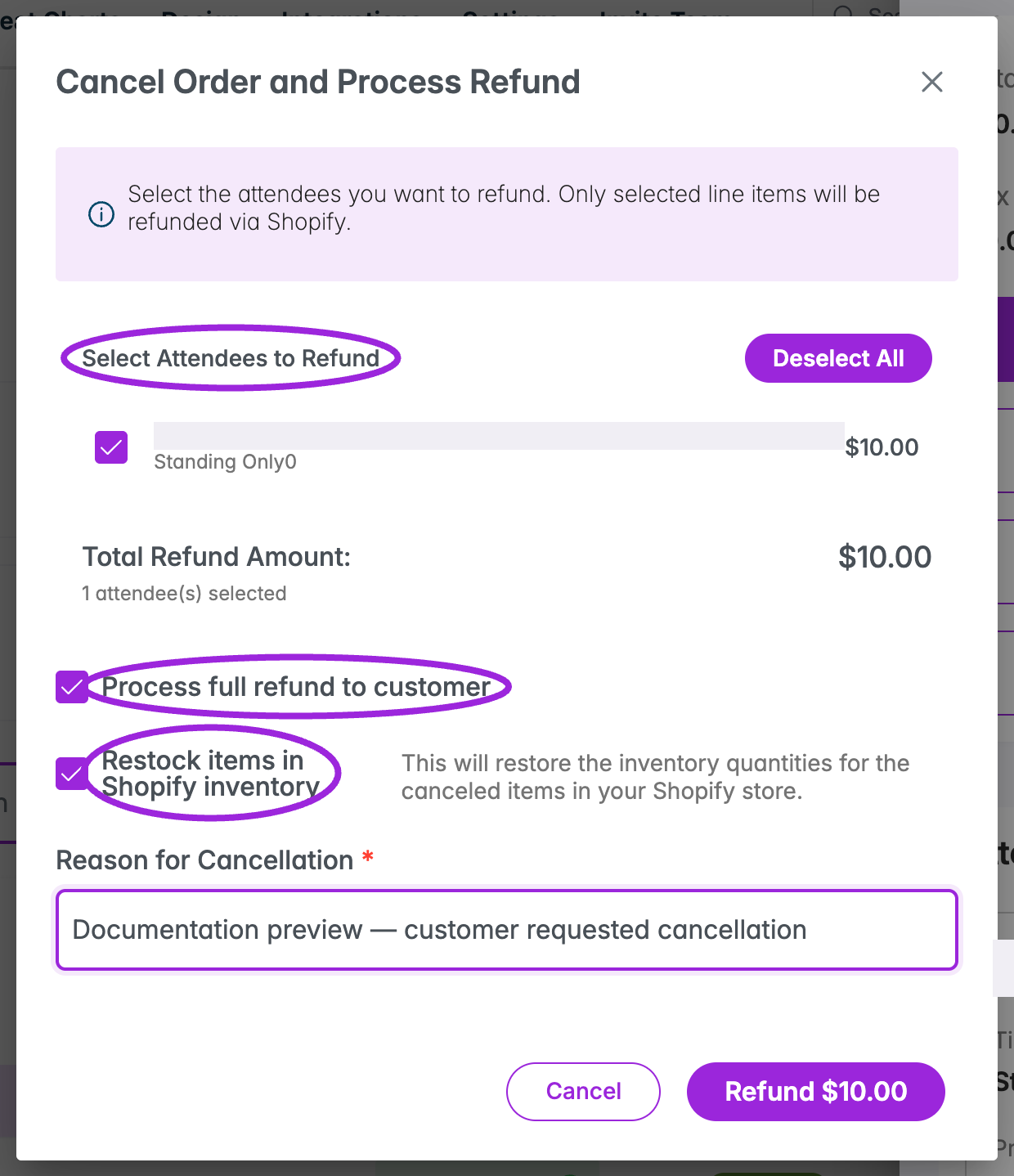
Review the selected Shopify attendees, total, refund checkbox, and restocking option before confirming. This is an unsubmitted Demo preview.
Cancel without a refund
- Open View Order → Cancel and Refund.
- Clear Process full refund to customer.
- Enter Reason for Cancellation.
- Confirm with Cancel Without Refund.
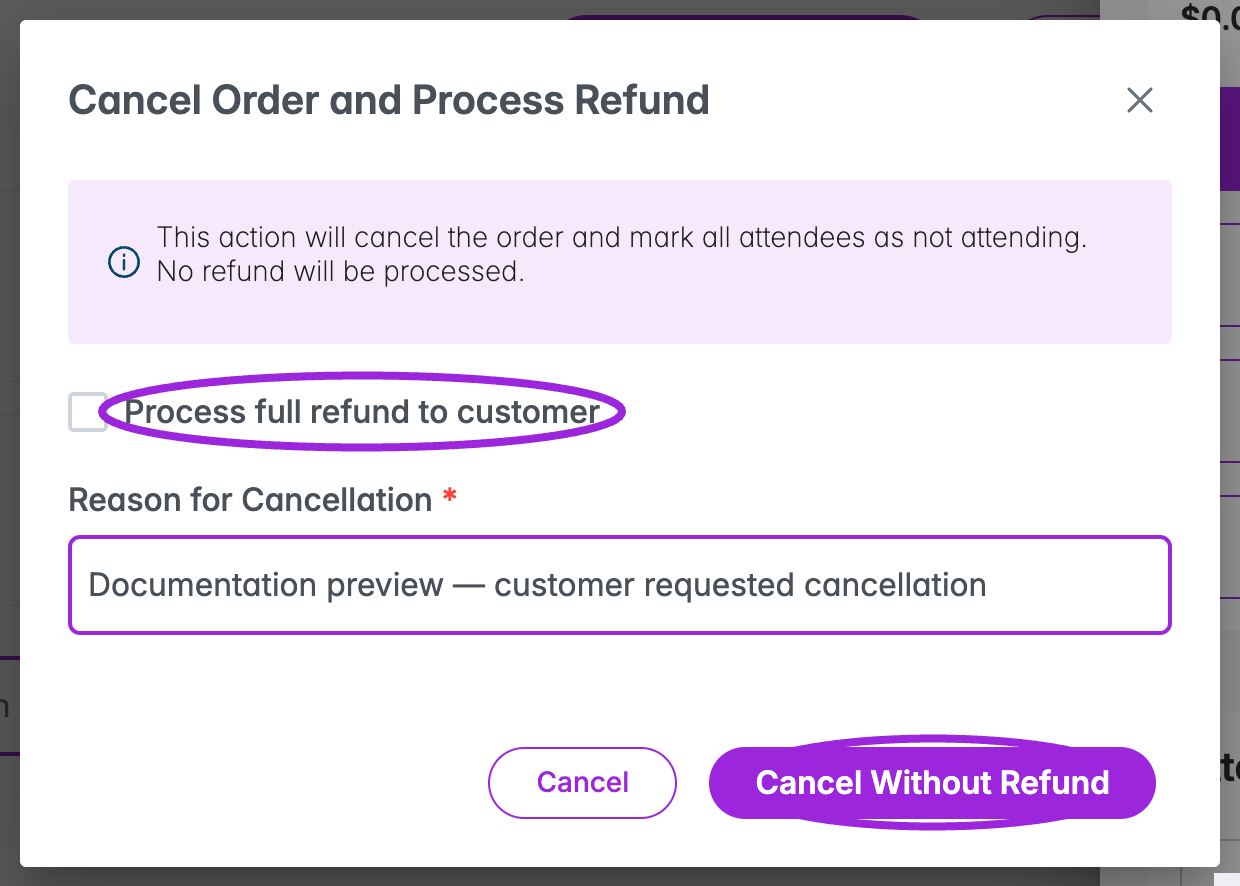
Clearing the refund option changes the final action to Cancel Without Refund. The dialog has not been submitted.
Refund selected attendees in bulk
The bulk refund workflow supports 1–200 selected attendees with eligible paid tickets. It supports Stripe, Square (including Square POS), and Shopify payments. It refunds and cancels the listed tickets; non-ticket order extras and Shopify inventory restocking are excluded.- Filter the attendee list and select the required rows. The header checkbox selects currently loaded attendees, not unseen results. Load more rows if needed and review the count.
- Choose Refund. Ticket Spot prepares a preview of the exact selection and verified paid amounts. Opening the preview does not issue refunds.
- Review every name, amount, currency, and the Planned refunds total. Multiple currencies have separate totals.
- Type the exact attendee count in Enter the number of attendees who will receive a refund.
- Enter a Refund reason (up to 192 characters).
- Choose Refund [count] attendees only after checking the selection. A preview expires after 15 minutes; changed ticket or payment details also require a fresh preview.
- Watch the per-attendee results. Choose Done after processing finishes, then verify the order and attendee records.
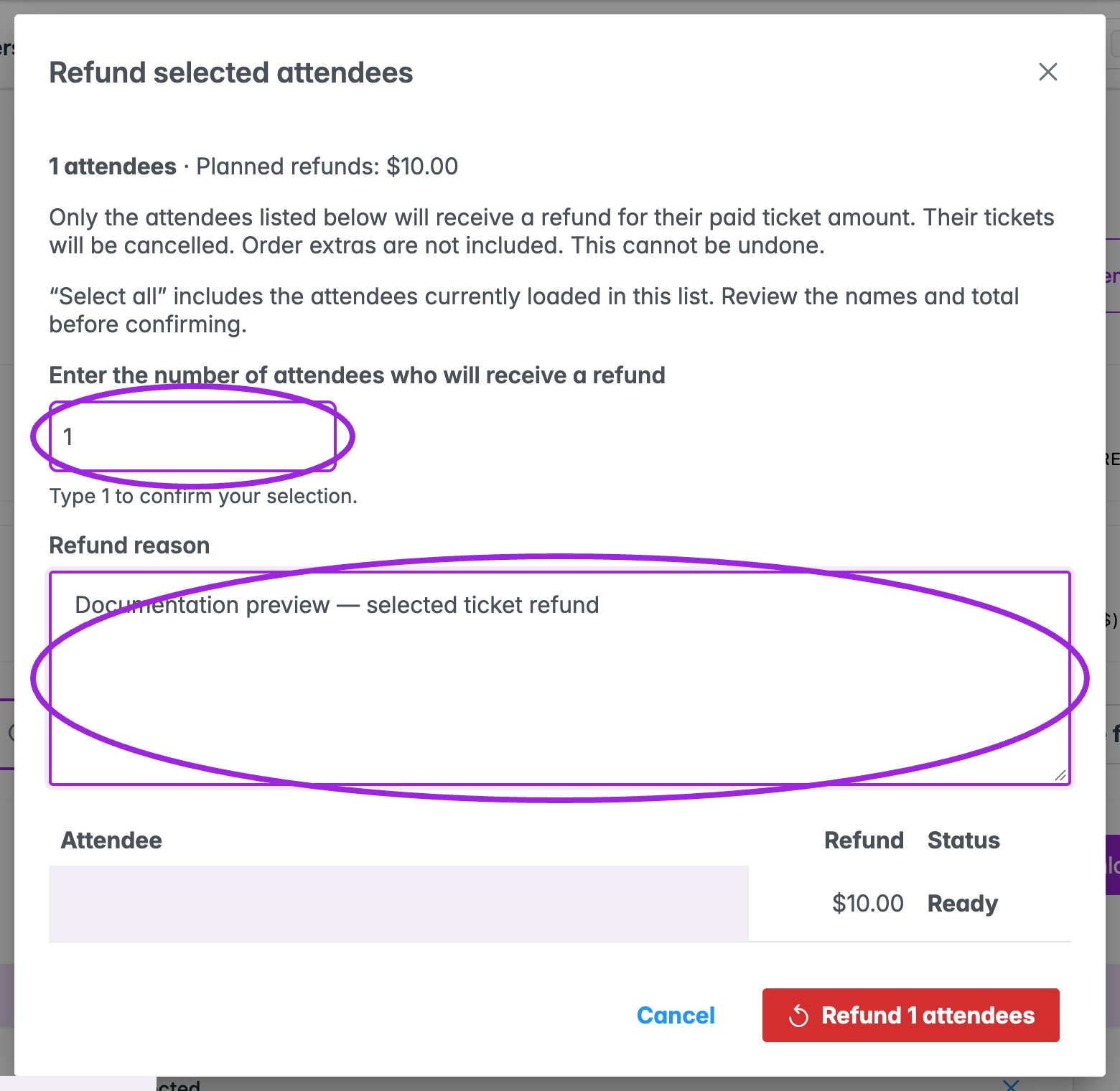
The bulk refund preview verifies paid amounts and requires the exact count and a reason. Identity is concealed; no refund was started.
Selections that need individual review
The preview rejects unsupported selections rather than silently dropping attendees. Remove or review already-refunded, unpaid, waitlisted, installment, and group tickets; disputed orders; marketplace payments; and orders whose paid ticket amount cannot be verified. Unsupported providers or currencies also require individual review. Legacy orders without a reliable discount/fee allocation may be rejected. Supported bulk-refund currencies are USD, CAD, EUR, GBP, AUD, NZD, CHF, DKK, NOK, SEK, SGD, HKD, JPY, MXN, BRL, INR, and ZAR.Understand bulk refund results
Refunds run by payment group and may pause for provider limits. The dialog cannot be closed while processing. If the connection drops, progress reconnects automatically; refreshing the same site/event page resumes the saved job. A finished job can contain different outcomes for different attendees, so review each row rather than relying on the overall completion count.