
Navigation
Choose the correct site, then click Design in the navigation. The sidebar contains these seven areas:Recommended setup order
- Upload your logo and set your colors in Brand.
- Review the Widget, Event Page, Email, and Apple Wallet brand previews. Not every surface uses the same font or styling controls.
- Configure Widget, then the Site and Event Page surfaces you use.
- Configure tickets/passes and attendee communication.
- Review the attendee ticket page and make a test registration to check the complete experience.
Preview and save
Use Desktop Preview and Mobile Preview where offered. A preview is a way to inspect presentation, not evidence that a payment, email, or check-in has been completed. Most design field changes save automatically; wait for the update to finish before leaving. Custom ticket layouts use their own Save button. Brand color changes and attendee ticket-page visibility switches report their result. Some previews depend on an existing event. Create an event first if an event preview is empty. Shopify Thank You Page and Self Check-In Kiosk do not have the same template preview as emails; inspect those surfaces in their actual flow. For the detailed field inventory across the design templates, see Design option reference.Find every control
Start with Quick Settings, or use Search settings and All Settings in the widget editor. The widget overview links every category’s option reference. Use Multilingual communications for attendee-language email/ticket text and the design option reference for non-widget surfaces.Current controls
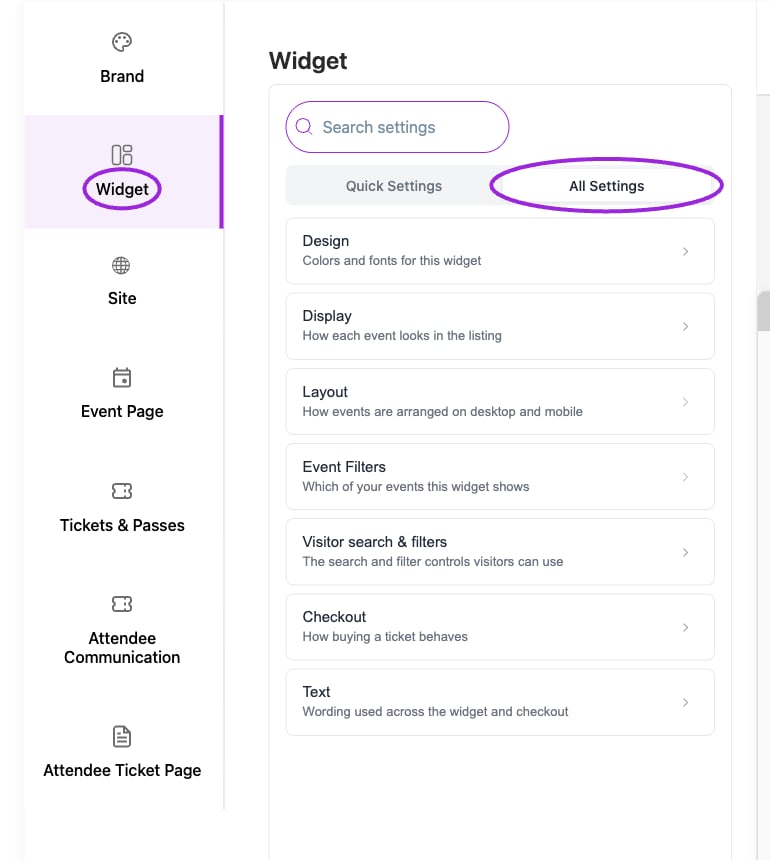
Open Design → Widget, then All Settings to browse Design, Display, Layout, Event Filters, Visitor search & filters, Checkout, and Text.