
Open the correct event date
- Open Events, find the event, and choose Attendees.
- Select Seating Chart.
- For recurring or timed events, choose Event Date and Time Slot when shown. Each occurrence has its own seating availability and attendee assignments.
- Check Seat Summary: total Seats, Booked, and Available. Seats reserved without an attendee also affect availability.
- Use the map’s zoom, search, floor, and section controls to locate the area you need. Select a seat or standing area to open its details.
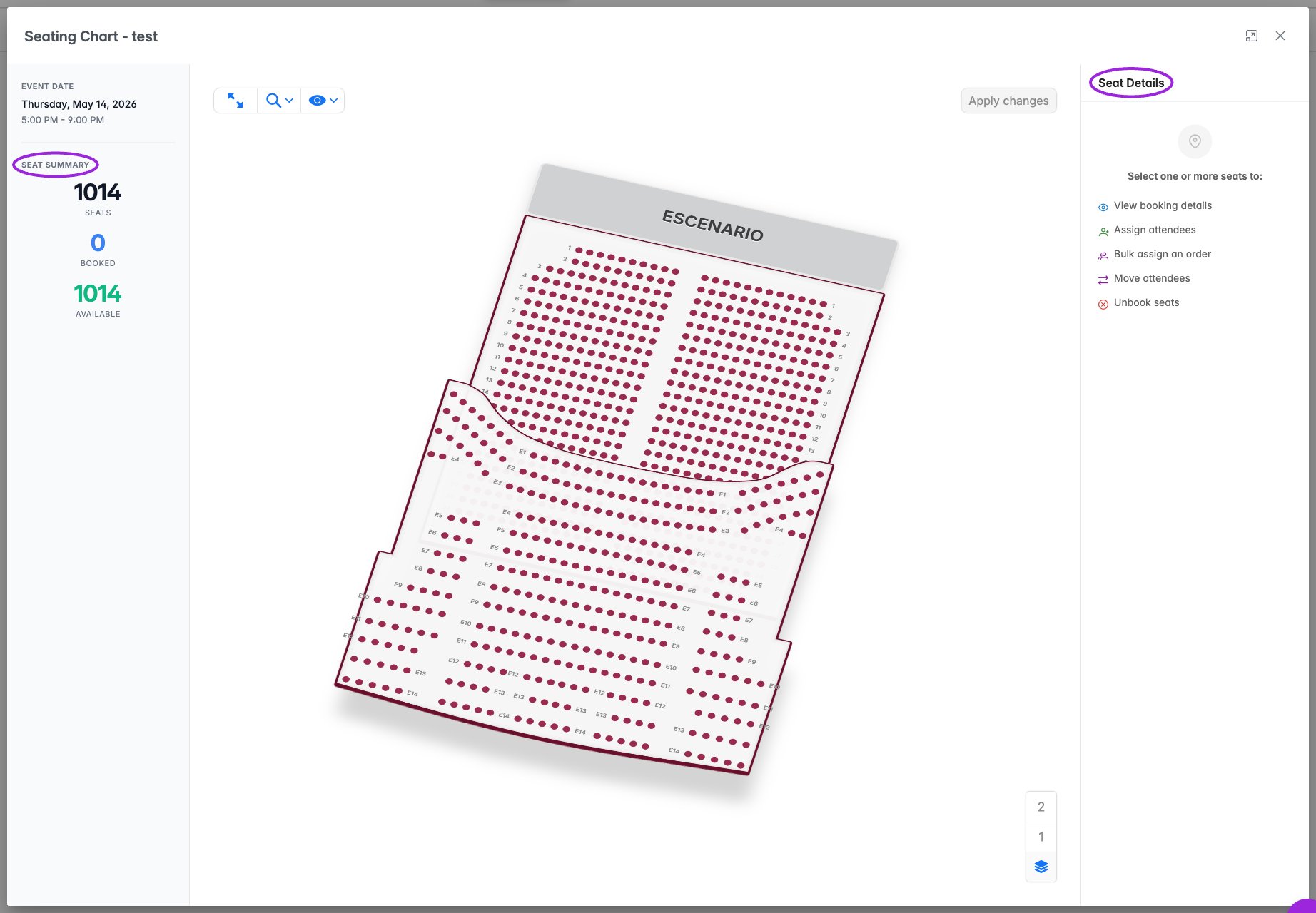
The organizer seating view combines the map, date selection, Seat Summary, and Seat Details.
What you can do
Assign or reassign one attendee
For individually reserved seats, Seat Details shows one of these states:- Select an available seat and choose Assign Attendee.
- Type at least two characters of the attendee’s name or email in the search field.
- Leave Only unassigned selected to find guests without assignments. Clear it to search for someone who already has a seat or area assignment.
- Choose the attendee and Assign.
- If the attendee already has an assignment, review Confirm Reassignment and choose Reassign to move them. Canceling leaves their original assignment unchanged.
- Verify the attendee and the destination on the refreshed map.
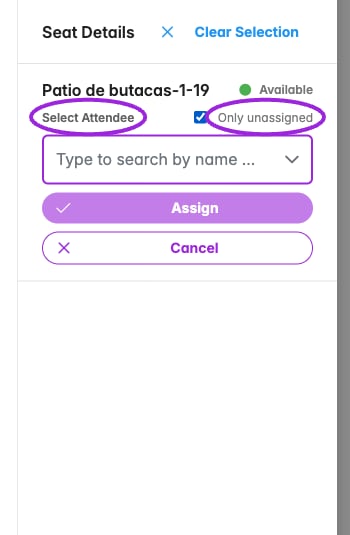
Search for an attendee and use Only unassigned to control whether already-seated guests are included.
Assign attendees to standing general admission
A standing GA area contains multiple places. Several attendees can share the same area label; that does not mean they share an individually reserved seat. The area panel shows available places and Attendees in this area.- Select the standing area on the map.
- Choose Assign Attendee, search by name or email, select the guest, and choose Assign.
- Repeat for the next guest. Each assignment uses one place, and existing occupants stay assigned.
- Check the attendee list and the remaining available places. Assignment is disabled when the area is full; remove or move a guest, or choose another area.
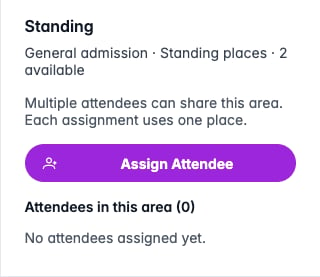
An empty standing area offers attendee assignment. The panel explains that every assignment uses one place.
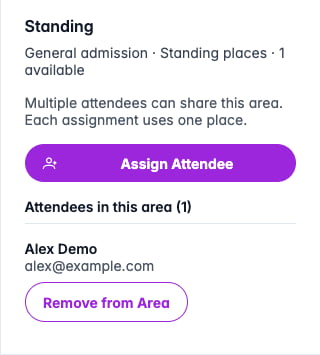
After one assignment, Assign Attendee remains available for the next guest.
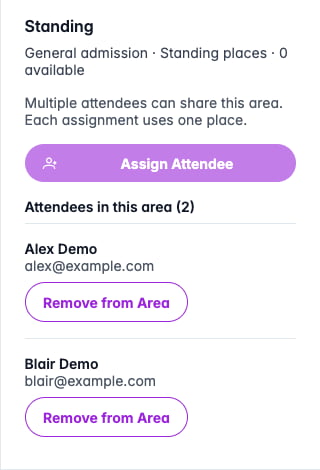
Two guests share this standing area. Each person has a separate removal action; the area is now full.
Move a guest into or out of GA
To move an already-assigned guest into a standing area, clear Only unassigned, find them, and choose Assign. Confirm Reassignment names their current assignment and the destination. Confirm only after checking both labels. To move a GA guest to an individually reserved seat, select the destination seat and use the same individual assignment flow with Only unassigned cleared. Standing-area moves are managed individually; the reserved-seat order-assignment action does not move guests into or out of GA.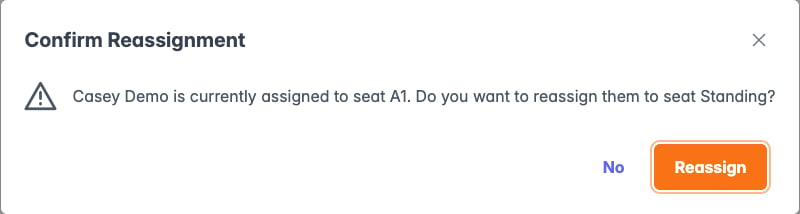
The local demo moves Casey Demo from reserved seat A1 into Standing after explicit confirmation.
Remove one guest from the area
Choose Remove from Area beside the person, review their name and area in the confirmation, and choose Remove. This releases one place. Other attendees remain in the area, and the removed person’s registration remains valid. Removing an area assignment does not cancel the registration or refund the order.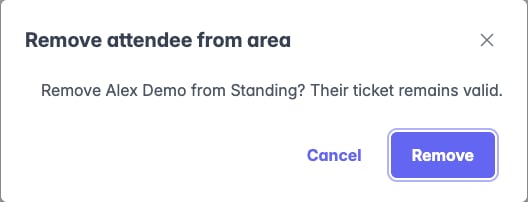
Removal identifies one guest and explains that their ticket remains valid.
Whole-area reservations
Some areas are sold as one exclusive reservation, such as a section for a group. They retain the single-assignment controls. A capacity or group size in an area’s label does not make it standing GA: the chart’s booking setup determines whether organizers assign separate places or the entire area.Assign several reserved seats to an order
- Select several individually reserved seats. The sidebar summarizes their rows, sections, and assignment state.
- Choose Assign … Seats to Order and search by attendee or buyer name or email.
- Choose the order and inspect Review Seat Assignment.
- Review Currently seated, After assignment, and Still unseated. Selected seats are paired in chart order with attendees in purchase order.
- Review every proposed pairing before confirming.
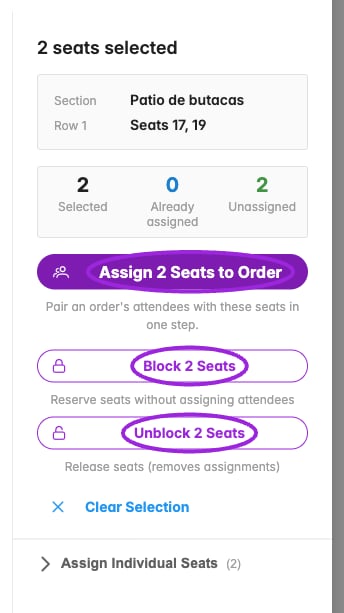
A multiple-seat selection exposes order assignment and individual-seat controls.
Order search, review, and saved result
Order search, review, and saved result
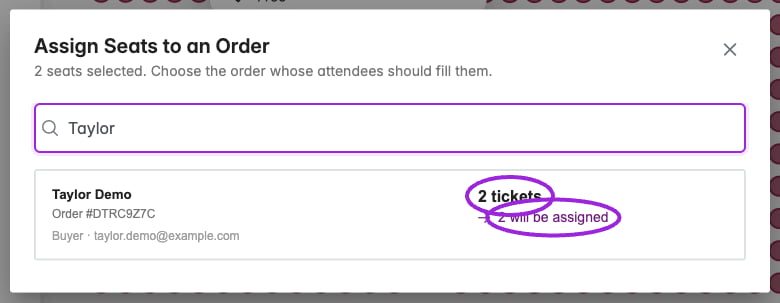
Choose the matching order and check its ticket count.
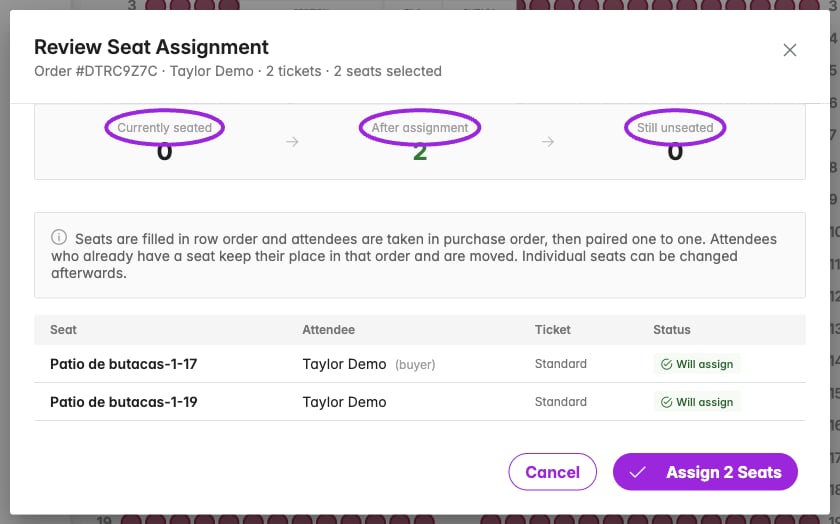
Review the proposed pairings and before-and-after totals.
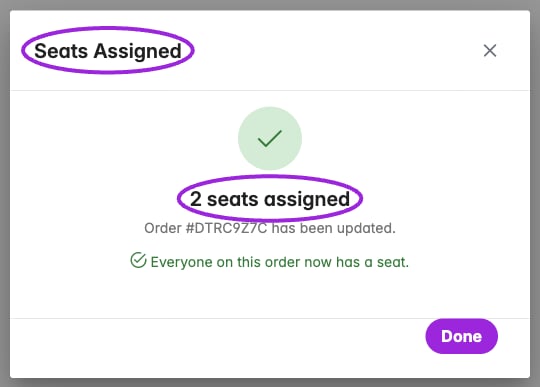
Seats Assigned confirms the saved result.
Block, unblock, and unbook
For one available reserved seat, use Block Seat to reserve it without an attendee. For a blocked seat, use Unblock Seat to release it. A blocked seat can also show Assign Attendee so you can attach an attendee to the reservation. For multiple selected reserved seats, use Block … Seats or Unblock … Seats. These actions submit immediately. Unblock can remove linked attendee assignments, so review the entire selection before using it. For an assigned reserved seat, choose Unbook Seat, review Confirm Unbook, and confirm to release that person’s seat. Unbooking is separate from canceling or refunding the order. For standing GA, use the person’s Remove from Area action instead.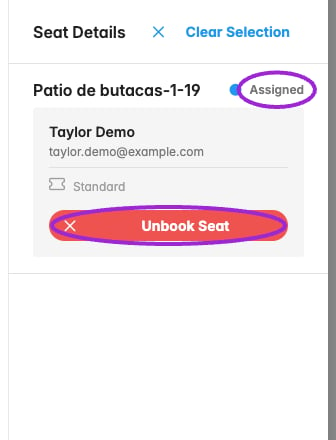
An assigned reserved seat shows the attendee, ticket, and Unbook Seat action.
Mobile and unavailable actions
On a narrow screen, the map sits above the attendee panel. Scroll down to search, assign, and review people in a standing area. Use Clear Selection to return to an empty selection without changing saved assignments.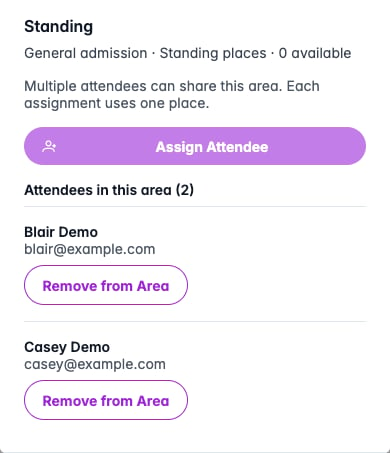
The mobile standing-area panel keeps both attendees and their individual removal controls within the screen width.