
Before you start
Save your event before creating a link. Tracking Links is available on Business with up to 3 links per event, and on Business+ and higher with unlimited links. Use the correct site and an event you can edit.Navigation
- Open Events and edit your saved event.
- Select Tracking Links in the event editor. This is an event-level setting, not the main Analytics tab.
- For a recurring series, edit the parent event; this step is hidden on individual child events.
Create a link
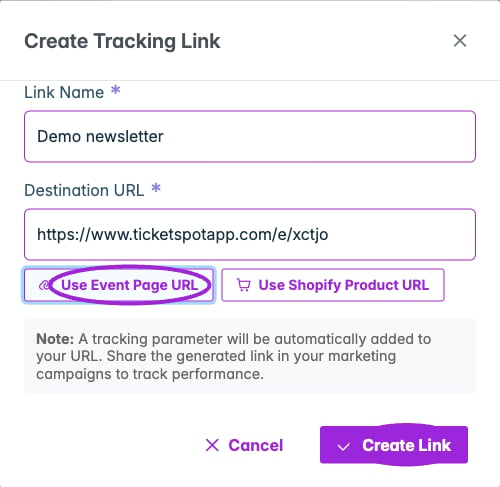
Give the campaign a name, select a destination, and create its tracking link. Use Event Page URL fills the event’s own page automatically.
- Click Create Tracking Link when the list is empty, or Create Link above an existing list.
- Complete the fields in Create Tracking Link:
- Click Create Link in the dialog.
- Find the new row and use Copy URL beside its Tracking URL.
- Share that generated URL. Ticket Spot adds the tracking parameter for you; sharing the original destination URL does not identify this campaign.
Review performance
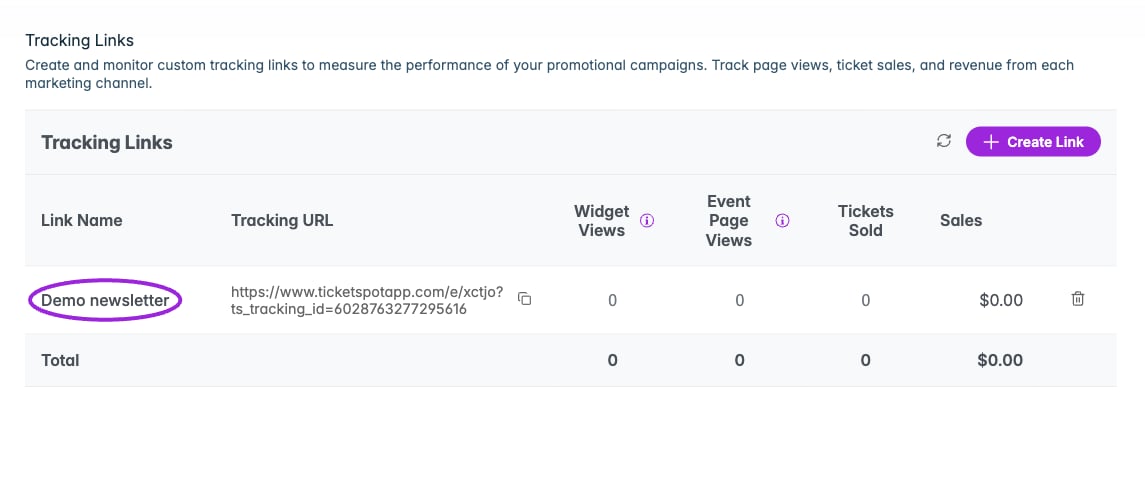
Each campaign link has separate view, ticket, and sales totals. This newly created demo link has no activity yet. Copy its Tracking URL when you are ready to share it.
Nonzero view and ticket counts can be opened for more detail. Views and tickets are different measures; do not read views as unique purchasers.