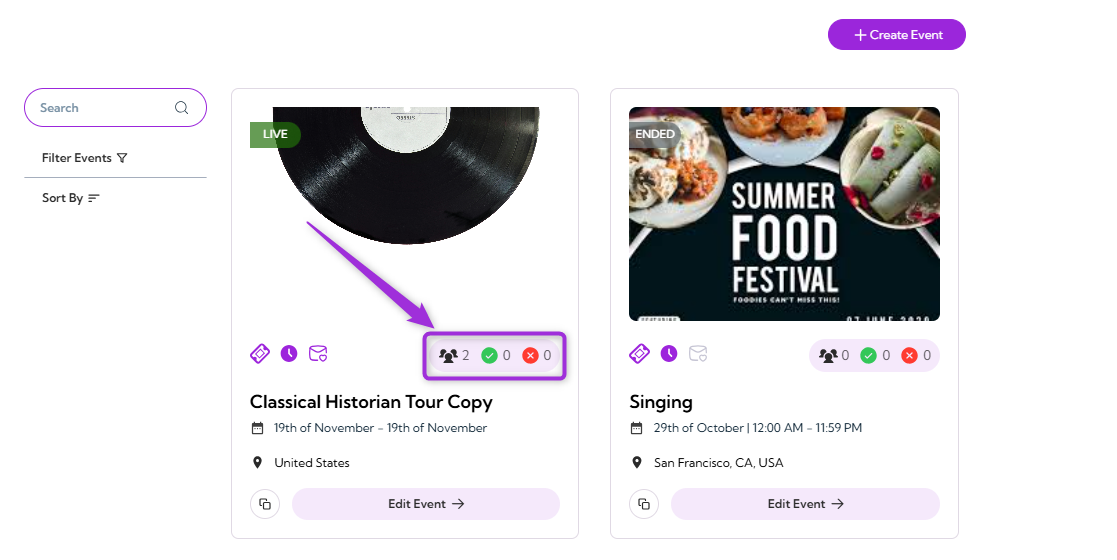
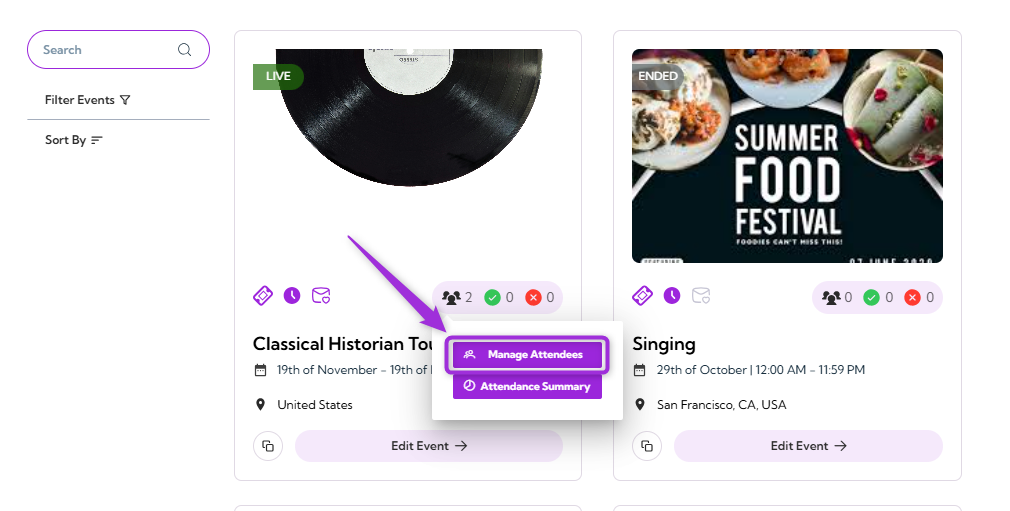
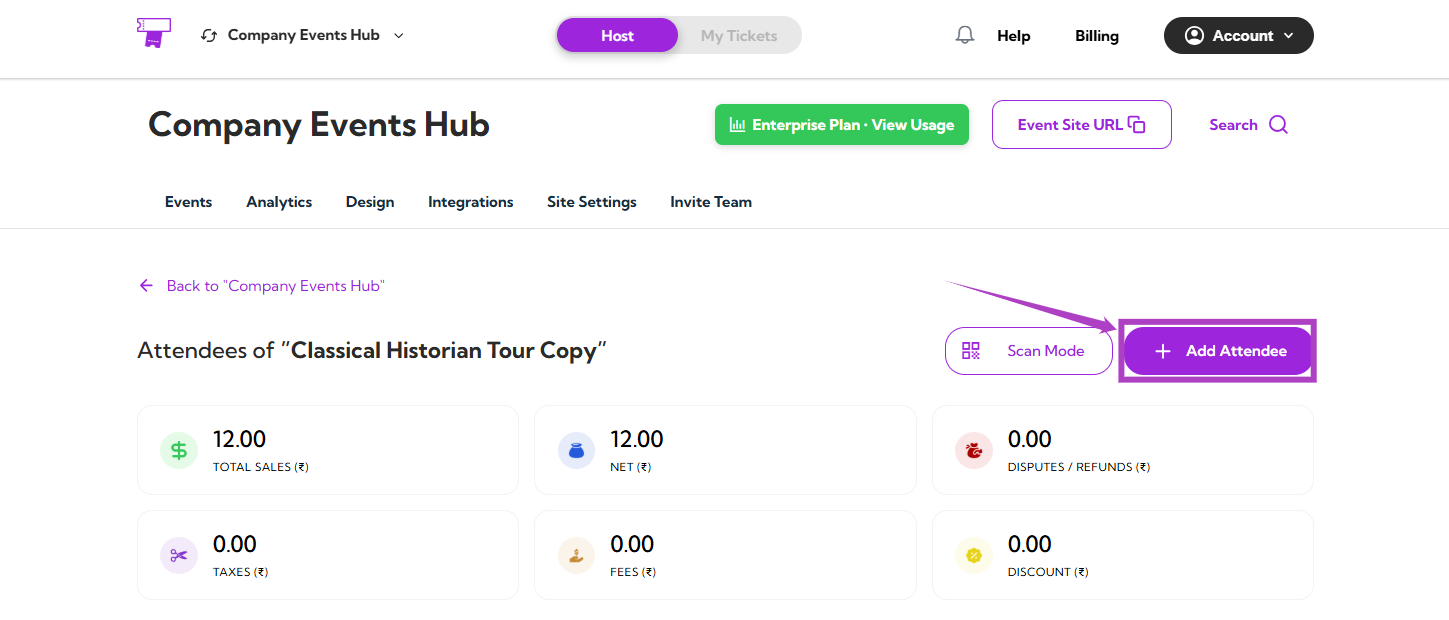
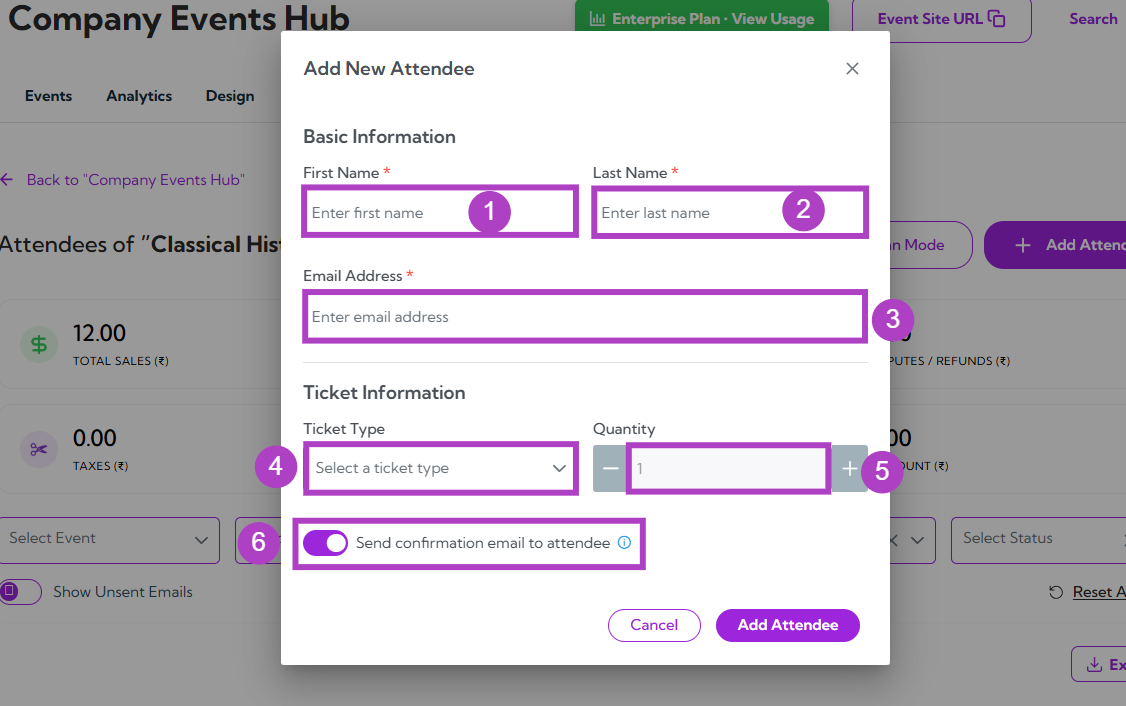
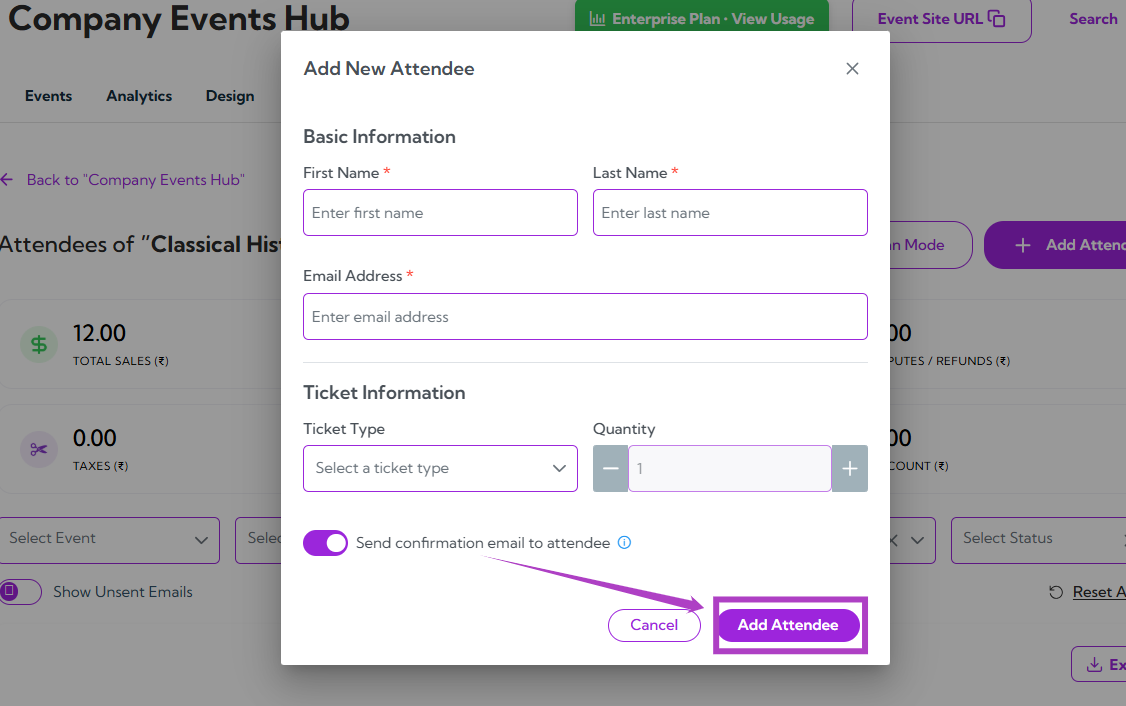
You can manually add attendees to any event in Ticket Spot whenever you need to register someone yourself—whether they signed up offline, were added by your team, or require a custom ticket entry. This guide walks you through each step of the process so you can quickly enter attendee details and keep your event list up to date.Let’s get started 🚀Step 1: Log in to your Ticket Spot account, then click the Attendee icon next to the event where you want to add attendees.Step 2: Click Manage Attendees to open the attendee dashboard for that event.Step 3: After clicking on the Manage Attendees button, you will be taken to the Attendees page for that event. Here, click the Add Attendee button on the top-right to manually add a new attendee.Step 4: A modal window titled “Add New Attendee” will appear. Fill in the following details:
Ref.
Field
Description
1.
First Name
Enter the attendee’s first name. This field is required.
2.
Last Name
Enter the attendee’s last name. This field is required.
3.
Email Address
Enter a valid email address for the attendee. Required for sending tickets.
4.
Ticket Type
Select the ticket type from the dropdown.
5.
Quantity
Choose how many tickets to assign (default is 1).
6.
Send confirmation email to attendee
Toggle ON/OFF to automatically send a confirmation email.
Step 5: Once you fill in all the required details, click on the Add Attendee button to save the information and add the attendee to the event.