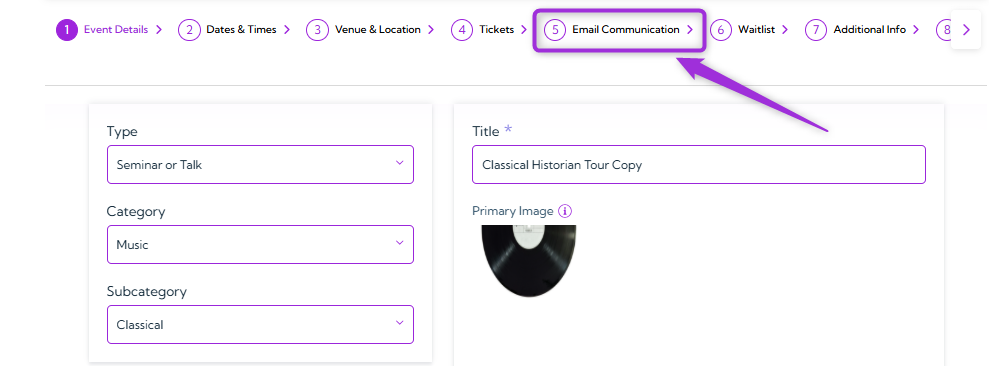
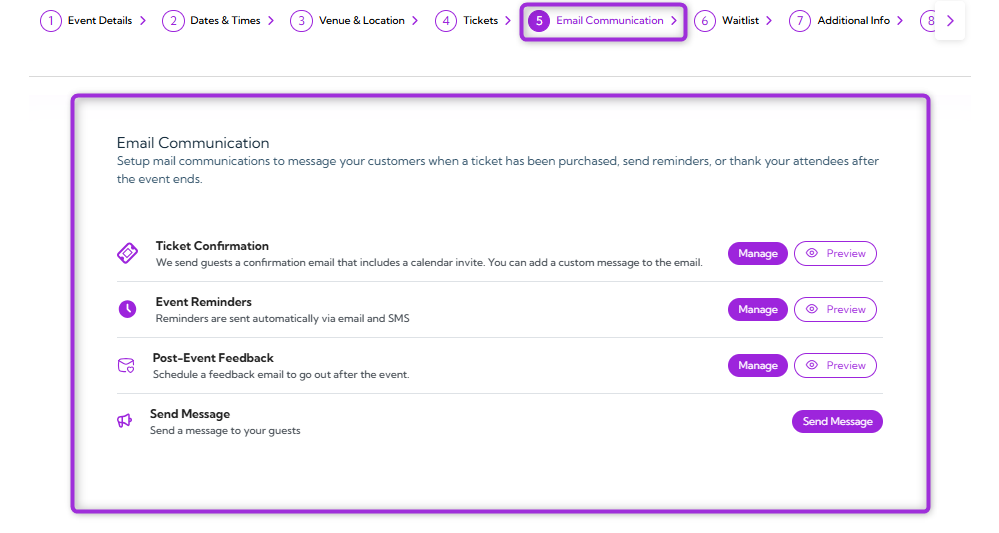
Ticket Confirmation
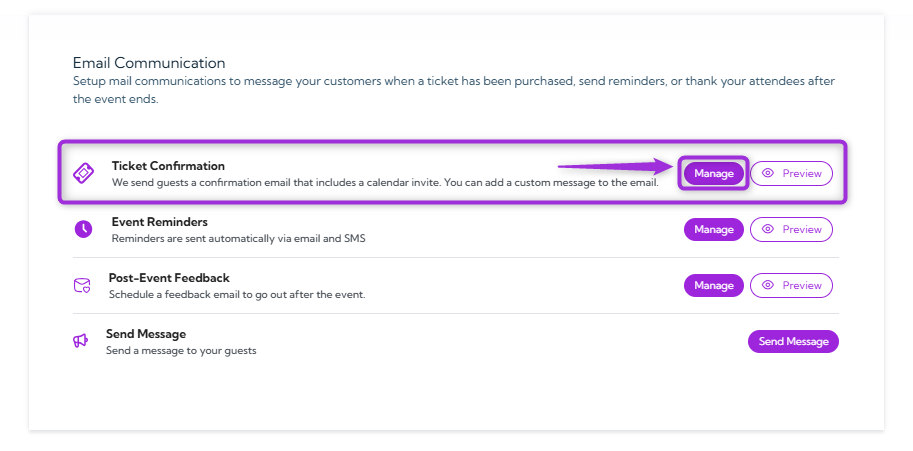
This email is sent automatically when someone buys a ticket for your event. You can enable it, customize the subject and message, attach ticket files, and use tokens to insert real event data into the email.- Click on the Manage button to open a settings panel for the ticket confirmation email.
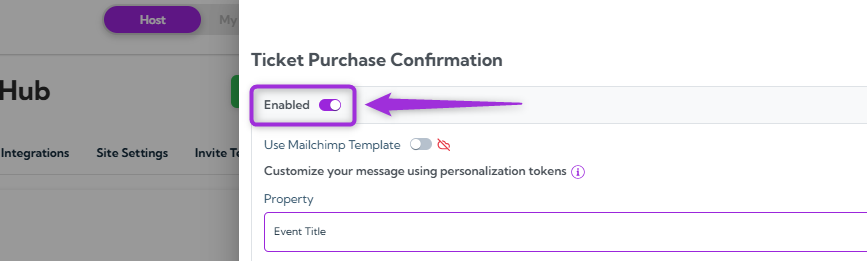
- In the side panel, turn on the toggle button to activate the Ticket Confirmation email for this event.
Customize the Message
You can customize the email message using tokens that automatically insert real event and attendee information. The table below explains each field.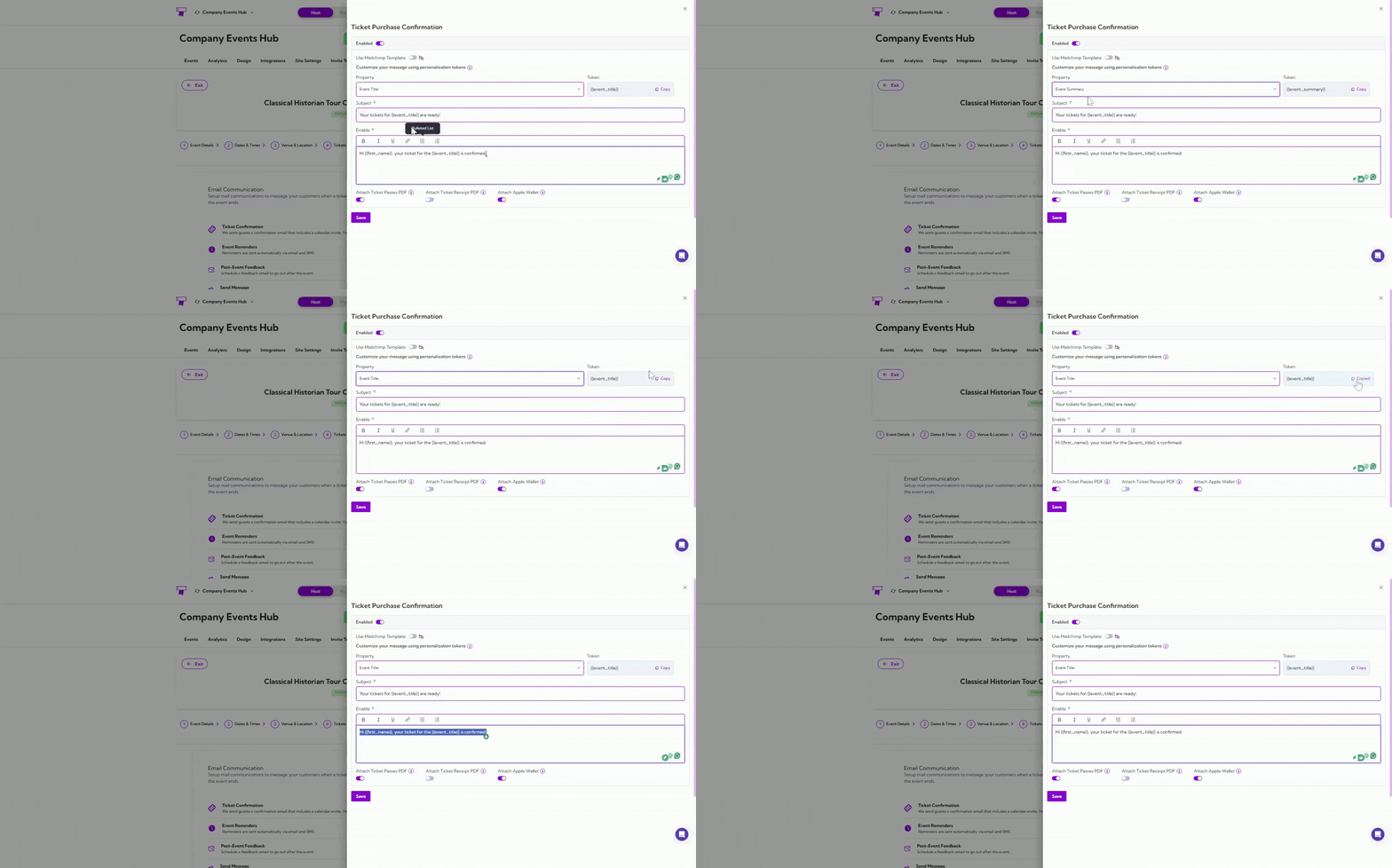
Attachment Options
You can choose to include additional ticket files with the confirmation email. These options help attendees access their tickets easily in different formats. Turn on the toggle next to each attachment you want to include.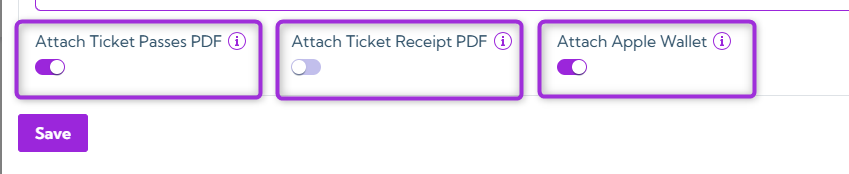
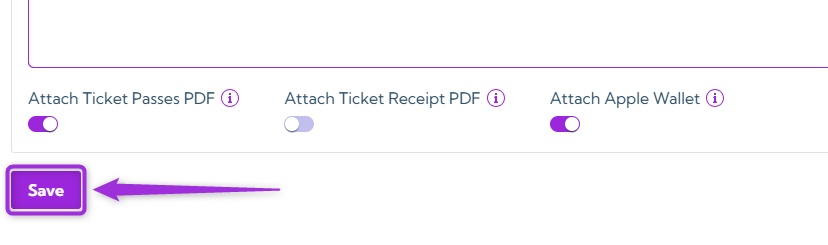
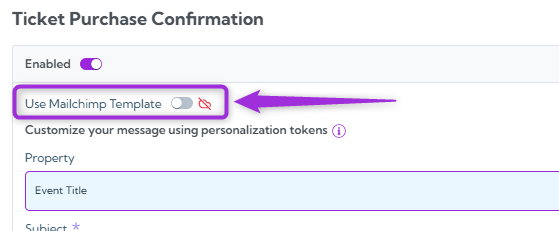
Note: If you want to use your own email template, enable the Mailchimp integration with Ticket Spot. After connecting Mailchimp, turn on the Use Mailchimp Template toggle to apply your custom template to this email.
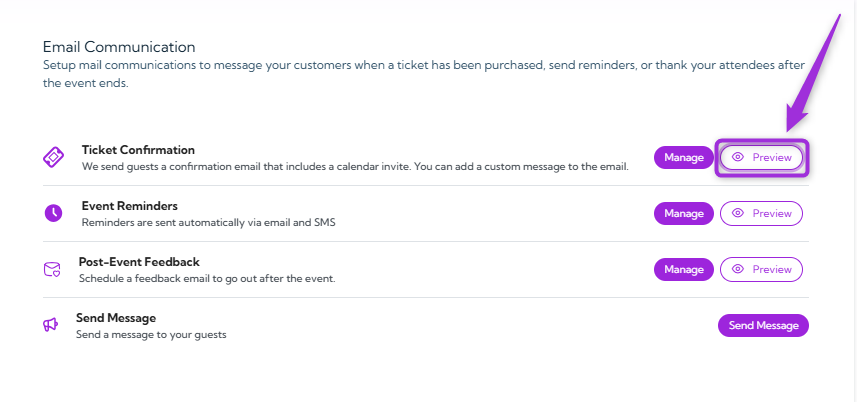
Preview Ticket Confirmation Email
You can also preview the email template by sending a test email.- Click the Preview button to open the test email window.
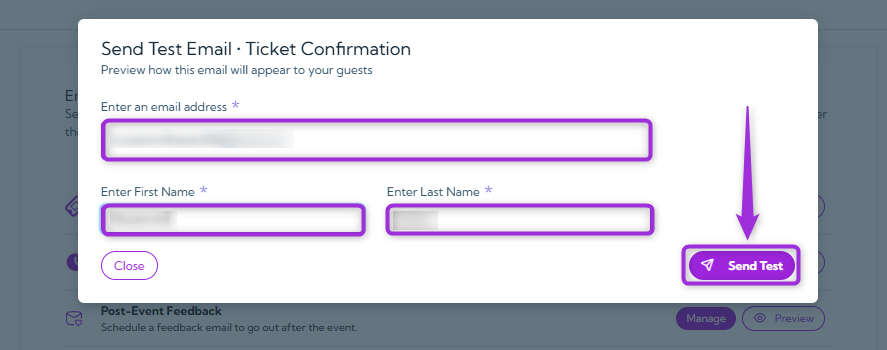
- Enter your email, first name, and last name, then click the Send Test button to send the test email.
Event Reminders
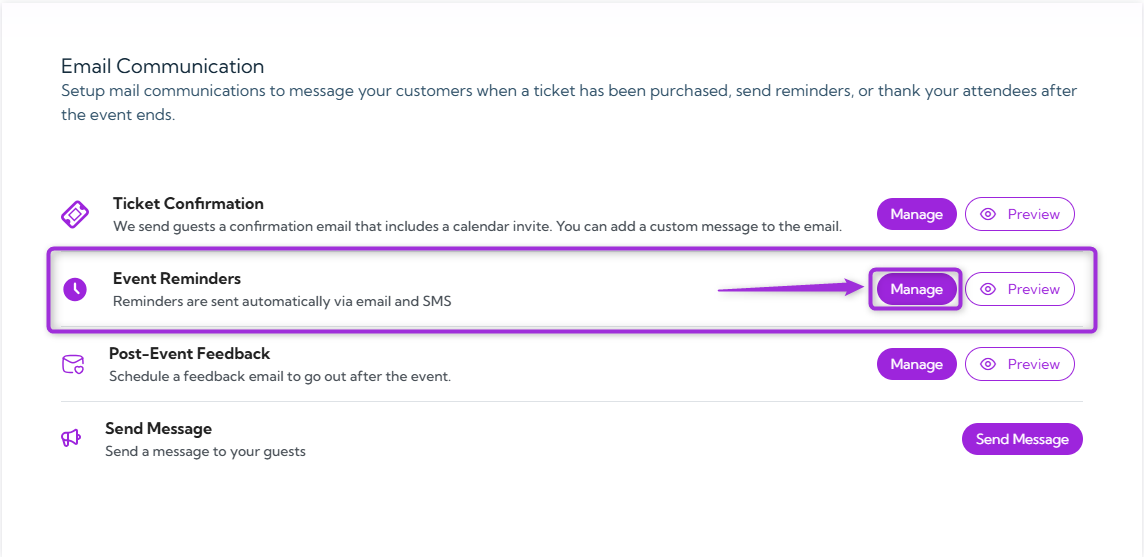
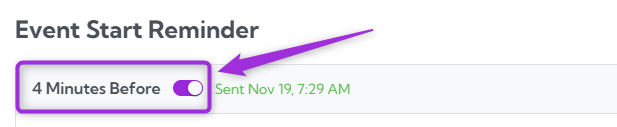
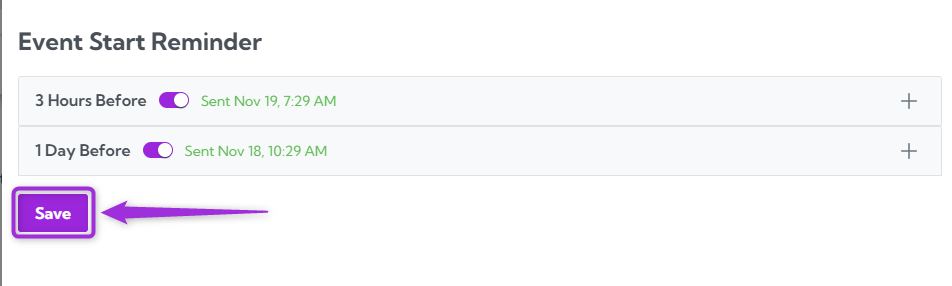
Event reminders are sent automatically to your attendees by email and SMS before the event starts. You can enable or disable each reminder and choose when it should be delivered.- Click on the Manage button to open a settings panel for the event start reminders.
- You can use the toggle next to each reminder to enable or disable it at any time.
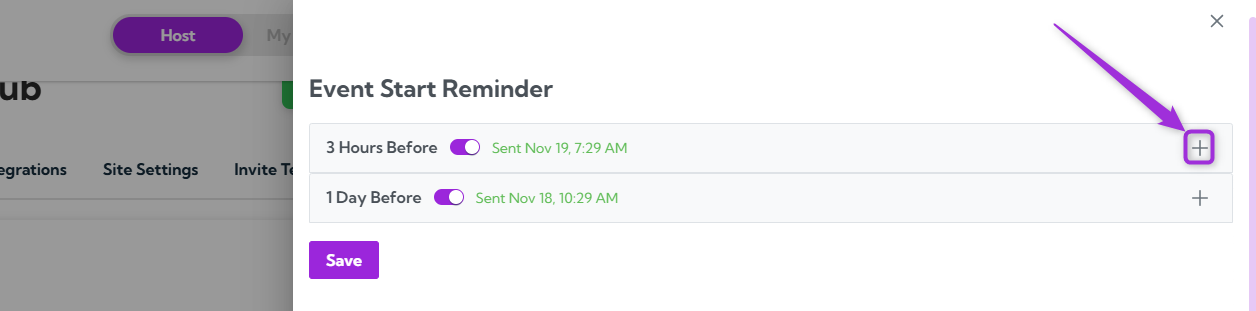
- In the side panel, you’ll see two default reminders—click the + icon next to any reminder to customize its timing and message.
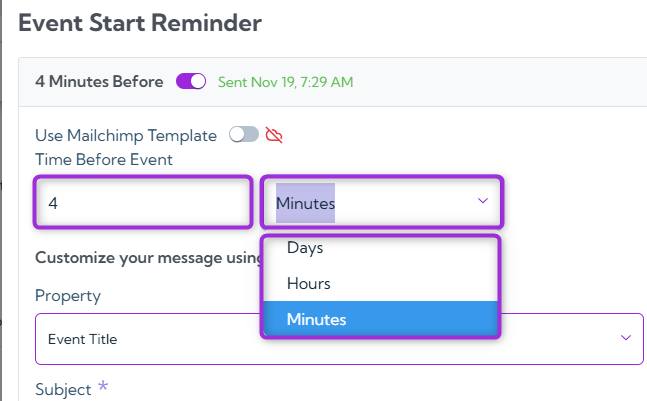
- Enter how long before the event the reminder should be sent, and choose the unit (Minutes / Hours / Days).
Customize the Reminder Message
You can customize the reminder message using tokens that automatically insert real event and attendee information. The table below explains each field.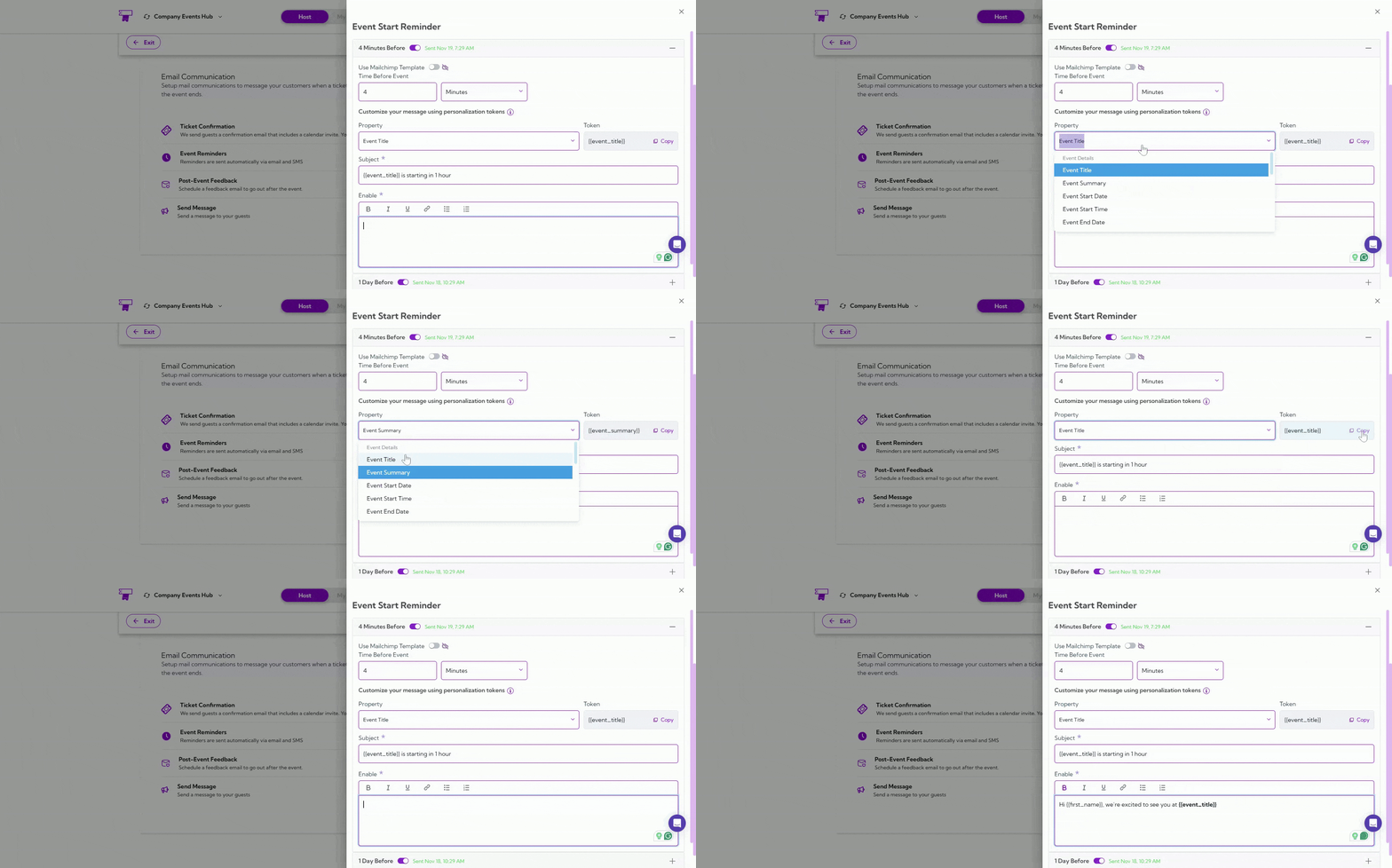
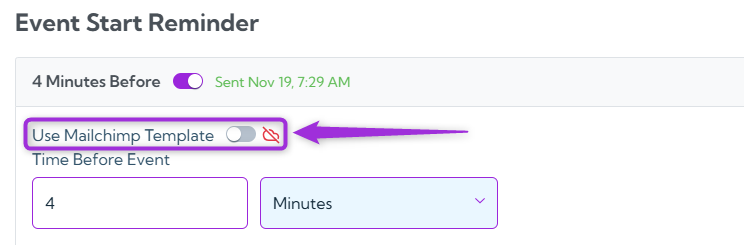
Note: If you want to use your own email template, enable the Mailchimp integration with Ticket Spot. After connecting Mailchimp, turn on the Use Mailchimp Template toggle to apply your custom template to this email.
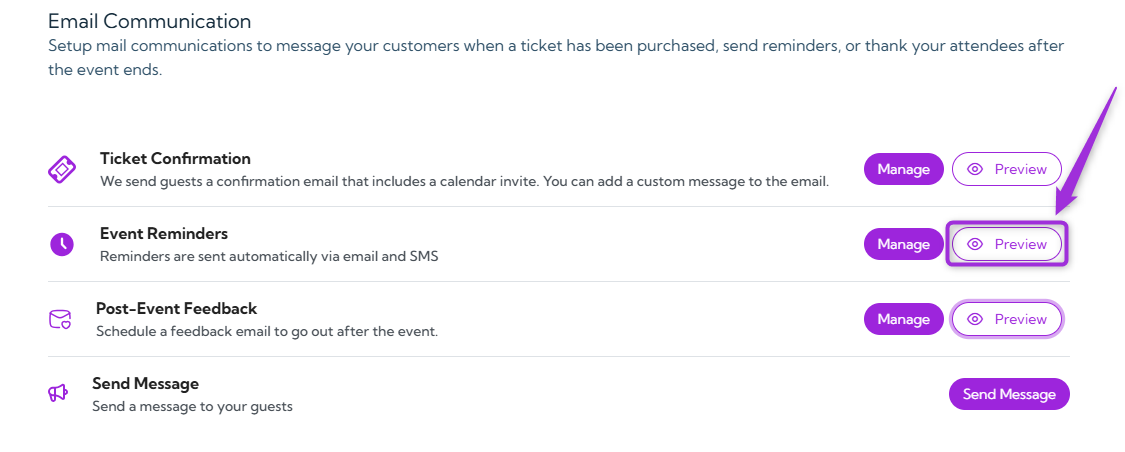
Preview Event Reminder Email
You can also preview the reminder email by sending a test email.- Click on the Preview button to open the test email window.
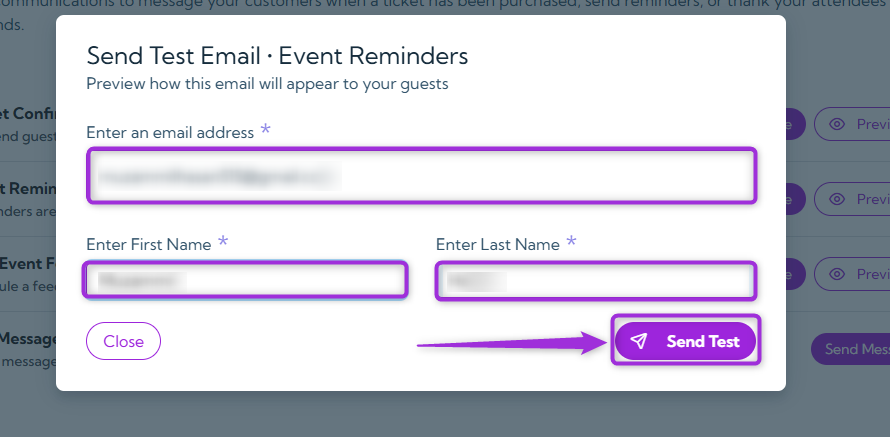
- Enter your email, first name, and last name, then click Send Test to send the reminder preview.
Post-Event Feedback
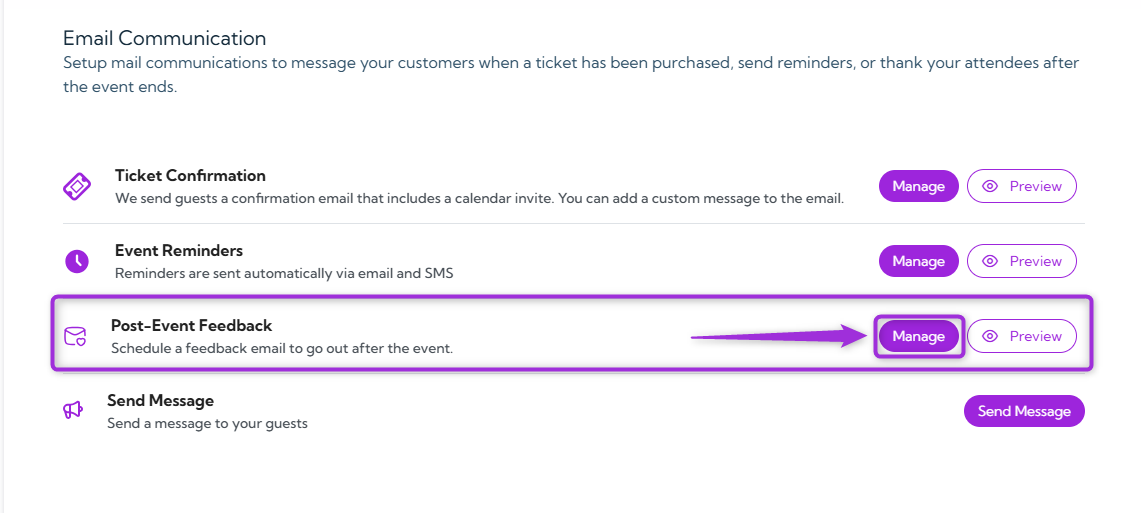
A feedback email can be scheduled to send automatically after your event ends. This helps you collect insights from attendees and understand their experience.- Click on the Manage button to open a settings panel for Post-Event Feedback.
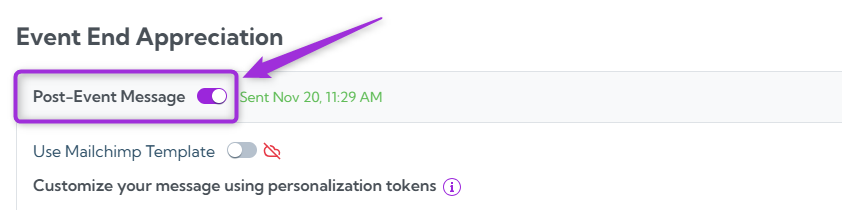
- In the side panel, turn on the toggle button to activate the Post Event Feedback email for this event.
Customize the Message
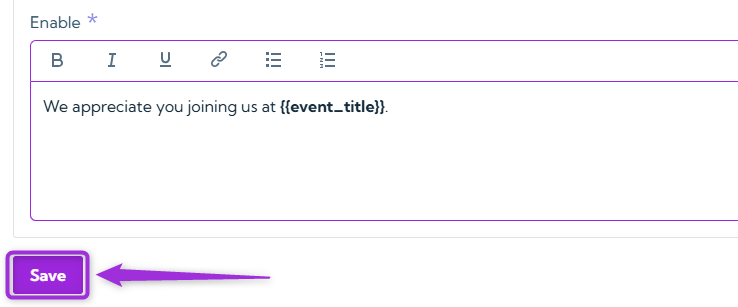
You can customize the post-event message using tokens that automatically insert event or attendee information. The table below explains each available field.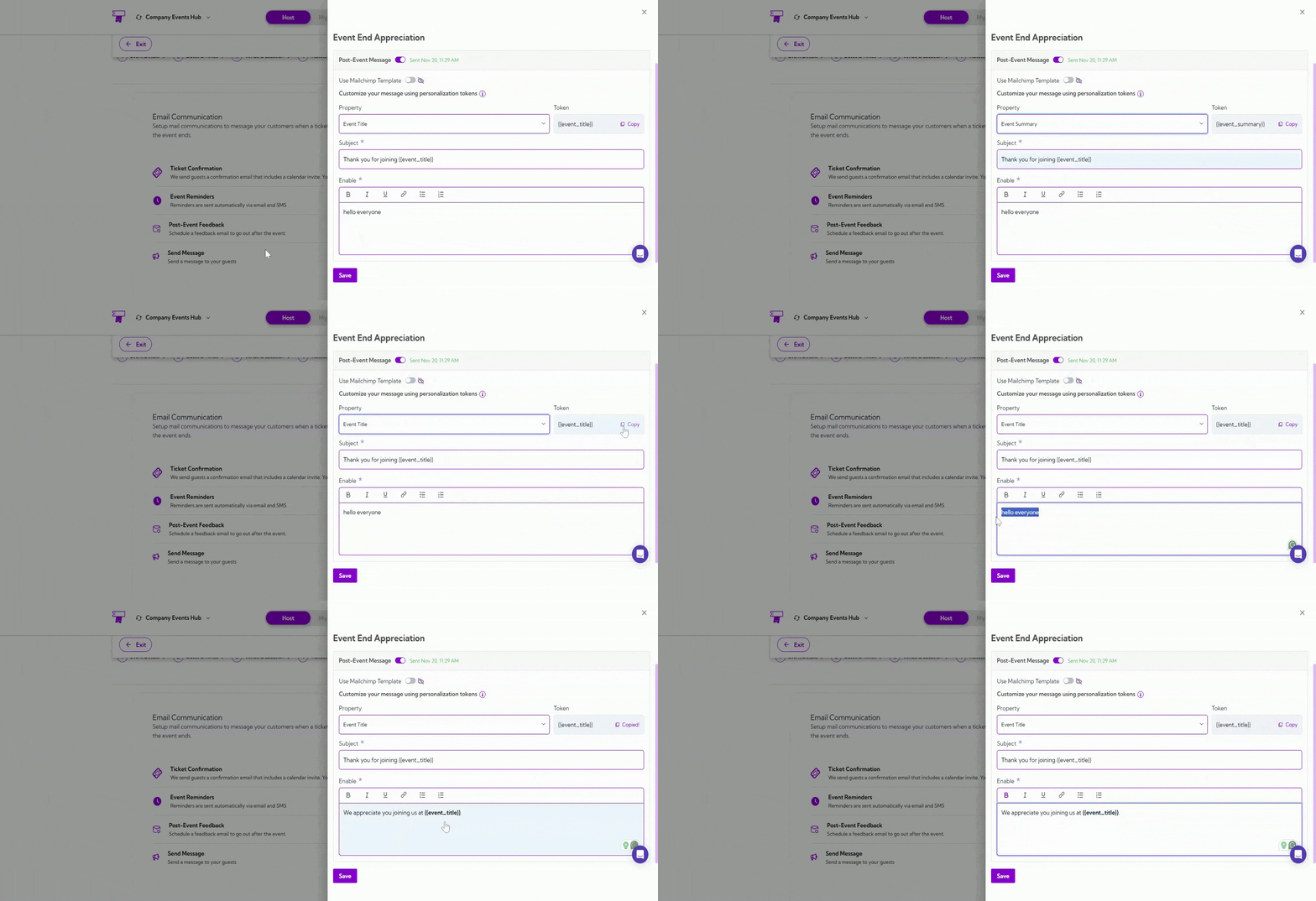
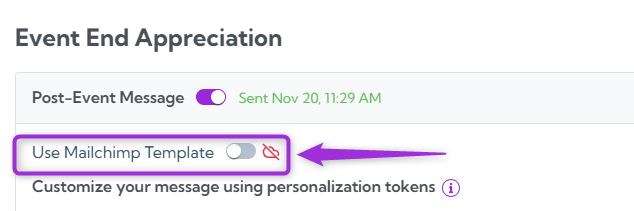
Note: If you want to use your own email template, enable the Mailchimp integration with Ticket Spot. After connecting Mailchimp, turn on the Use Mailchimp Template toggle to apply your custom template to this email.
Preview Post-Event Feedback Email
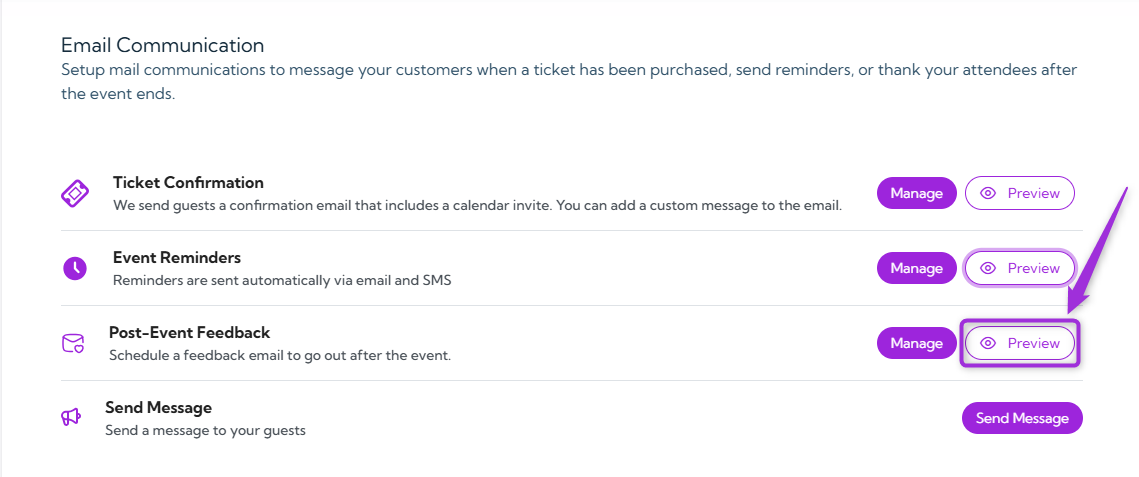
You can preview the post-event feedback message before it gets scheduled.- Click on the Preview button to open the test email window.
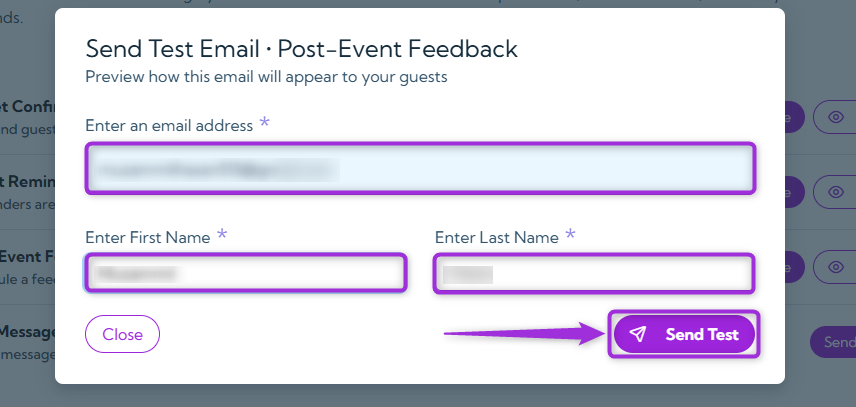
- Enter your email, first name, and last name, then click Send Test to receive the preview.
Send Message
Use Send Message to send targeted announcements or updates to your attendees based on their registration status. This also allows you to send bulk messages to specific groups, keeping your audience informed with important event details at any stage.- Click on the Send Message button.
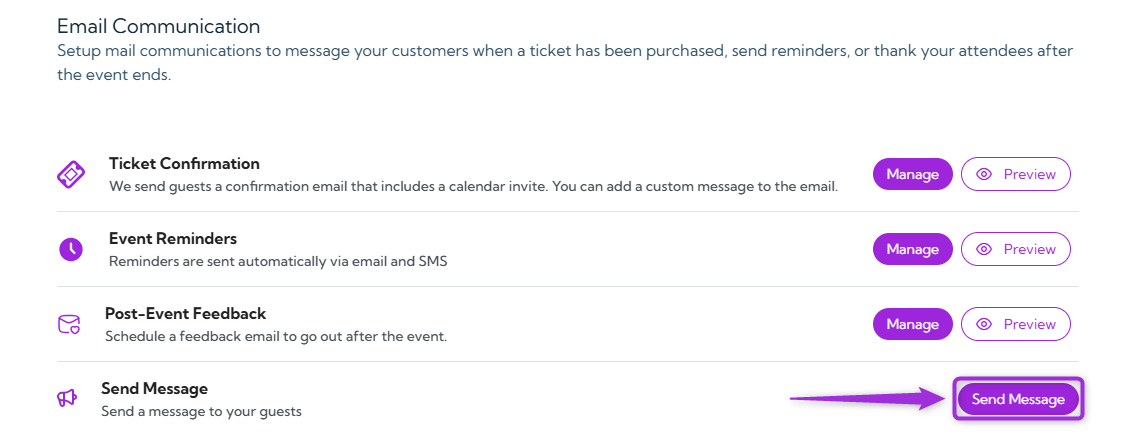
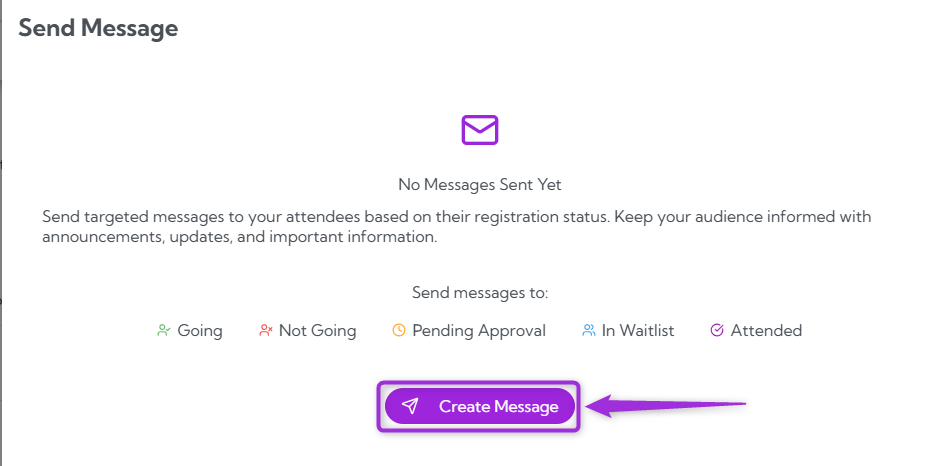
- In the side panel, click on the Create Message button to create a new message.
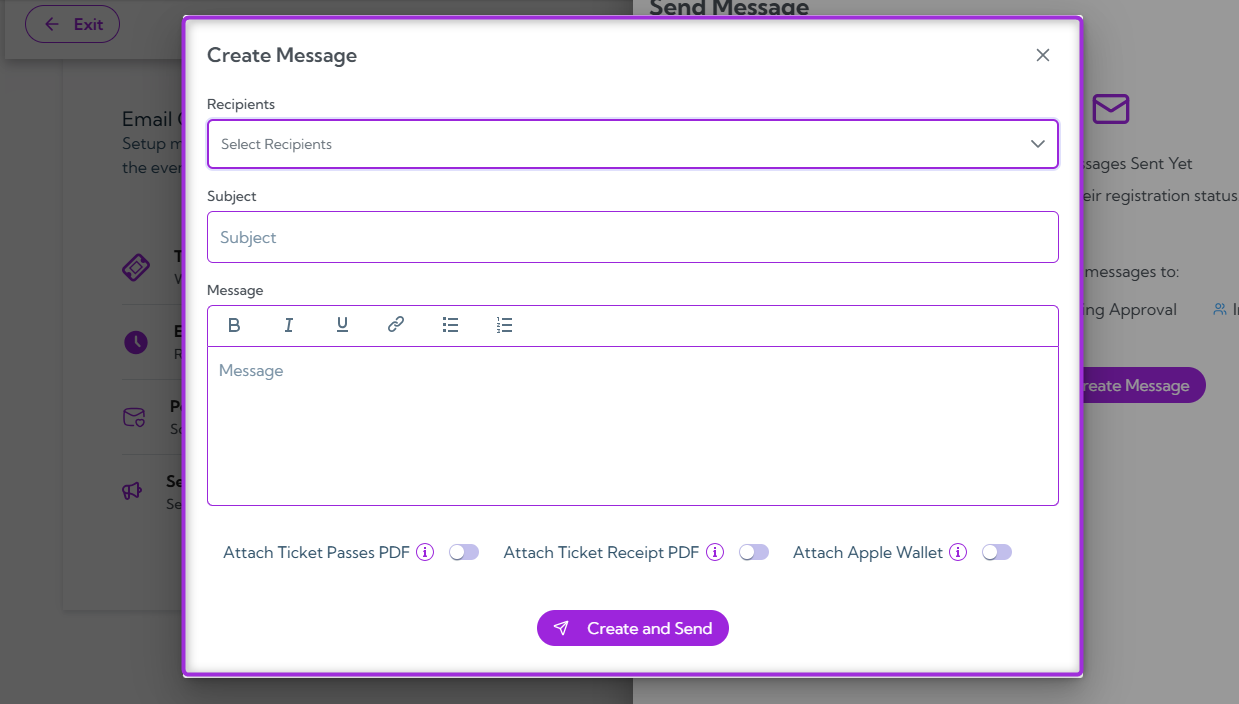
- Enter the required details for your message—select a recipient group, add a subject, and write the message body. The table below explains each field.
Message Fields
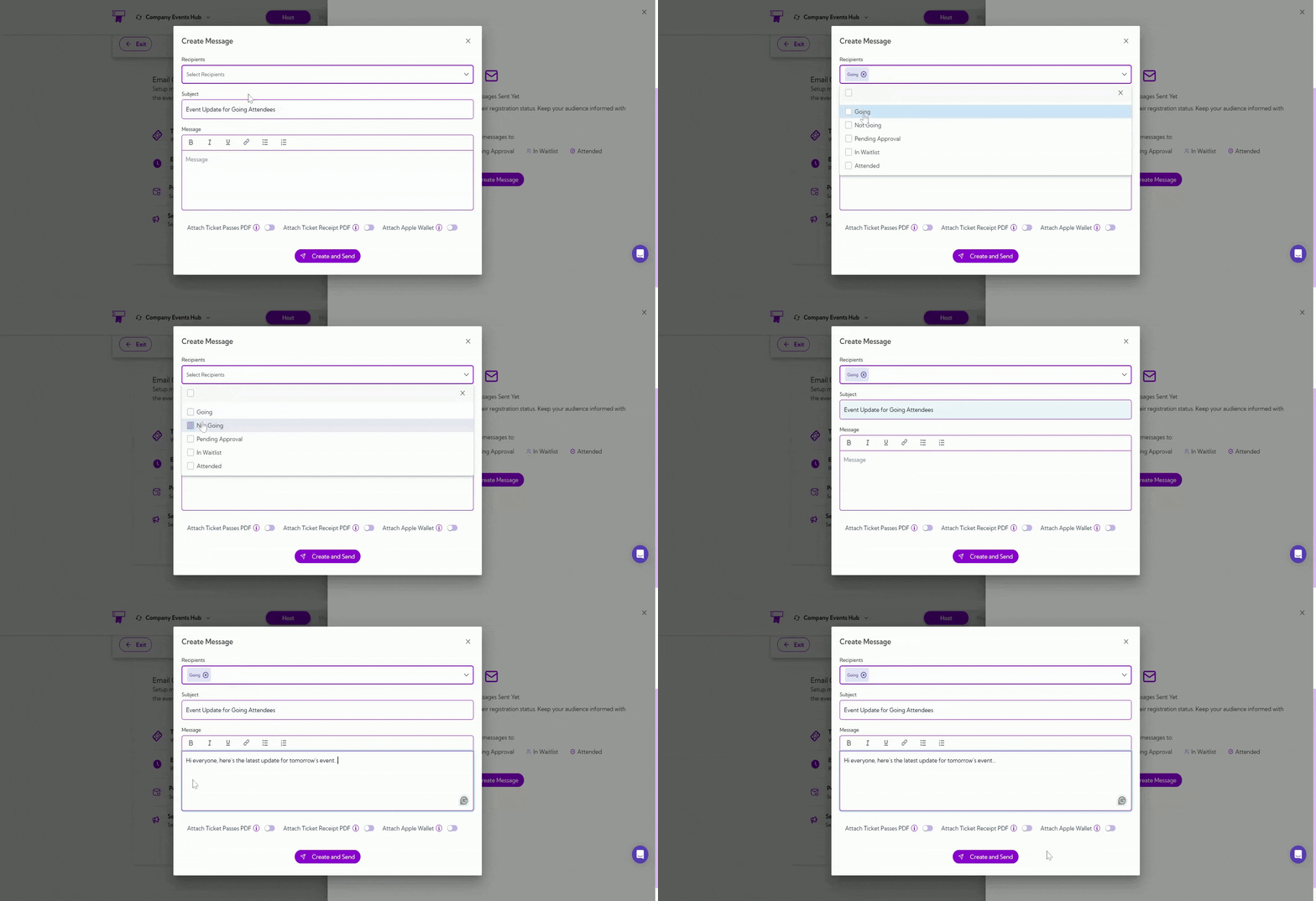
Tip: You can also select multiple recipient groups at once if you want to send the same message to more than one attendee segment.
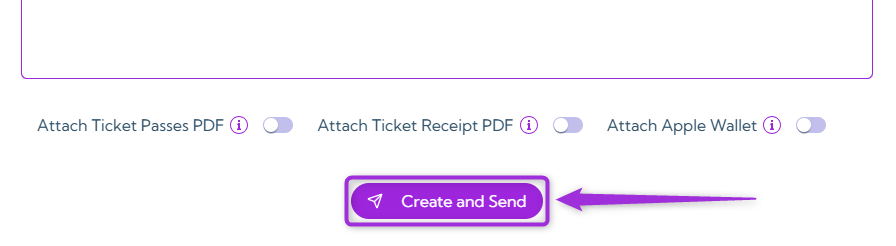
Attachment Options
You can attach additional ticket files when sending a message to attendees. These attachments help attendees access their tickets or receipts directly from your message. Turn on the toggle next to each attachment you want to include.