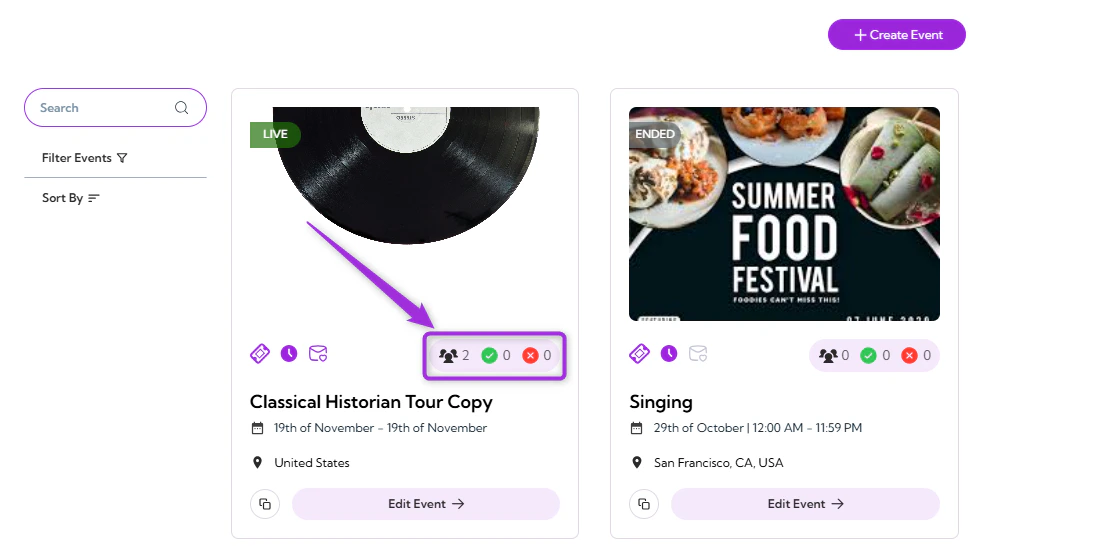
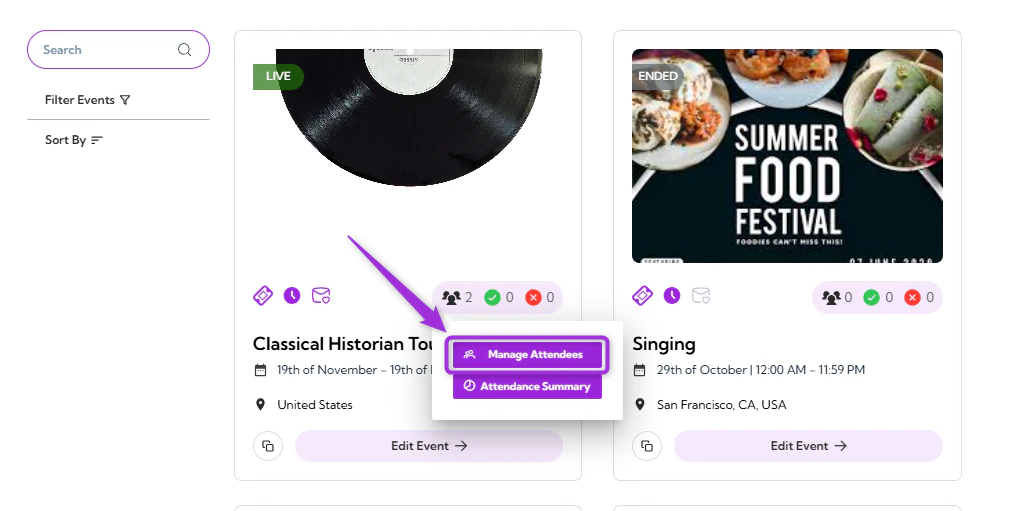
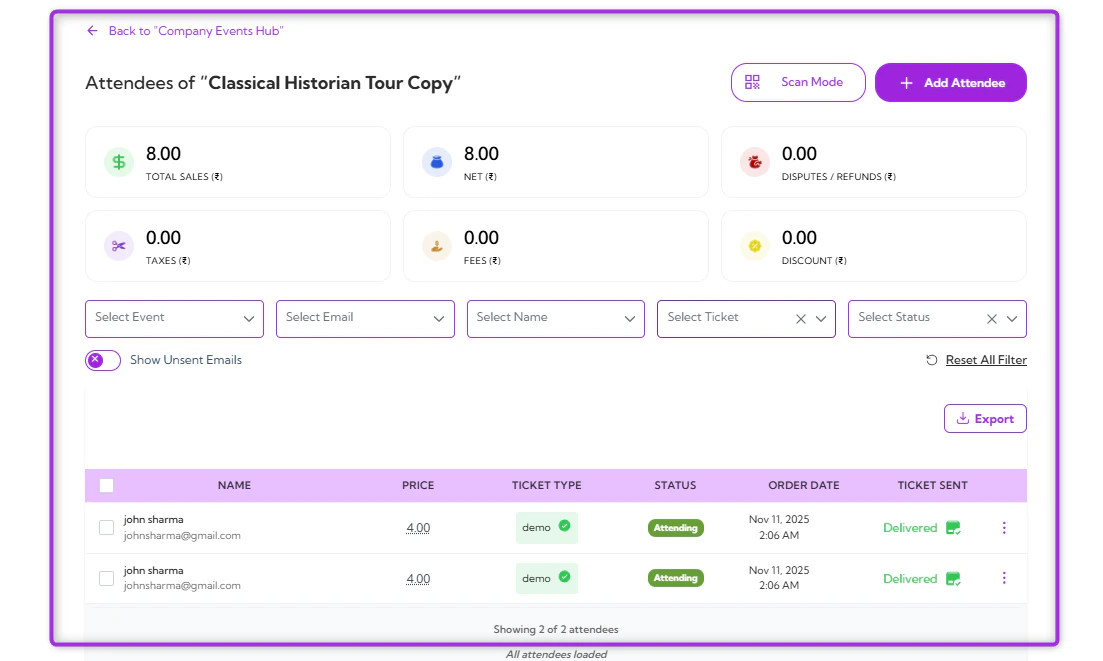
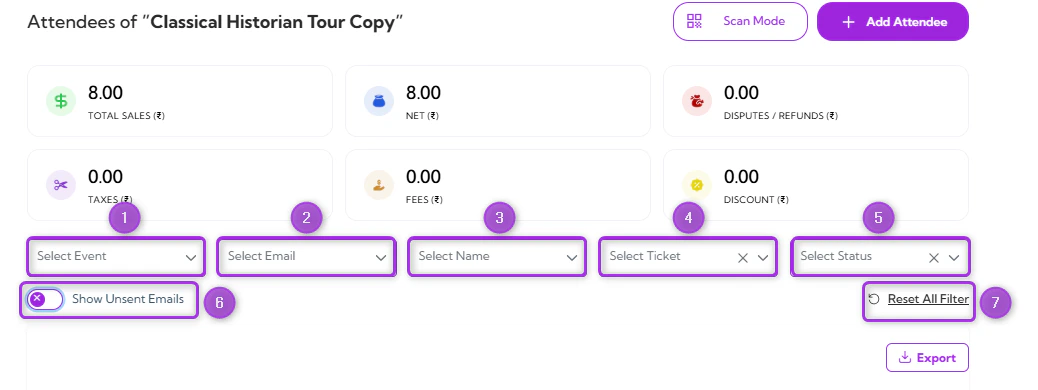
Viewing attendee details allows event teams to access complete information about each attendee. This includes registration data, ticket type, order information, check-in status, and any custom fields collected during registration. Having this information available in one place helps with event coordination, attendee verification, and resolving on-site queries. Let’s get started 🚀 Step 1: Log in to your Ticket Spot account, then click on the Attendee icon next to the event you want to export attendee data for. click-attendee-icon Step 2: Click on Manage Attendees to open the attendee dashboard for that event. click-manage-attendee The detailed Attendees Dashboard will appear, showing the full list of attendees for the selected event. manage-attendee-dashboard Step 3: Use the filters at the top of the Attendees Dashboard to view specific attendee groups. These filters help narrow down the list based on event, email, name, ticket type, or status. The available filters are listed below:
Ref.FilterDescriptionExample Use
1.Select EventFilters attendees by a specific event (useful when viewing data across multiple events).View attendees only for “Workshop A.”
2.Select EmailFilters the list by an attendee’s email address.Find a specific attendee using their email.
3.Select NameFilters attendees by first or last name.Quickly locate “John Sharma” in a large list.
4.Select TicketFilters by ticket type.View only “VIP” or “General Admission” attendees.
5.Select StatusFilters by attendance or registration status.Show only “Checked In” or only “Pending” attendees.
6.Show Unsent Emails (Toggle)Displays attendees who have not received automated emails or confirmations.Identify attendees who need a resend.
7.Reset All FiltersClears all filters and returns the full attendee list.Return to the complete list after filtering.
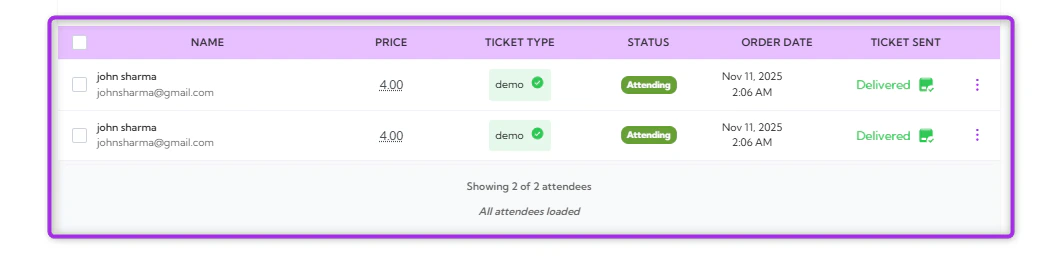
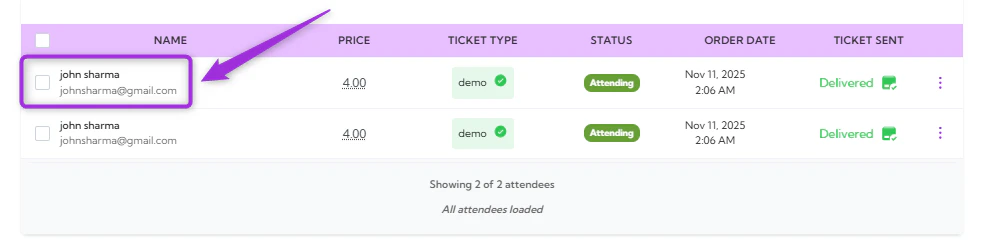
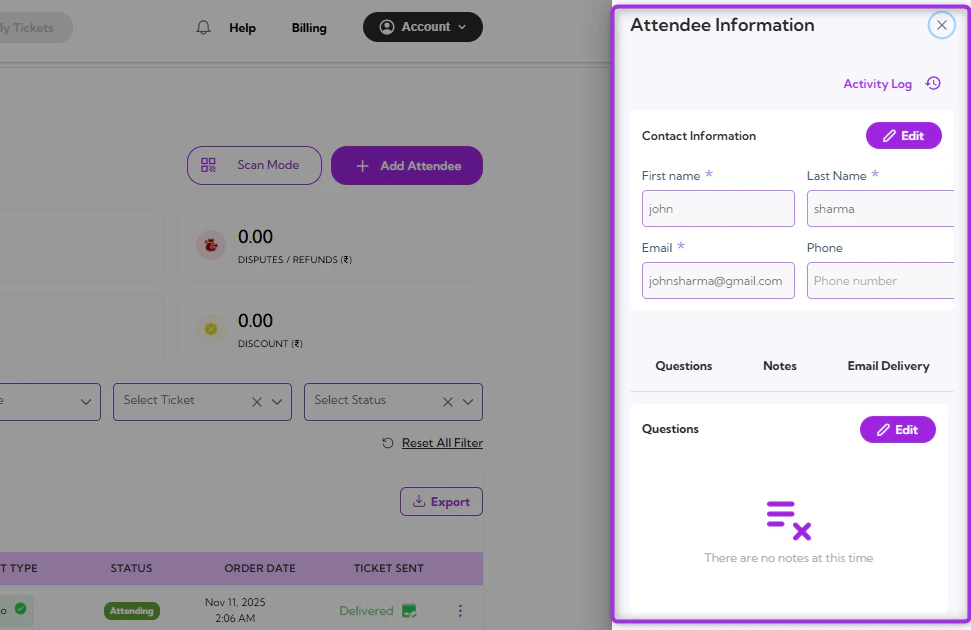
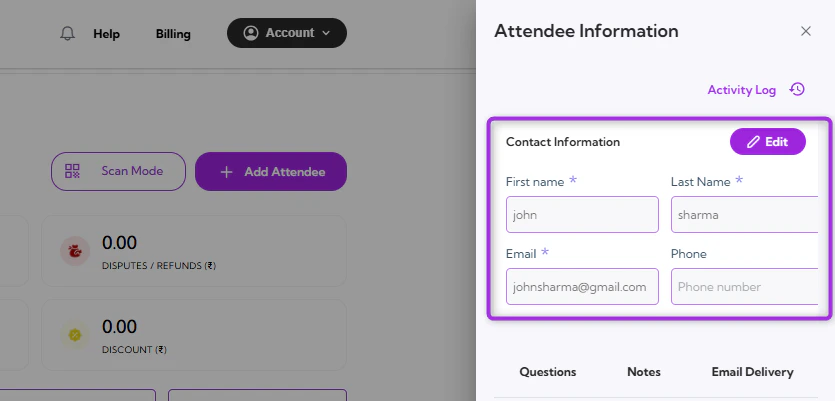
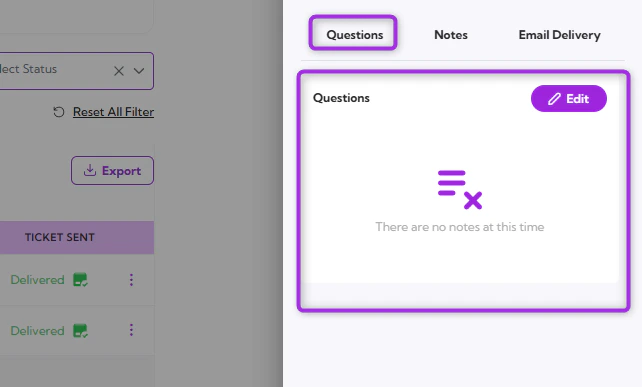
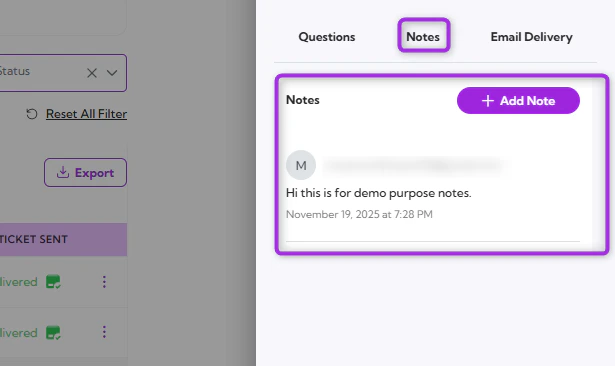
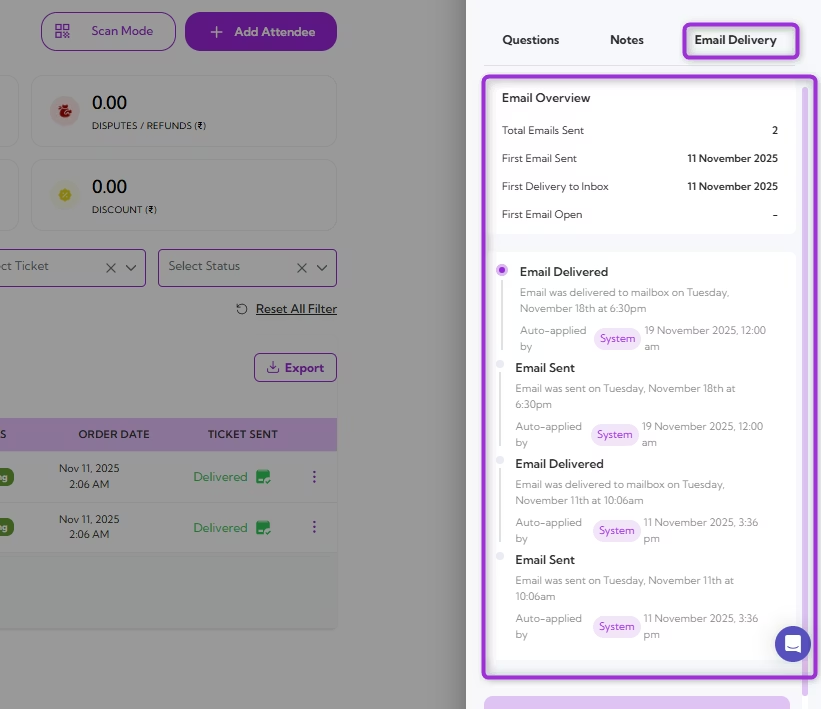
filters Displaying all attendees that match the selected criteria. Each row shows key details such as name, price, ticket type, status, order date, and ticket sent. attendee-list-view Step 4: Select any attendee from the list and click on it to view more information about the attendee. click-attendee-name The Detailed Attendee Information panel will open, showing contact details, ticket information, questions, notes, and email delivery history. attendee-info-panel Contact Information: Displays the attendee’s basic details, including first name, last name, email, and phone number. contact-info Questions: Shows the attendee’s responses to custom questions collected during registration. questions-tab Notes: Contains internal notes added by the event team, useful for tracking special requests or follow-ups. notes-tab Email Delivery: Shows the history of emails sent to the attendee, including delivery status and timestamps. email-tab
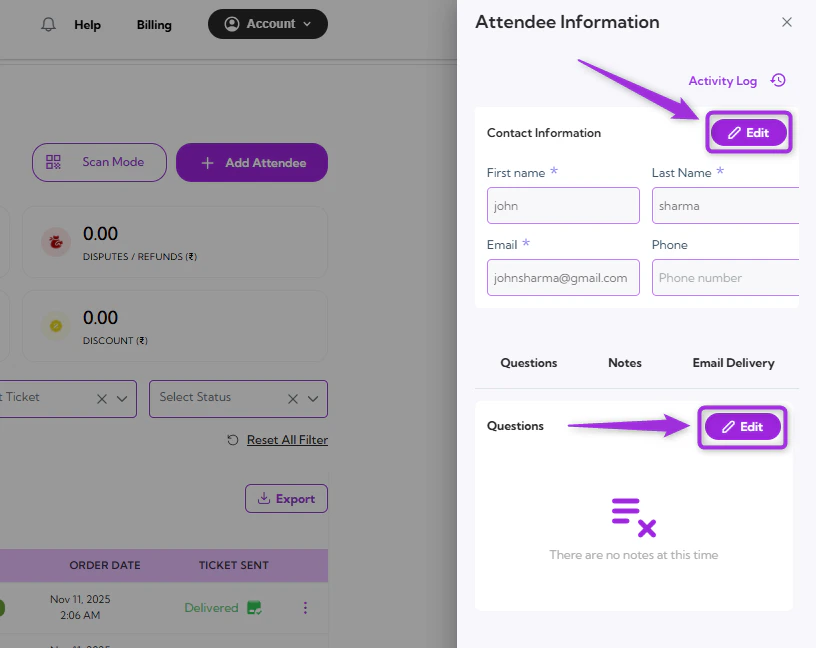
Note: All sections in the Attendee Information panel can be edited. Tap Edit in any section to update contact details, modify question responses, or add notes as needed. edit-info
In summary, the Attendee Information panel provides a central place to view, filter, and update all attendee details, making it easy to manage everything from contact information to notes and email activity.