
Transfer an order to another event
- In the Attendee Dashboard, choose the row’s View Order action.
- Review all attendees in the order, including any add-on bookings, then select Transfer to Another Event.
- In Transfer Order to Another Event, choose Select Target Event. The dropdown lists other live events on the same site; the current event and drafts are excluded.
- If the destination has multiple dates, select Select Date and, for timed entry, Select Time Slot. The occurrence selector offers future occurrences.
- Under Attendees & Ticket Assignment, choose a destination ticket for each attendee. The first available ticket can be assigned automatically; check every row rather than assuming the defaults are correct.
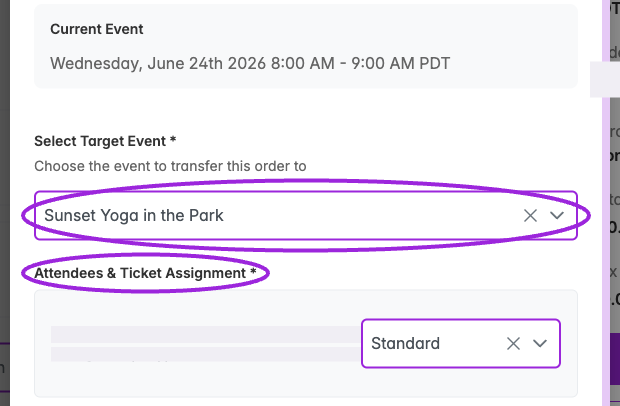
Choose the destination and review each attendee's ticket assignment. Personal details are concealed; the transfer has not been submitted.
- Optionally enter Reason for Transfer for the activity record.
- Choose whether to leave Send ticket notification to attendees enabled. It starts enabled and sends the new tickets by email when the transfer succeeds.
- Select Transfer Order. Cancel closes the transfer without submitting.
- Review the success or Partial Transfer notification. Check the source and destination attendee lists and each attendee’s Activity Log to confirm who moved.
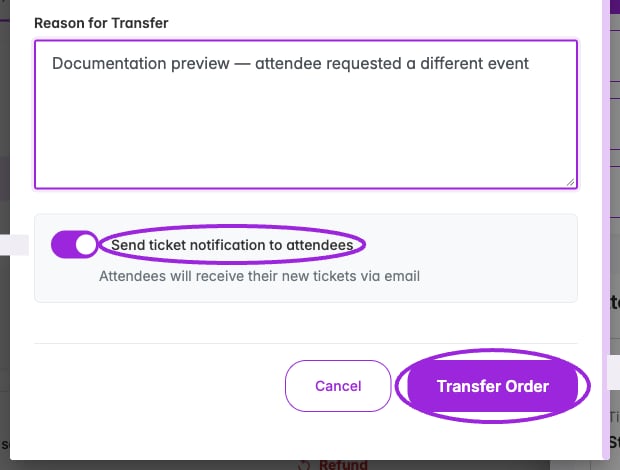
Review the reason and notification choice before Transfer Order. This capture stops before submission.
Transfer scope and follow-up
- This is an order action. Selecting one attendee as the entry point does not limit it to that person; the workflow attempts to transfer the order’s attendees. Review orders with add-ons carefully.
- A partial transfer means some attendees did not move. Check both events before repeating the action.
- Original purchase prices are preserved. Handle any agreed extra charge or refund separately.
- For reserved seating, check the destination’s seating chart and manage the seat assignment separately. This dialog has no seat-picker step.
- A Ticket Spot transfer does not automatically replace Shopify order variants. Review the linked Shopify order separately if its product/variant details also need to change.
- Choose a standard individual ticket as the destination. A group ticket must be issued through a booking so its members can be created.
Change a ticket type within the same event
- Open View Order and scroll to Attendees.
- Find the correct attendee card and select Change Ticket Type.
- In Change Attendee Ticket, choose the replacement from Tickets.
- Review the notice that changing the type does not change the order’s total cost.
- Select Update, or Cancel to leave the ticket unchanged. Reopen the attendee/order to check the result.
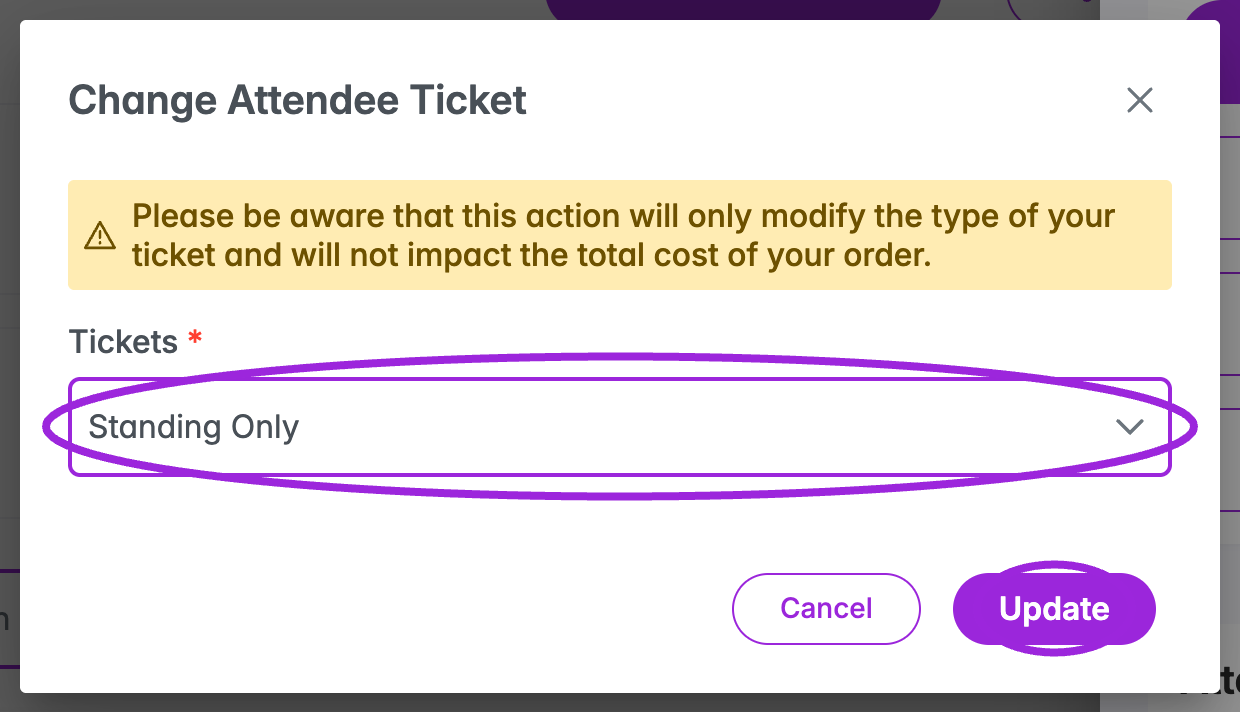
Choose another ticket for this attendee. The warning explains that the order cost is unchanged.