Use Event Add-ons to offer workshops, breakout sessions, or extra experiences alongside the main ticket. This feature is available on Business and higher.

Before you start

Create and save the main event and the events you want to offer as add-ons. Configure tickets on each add-on event first. The add-on dialog uses the selected event’s first ticket price as its add-on price.

Configure add-ons

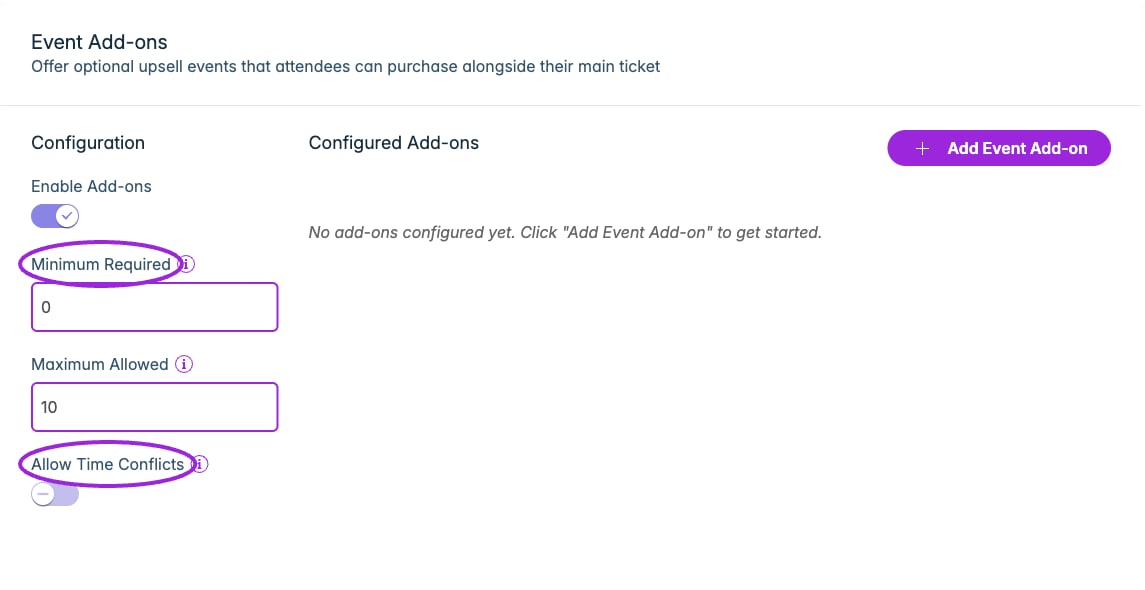
Enable Add-ons, choose the minimum and maximum selections, and decide whether overlapping time slots are allowed. A minimum of 0 makes add-ons optional.
Enable Add-ons, choose the minimum and maximum selections, and decide whether overlapping time slots are allowed. A minimum of 0 makes add-ons optional.

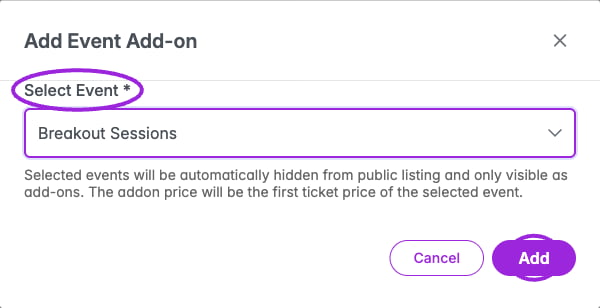
Select the saved add-on event and review the note: its first ticket supplies the price, and adding it hides it from public listings. Verify its tickets before adding.

Select the saved add-on event and review the note: its first ticket supplies the price, and adding it hides it from public listings. Verify its tickets before adding.

  1. Edit the saved main event and select Event Add-ons.
  2. Turn on Enable Add-ons.
  3. Set Minimum Required (0 means optional) and Maximum Allowed.
  4. Choose whether to enable Allow Time Conflicts. This permits overlapping add-on time slots, useful where different people attend different sessions or overlapping attendance is intentional.
  5. Click Add Event Add-on, then choose the saved event under Select Event.
  6. Review Addon Price and the first ticket’s name when shown. If the dialog only shows the event name and pricing note, open the add-on event’s Tickets step to verify the first ticket’s price before confirming Add.
  7. Check Configured Add-ons and save/update the main event to persist its configuration.
The selected event is hidden from public listings and offered as an add-on. Do not attach an event you intend to keep as an independently listed event without reviewing that effect. For a recurring series, configure add-ons on the parent event. The step is hidden for new unsaved events, individual child events, and no-ticket/external-link setups.

Test selection rules

Open the main event’s checkout. Check that the correct add-ons and prices appear. Test below the minimum, at the allowed maximum, and with overlapping sessions. Also test an add-on at capacity using its ticket settings. Drag rows to set their display order. Use the row’s delete control and confirm removal to detach an add-on. This removes the relationship; do not describe it as deleting the underlying event or refunding a purchase. See ticket setup and event dates and times.