
Read the overview
These cards describe the whole membership program. Searching or filtering the holder list does not turn them into totals for the visible rows.
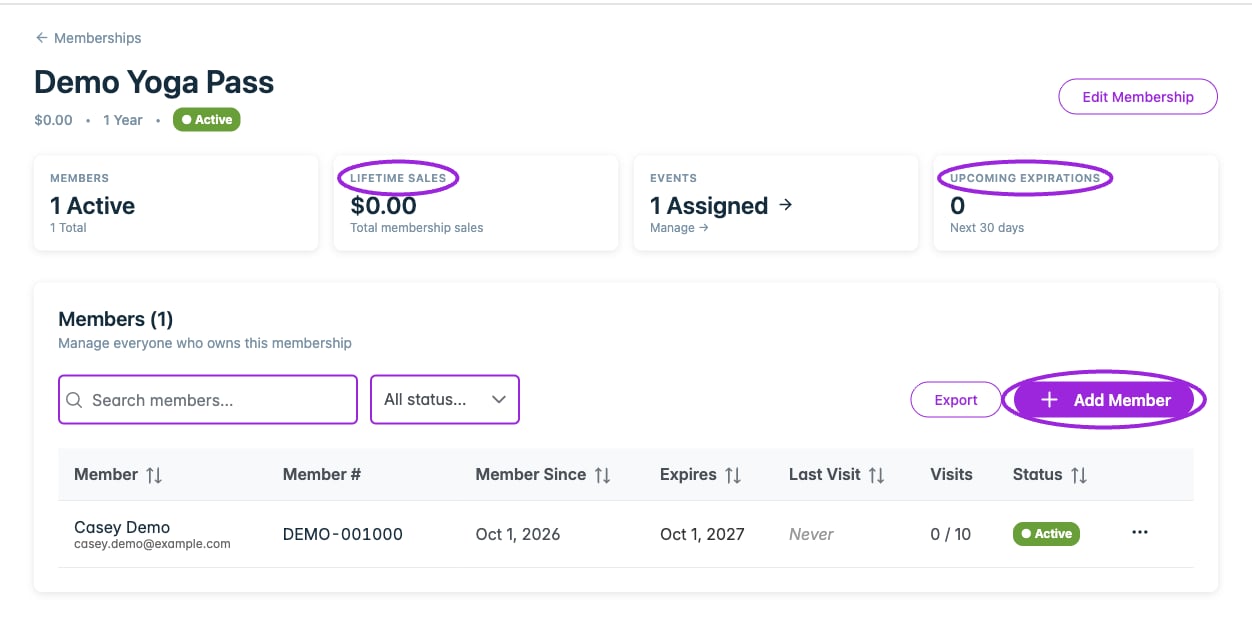
The overview cards describe the membership program; the list below shows matching holders.
Find a member
Use Search members… to search names, email addresses, or member numbers. The Status filter offers All statuses, Active, Expired, Suspended, and Cancelled.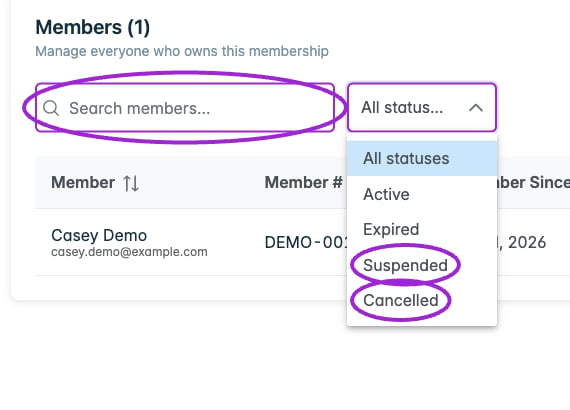
Search member identity or number, then choose a status filter.
Select a sortable column header to change the order. Lists longer than 25 members offer pages of 25, 50, or 100. Select a row or its three-dot action control to open details.
Add a holder manually
- Select Add Member.
- In Add Membership Holder, enter Email. First name, last name, phone, and internal notes are optional.
- Select Add Member and wait for the new member to appear.
- Open the member record and verify the program, member number, activation date, and expiry.
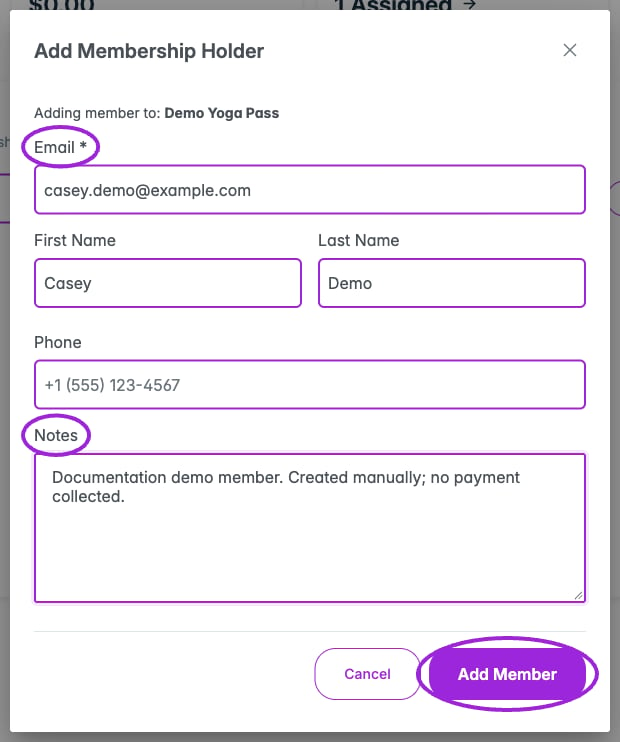
Add a synthetic Demo member with an email address and optional contact information or notes.
Read a member’s record
The detail drawer shows:- Membership: program, member number, source (Manually added or Purchased), price paid, valid-from date, and expiry. Manual assignment shows a dash for price paid.
- Usage: visits used, last visit, and recorded check-in history. Entries distinguish a consuming Visit from Re-entry where applicable.
- Membership pass: the pass ID with a copy control, Send Membership Pass, and Download pass.
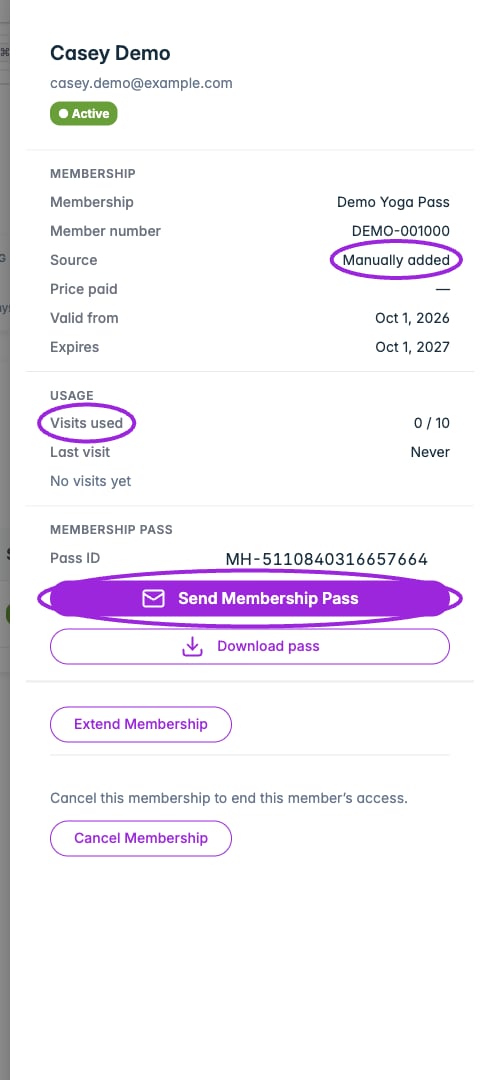
The member drawer shows source, validity, usage, and pass actions.
Send or download a pass
Send Membership Pass immediately sends an email to the holder’s saved address. Check that address first. The email links to the member’s account, where they sign in with that email to view or download the pass. Download pass downloads the selected holder’s PDF without sending an email. Handle the pass and its QR code as access credentials.Extend access
- Select Extend Membership in the member drawer.
- Choose 1 month, 3 months, 6 months, or 1 year.
- Compare Current expiration with New expiration.
- Select Extend Membership to save, or Cancel to leave it unchanged.
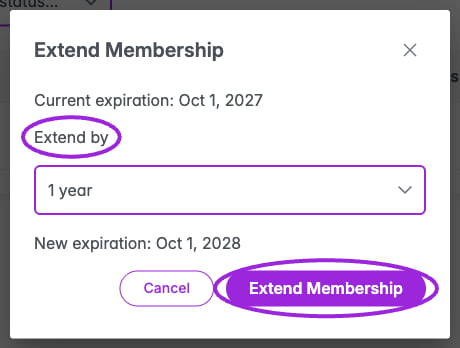
Compare the current and new expiration before saving an extension.
Cancel access
Select Cancel Membership, review the confirmation, then select Confirm cancellation. Keep membership closes it without a change. Cancellation ends this holder’s access and does not refund an order. Handle any refund through the relevant payment workflow.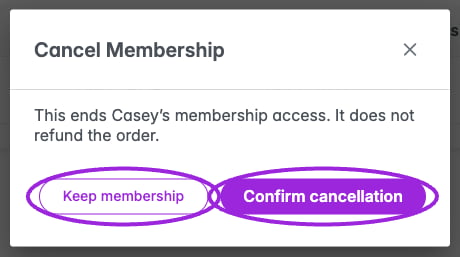
The cancellation confirmation explains that ending access does not refund an order.