
Navigation
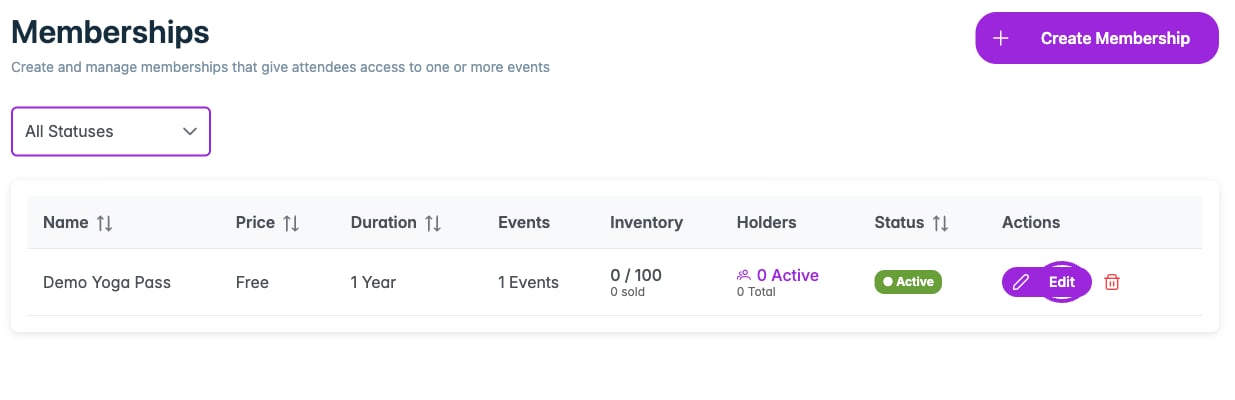
The membership list shows price, duration, event assignments, inventory, holders, and status. Edit reopens the program settings.
- Select the correct site in your dashboard.
- Open Memberships in the top navigation.
- Click Create Membership, or Get Started if the site has no memberships yet.
Details
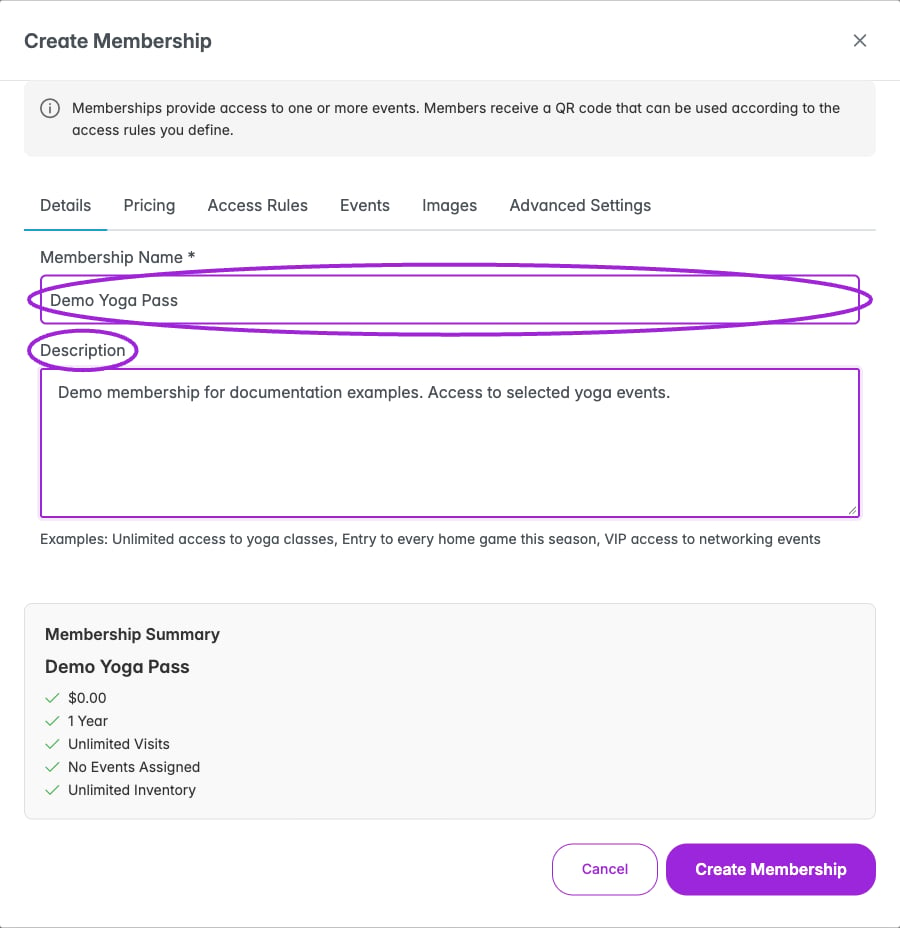
Name the membership and describe its benefits. This Demo Yoga Pass is a documentation example.
Pricing
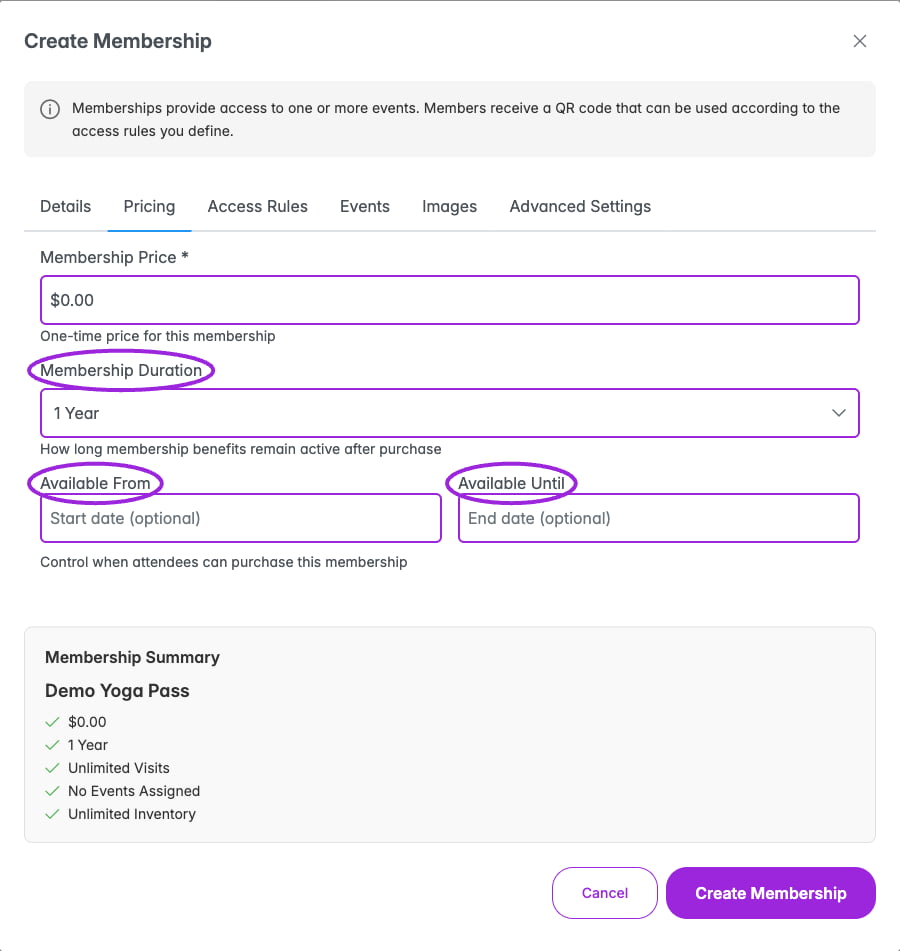
Set the one-time price, benefit duration, and optional membership sales window. The summary keeps these separate from visit limits.
Access Rules
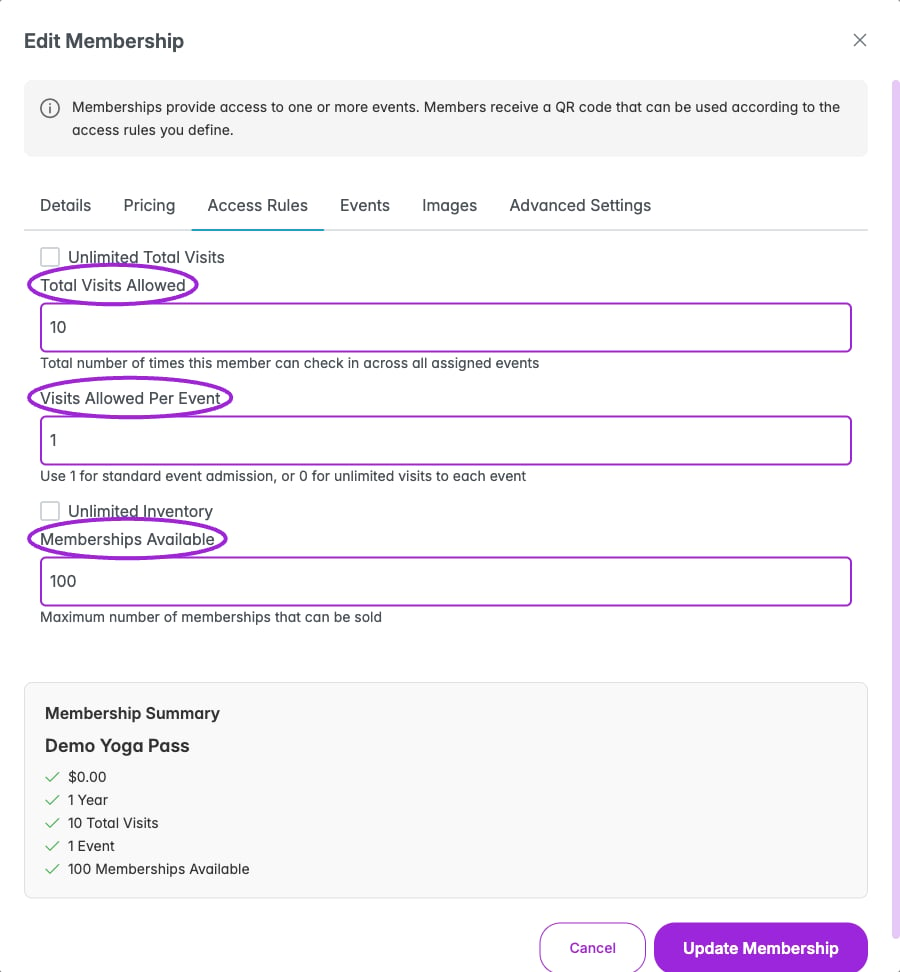
Set total visits, visits per event, and memberships available independently. This saved example allows ten visits, one per event, with 100 memberships for sale.
Events
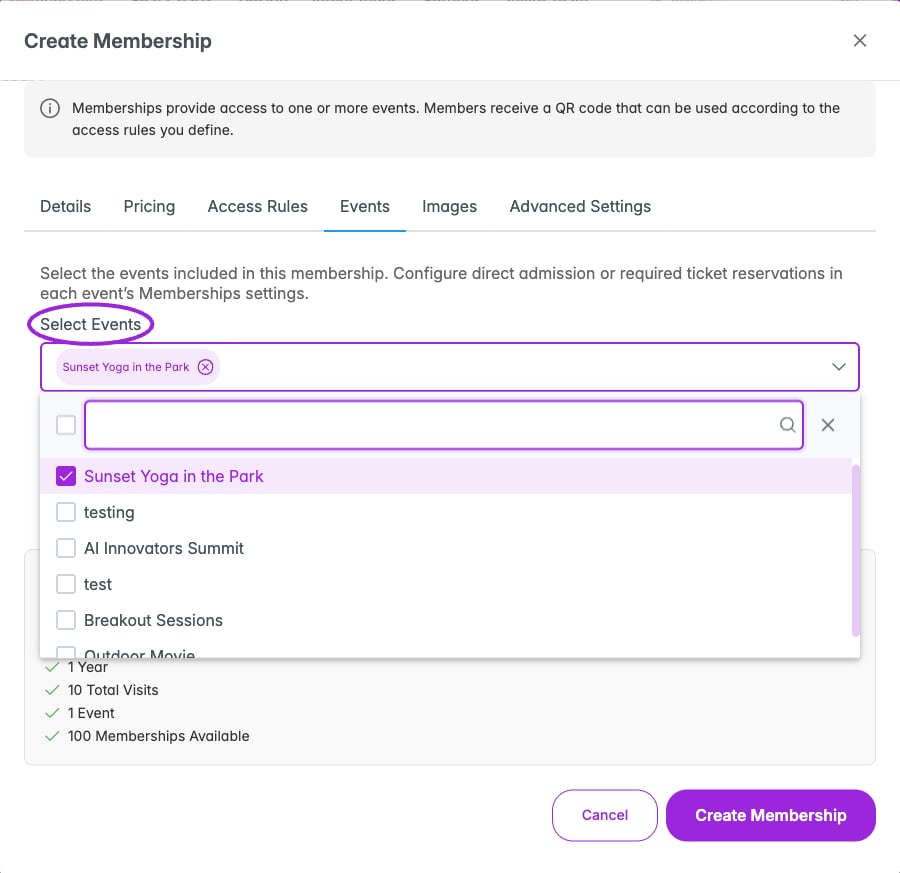
Select included events for the membership. Event-level Memberships settings decide whether holders enter directly or reserve a ticket.
Images
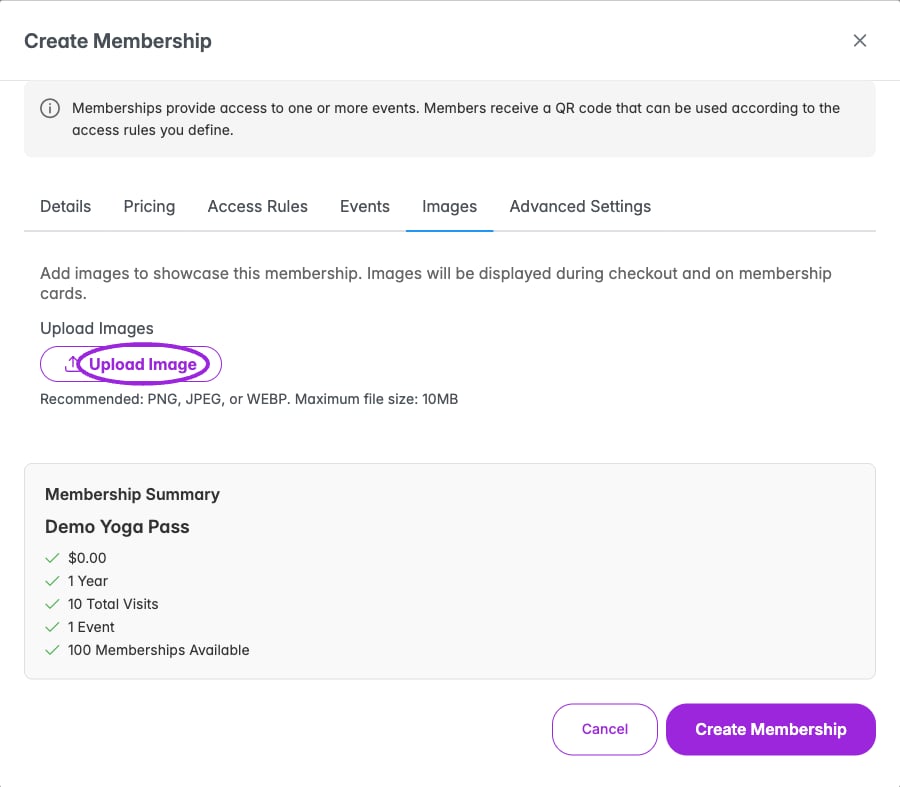
Images appear during checkout and on membership cards. Upload PNG, JPEG, or WEBP files within the displayed size limit.
Advanced Settings: member numbers
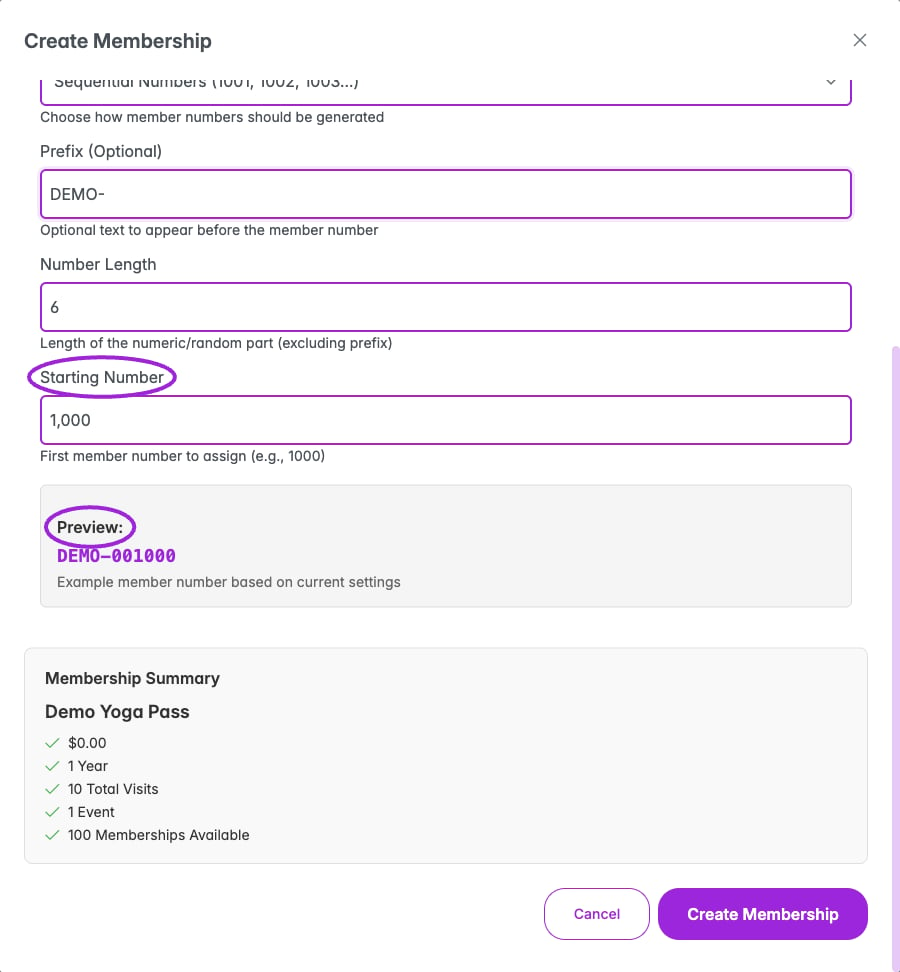
The preview combines the prefix with the selected number format. Number length applies to the generated portion, excluding the prefix.
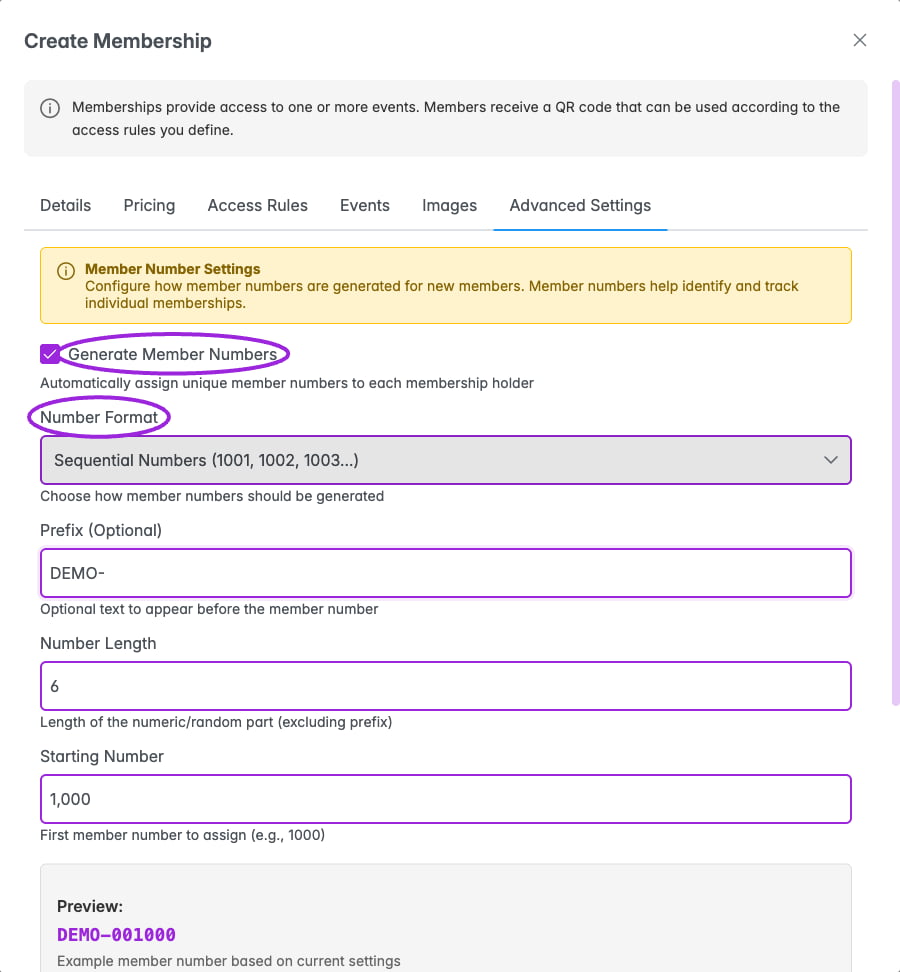
Enable member numbers and choose a format, prefix, length, and starting number. Review the preview before creating the membership.
Save and verify
- Click Create Membership, or Update Membership when editing.
- Wait for completion, then check the row on the Memberships page.
- Reopen Edit and verify duration, visit limits, and assigned events.
- Continue with event assignment and ticket access/pricing as needed.