Use Design → Attendee Communication to configure outgoing message text. Multilingual communications uses each attendee’s checkout language, with English as the fallback. Automatic widget-label translation is a separate setting.

Enable and edit a language

  1. Open the communication template you want to customize.
  2. Turn on Multilingual communications.
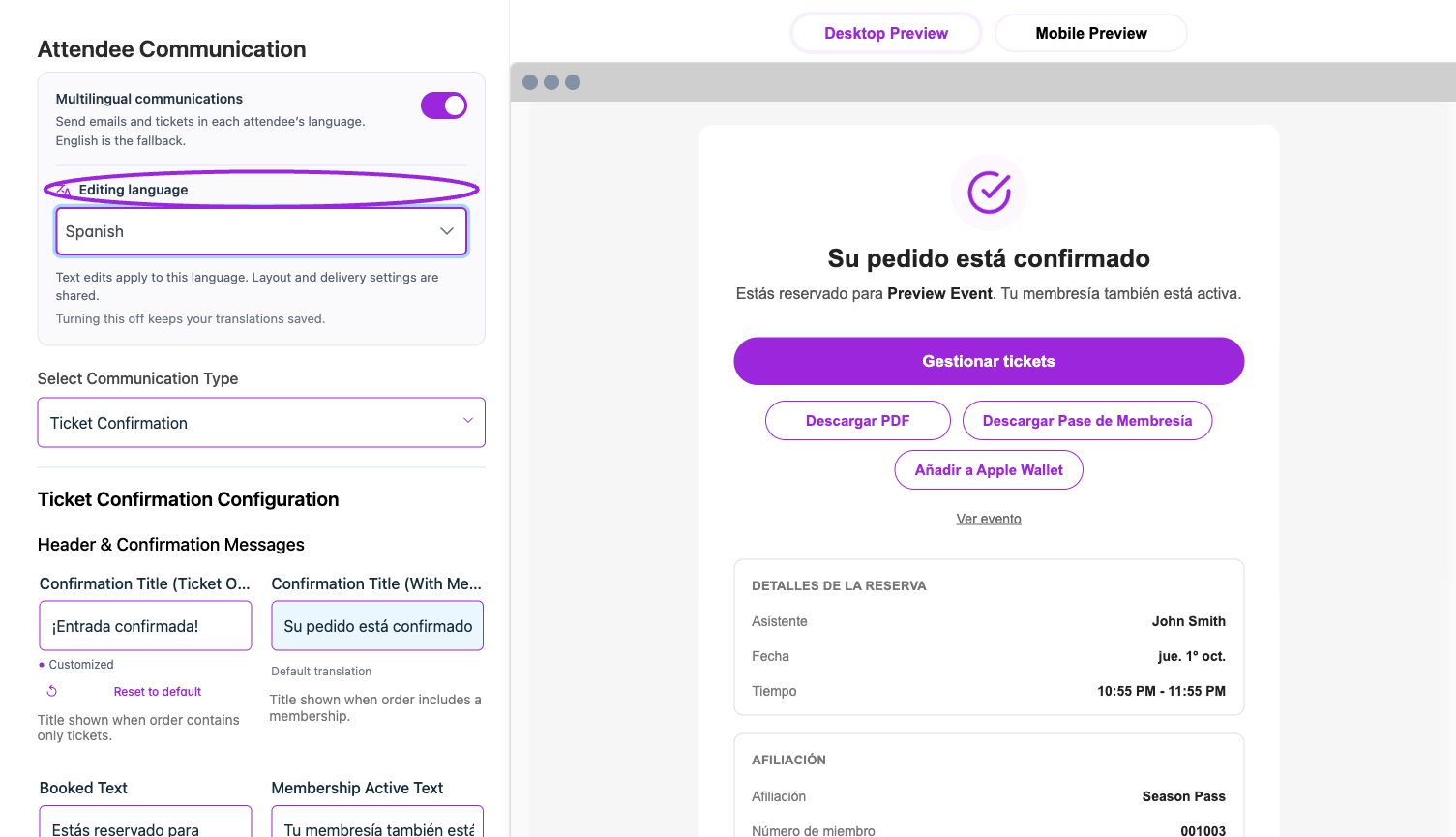
  3. Choose Editing language; use Find a language to search.
  4. Edit the text for that language and wait for saving to finish. Customized identifies an overridden field; Reset to default removes that customization.
  5. Preview the selected language, including subject text, long translated labels, ticket links, and any personalization tokens.
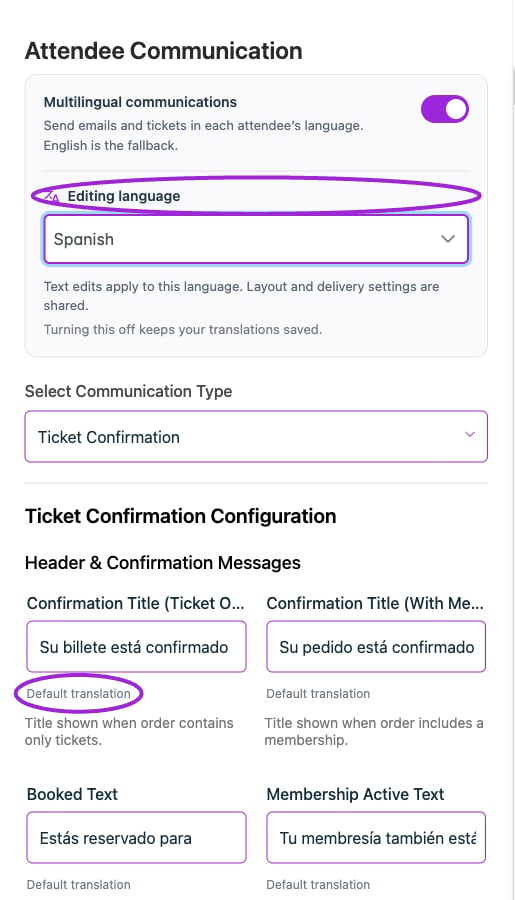
Enable Multilingual communications, choose Spanish under Editing language, and review the supplied Default translation for each field.
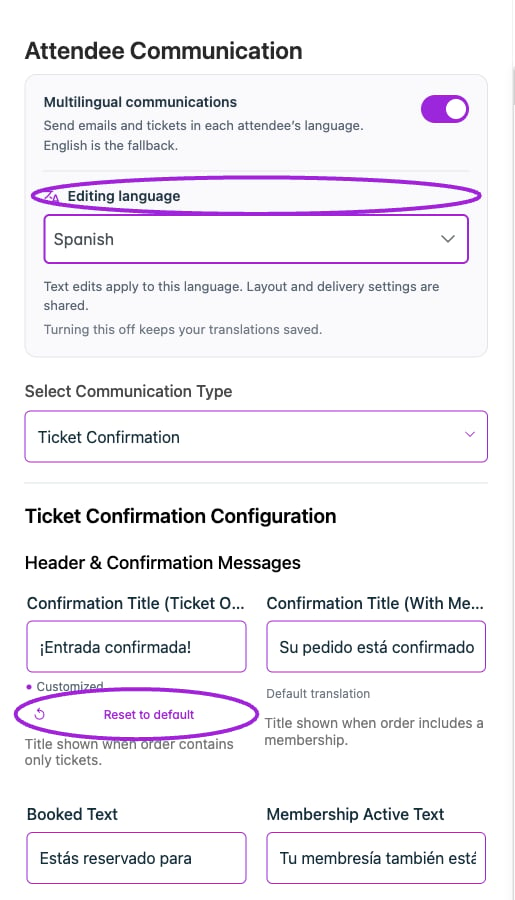
Enable Multilingual communications, choose Spanish under Editing language, and review the supplied Default translation for each field.

Text edits apply to the selected language. Layout and delivery controls are shared across languages. Turning multilingual communications off keeps saved translations and sends the existing text to everyone.
A Spanish title override is marked Customized. Reset to default restores the supplied translation for this field; other languages keep their own wording.

A Spanish title override is marked Customized. Reset to default restores the supplied translation for this field; other languages keep their own wording.

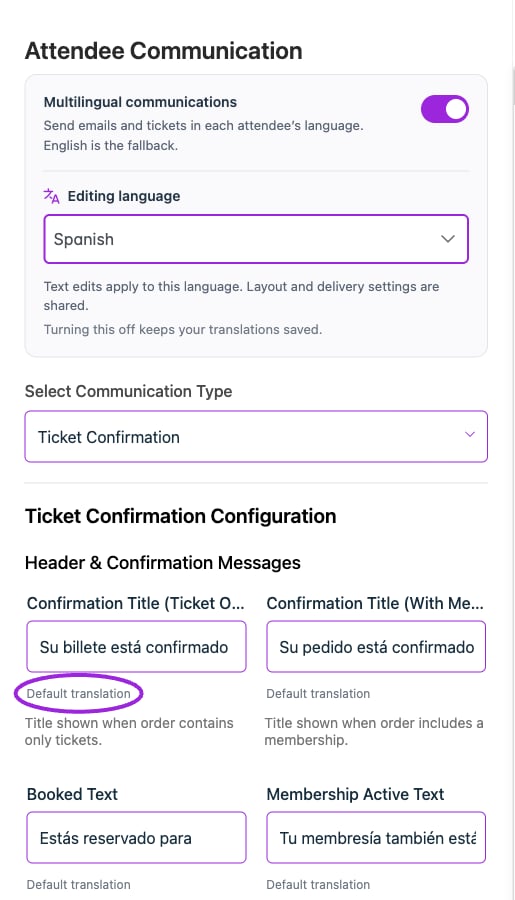
After Reset to default, the Spanish confirmation title uses its supplied Default translation again.

After Reset to default, the Spanish confirmation title uses its supplied Default translation again.

Translate an event email
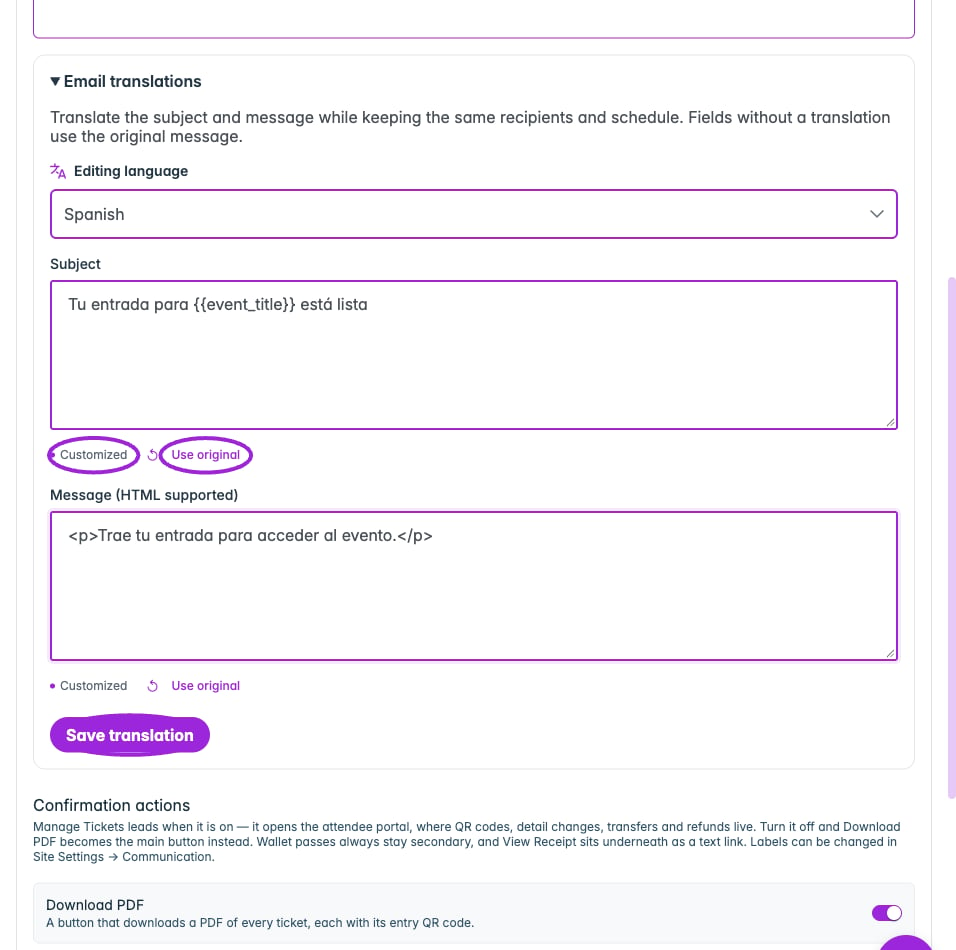
Enter a language-specific subject and message, preserving the original template variables. Customized marks the edited field; Save translation is required to persist it. This example is an unsaved draft.
Enter a language-specific subject and message, preserving the original template variables. Customized marks the edited field; Save translation is required to persist it. This example is an unsaved draft.

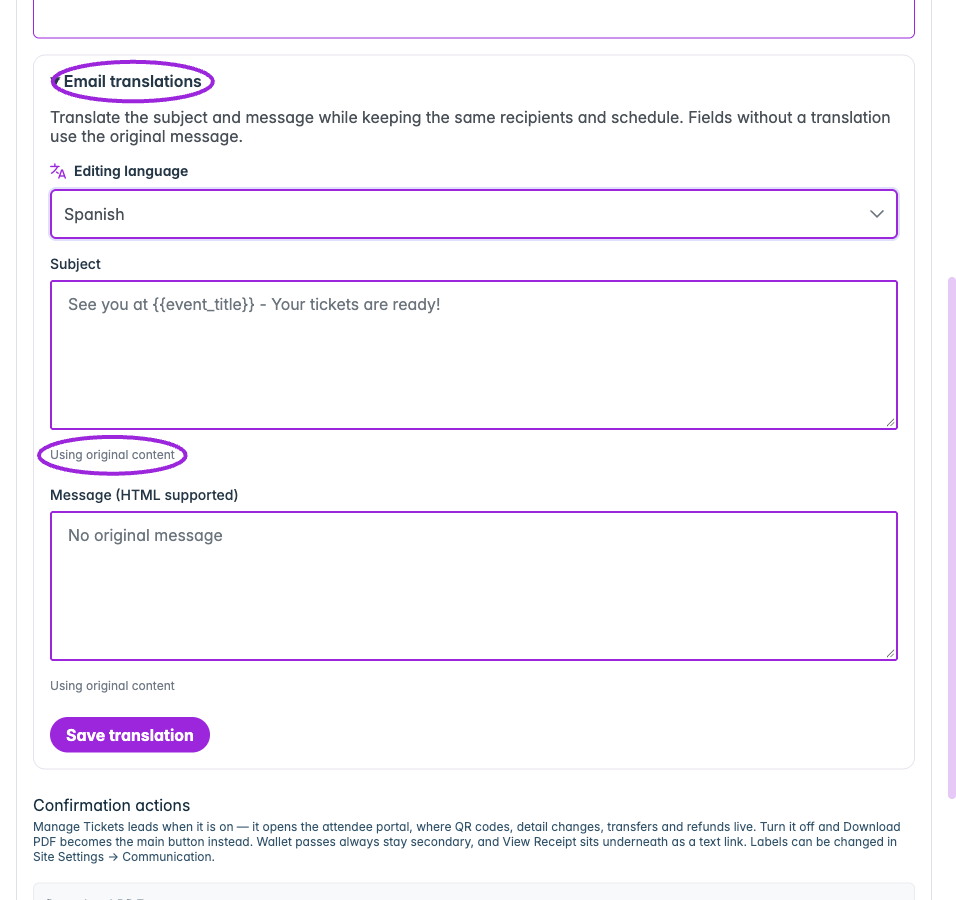
Event Email translations uses the original subject and message until you supply a variant for the selected language.

Event Email translations uses the original subject and message until you supply a variant for the selected language.

For an event-specific email, open its Email Communication editor after saving the email.
  1. Expand Email translations.
  2. Choose the language.
  3. Enter Subject and Message (HTML supported), or Email HTML when using the advanced email editor.
  4. Select Save translation.
  5. Use Use original on a field or Reset language when you want to remove that translation. Save changes where requested.
In this editor, Customized can appear while a field is still being edited. Select Save translation and confirm the save succeeds before leaving. Fields without a translation use the original message. Translations keep the email’s recipients and schedule; they do not create another scheduled email.
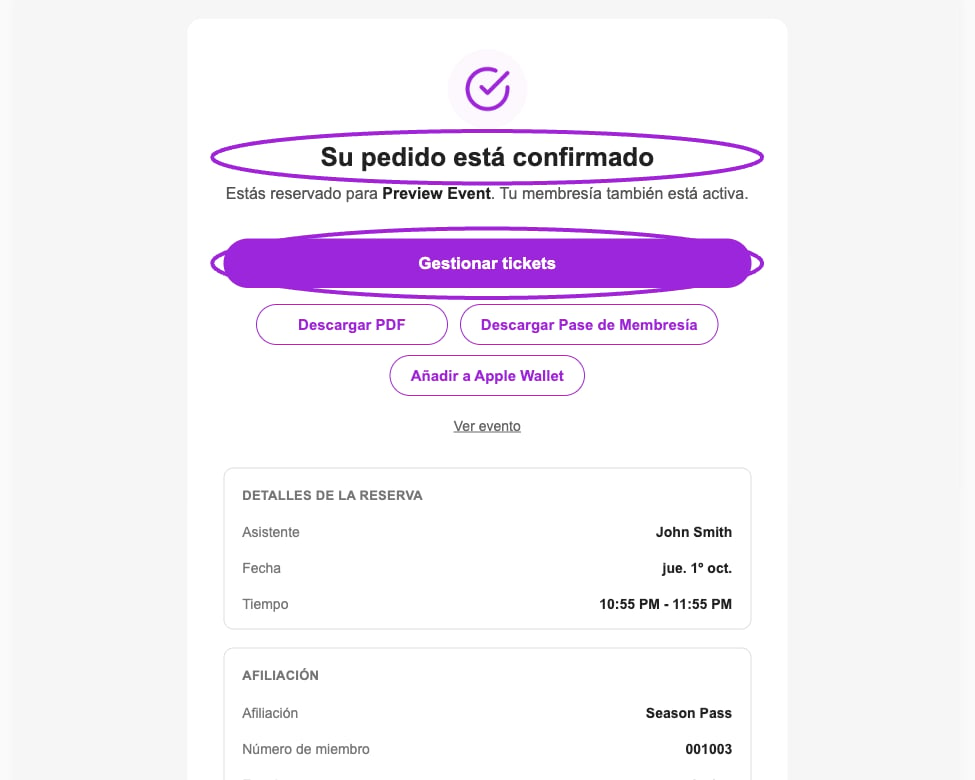
Built-in Spanish confirmation preview showing translated ticket actions and booking labels. This sample includes a membership; it is not a delivered customer email.

Built-in Spanish confirmation preview showing translated ticket actions and booking labels. This sample includes a membership; it is not a delivered customer email.

Verify delivery

Use a test checkout in each language you intend to support. Inspect the actual confirmation and ticket, as well as a language with no custom translation to check the fallback. Preserve personalization placeholders and working links in translated content. A translated field can use only template variables that already exist in its original field; adding a new variable causes a validation error. Keep translated subjects on one line. See email timing and recipients, attendee communication design, and widget wording. See the language and locale setup guide and language FAQ for automatic widget translation, preview language, communication defaults, and per-language overrides.