
Choose the right setting
Turn on automatic widget translation
- Open Design → Widget and check Editing Widget so you configure the correct widget.
- In Quick Settings, turn on Automatic translation and wait for the update to finish.
- In the top-right preview controls, open Preview Language and choose the language you want to check.
- Review the listing, date selection, ticket choices, and checkout wording. Use Mobile Preview to check longer labels on a smaller screen.
- Open the installed widget to verify the visitor experience too.
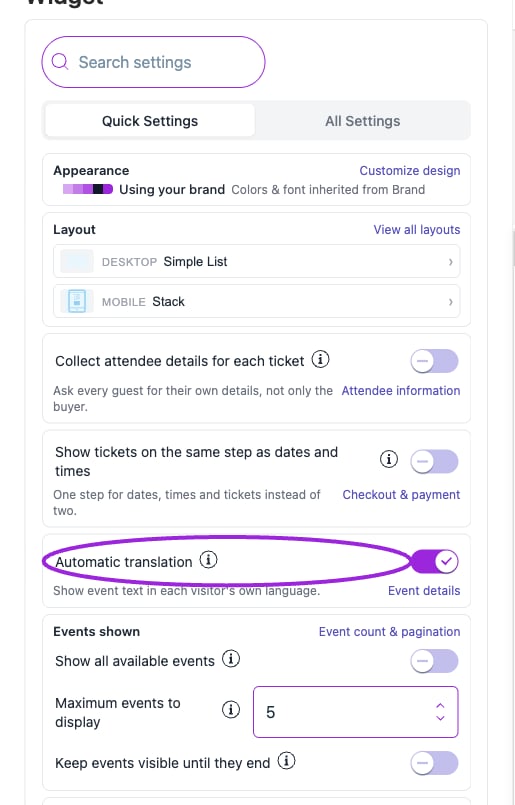
In Design → Widget → Quick Settings, Automatic translation enables supported translated labels in the widget and checkout.
Preview language versus visitor language
Preview Language changes the editor preview. Choosing Spanish here does not force every visitor or every email into Spanish. The installed widget uses the language supplied by its integration or embed, or the visitor’s browser language when no language is supplied. Supported regional preferences use their base language for translated widget labels; an unsupported language falls back to English. Check your actual storefront or website as well as the dashboard preview.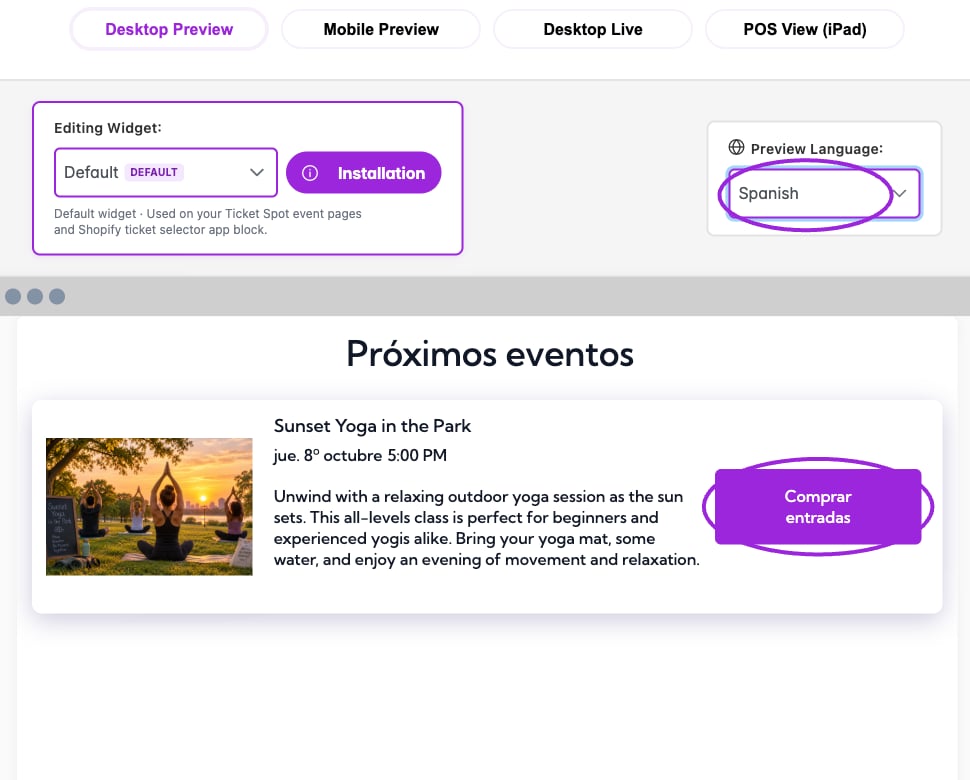
Preview Language is set to Spanish. The supplied heading, date wording, and Buy Tickets button are translated; the event’s authored title and description remain unchanged.
Enable multilingual emails and tickets
- Open Design → Attendee Communication.
- Turn on Multilingual communications. This enables attendee-language emails and tickets, with English as the fallback.
- Choose a template in Select Communication Type.
- Choose Editing language. Use Find a language to locate a language quickly.
- Review the text and its status, then change the labels or message text you want to override.
- Wait for saving to finish and inspect the preview in that language.
Watch: preview a communication language (7 seconds)
Watch: preview a communication language (7 seconds)
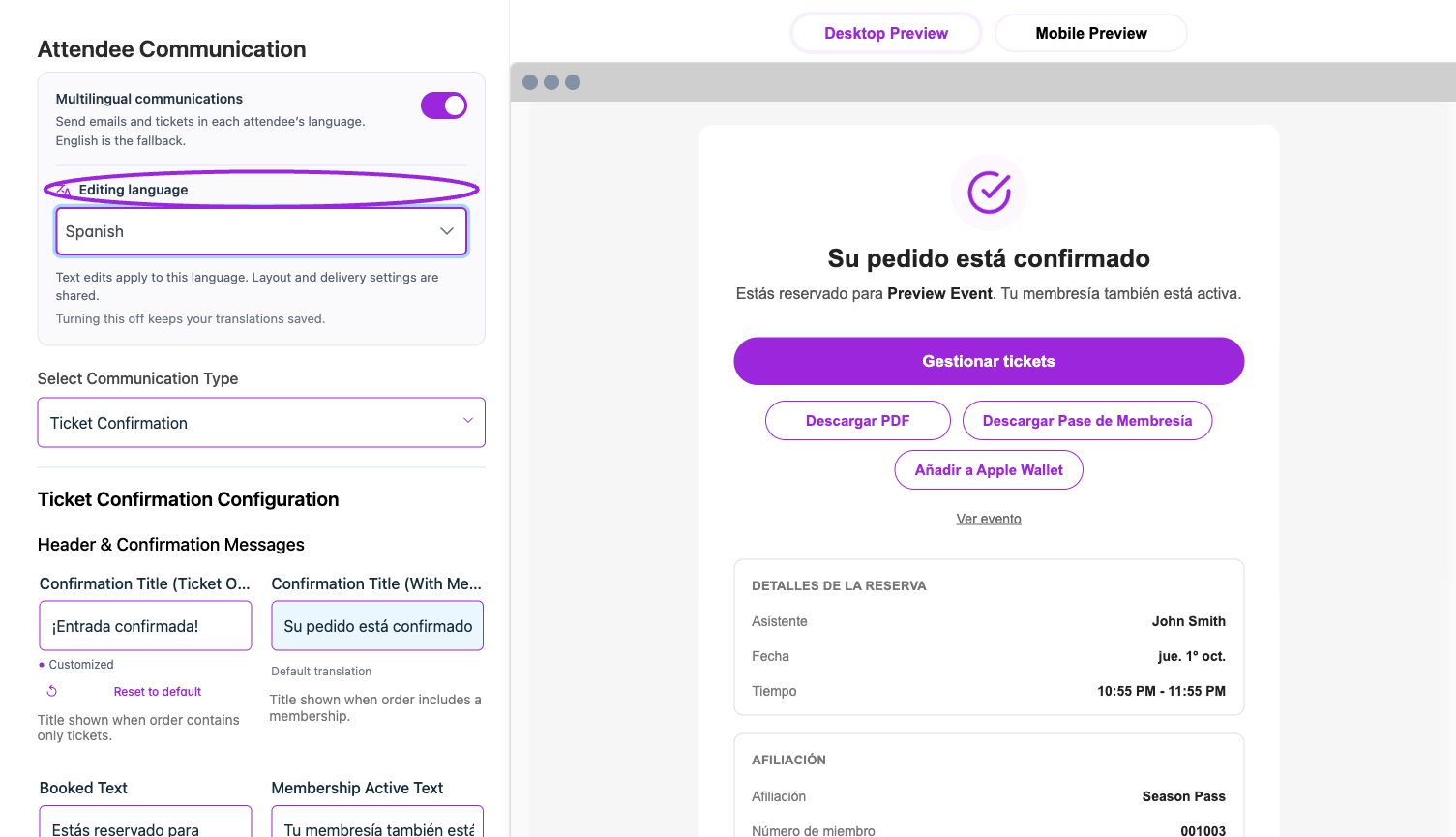

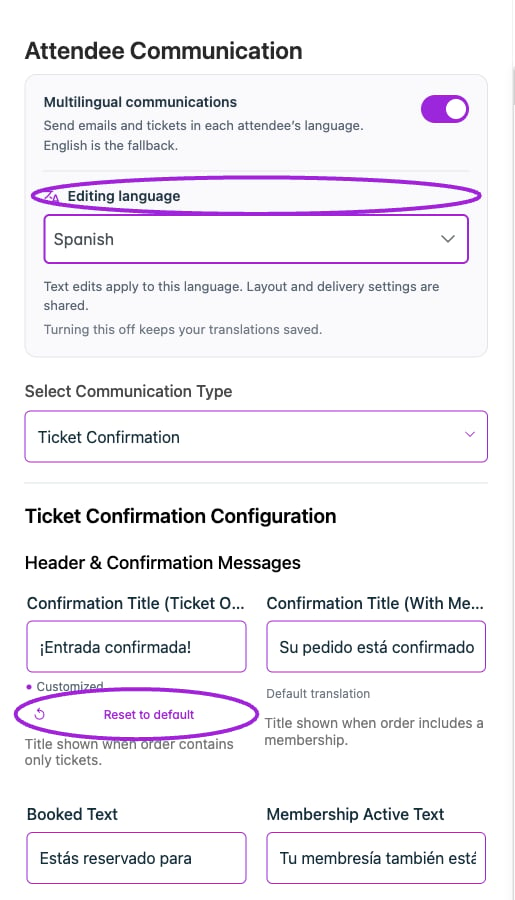
A Spanish title override is marked Customized. Reset to default restores the supplied translation for this field; other languages keep their own wording.
Translate your own event email
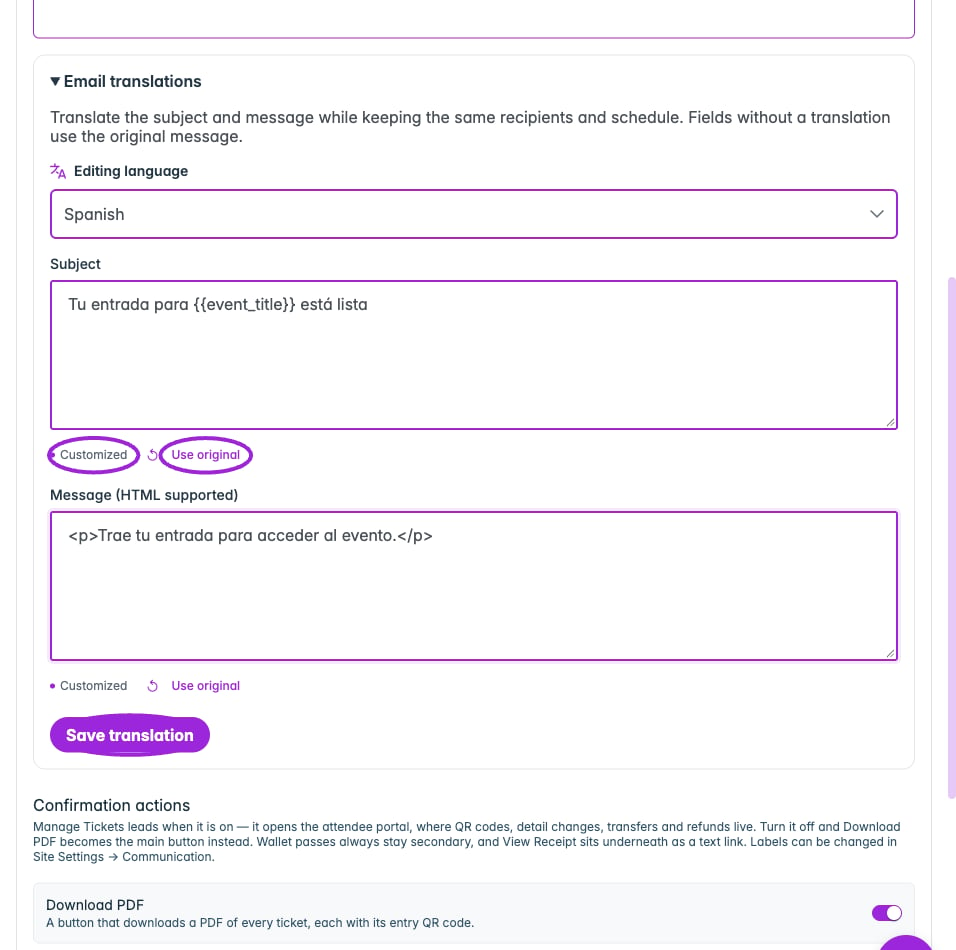
Enter a language-specific subject and message, preserving the original template variables. Customized marks the edited field; Save translation is required to persist it. This example is an unsaved draft.
{{event_title}}, in the translated text. Follow the multilingual email and ticket walkthrough for editing and delivery checks.
Dates, times, and other regional settings
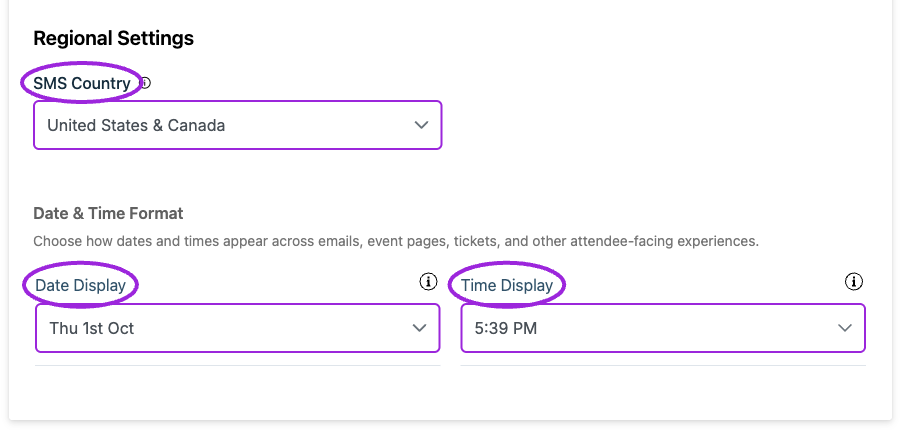
Regional Settings contains SMS Country and the shared Date Display and Time Display formats. Date and time format changes update automatically; save other General fields with Save.