Skip to main contentConnect your Twitch account with Ticket Spot to embed your live streams directly on your event pages. This integration makes it easy to display your Twitch broadcasts within Ticket Spot, helping you increase visibility and engagement for live events.
Let’s get started 🚀
Prerequisites
Before setting up the integration, make sure you have:
- An active Ticket Spot account with access to the Integrations page.
- A valid Twitch account with permission to manage your channel and streaming settings.
Integration
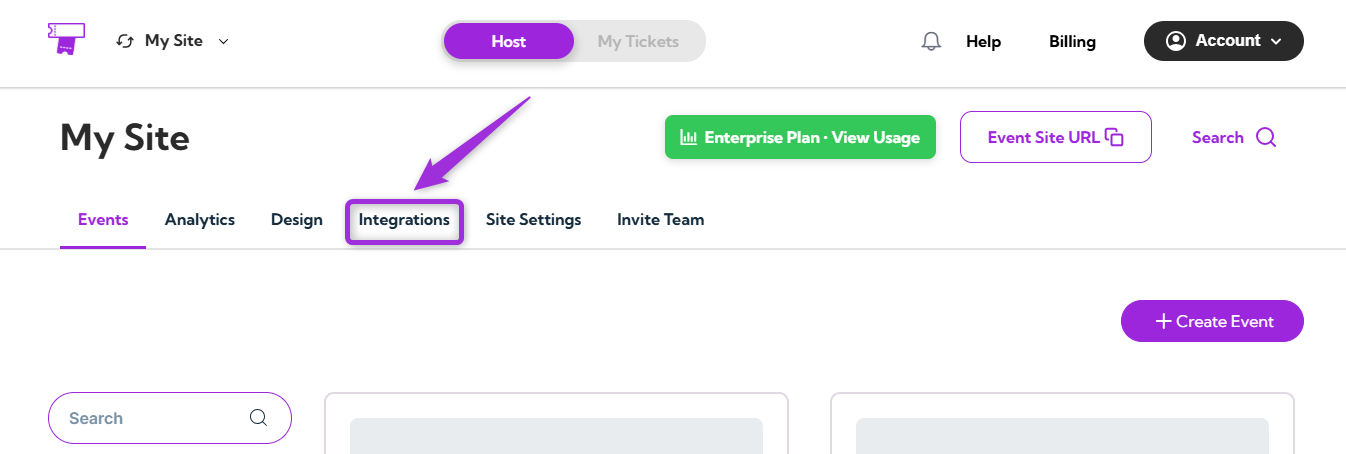
Step 1: Log in to your Ticket Spot account and click on the Integrations tab from the top navigation bar to open the integrations page.
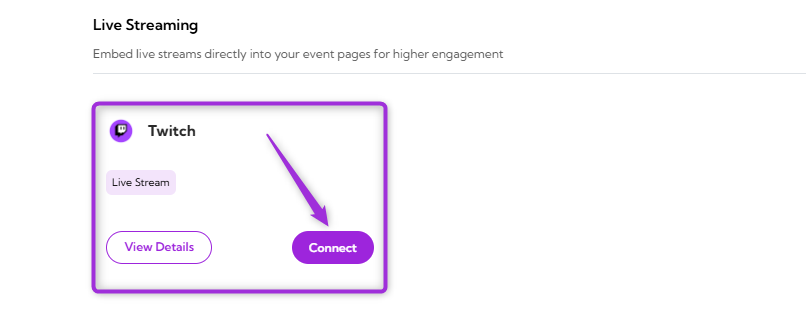
Step 2: Find the Twitch platform under the Live Streaming category and click on the Connect button to open the integration setup window.
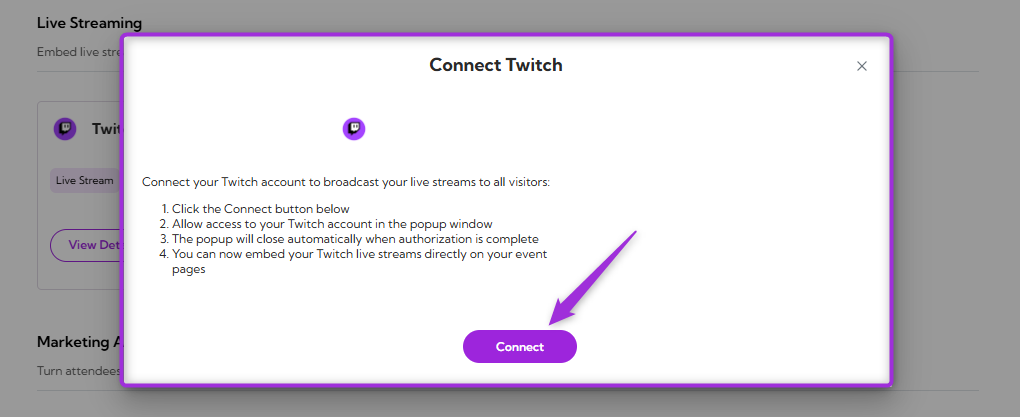
Step 3: Click on the Connect button again to proceed.
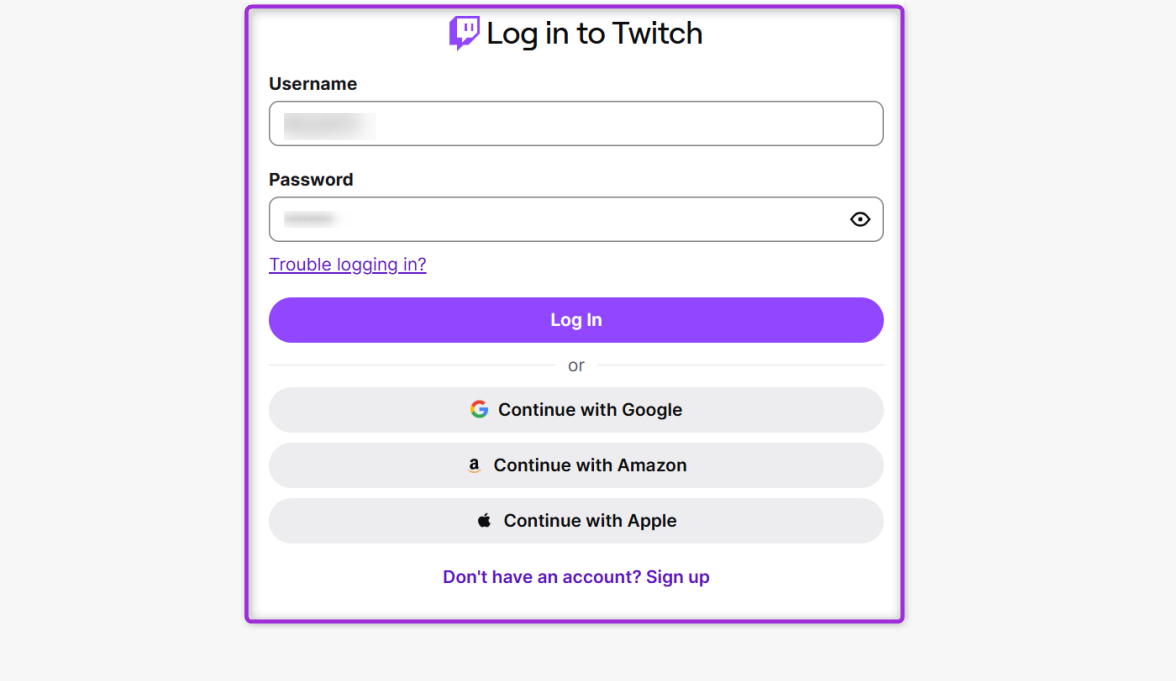
Step 4: Authenticate the connection by signing in with your preferred method (email, Google, Amazon, Apple, or any available option). If you’re a new user, complete the signup process before continuing.
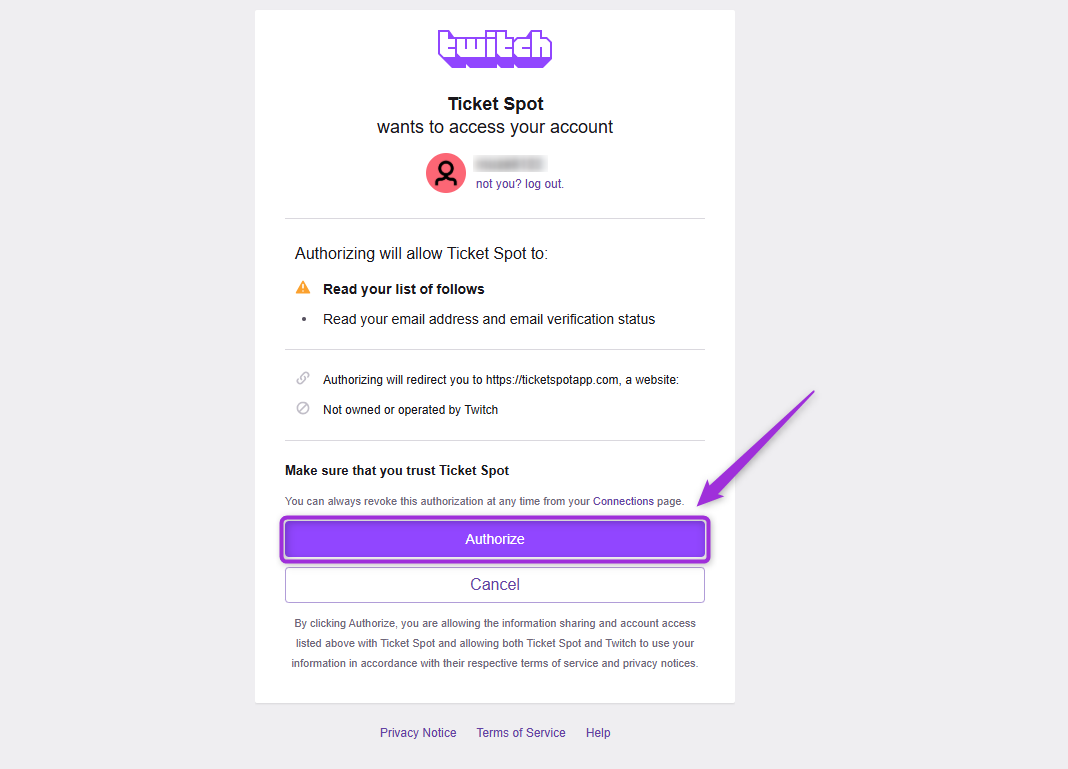
Step 5: Review the permissions requested by Twitch to understand what Ticket Spot can access and manage. Then, click Authorize to complete the connection.
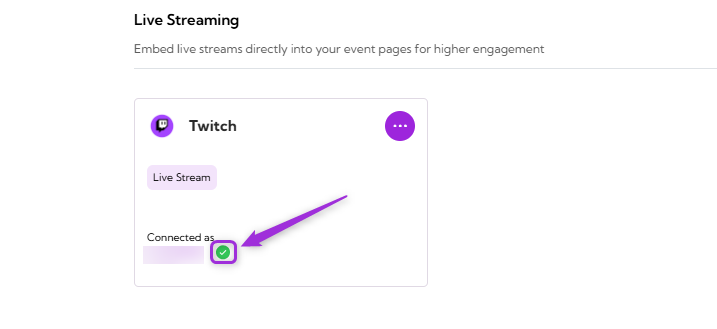
Step 6: Once the integration is successfully connected, a green check mark will appear. This confirms that the Twitch integration is active in Ticket Spot.
View Details
Review the connection details for your Twitch integration, including the linked account and current status.
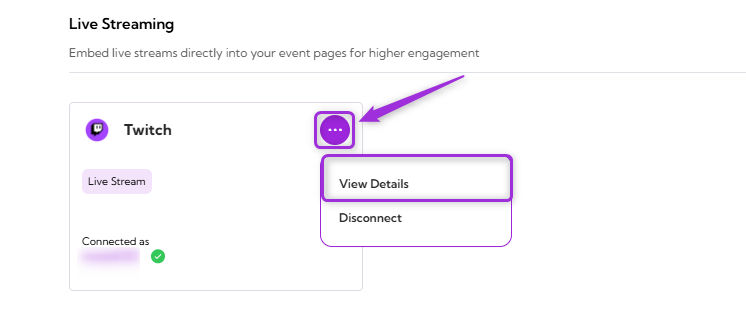
To view details, click the horizontal ellipsis (⋯) icon on the Twitch integration tile and select View Details from the dropdown menu.
Disconnect
Remove the existing connection between your Twitch account and Ticket Spot. Once disconnected, Ticket Spot will no longer be linked to your Twitch account.
Click the horizontal ellipsis (⋯) icon on the Twitch integration tile and select Disconnect from the dropdown menu.
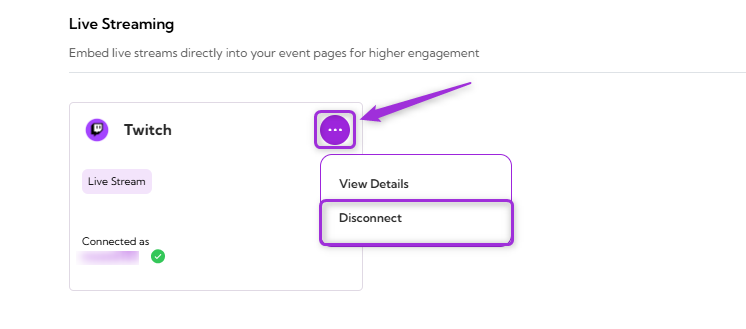
Your Twitch integration will be successfully disconnected from Ticket Spot.