Prerequisites
Before setting up the integration, make sure you have:- ✅ An active Ticket Spot account with access to the Integrations page.
- ✅ An active Zoom account to authorize and manage your virtual meetings.
Integration
Step 1: Log in to your Ticket Spot account and click on the Integrations tab from the top navigation bar to open the integrations page.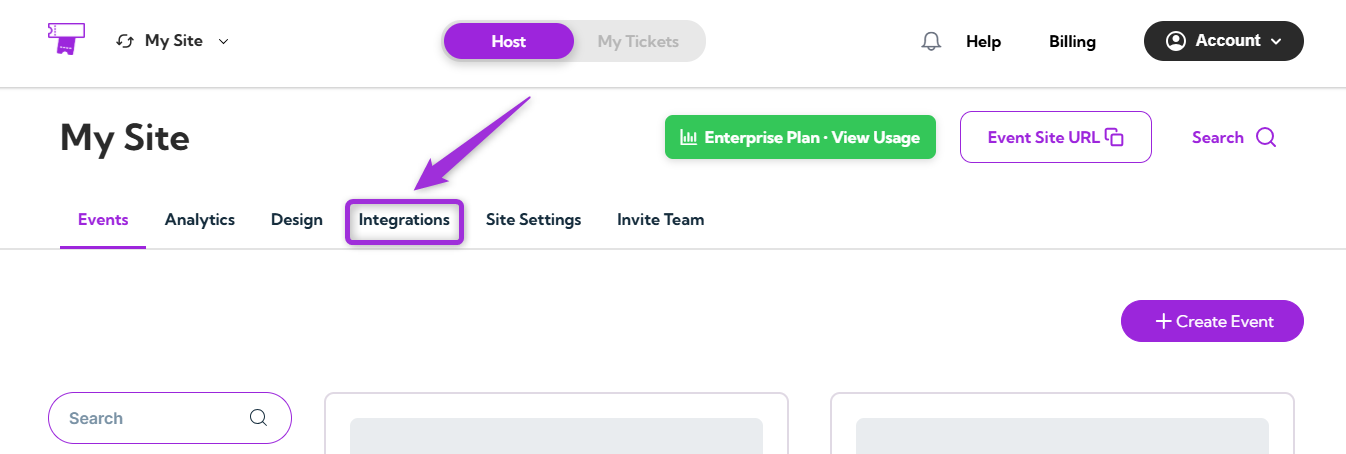
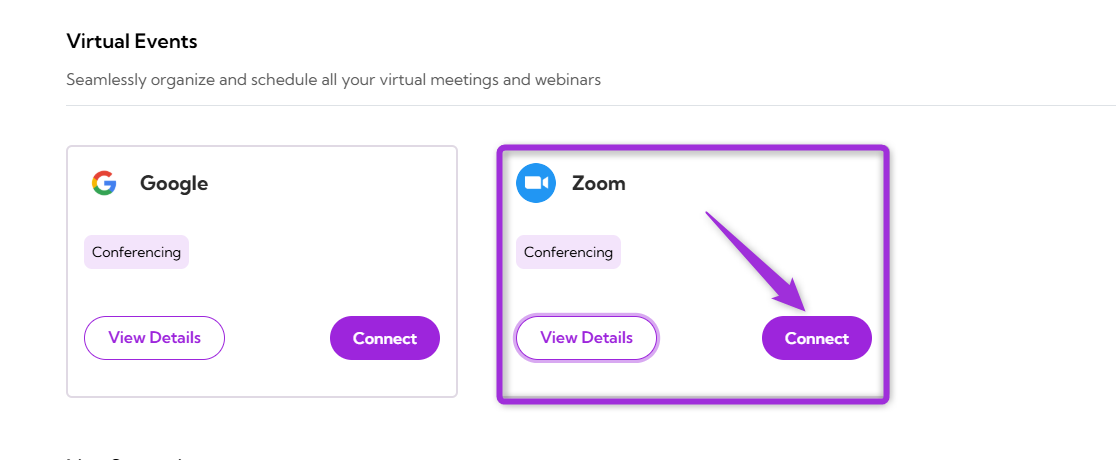
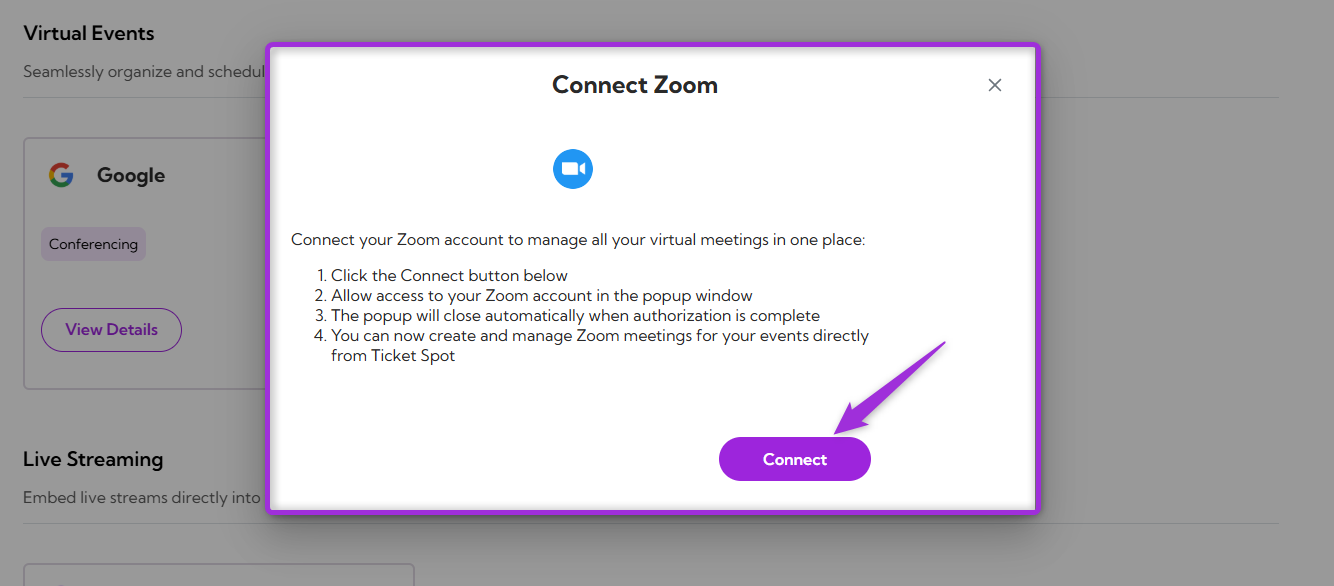
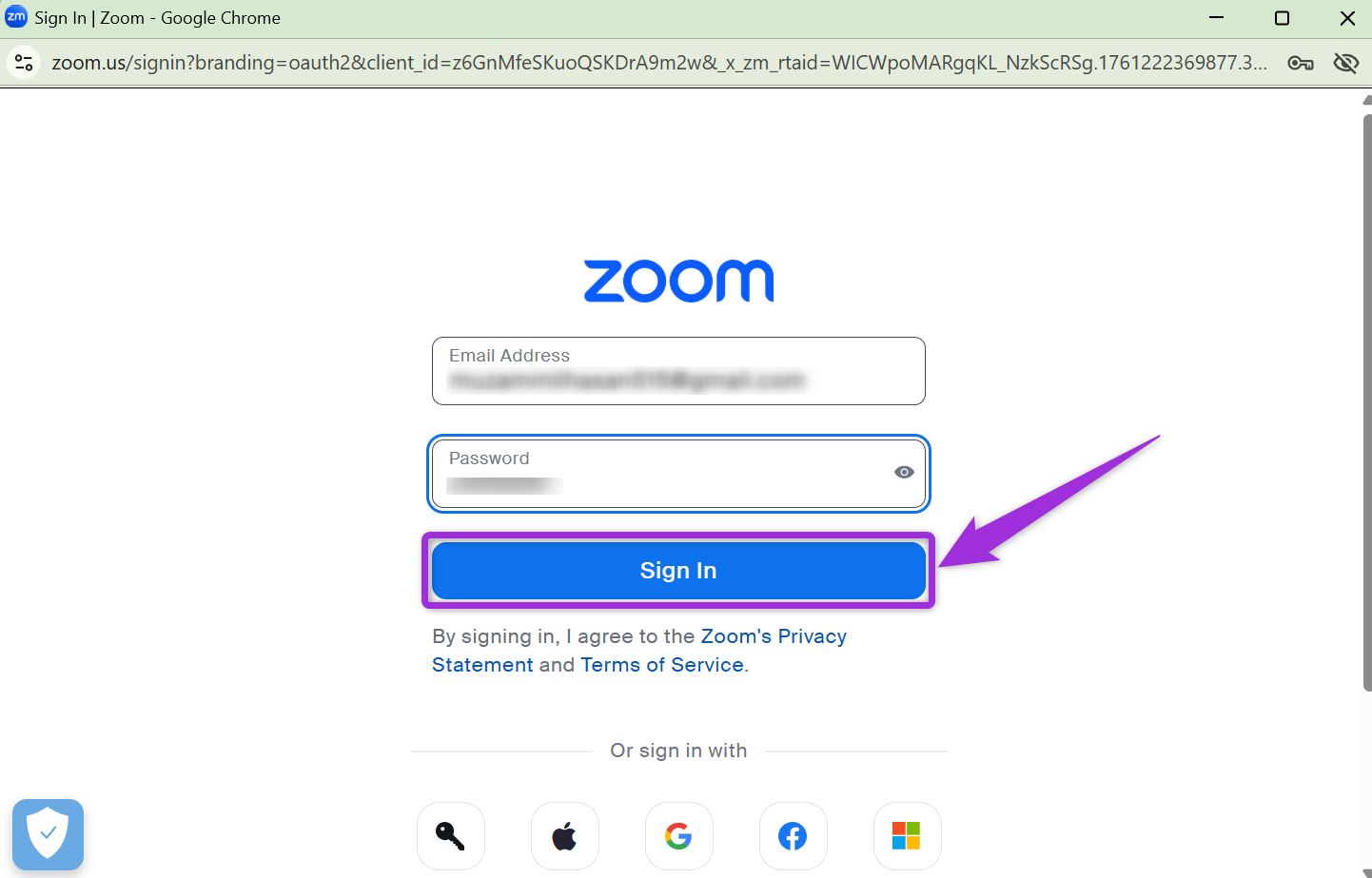
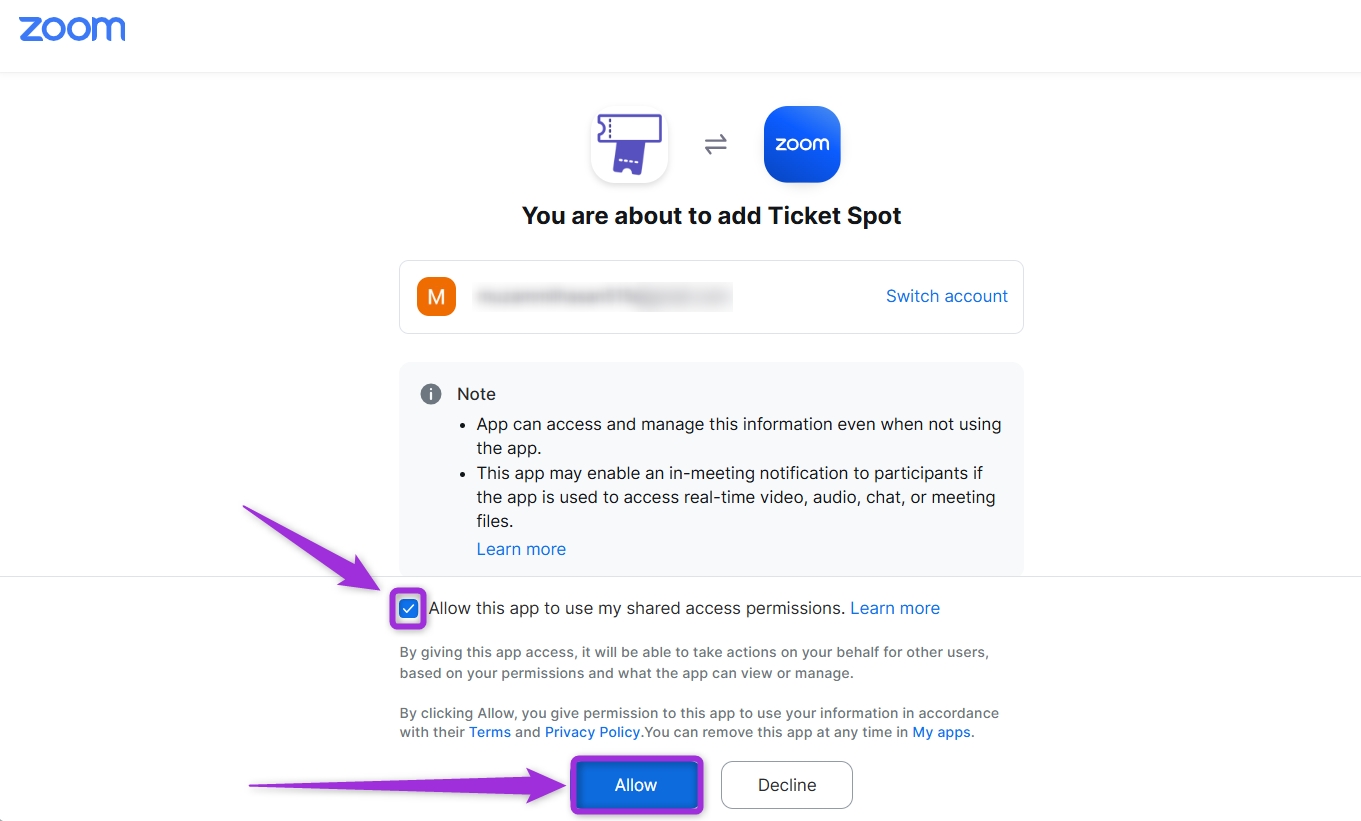
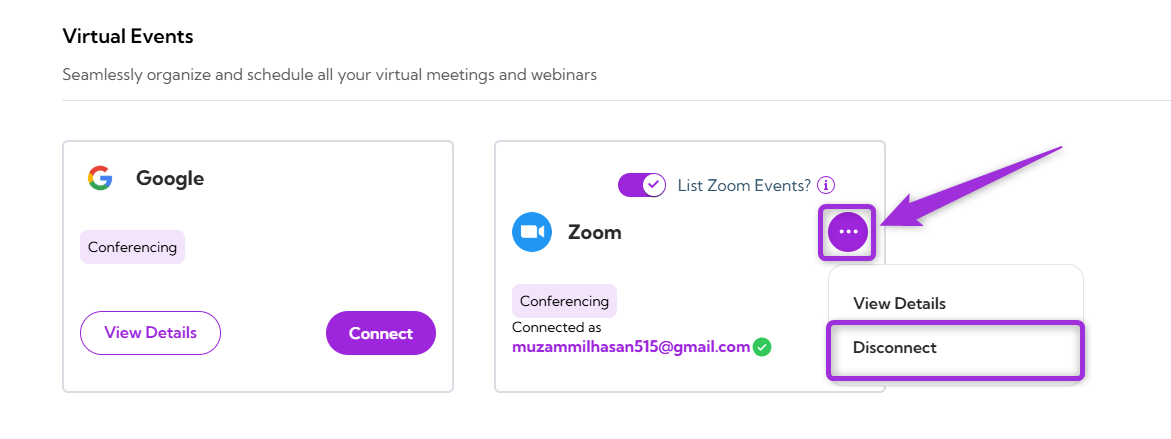
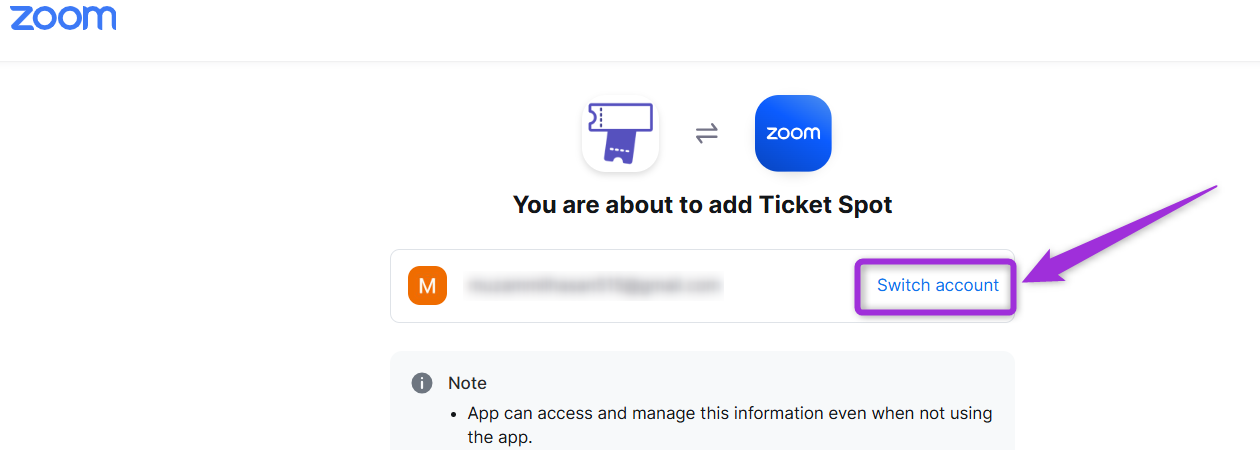
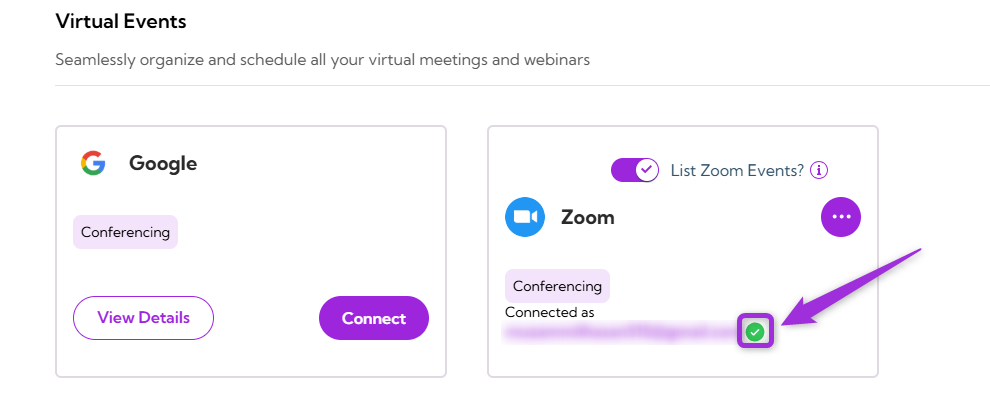
💡 Note: If you need to use a different Zoom account, click Switch Account, then repeat Steps 4 and 5 to complete the connection.Step 6: Once the integration is successfully connected, a green check mark will appear. This confirms that the Zoom integration is active in Ticket Spot.
List Zoom Events
When enabled, Ticket Spot displays your upcoming Zoom meetings and webinars so you can link or use them directly for your events. When disabled, Ticket Spot does not show your existing Zoom meetings, but you can still add new Zoom links manually if needed.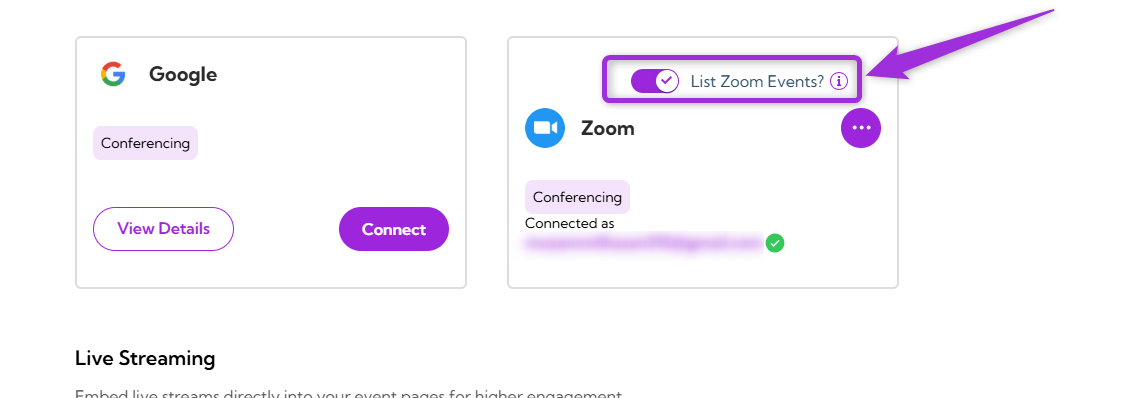
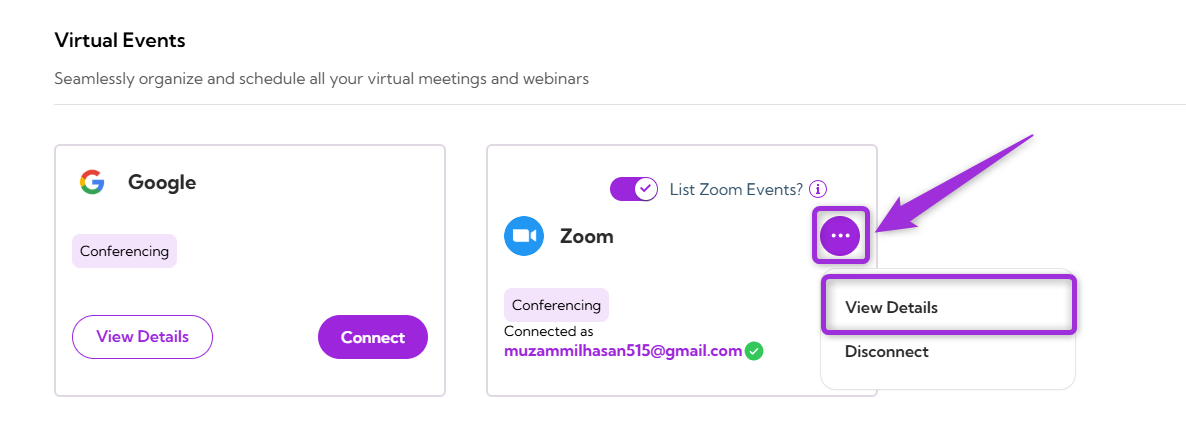
View Details
Review the connection details for your Zoom integration, including the linked account and current status.To view details, click the horizontal ellipsis (⋯) icon on the Zoom integration tile and select View Details from the dropdown menu.
Disconnect
Remove the existing connection between your Zoom account and Ticket Spot. Once disconnected, Ticket Spot will no longer be connected to the Zoom platform.Click on the horizontal ellipsis (⋯) icon on the Zoom integration tile and select Disconnect from the dropdown menu.