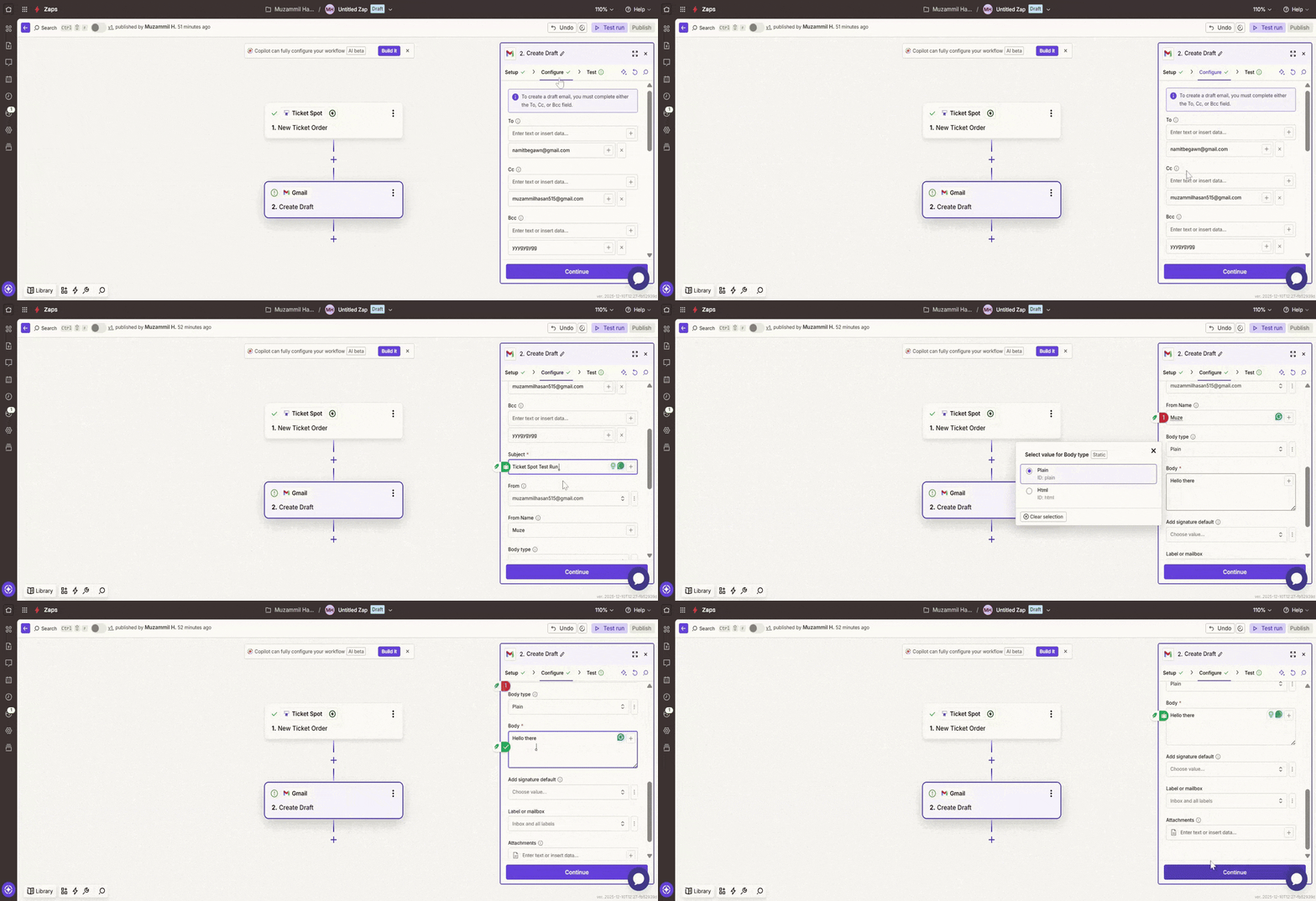
| To | Enter the email addresses of the primary recipients. You can add multiple recipients separated by commas. |
| Cc | Enter the email addresses of recipients to be carbon-copied. Multiple addresses are allowed. |
| Bcc | Enter the email addresses of recipients to be blind carbon-copied. Multiple addresses are allowed. |
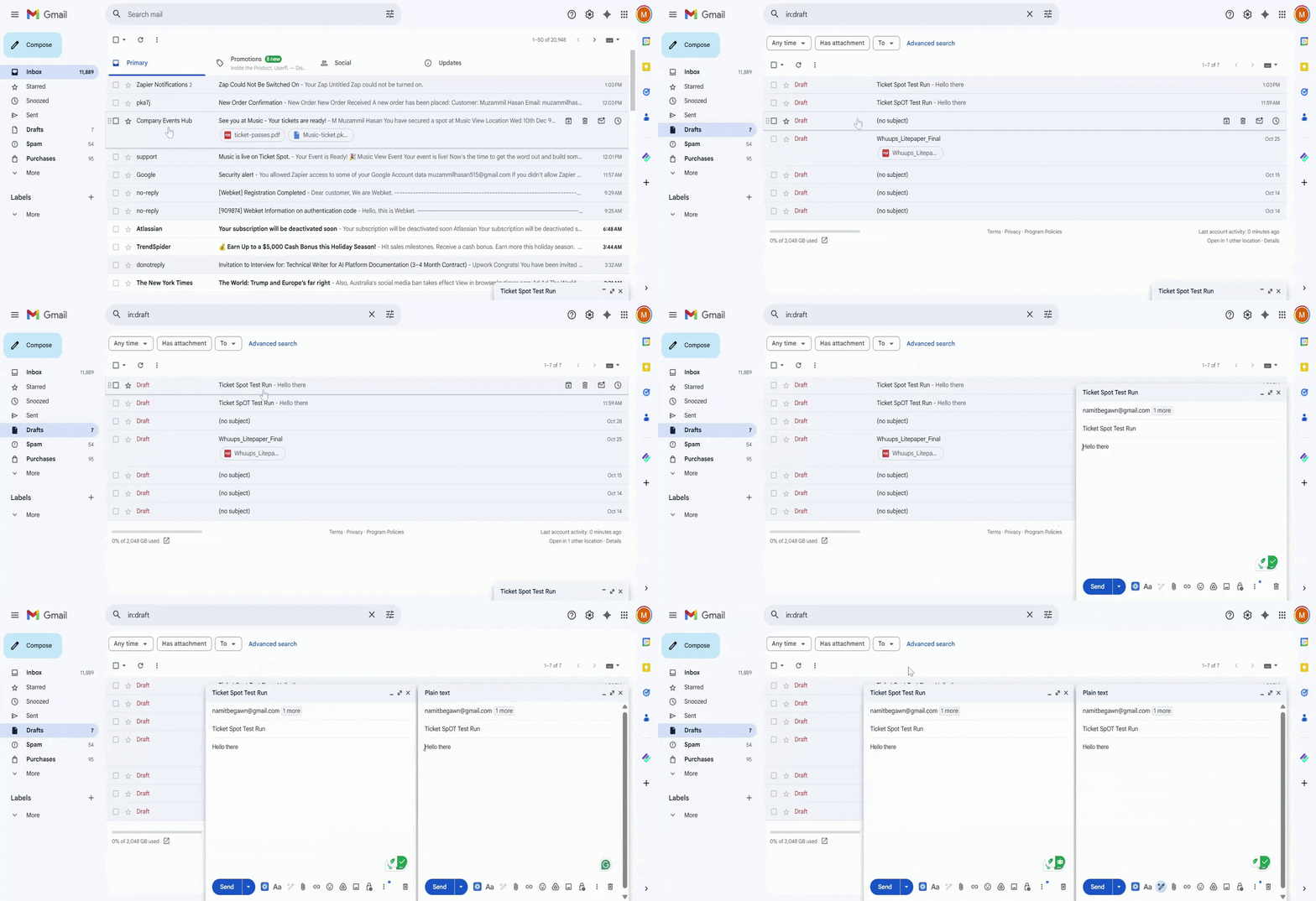
| Subject | Define the subject line of the email (e.g., “Ticket Spot Test Run”). |
| From | This will be auto-filled with your account’s email address (e.g., example@gmail.com). |
| From Name | Specify the name you want the email to appear from (e.g., Muze). |
| Body Type | Choose between Plain Text or HTML for the email body format. |
| Body | Write the main content of the email (e.g., “Hello there”). |
| Add Signature | Select to add the default signature to the email. |
| Label or Mailbox | Choose the labels you want to apply to the email (e.g., Inbox and all labels). |
| Attachments | Optionally attach files to the email if needed. |