
Configure visibility
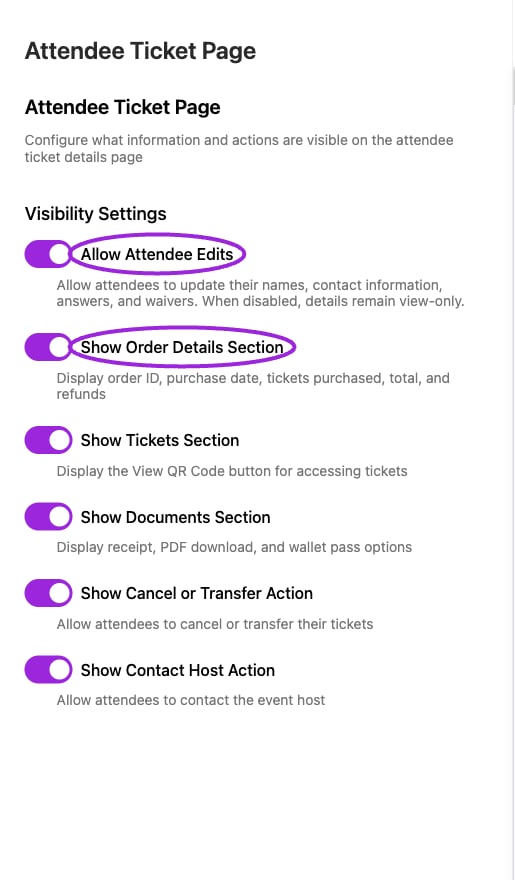
Design → Attendee Ticket Page configures attendee edits and the sections shown on the ticket page. Use the separate sample preview to inspect the result.
- Select the correct site and open Design.
- Select Attendee Ticket Page.
- Under Visibility Settings, set the controls below.
- Wait for Successfully updated attendee page settings after each change. These switches save immediately; a failed update restores the previous value.
These settings control presentation. Showing a document section does not create a missing document or enable a feature excluded by the ticket or plan.
Verify as an attendee
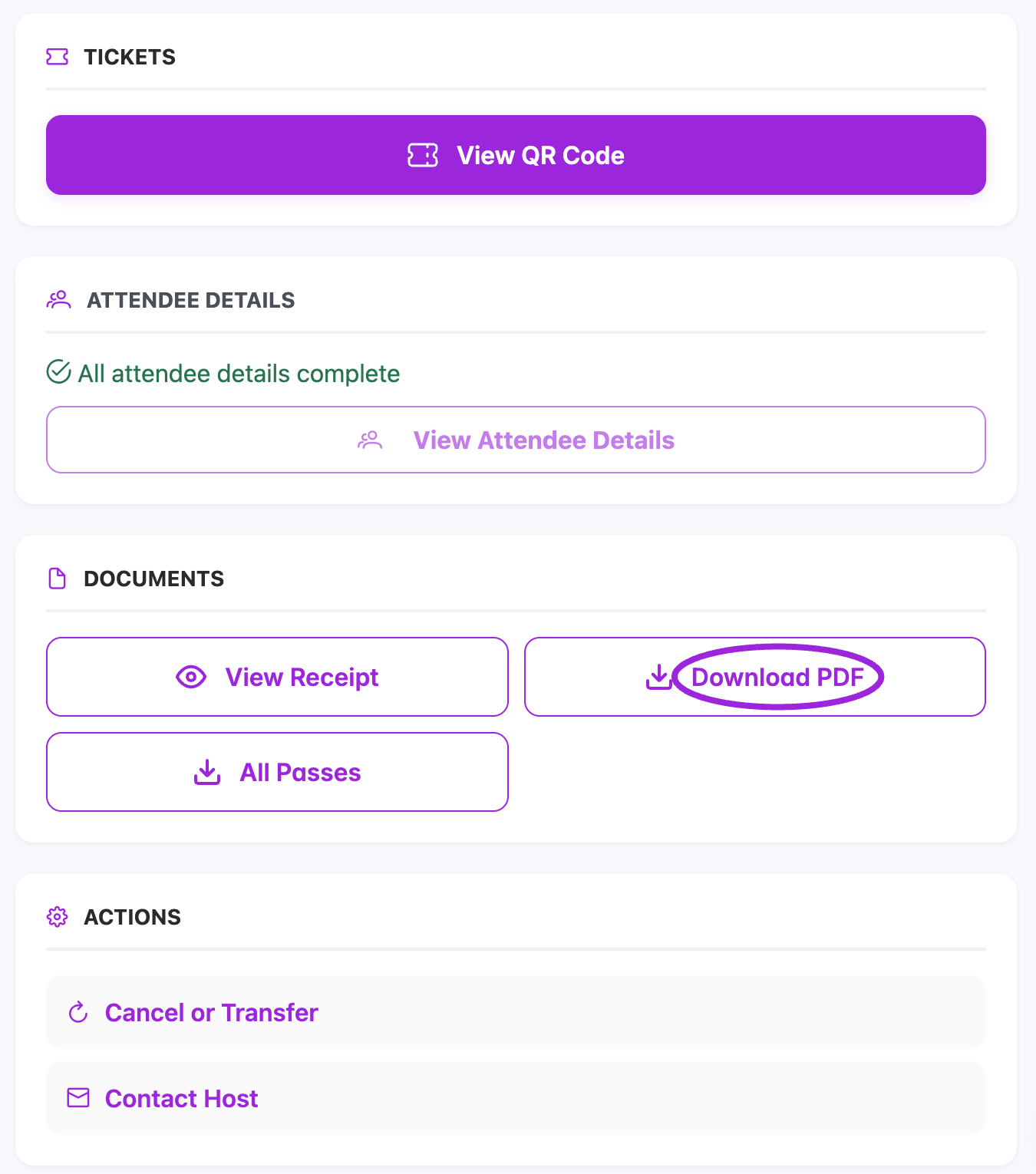
The built-in attendee ticket-page preview shows QR access, document downloads, and attendee actions.