
Choose a format
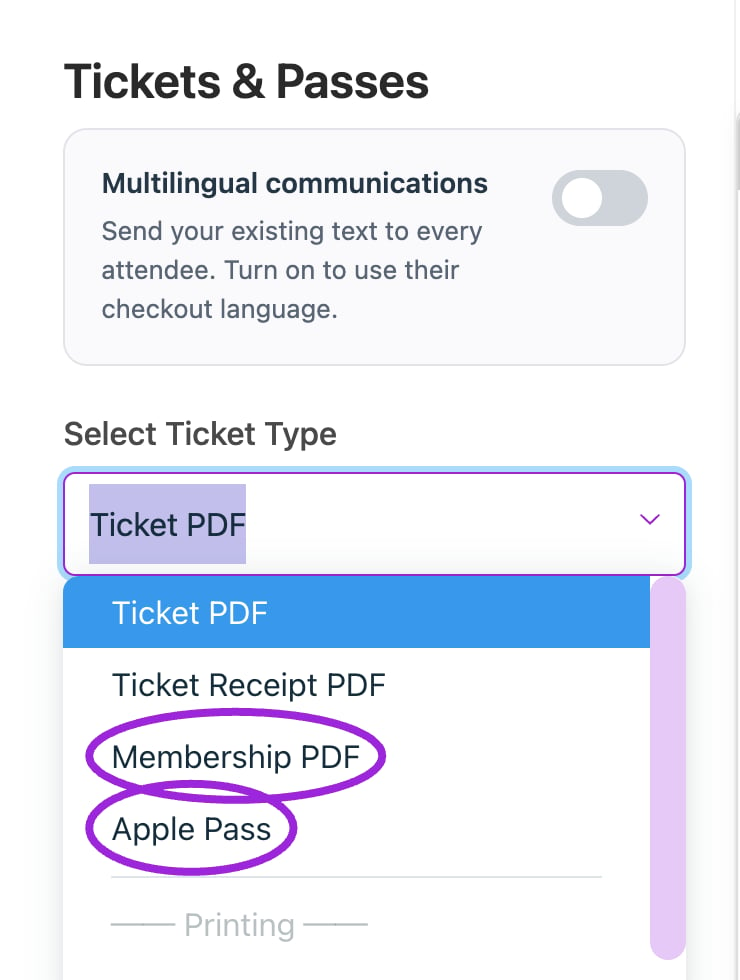
Open Select Ticket Type to choose a PDF or Apple Pass. Scroll farther down the menu for the printing formats.
Selecting a print design does not connect a printer. Match the format to the printer used at your venue and test a physical print before event day.
Ticket PDF
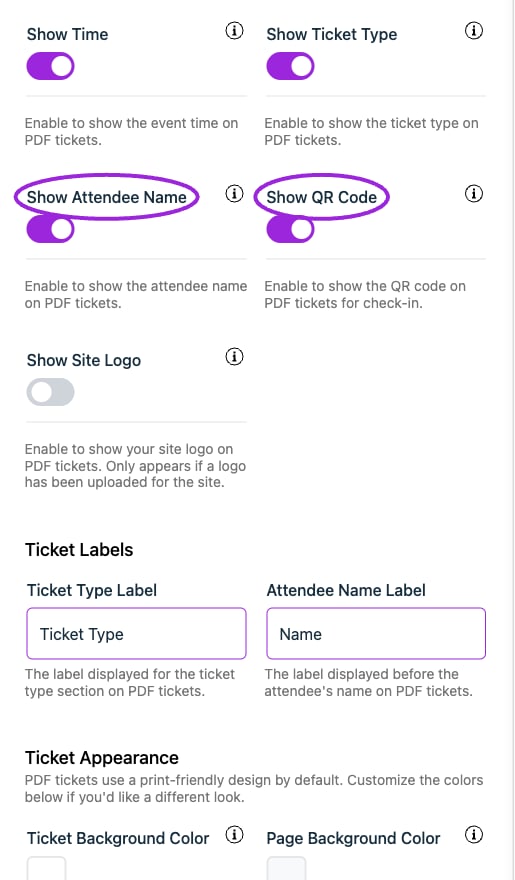
Ticket PDF → Basic visibility settings include attendee name, QR code, and site logo. Review the ticket labels and colors below.
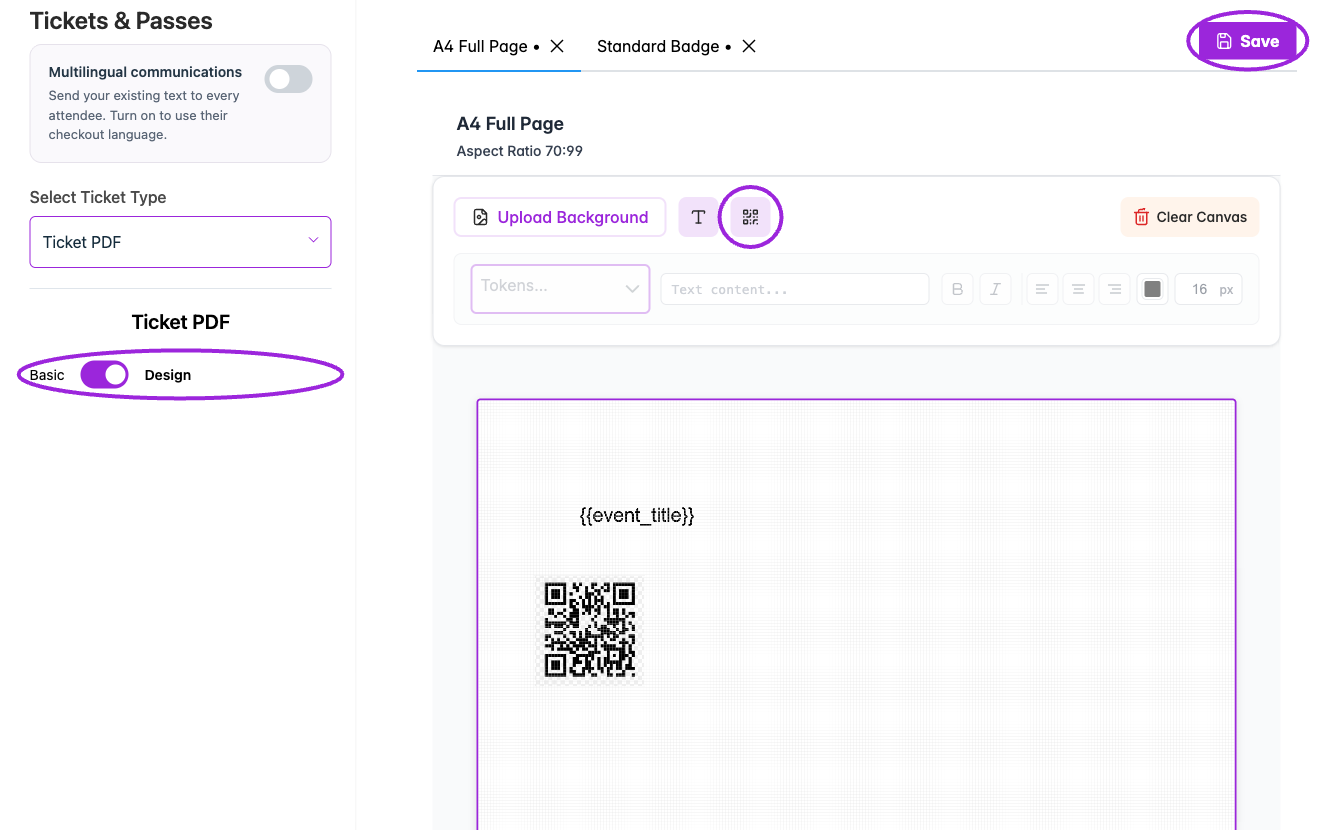
Design mode provides format tabs, text and QR placement, and a separate Save action. This demonstration layout has not been saved.
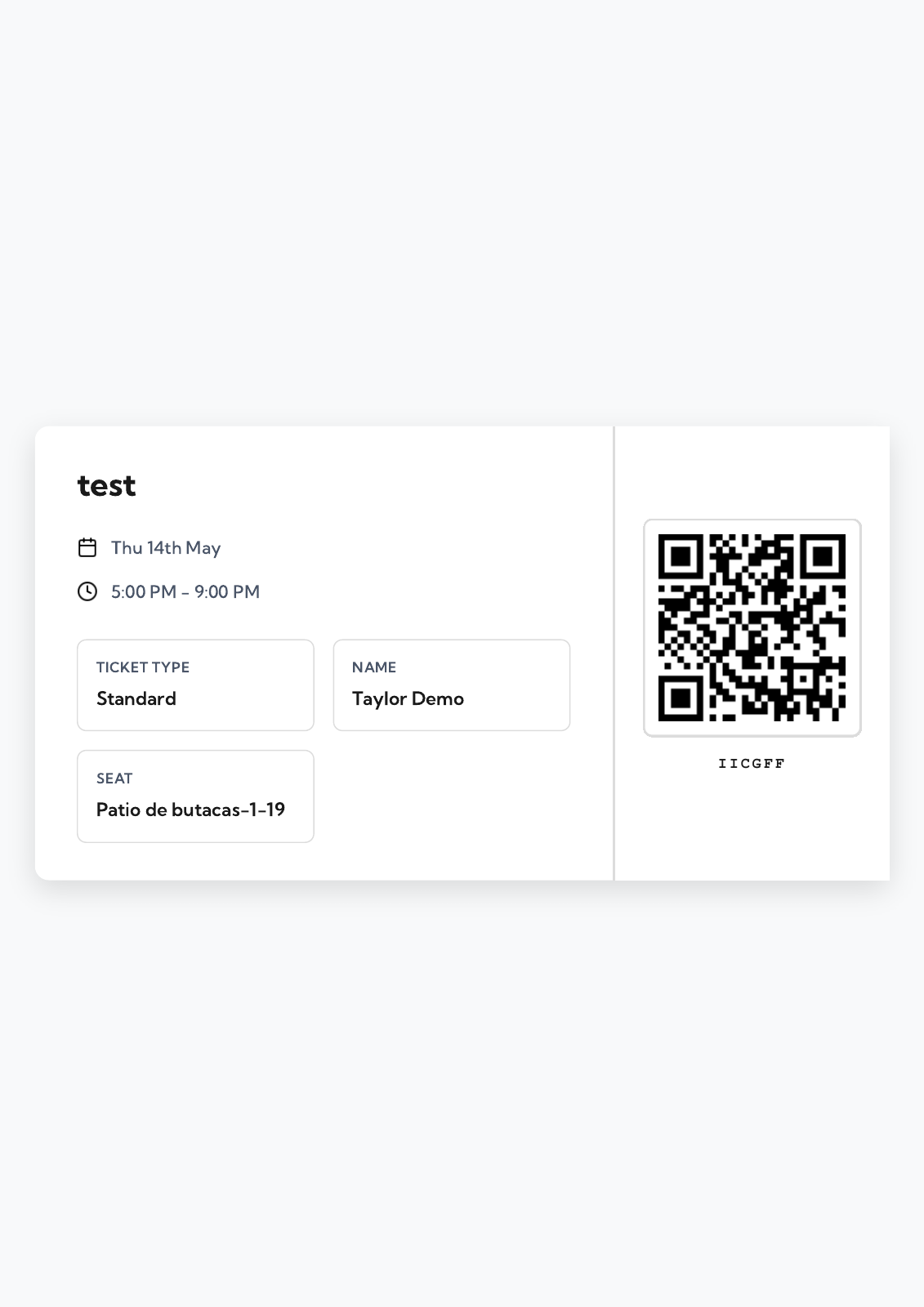
Actual A4 ticket PDF from a synthetic Demo order, showing the attendee, assigned seat, and admission QR code.
Membership PDF
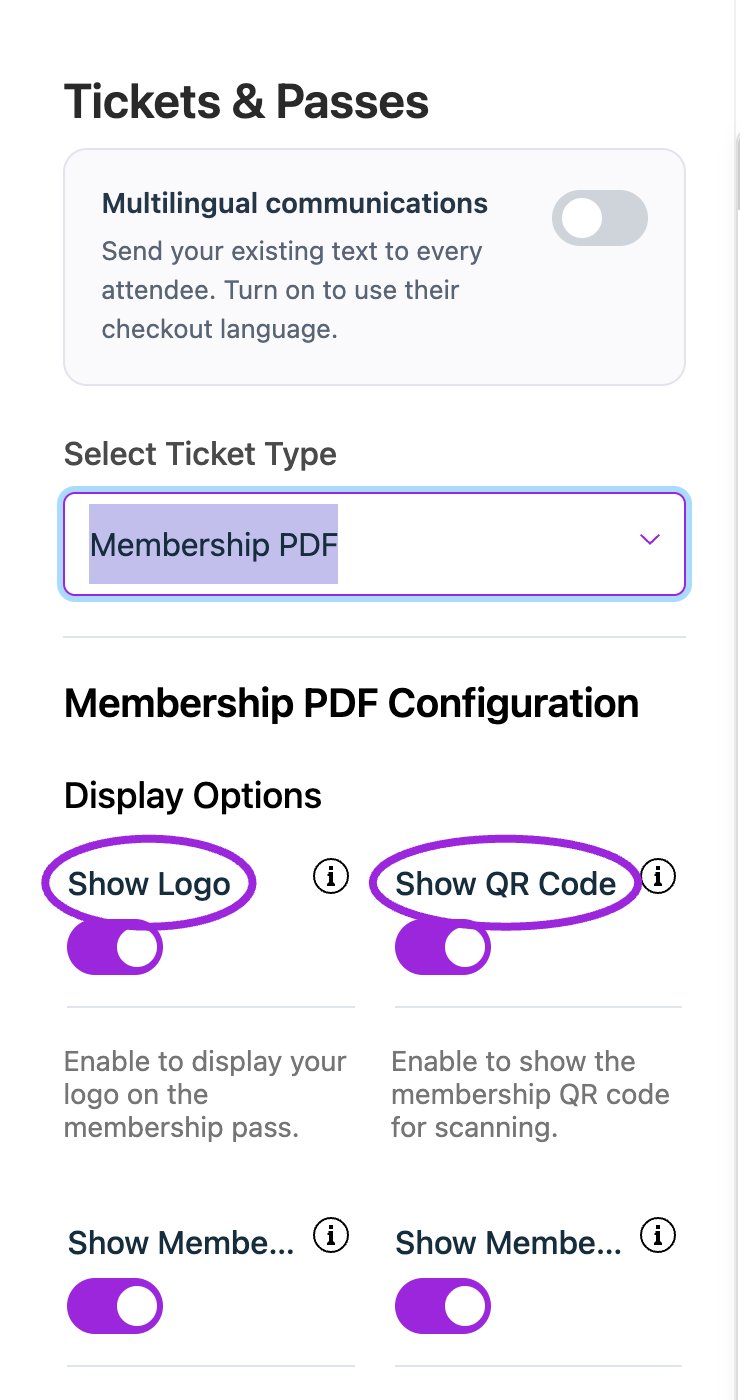
In Design → Tickets & Passes, choose Membership PDF to configure its labels, visibility, and appearance. This is the current configuration panel.
- Choose Membership PDF.
- Set visibility for logo, QR code, member email, member number, valid-from date, benefits, and footer note.
- Set the header, QR, member-number, status, valid-from/until, access, entries-per-event, benefits, and footer labels.
- Wait for the settings update and inspect a test member’s PDF.
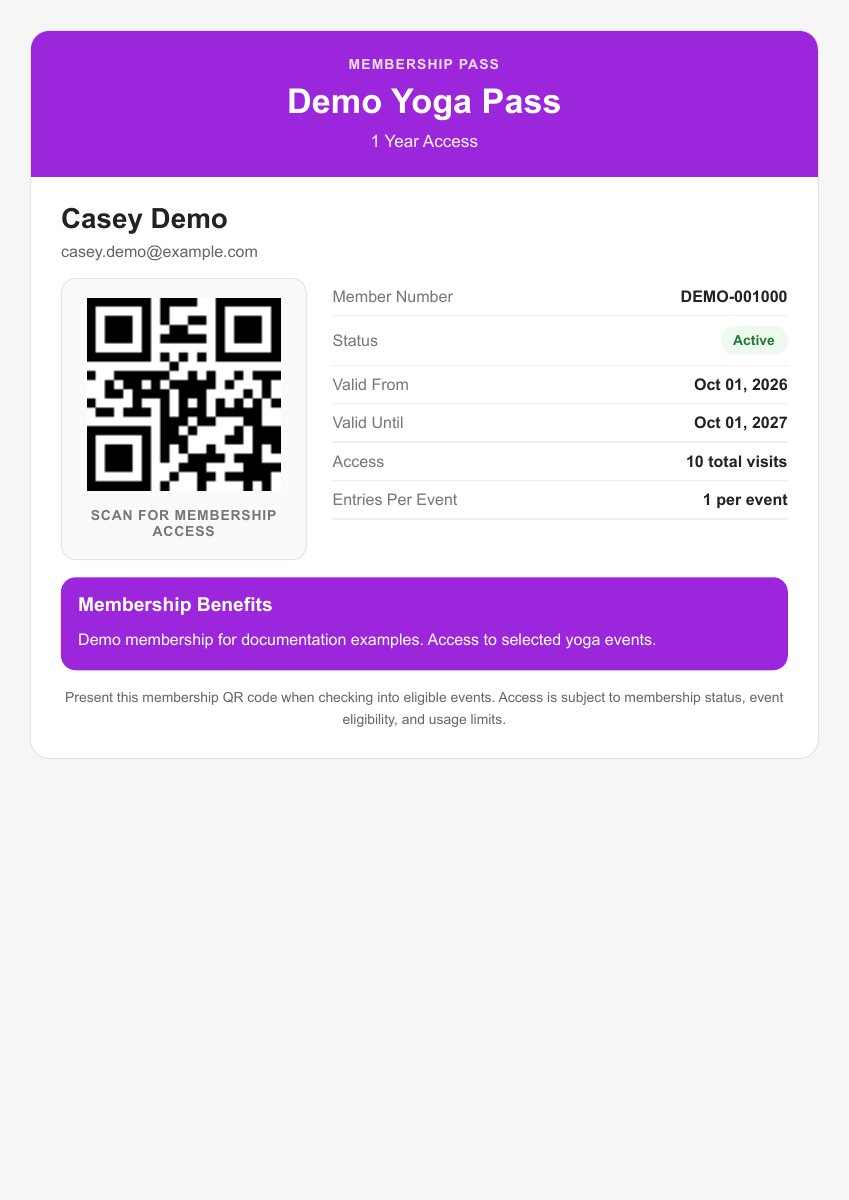
A downloaded pass uses the real holder’s identity, dates, and visit allowances. This example uses a synthetic Demo member.