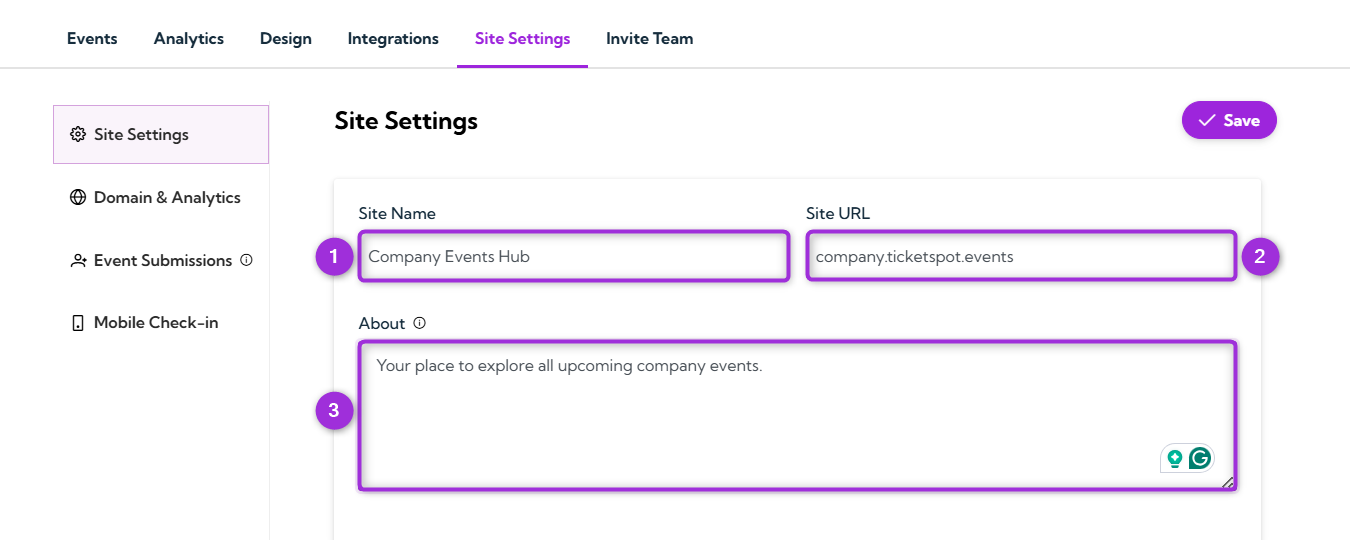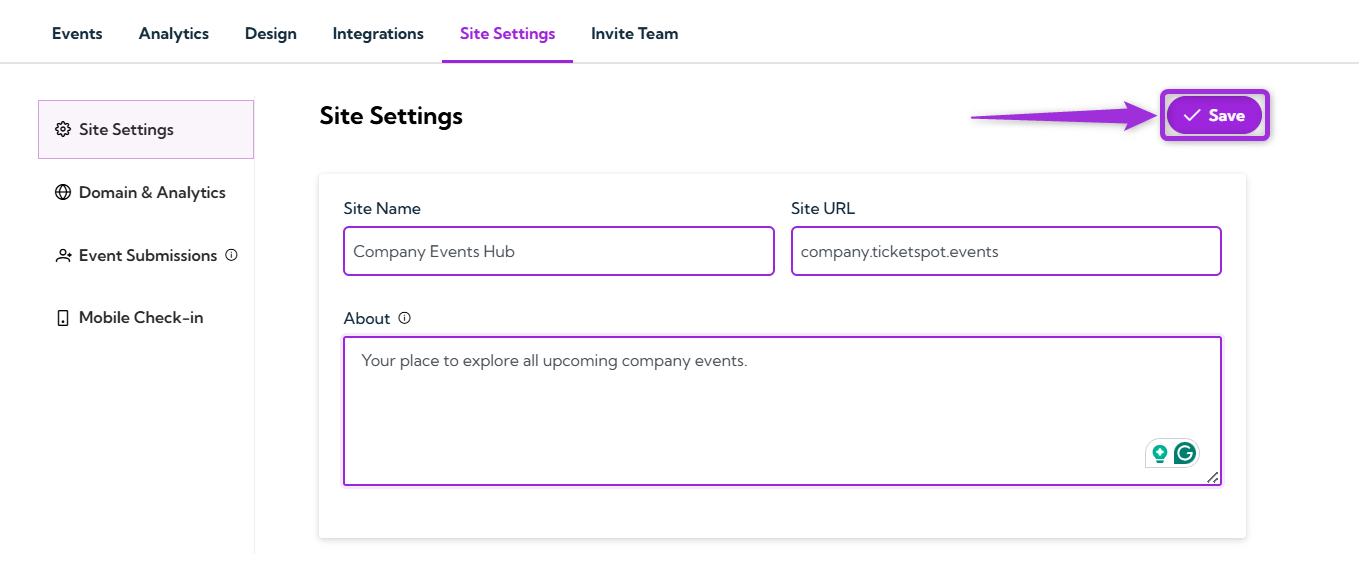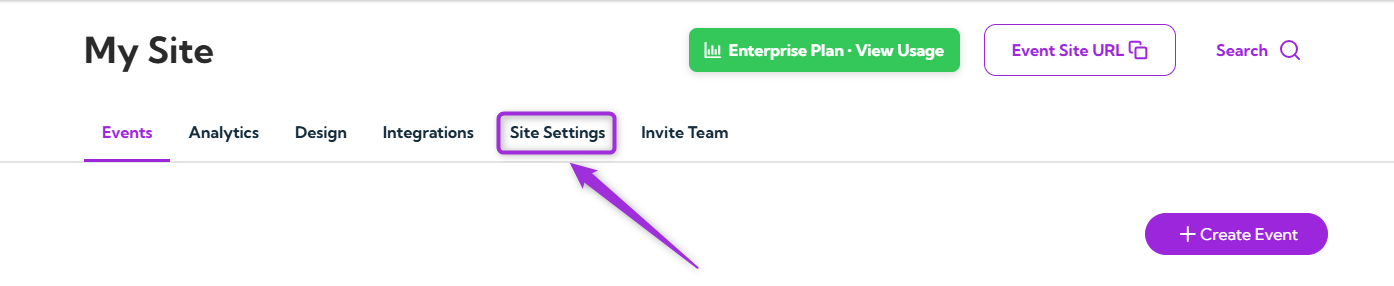
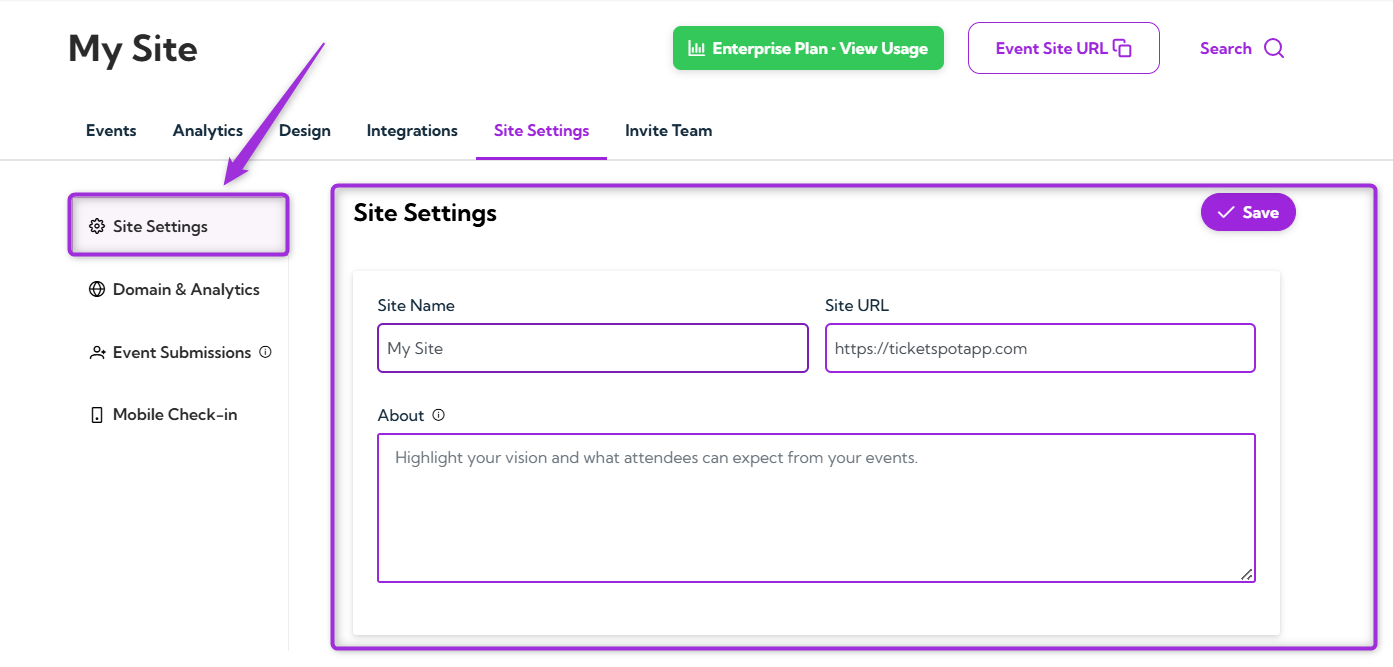
The Site Settings page is where you set the main details of your event site. Here, you can update your site name, site URL, and a short description that appears on your public pages. These settings help visitors quickly understand who you are and what your event site is about. Let’s get started 🚀 Step 1: Log in to your Ticket Spot account and click on the Site Settings tab from the top navigation bar. site-settings-tab Step 2: Select the Site Settings option from the left sidebar to view and edit your site name, URL, and description fields. click-site-sett Step 3: When the Site Settings page opens, you’ll see three fields you can update. Here’s what each field does:
FieldDescriptionExample
Site NameThe name displayed on your event site. It appears in the header and public pages.Company Events Hub
Site URLThe link visitors use to access your event site.company.ticketspot.events
AboutA short description that explains what your site or organization is about. This appears on public pages.Your place to explore all upcoming company events.
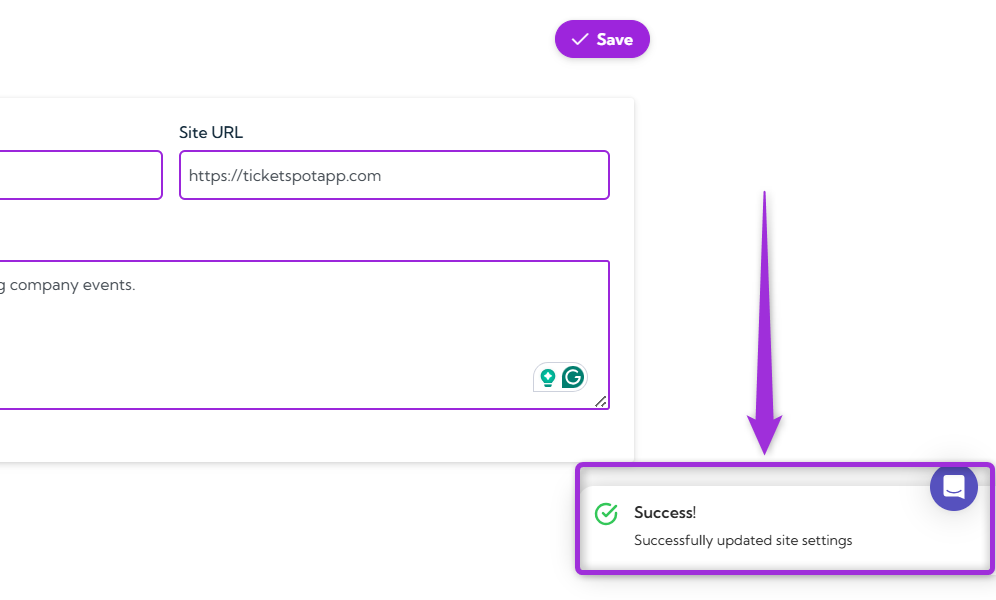
all-fields Step 4: Review your site details and click the Save button in the top-right corner to apply your changes. click-save After saving, a confirmation message will appear to show that your site settings have been successfully updated. success-message

Best Practices

  • Use a clear site name so visitors can quickly understand what your event site represents.
  • Keep your About section short and helpful to give visitors a quick overview of your site or organization.
  • Review your URL before sharing it publicly to make sure it’s correct.
  • Update your information regularly to keep your event site accurate and up to date.