
Shared or custom tickets
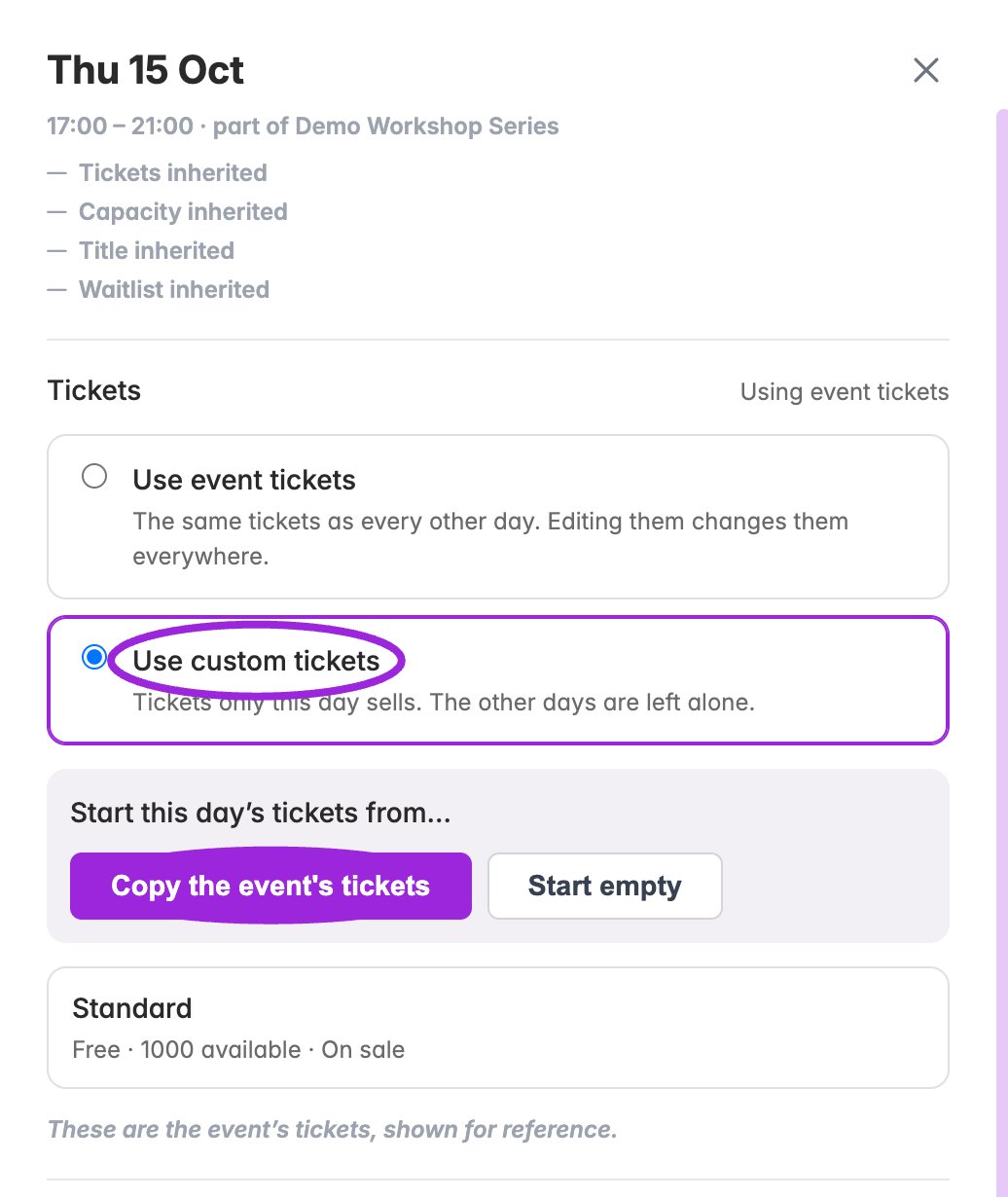
Use custom tickets reveals Copy the event’s tickets and Start empty. Choosing one changes this date’s ticket source immediately.
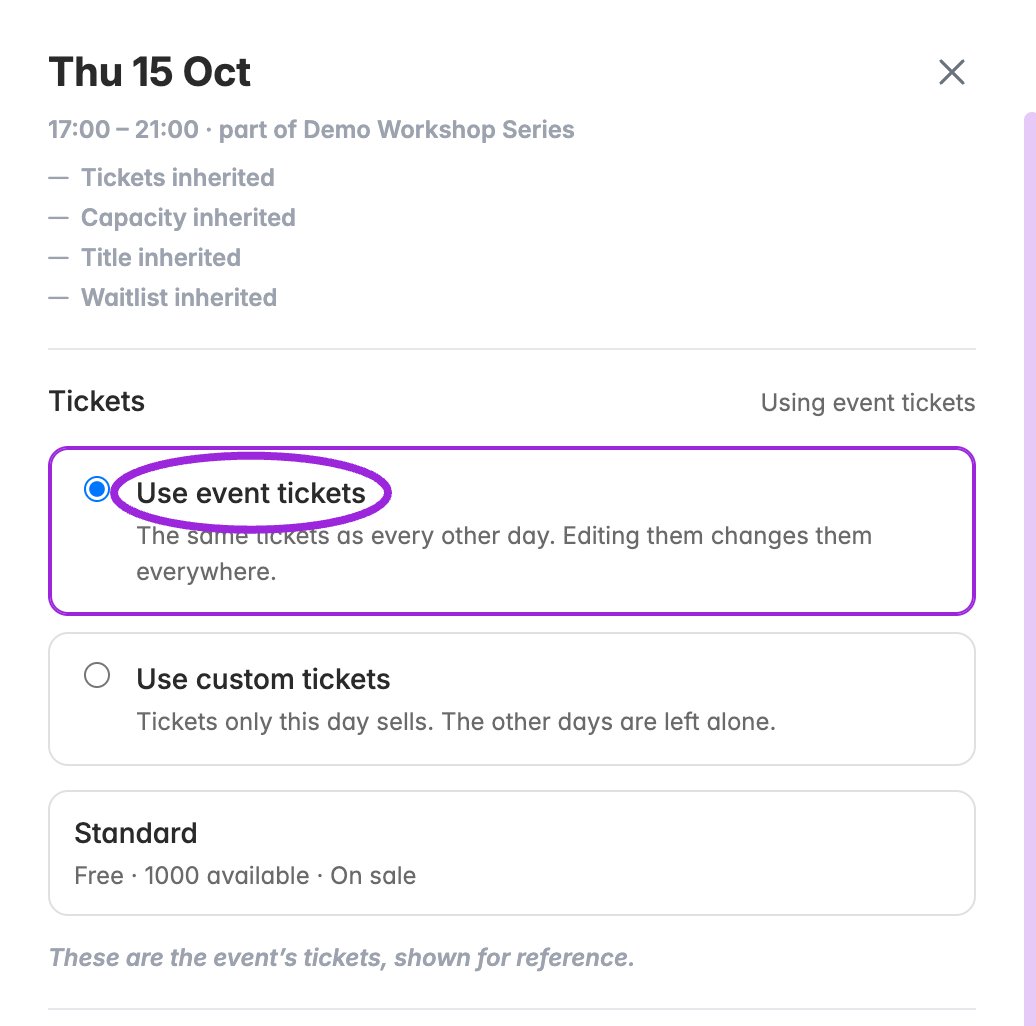
Click a date row to open its drawer. The inheritance summary identifies the event defaults; shared tickets are shown for reference.
- Choose the ticket source for the date.
- For custom tickets, add or edit ticket names, prices, quantities, limits, access rules, admission rules, and seating categories as needed.
- Use Save changes for edited ticket fields and date overrides. Resolve validation errors and wait for the save to finish. Discard abandons unsaved field changes.
- Open that date in the public selector, then compare a second date to confirm the intended scope.
Return a date to shared tickets
Select Use event tickets and confirm. The date stops selling its custom tickets and uses the event offer again. Custom tickets remain stored; selecting custom tickets again can restore them. Verify the inheritance summary after reloading.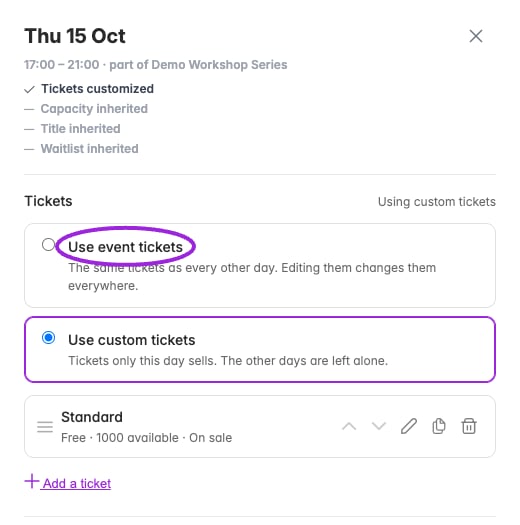
Select Use event tickets to return to the shared offer. Confirm that the custom tickets will stop selling; they remain stored for reuse.
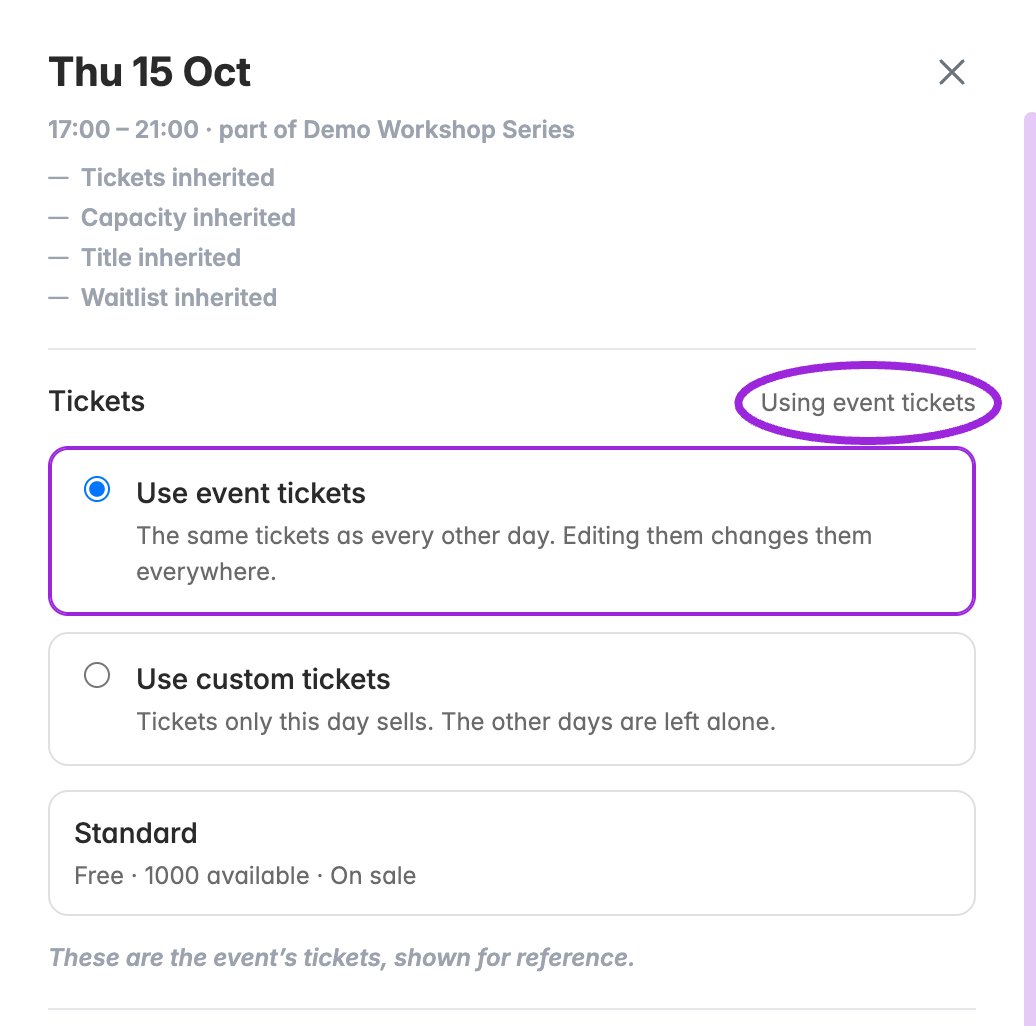
After confirming, the date uses the event tickets again. Its own tickets are retained but no longer sold while shared tickets are selected.
Custom-date ticket options
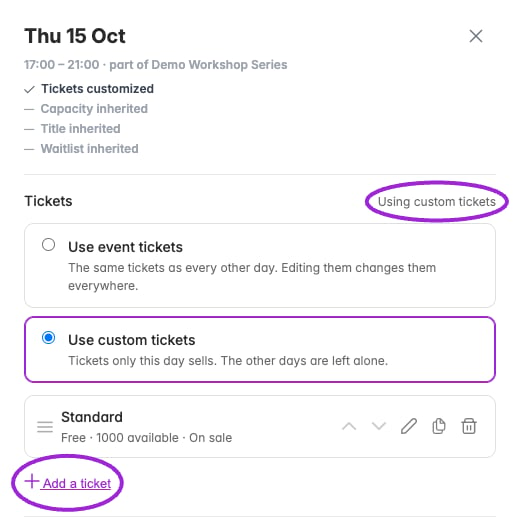
After copying, this date owns its ticket list. Edit, duplicate, remove, reorder, or add tickets here without changing other dates.
Ticket and price
Ticket and price
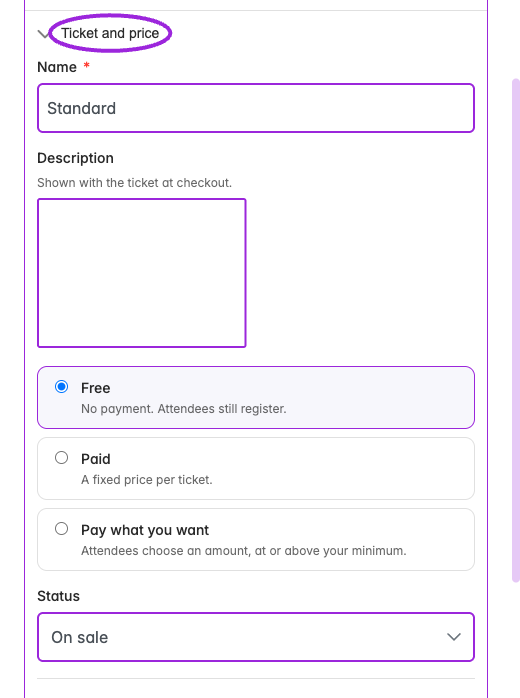
Custom date ticket → Ticket and price. These controls apply to this date’s own tickets; use Save changes in the date drawer to save edits.
Quantity and sales windows
Quantity and sales windows
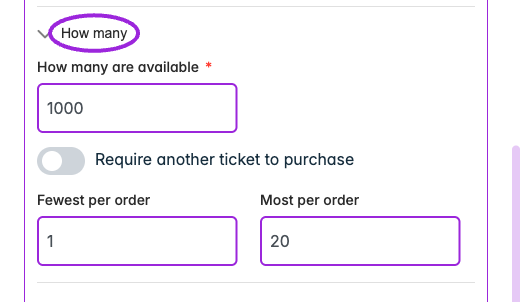
Custom date ticket → How many. These controls apply to this date’s own tickets; use Save changes in the date drawer to save edits.
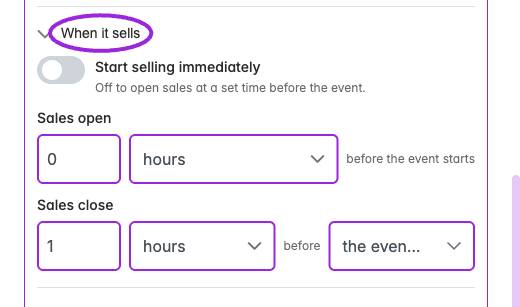
Turn off Start selling immediately to configure Sales open. Choose an opening earlier than Sales close; this unsaved form shows the controls before a valid schedule is entered.
Fees and tax
Fees and tax
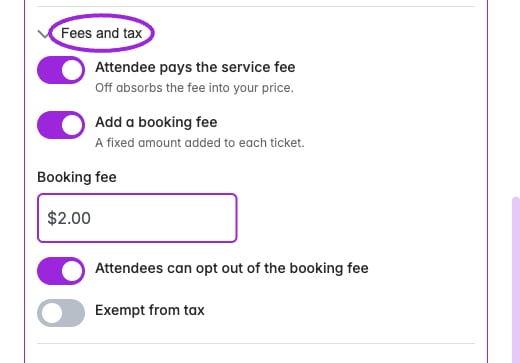
Custom-day Fees and tax can pass or absorb service fees, add a fixed booking fee, allow opting out, and exempt the ticket from tax. This example is unsaved.
Access and member pricing
Access and member pricing
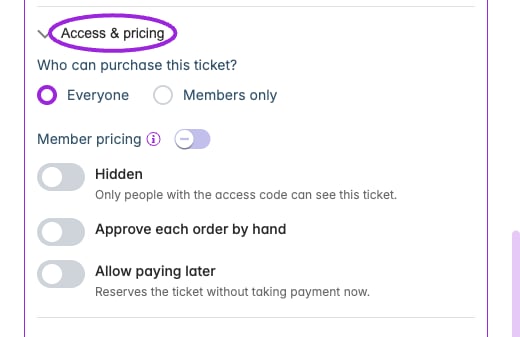
Custom date ticket → Access & pricing. These controls apply to this date’s own tickets; use Save changes in the date drawer to save edits.
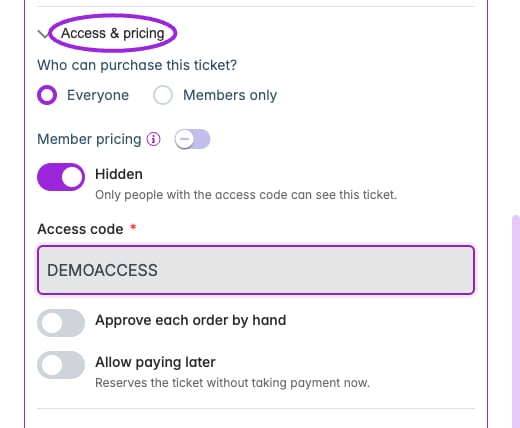
Hidden tickets require an access code. Manual approval and paying later are separate controls; this unsaved example shows the code field.
Check-in and validity
Check-in and validity
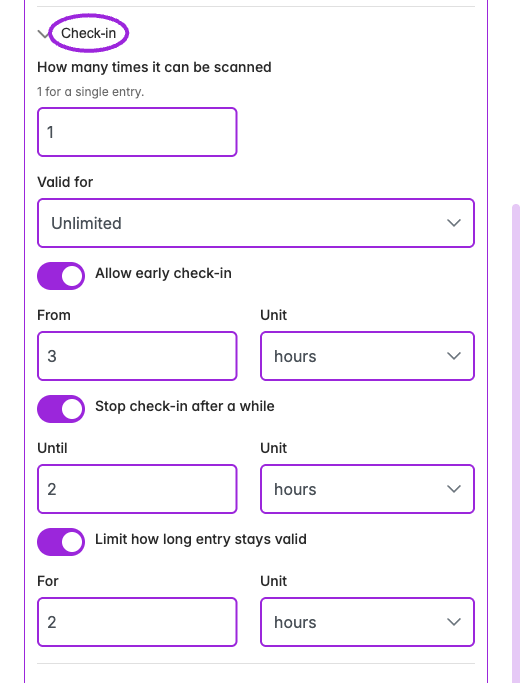
Enable a check-in timing control to show its amount and unit. The current day-editor labels should be checked against the saved admission behavior before changing a live event.
Groups and automation
Groups and automation
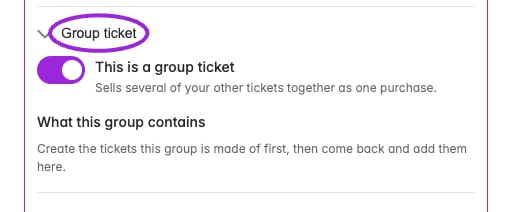
A group ticket sells other tickets together. Add component tickets and quantities; this unsaved example shows the group setup.
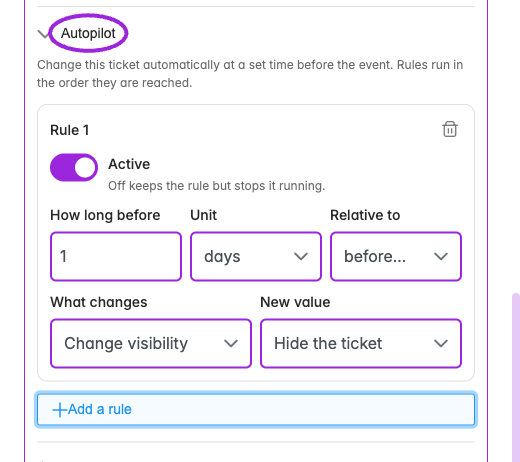
Autopilot rules specify a time before the event starts or ends and an action. Review the rule and any conflicts before saving.
Seat categories
Seat categories
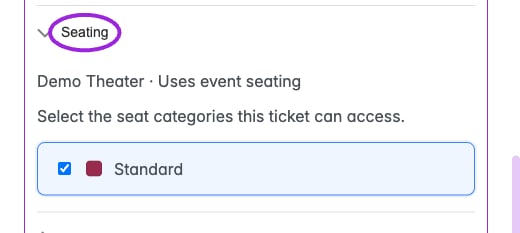
The date ticket's Seating section uses the chart assigned to that occurrence and shows whether it inherits the event chart. Select the categories this ticket can book before saving.
Volume pricing and installments
Volume pricing and installments
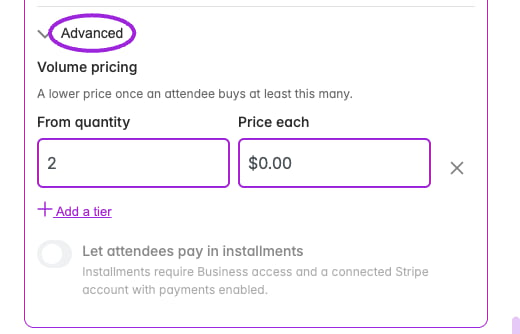
Volume pricing adds quantity thresholds and a price per ticket. Installments remain unavailable until the required Stripe payment connection is enabled.
Date overrides
The date drawer shows Capacity, Waitlist, and Title with an option to use the event’s value or customize the date. Turning off an override returns it to the event’s current value. Use 0 for invitation-only access from the start; leave the custom threshold blank for the existing waitlist behavior. The threshold must fit the effective capacity for that date; see capacity-limited waitlists. Booking label (optional) replaces the displayed date or time in the booking selector, for example with “Spring 2027.” It accepts up to 80 characters. Leave it blank to show the date or time; scheduling and availability still use the actual dates.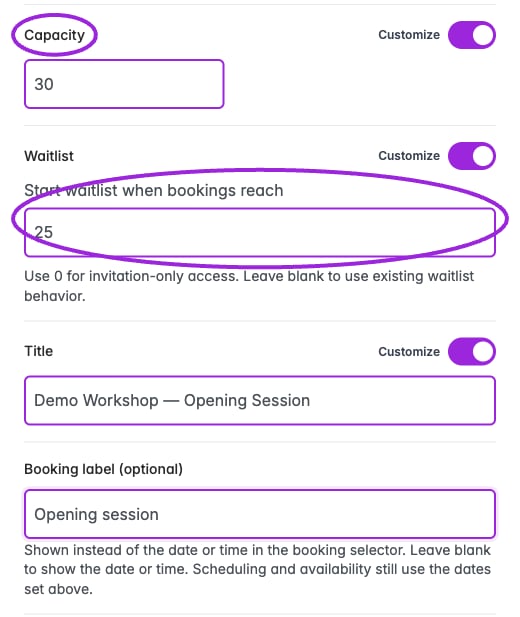
Use Customize to set capacity and waitlist thresholds for one date. This example is an unsaved form state.
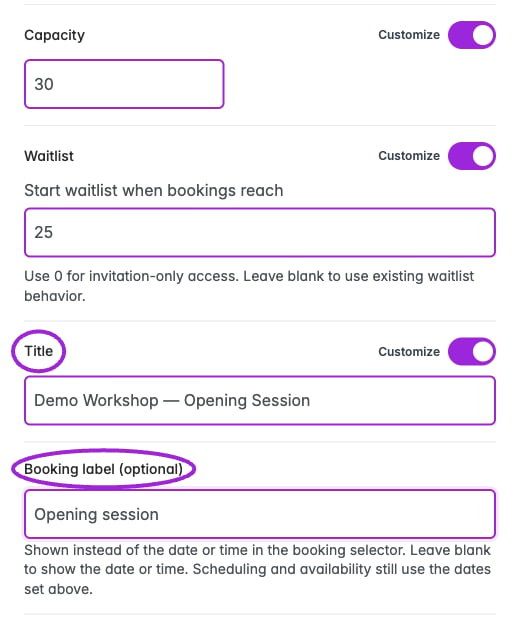
The custom title and booking label affect this date. Save changes commits the fields; Discard abandons unsaved edits.