
Delivery and engagement
The top cards show Delivery Rate, Open Rate, and Bounce Rate. Delivery rate is delivered divided by sent; open rate is opened divided by delivered; bounce rate is hard bounces divided by sent. Counts represent tracked attendee engagement, and the overall totals deduplicate attendees across message types rather than simply adding every type’s count.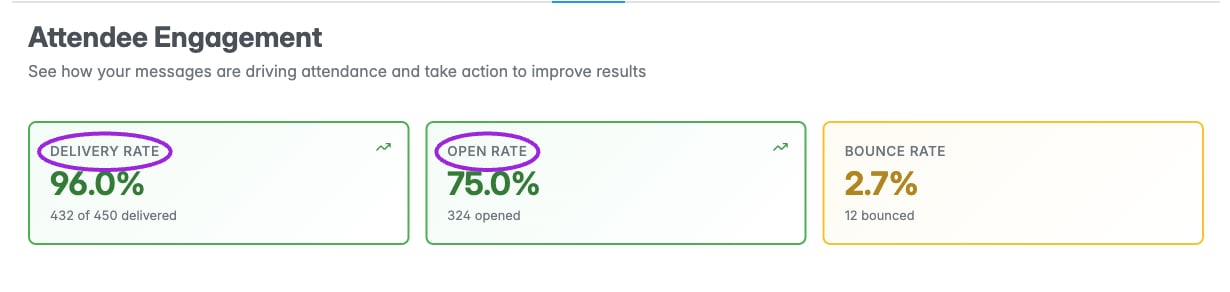
Illustrative analytics data. Attendee Engagement shows delivery, opens, bounces, and recommendations.
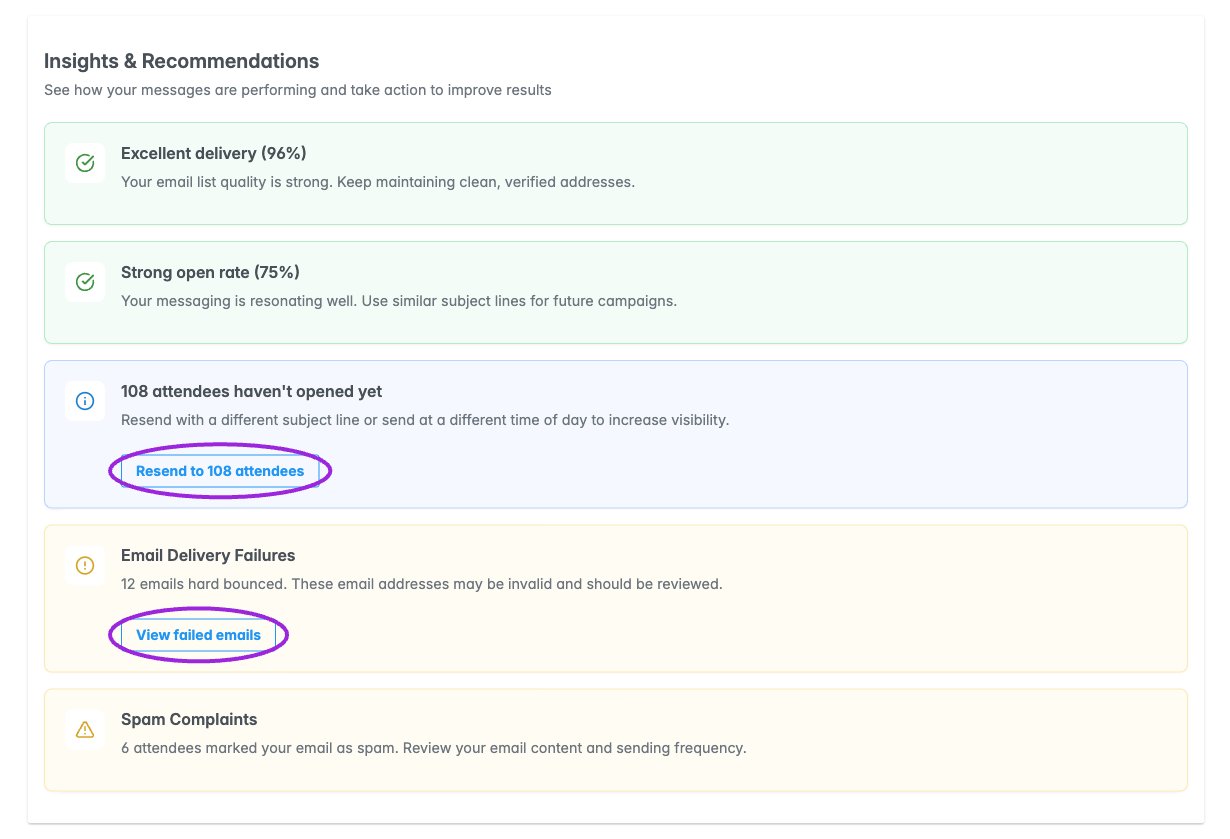
Illustrative analytics data. Insights highlight unopened messages and failed delivery.
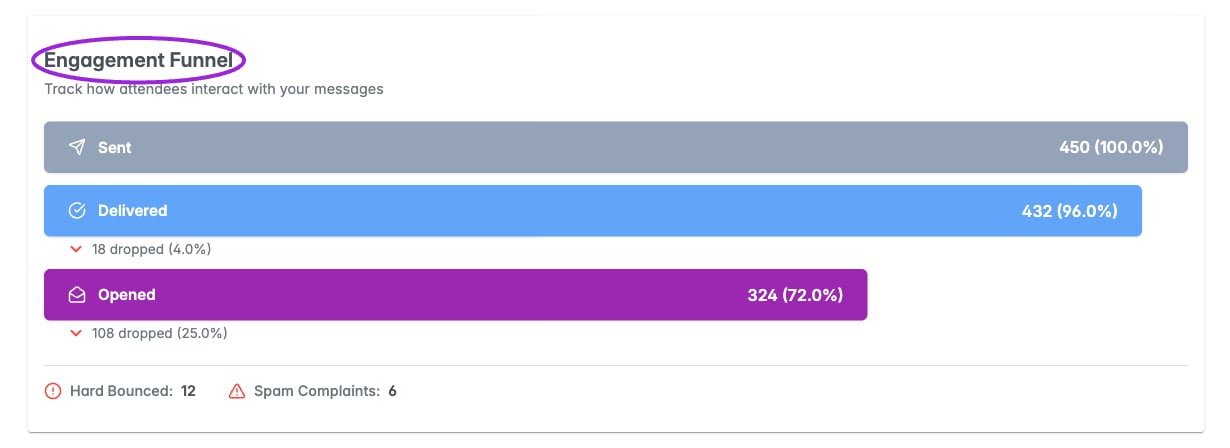
Illustrative analytics data. The engagement funnel shows delivery and open drop-offs.
Performance by Message Type
The three message-type cards are New Order, Event Reminders, and Post Event. Each can show sent/delivered/opened statistics or a scheduled-reminder state. A pending or scheduled reminder takes precedence over earlier statistics for that type.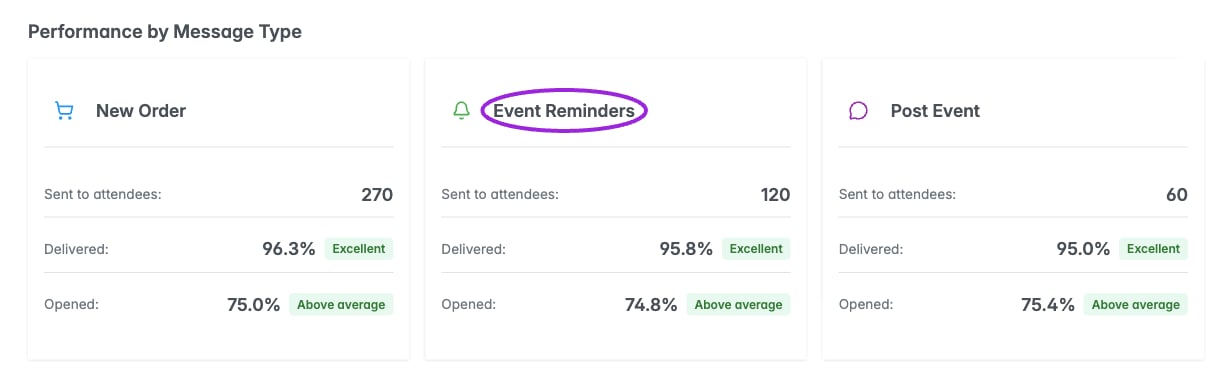
Illustrative analytics data. Compare new-order, event-reminder, and post-event message performance.
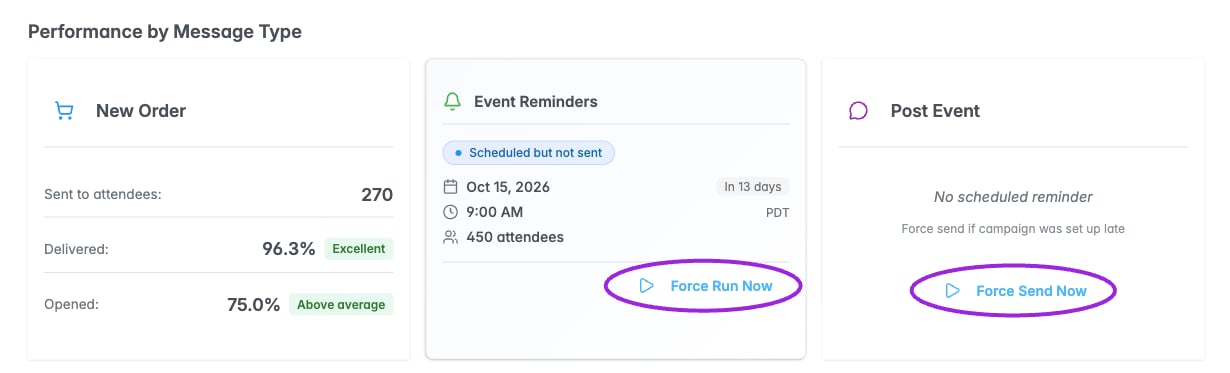
Illustrative analytics data. Scheduled reminders show their timing, timezone, and attendee count.
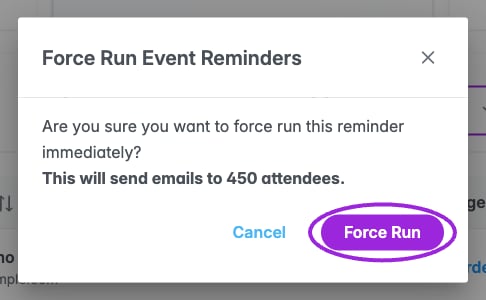
Illustrative analytics data. Review the Force Run confirmation before running a scheduled reminder.
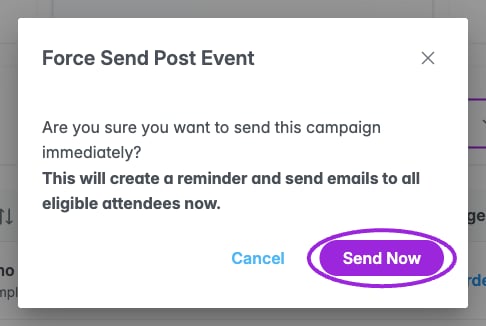
Illustrative analytics data. Force Send confirms immediate delivery to eligible attendees.
Detailed Activity Log
Search by attendee name, email, subject, or event title. Filter All Trigger Types to New Order, Event Reminder, or Post Event, and filter All Statuses to Sent, Delivered, Opened, Hard Bounce, or Spam Complaint. The filters narrow the returned activity records; they do not recalculate the summary cards. Columns show Event, Recipient, Subject, Message Type, and Engagement Status, including the latest status timestamp. Sort the columns and use the twenty-row pagination. The visible status menu does not contain a separate Clicked option.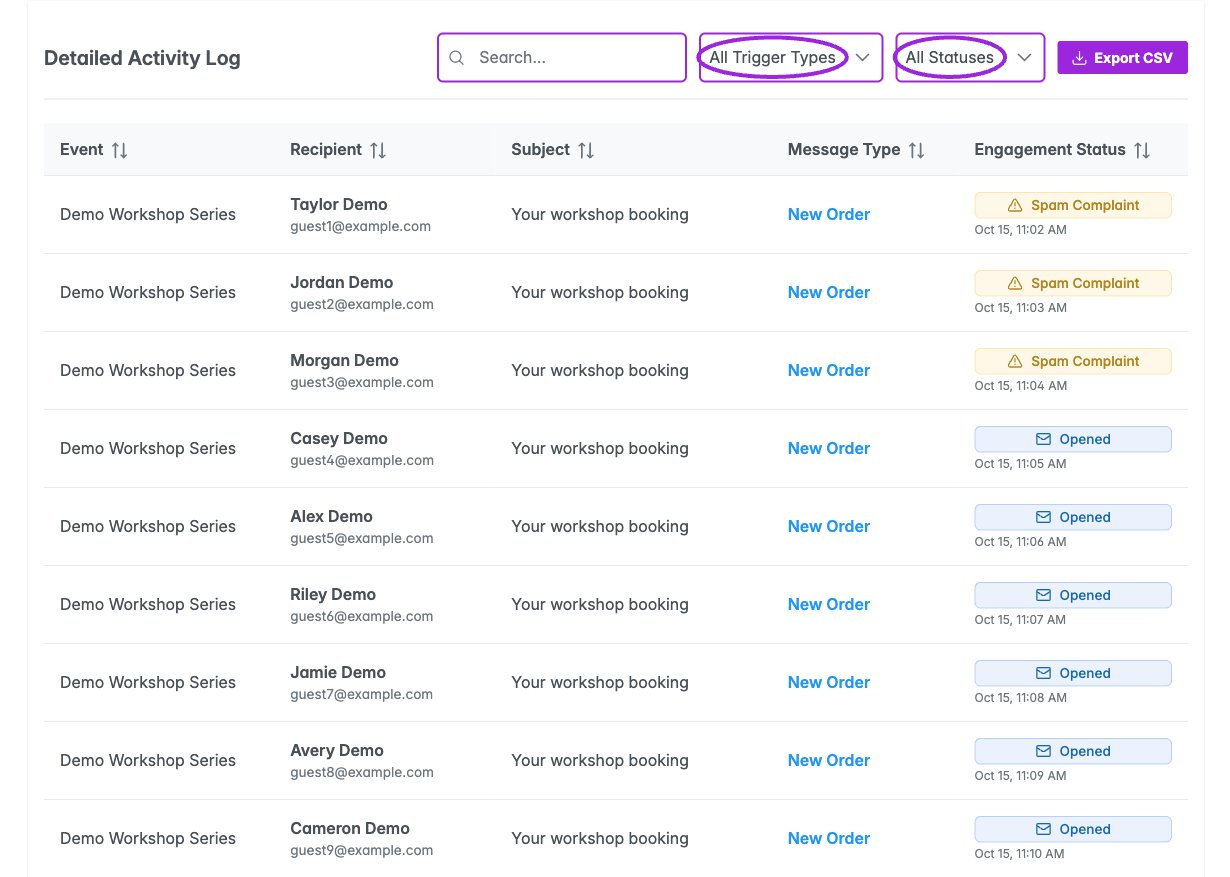
Illustrative analytics data. Search, filter, sort, and export the detailed email activity log.
Review failed emails
Choose View failed emails or the failed-delivery insight action. Fix Failed Emails lists hard bounces and spam complaints with the latest recorded date/time. Use Copy All or the per-row copy control to copy addresses. Edit opens the attendee record where you can correct an address when appropriate; it does not resend the failed email.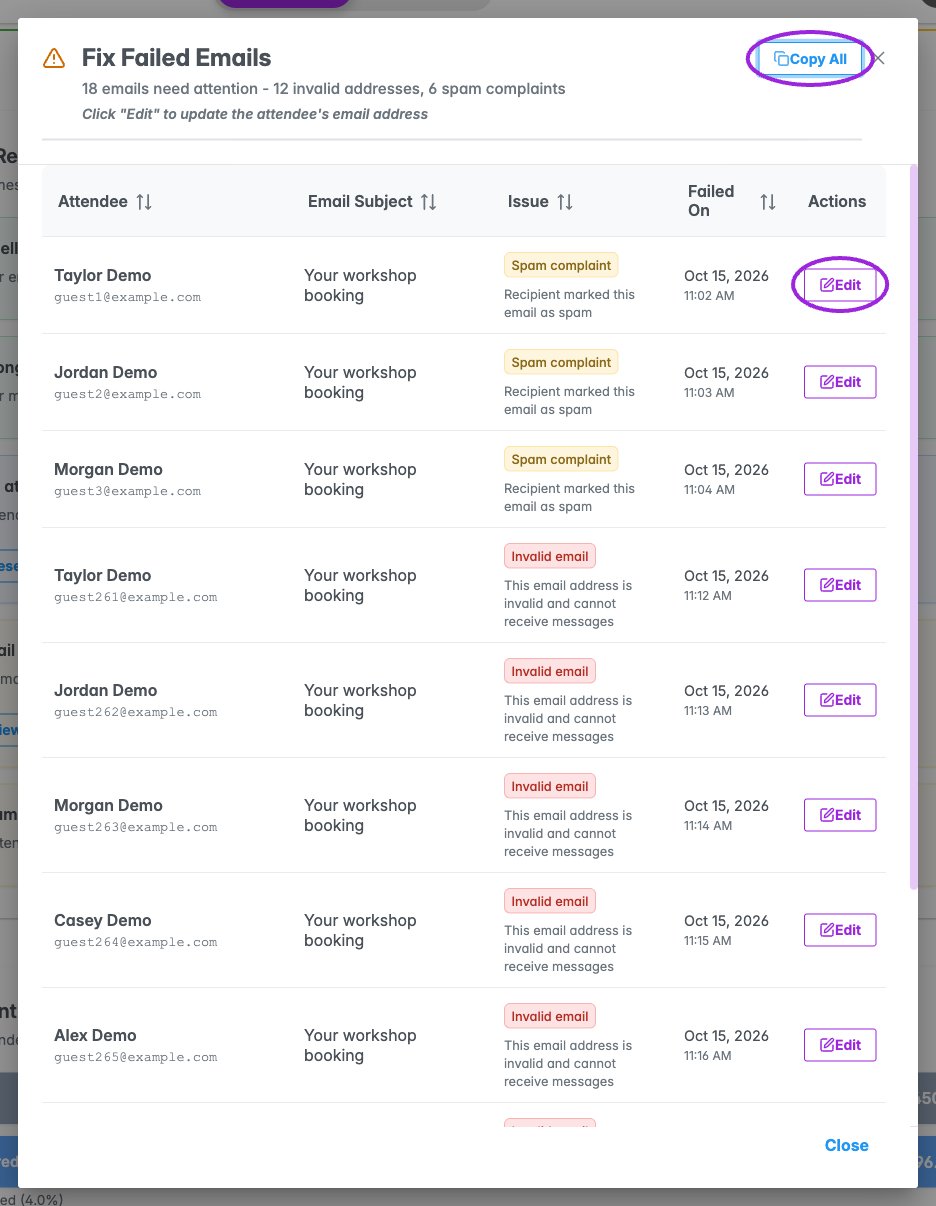
Illustrative analytics data. Review failed addresses and spam complaints before changing attendee records or messaging again.