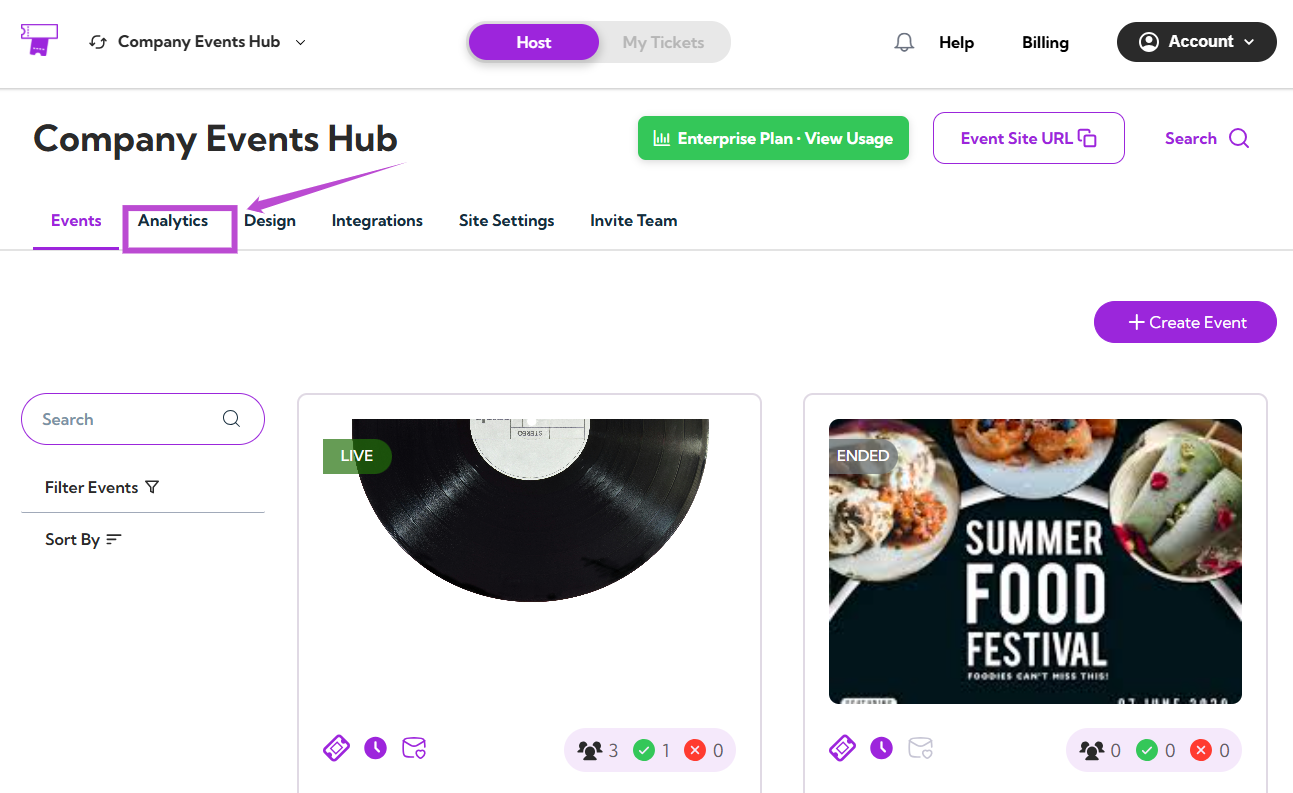
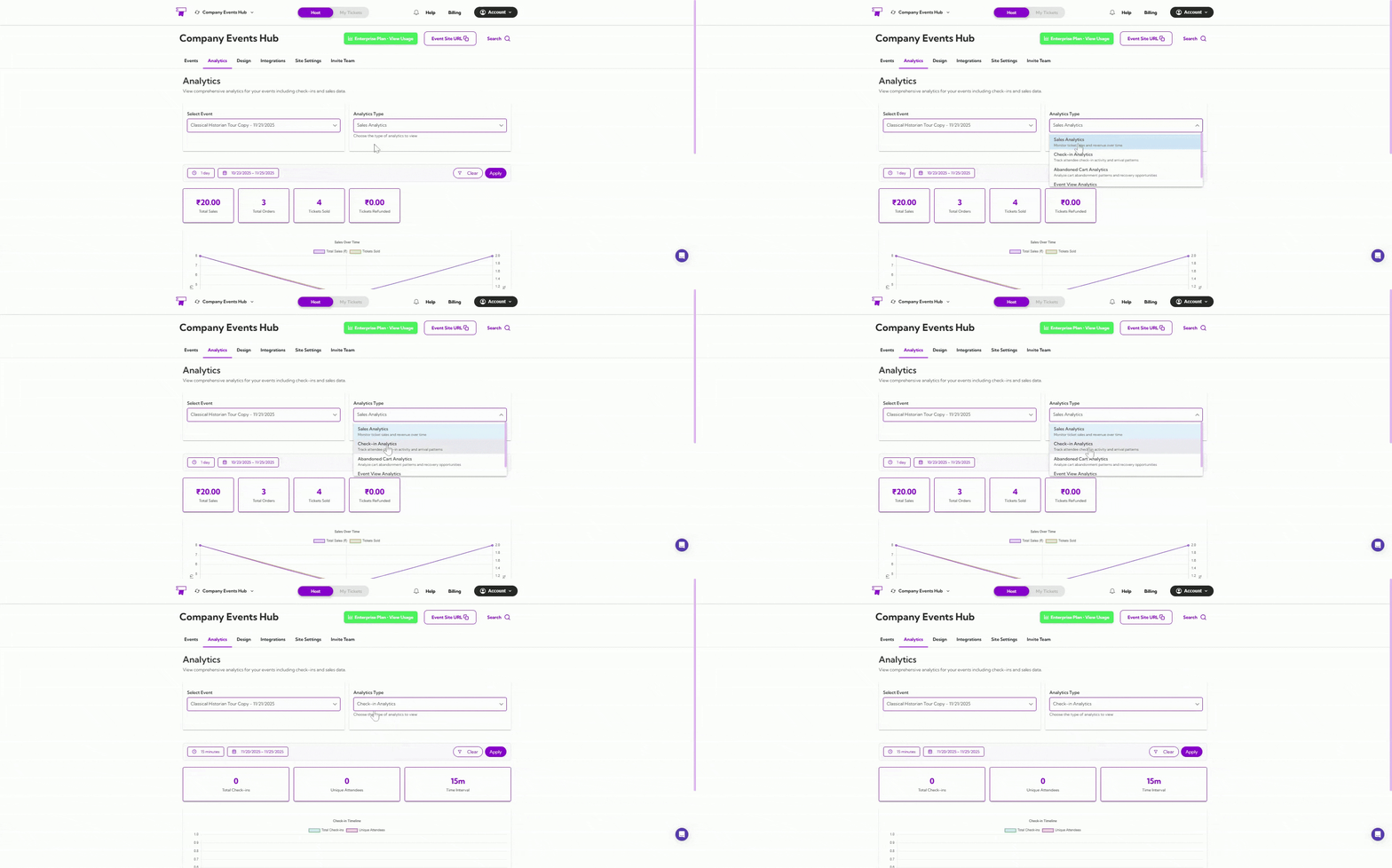
The Check-in Analytics dashboard gives you a clear, real-time view of how attendees are checking into your event. You can track total check-ins, unique attendees, and quickly understand check-in activity trends over time. Let’s get started 🚀 Step 1: Log in to your TicketSpot account and click the Analytics tab from the top navigation bar. analytics-tab Step 2: Click on the Analytics Type drop-down menu and select the Check-in Analytics type. select-analytics-type Your dashboard instantly updates to show all check-in-related insights.
Select Event

Use the Select Event dropdown to choose the event you want to analyze. select-event Once selected, all charts and metrics on the page will update to reflect that specific event’s check-ins.
Date Filters

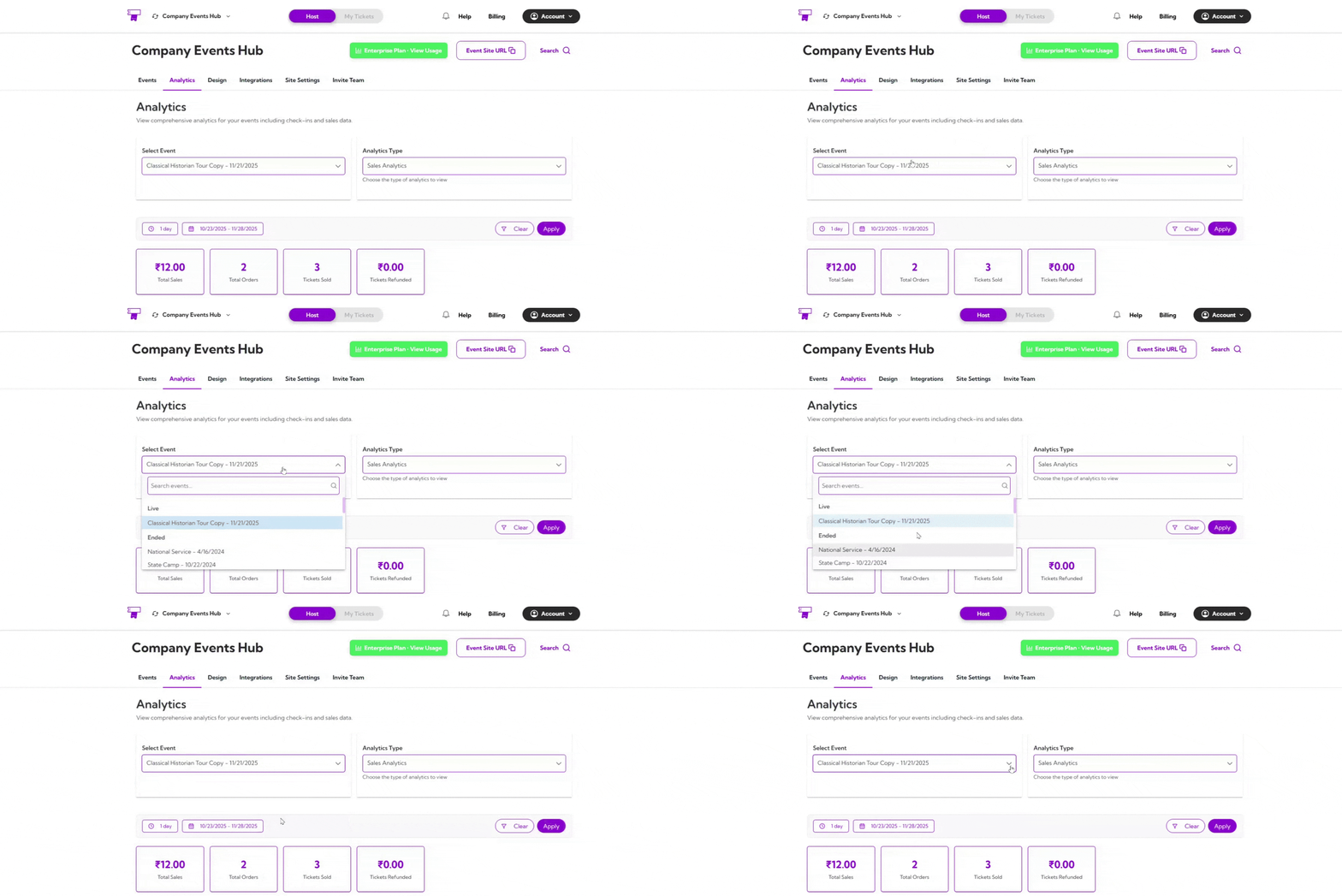
You can filter analytics by preset date ranges like 1 day, 7 days, or 1 year, or choose a custom date range. date-filter After applying the filters, the dashboard updates automatically based on the selected time window.
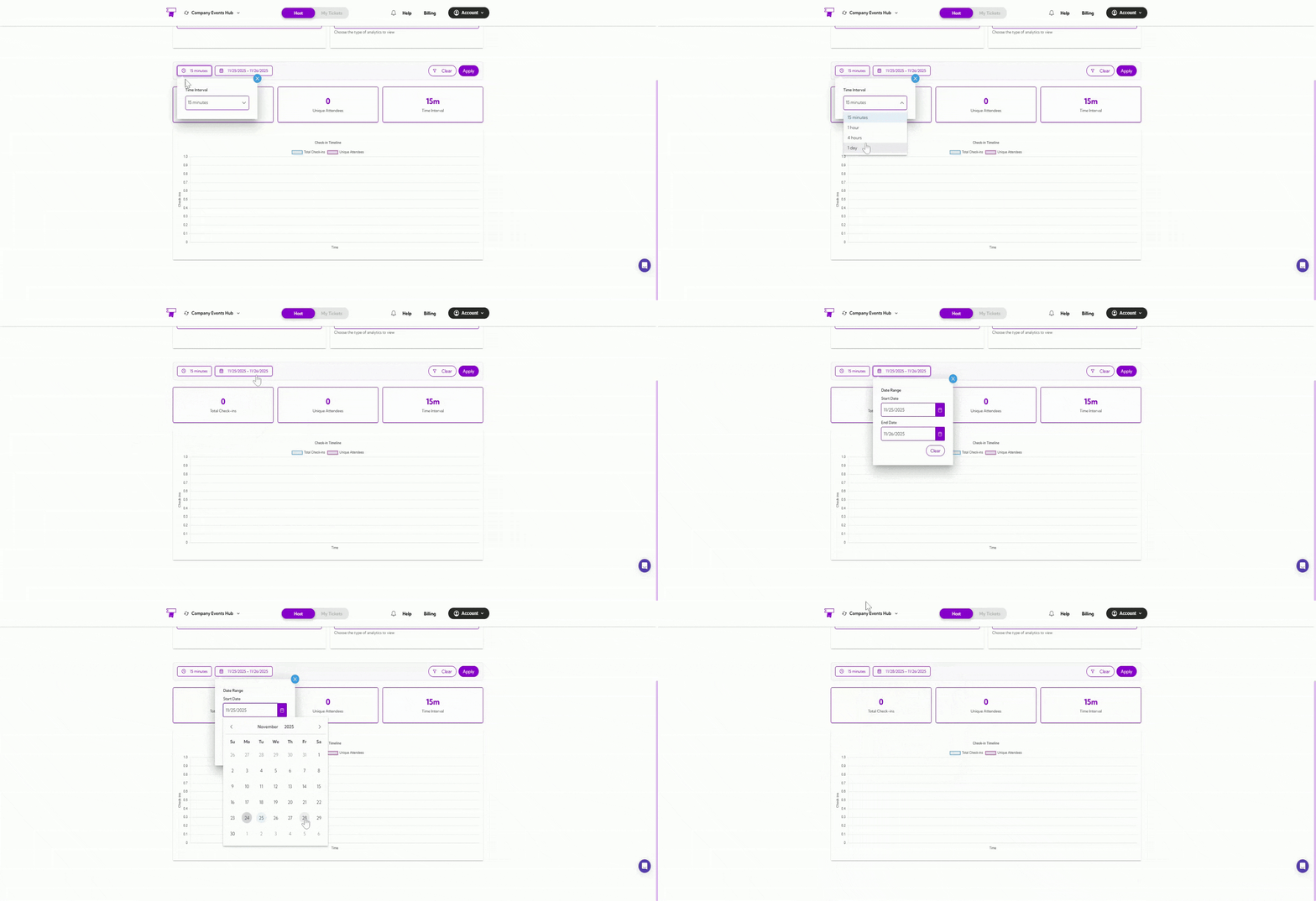
Summary Metrics

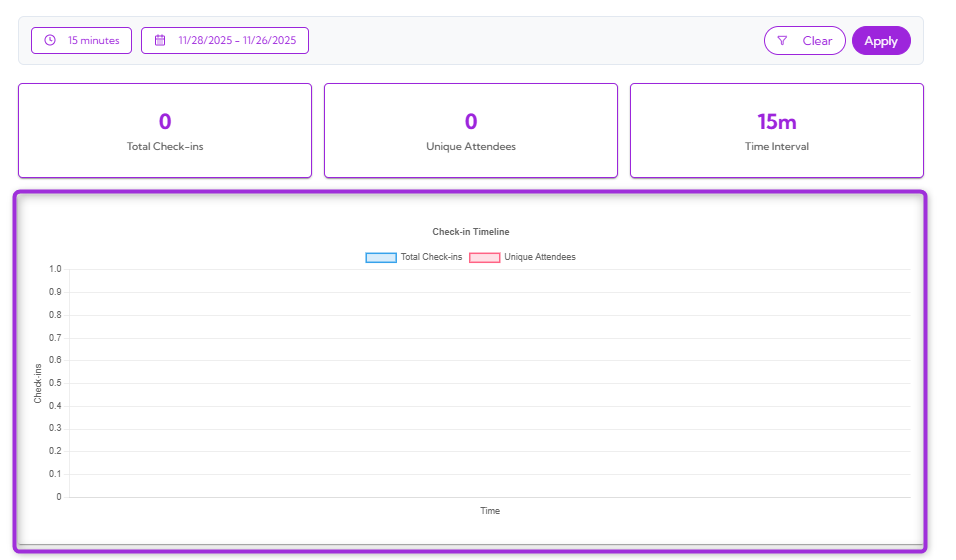
These metrics give you an instant snapshot of your event’s check-in activity, offering a quick overview of overall attendance.
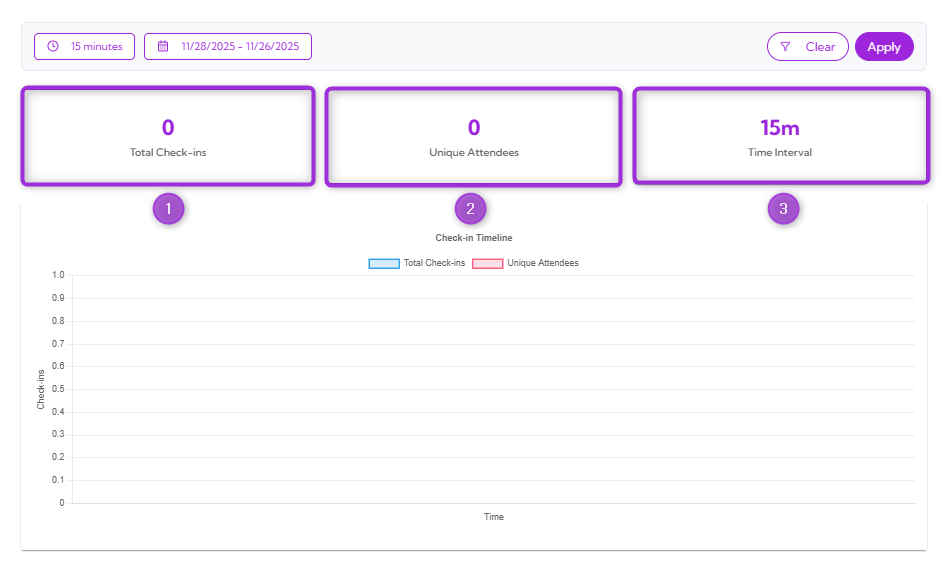
Ref No.Metric NameDescription
1.Total Check-insShows the total number of check-ins recorded.
2.Unique AttendeesIndicates how many individual attendees checked in.
3.Time IntervalDisplays the selected check-in interval (e.g., 15m).
card-metrices

Check-in Timeline Graph

The Check-in Timeline graph displays how check-ins occurred over time within your selected date and interval. The graph includes:
  • A line for Total Check-ins
  • A line for Unique Attendees
timeline-graph This graph helps you see when most people checked in, when it was slow, and whether check-ins were steady or suddenly increased.