
Enable ticket reservations
- Open Events → Edit event → Tickets.
- Turn on Hold tickets during checkout, above the ticket list, and save the event. It is off by default and applies to every widget selling that event.
- Open Settings → General → Checkout and set Ticket Hold Time in Minutes. Enter a whole number from 1 to 120; the default is 15. Save the site settings.
- Preview the event, select tickets, and choose Continue. Confirm that the countdown appears while you enter attendee details and proceed to payment.

The event switch enabled in the demo dashboard on localhost.
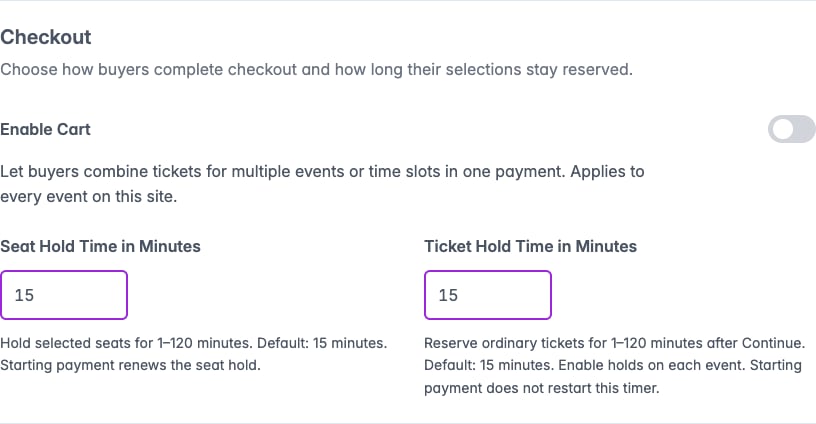
The independent ticket and seat durations in the refined Checkout section of General settings.
See the Checkout settings on mobile
See the Checkout settings on mobile
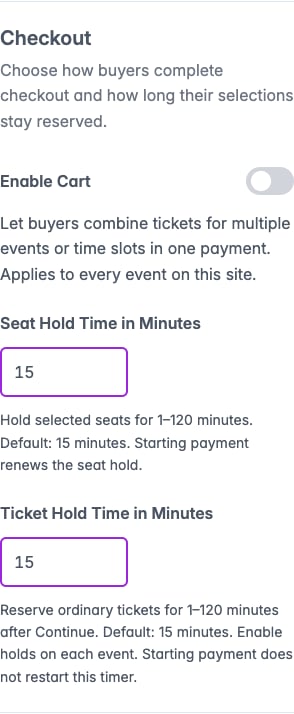
Ticket and seat durations stack into one column on a narrow screen.
Complete attendee details before the timer expires
Once the server confirms a reservation, the buyer sees Your tickets are reserved for and the remaining minutes and seconds. Existing registration questions, waivers, and per-ticket attendee forms continue to apply. Returning to a previous step, editing answers, changing a promo code, or retrying validation does not restart the timer. Increasing quantities or changing a ticket/date checks the replacement before releasing the previous allocation. If the replacement is unavailable, the buyer must review their selection before continuing. Decreasing quantities or removing a cart selection releases the corresponding ordinary-ticket allocation.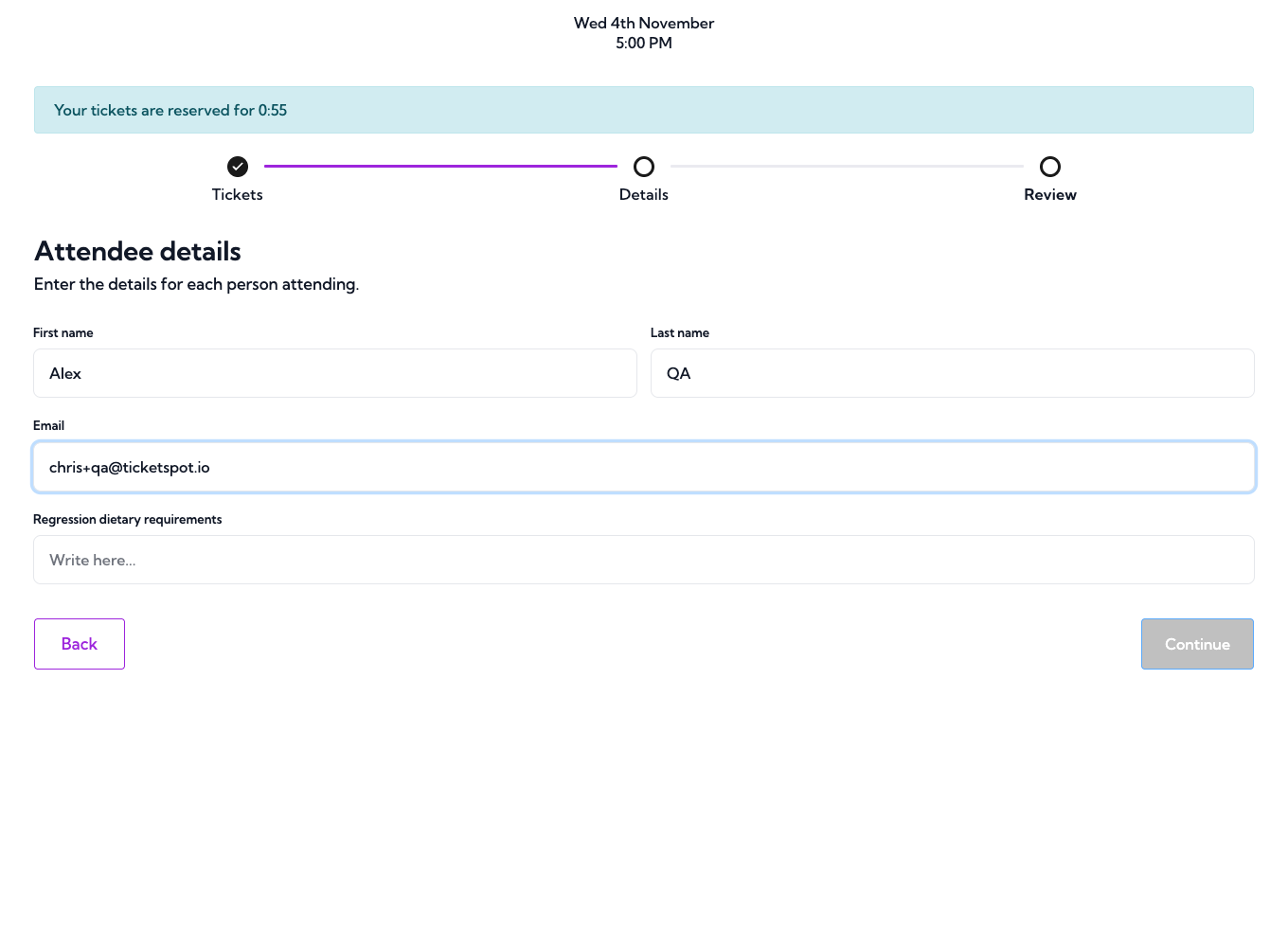
Demo checkout on localhost. The countdown continues while the buyer completes the required registration question.
See the countdown on mobile
See the countdown on mobile
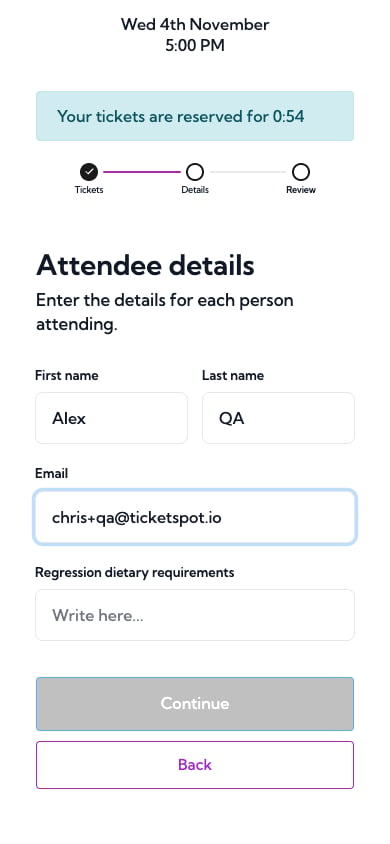
The same demo checkout and countdown at a mobile screen width.
When a reservation expires
Checkout blocks a new payment attempt and offers Check availability. Entered answers remain in the current page. Selecting that button requests a new reservation; the tickets may have become unavailable while the first reservation expired.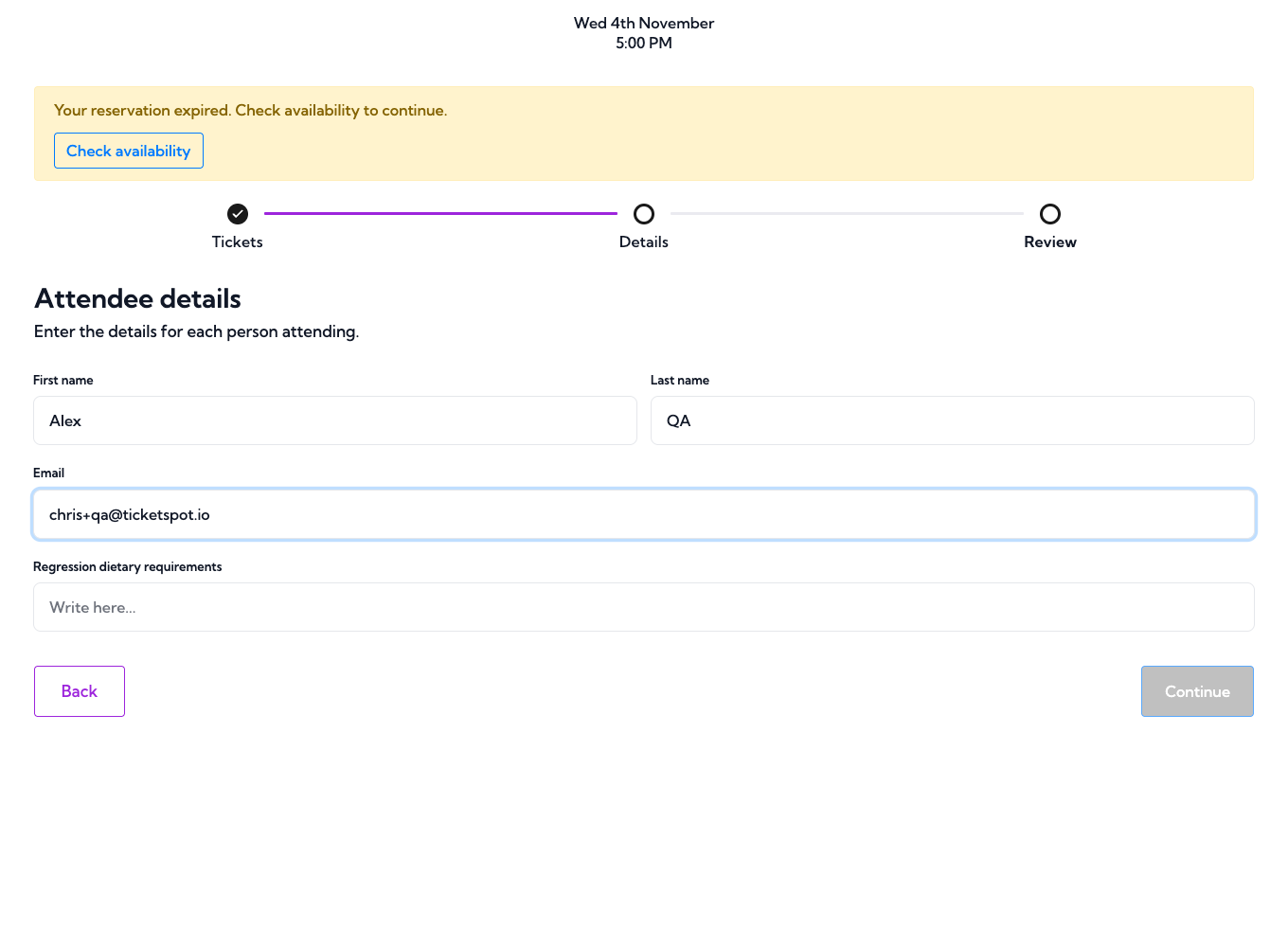
After the real one-minute demo reservation expires, Check availability appears and the entered name remains.
Payment processing
The ordinary-ticket timer does not restart when payment begins. Once a payment may still complete, Payment processing. Your tickets remain reserved. replaces the countdown while Ticket Spot verifies its outcome. A timeout alone does not free tickets that could still be paid for.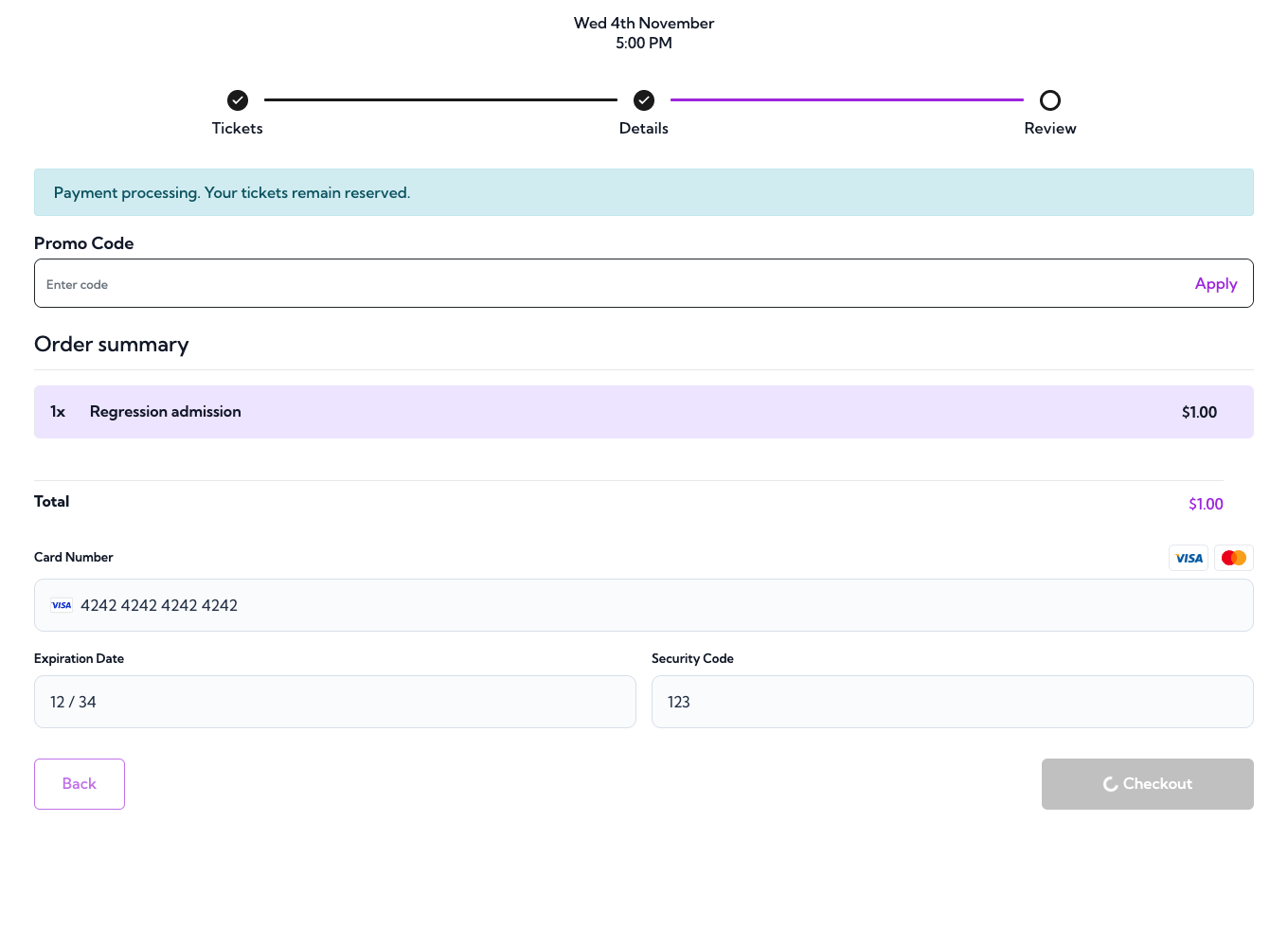
The demo keeps tickets reserved while a Stripe test payment awaits order completion.
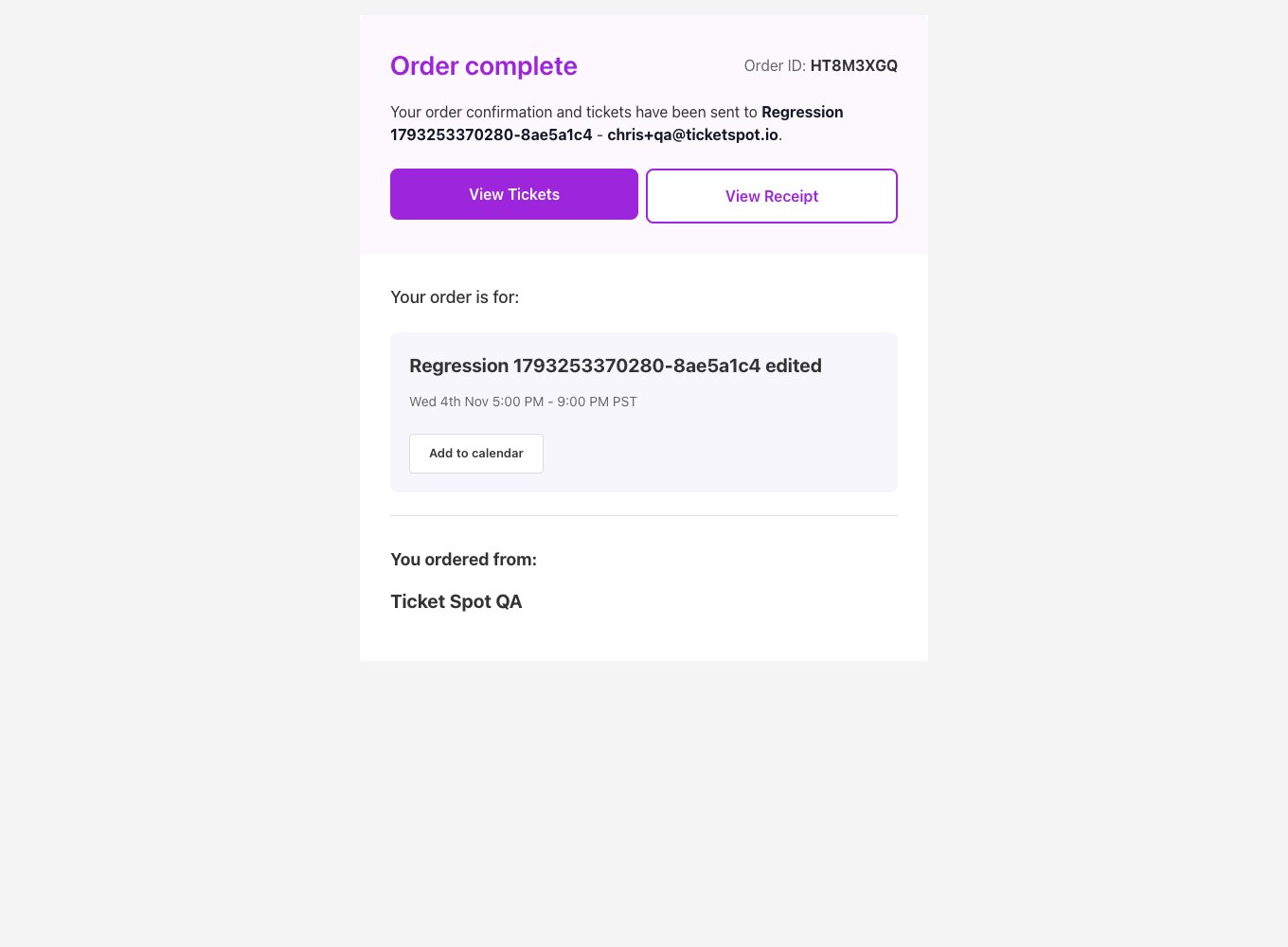
A completed Stripe test order in the demo checkout on localhost.
Carts and capacity
Each event selection in a multi-event cart keeps its deadline. The cart shows the earliest relevant expiry and identifies that event. Adding another event does not renew earlier reservations. Review, renew, or remove expired ordinary selections before paying for the combined order. Seated selections retain their Seats.io deadline and existing payment-time renewal rules. When they share a cart with ordinary reservations, the cart also considers their known seat deadline. An expired seated selection must be chosen again or removed; the ordinary-ticket availability button cannot renew seats. Reservations protect both ticket inventory and event places. Two table tickets admitting six people each reserve two tickets and twelve places. Group tickets use their composition. See capacity used per ticket.Supported checkout
Use this setting for ordinary ticketed events, recurring dates, and timed slots sold through Ticket Spot checkout. Embedded Ticket Spot checkout can use reservations even on a store-connected site when the event is not linked to an external checkout product. The switch is unavailable for seating charts, all-sessions passes, exclusive whole-slot bookings, membership-only sales, RSVP-only registration, and events linked to Shopify, Ecwid, or Square catalog checkout. Seating reservations and exclusive bookings keep their existing rules. Joining a waitlist does not reserve tickets. Before linking an event or series to external store checkout, turn off ordinary-ticket holds and allow outstanding reservations and payments to resolve.Customize the wording
Open Design → Widget → All Settings → Text → Checkout → General. Search for Ticket Hold to find the countdown, expiry, processing, low-time warning, retry-button, and checking labels. Expand Reservation error messages to customize unavailable tickets, changed selections, a busy checkout, failed availability checks, required reservations, payment-status review, and access-code or membership errors. Keep{time} in Ticket Hold Countdown Text.
Reservation failures use these messages rather than raw server diagnostics. The default wording follows the visitor’s supported language when Automatic translation is enabled. Custom wording stays as entered. Text changes do not change the reservation duration.
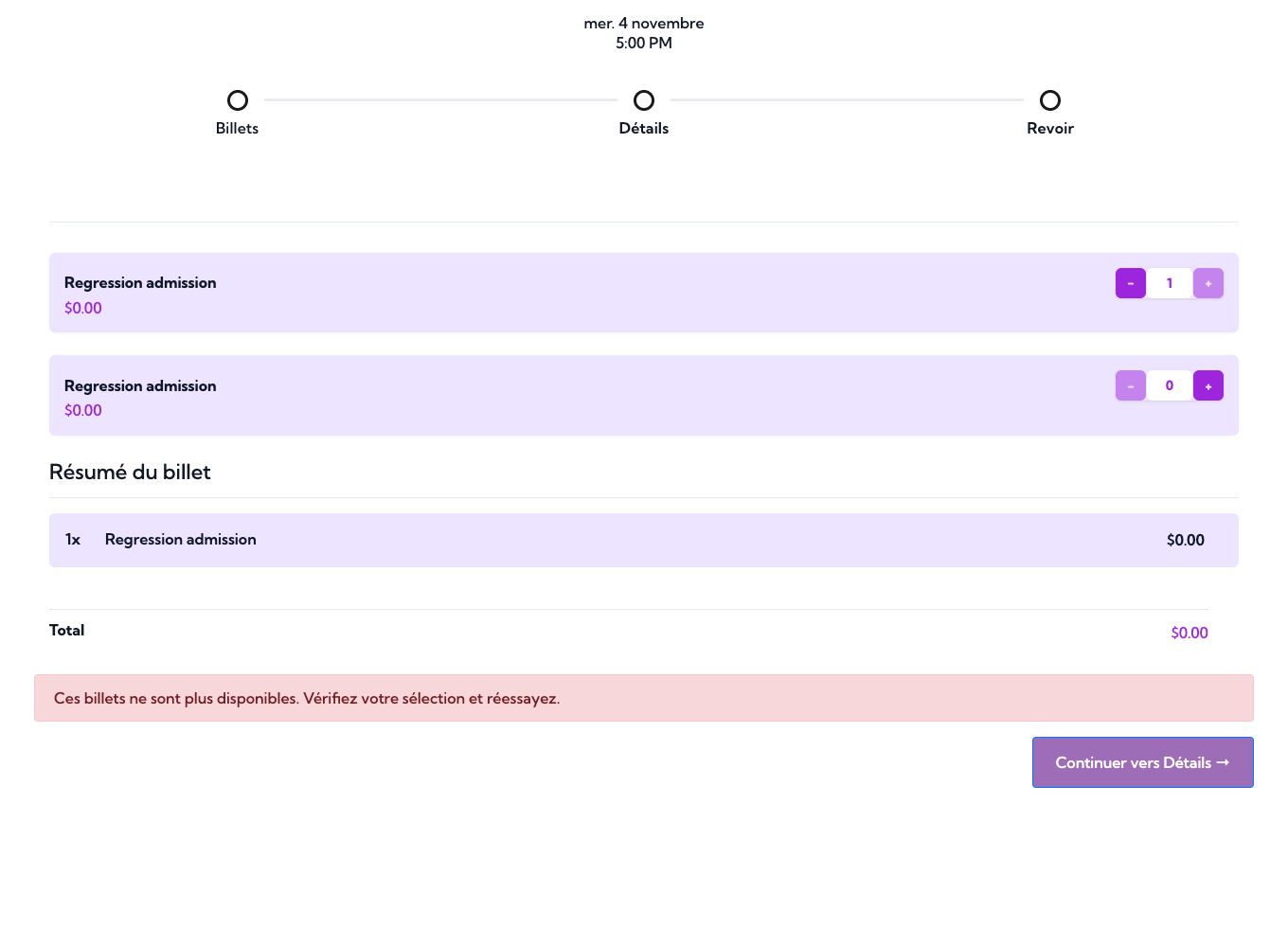
A real reservation conflict in the localhost demo uses the French default error text.