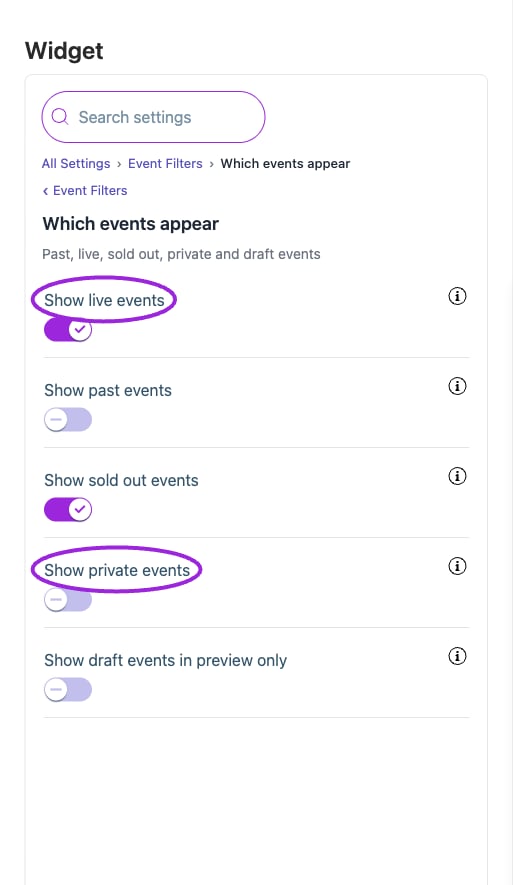
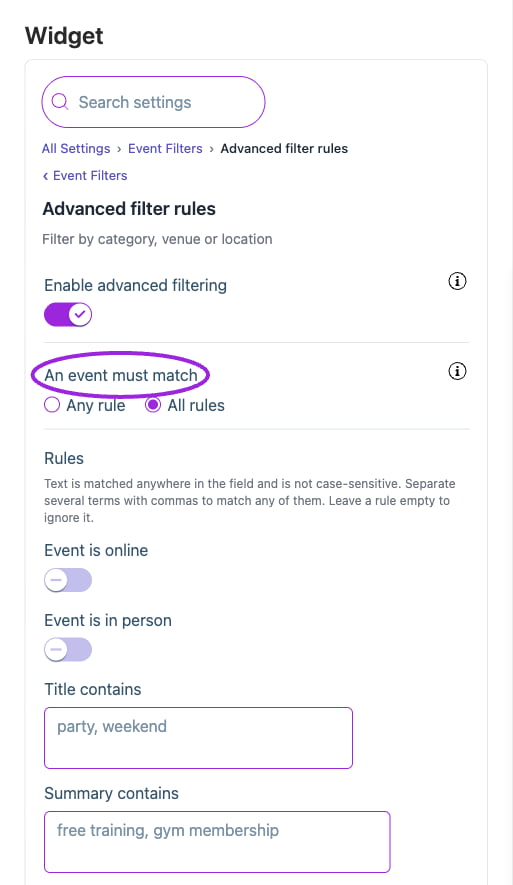
Open Design → Widget → All Settings → Event Filters. First choose Which events appear, then use Advanced filter rules to narrow those events. These organizer rules are separate from visitor search controls. Show draft events in preview only never publishes drafts to your live website. Show private events controls listing visibility; it does not remove an event’s access restriction. With Enable advanced filtering off, the advanced rules are ignored. With it on, choose All rules (every completed rule must match) or Any rule (at least one). Rules cover Online Event, In-Person Event, Name, Summary, Tags, Description, Venue Name, Address, City, Region, and Language. For example, use All rules with a tag and city to list only matching tagged events in that city. Confirm that an expected event appears and a deliberately excluded event does not. If the live list is shorter than the preview, check draft status, the plan limit, and maximum event count.
Which events appear controls the statuses included by this widget. Draft preview visibility does not publish drafts, and private-event visibility does not remove access restrictions.
Which events appear controls the statuses included by this widget. Draft preview visibility does not publish drafts, and private-event visibility does not remove access restrictions.

Enable advanced filtering and choose Any rule or All rules. Text matches are case-insensitive; separate several terms with commas and leave unused rules blank.

Enable advanced filtering and choose Any rule or All rules. Text matches are case-insensitive; separate several terms with commas and leave unused rules blank.

Advanced filter rules

Which events appear

Save and verify

Wait for the setting update to finish, check the preview, and open the installed widget to confirm the result. If a control is unavailable, review its prerequisite, site type, and plan. Return to widget setup.