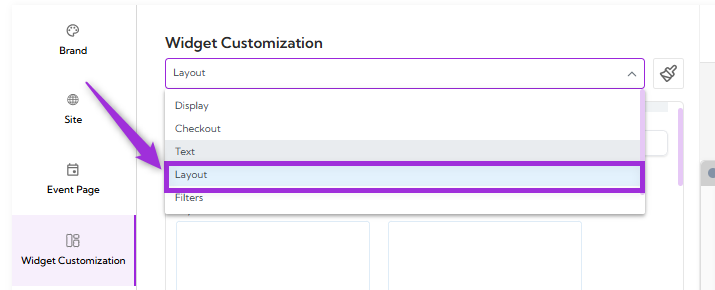
List and Card Layouts
List and Card layout show events in a clean vertical style, making them easy to scroll through. You can choose simple text-based lists, card-style layouts with images, or calendar-style designs that help users browse events based on dates. This layout works well when you want visitors to quickly read through event details.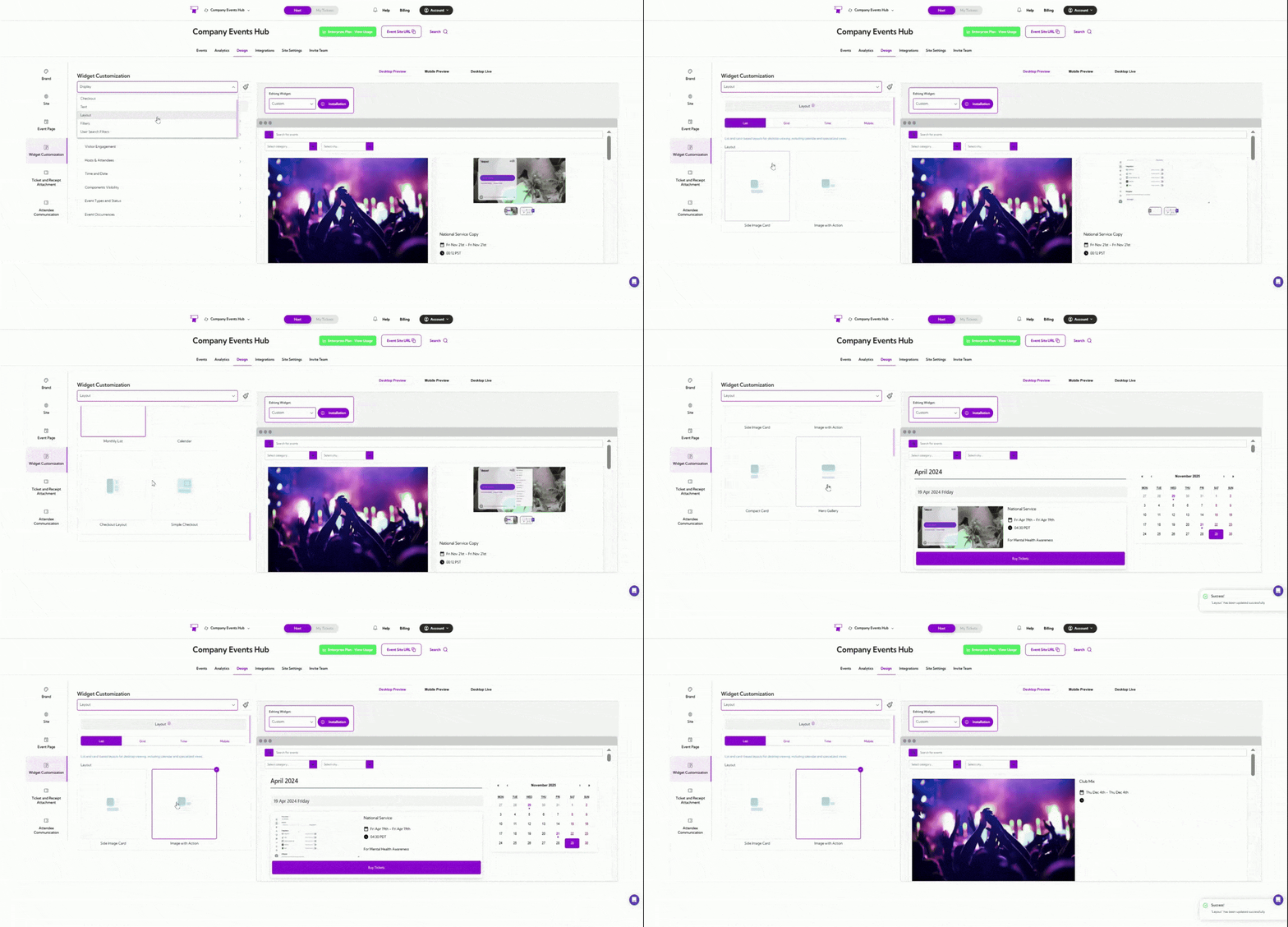
Grid Layouts
Grid layouts place events in multiple side-by-side columns. This helps users see several events at once and compare them easily. It’s useful when you have a larger number of events and want to display them in a compact, organized way.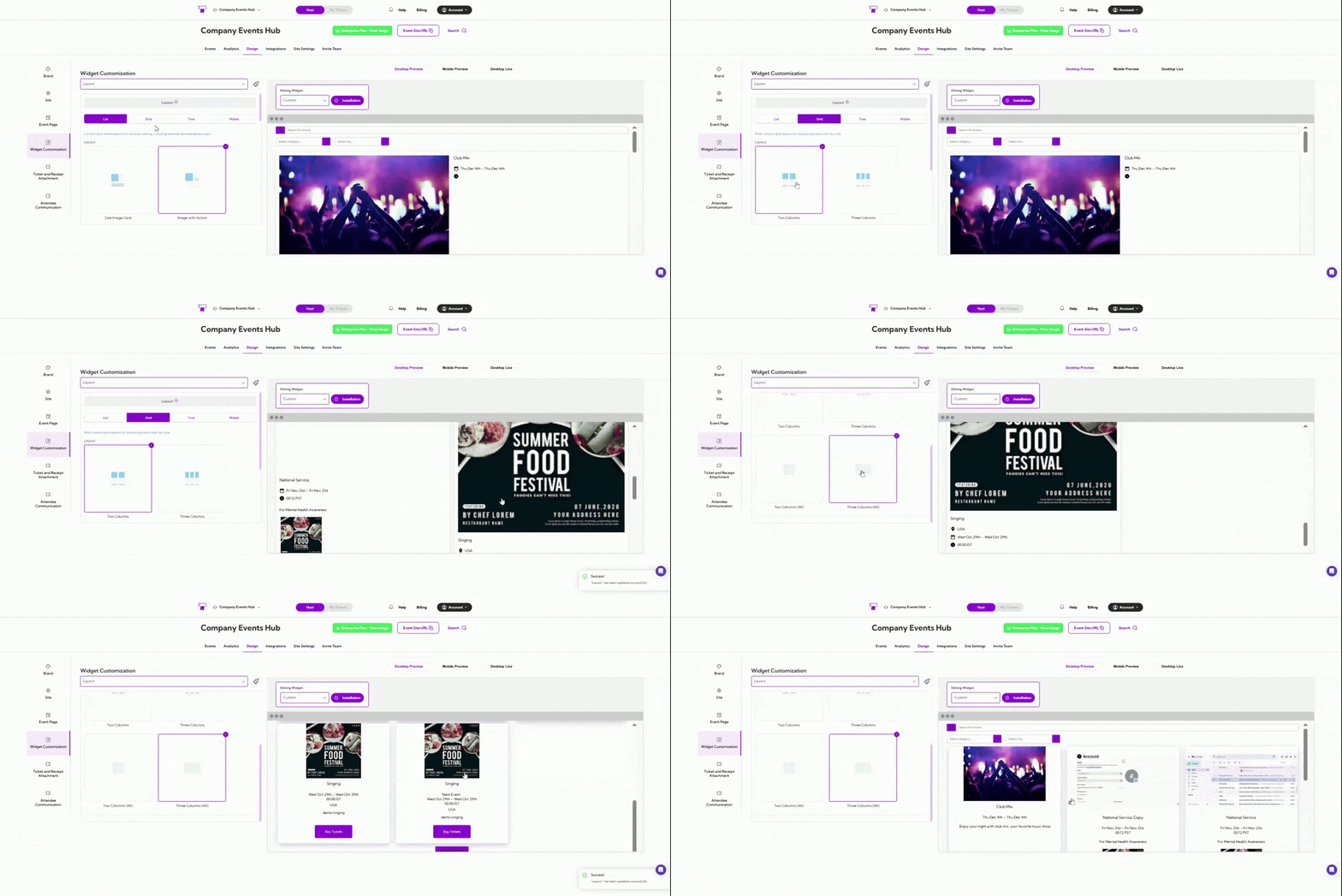
Time-Based Layouts
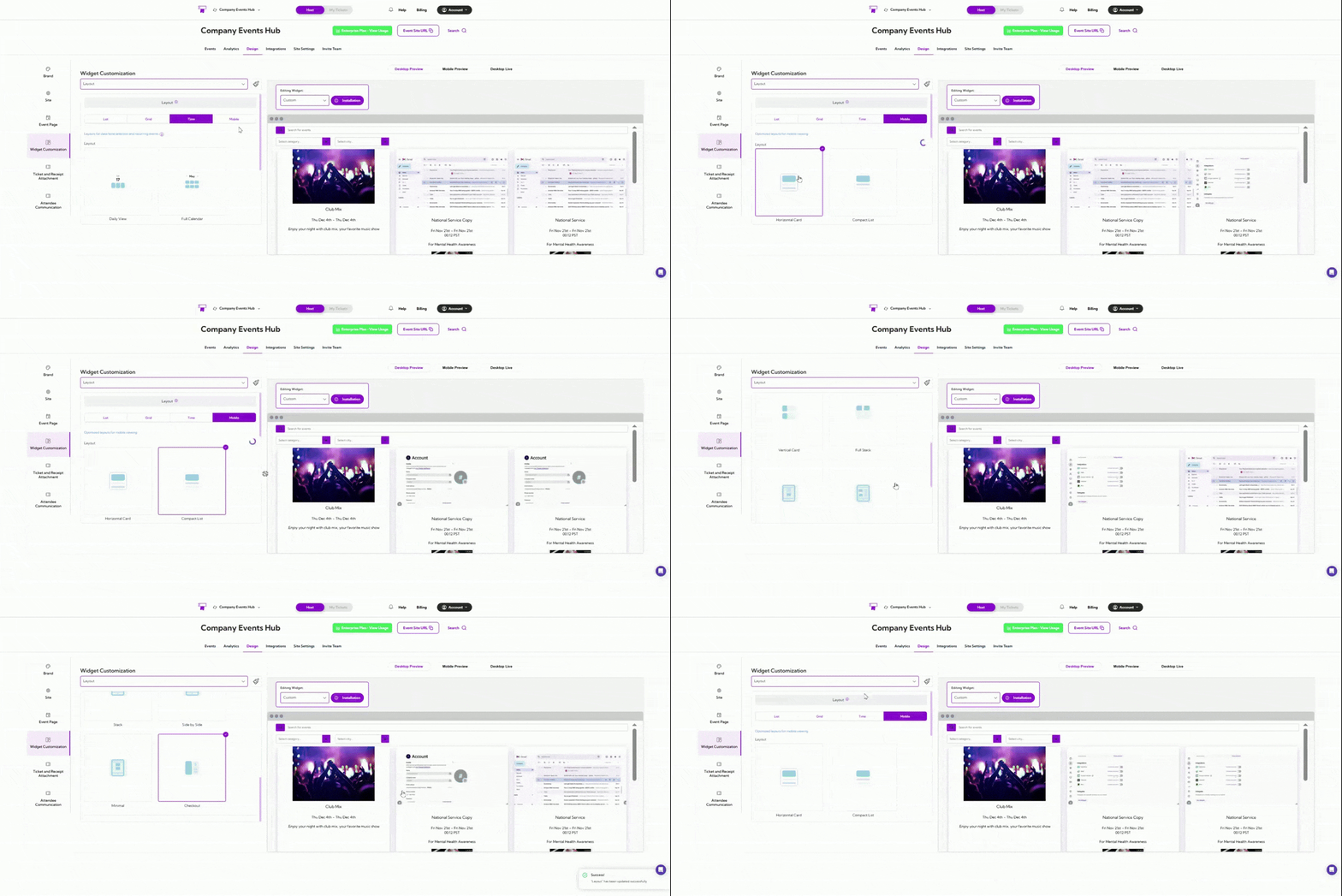
Time-Based layouts focus on the event schedule. They arrange events by dates, times, or sessions so visitors can quickly find options that fit their availability. This is ideal for recurring events, multi-session events, or any schedule-focused experience.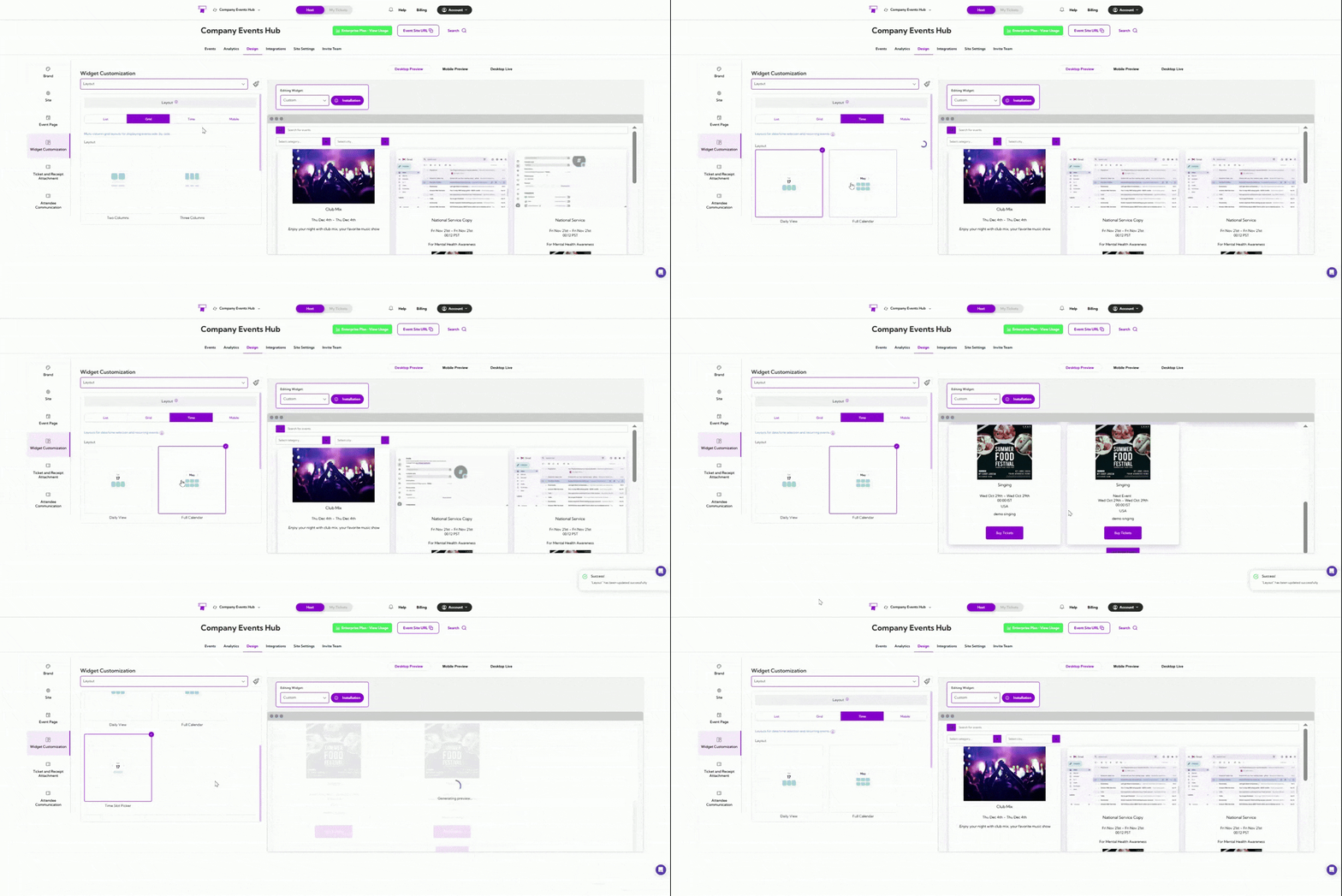
Mobile Layouts
Mobile layouts are designed specifically for phones and small screens. They ensure your events are easy to read, scroll, and tap through on mobile devices. This gives users a smooth and clear browsing experience when they’re on the go.