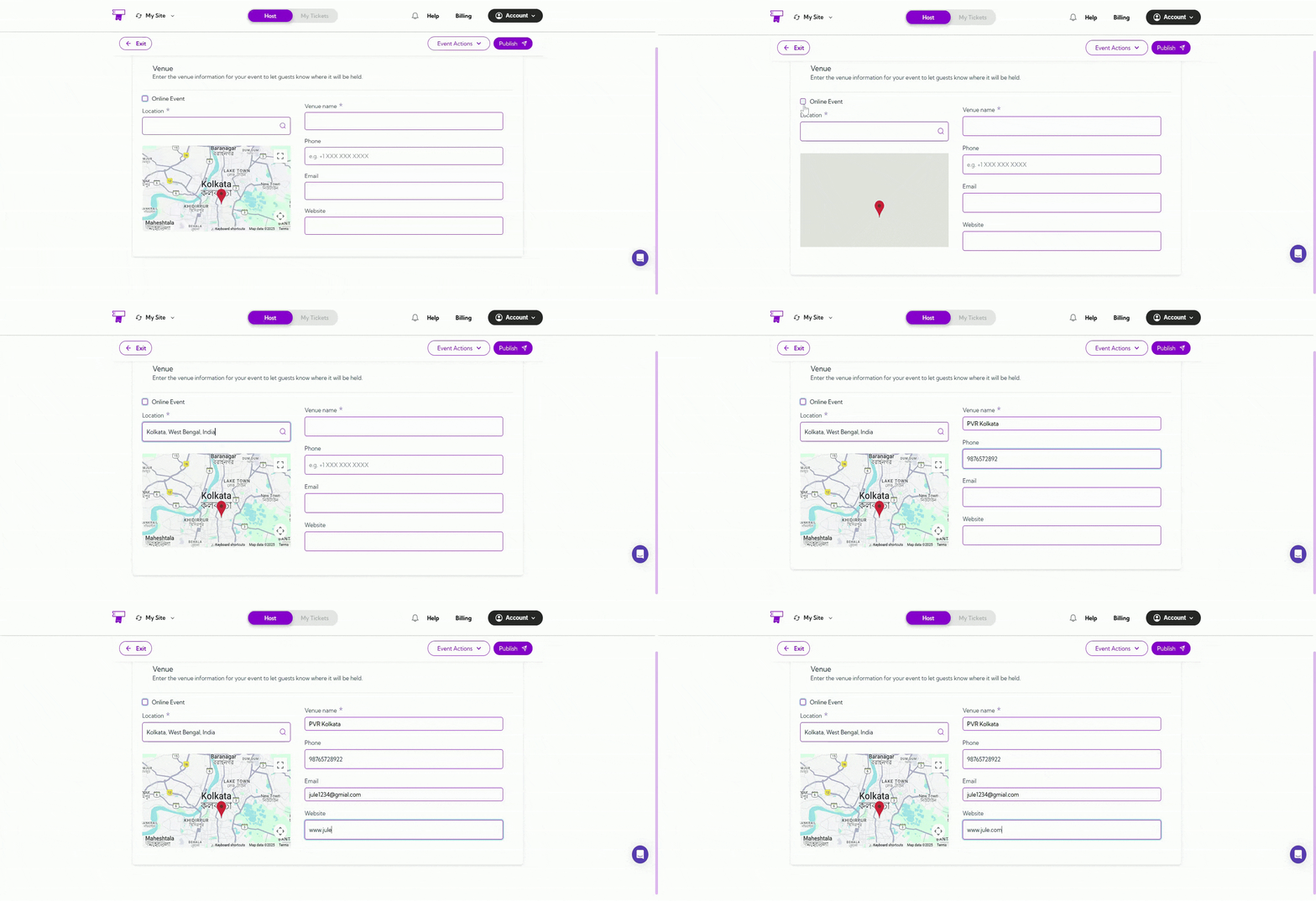
Once you have defined the Date and Time, the next step is to configure the Venue & Location section, which helps you specify where your event will take place — in-person or online. Adding clear and accurate venue information ensures attendees can easily find or join your event and enhances the overall experience. Let’s get started 🚀

Add Venue Details

You can fill in the following details to define your event location:
No.DetailExplanation
1Online EventCheck the checkbox if you want the event to be hosted virtually. You can connect your Zoom account to automatically generate meeting or webinar links for attendees.
2LocationEnter the complete venue address or search for it using the integrated map to mark the exact spot.
3Venue NameAdd the official name of your event venue — for example, PVR Kolkata or Hilton Conference Center.
4PhoneProvide a valid contact number attendees can use for inquiries or directions.
5EmailEnter an email address for event or venue communication.
6WebsiteEnter the event website link to share additional details such as directions, images, or venue guidelines.
venue-location
💡 Note: Once you’ve added the Venue & Location details, proceed to the Tickets section to set up ticket types, pricing, and availability.

Tips & Best Practices

  • Double-check the map pin to ensure your venue is correctly located.
  • For online events, connect your Zoom account to automate meeting link creation.
  • Keep your contact number and email updated for attendee support.
  • Add a website link to make your event listing more detailed and trustworthy.