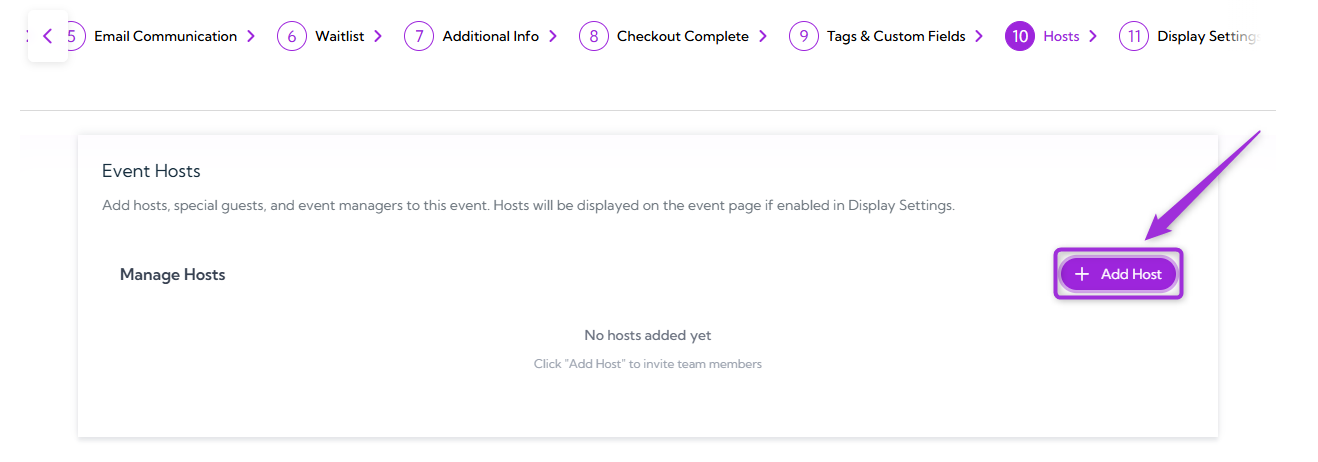
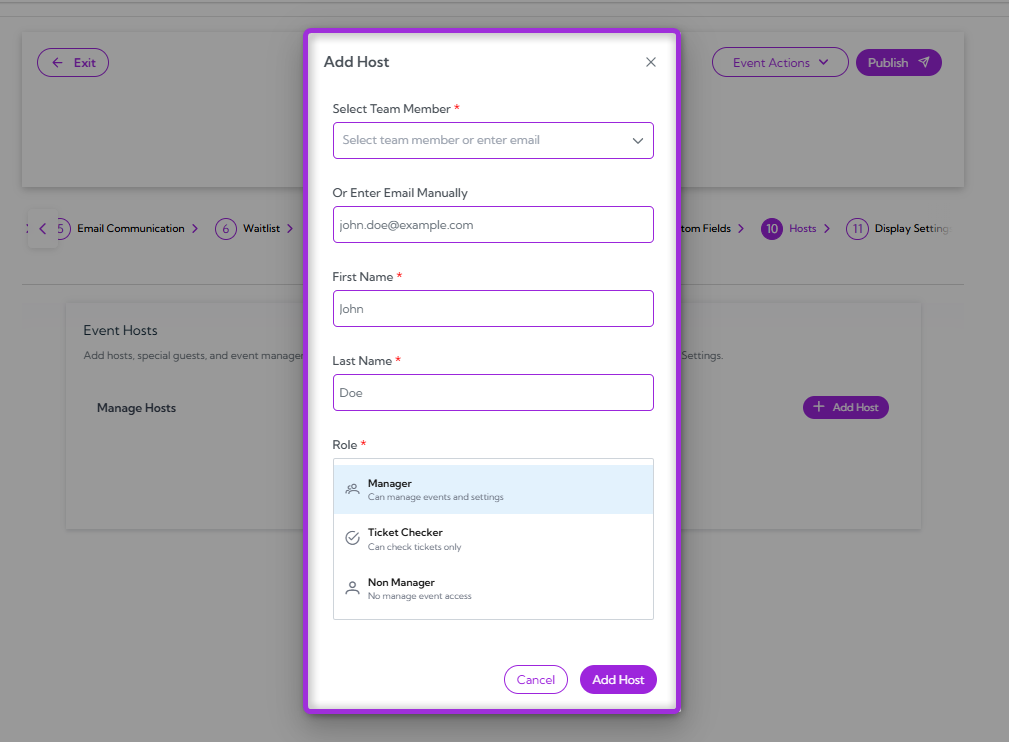
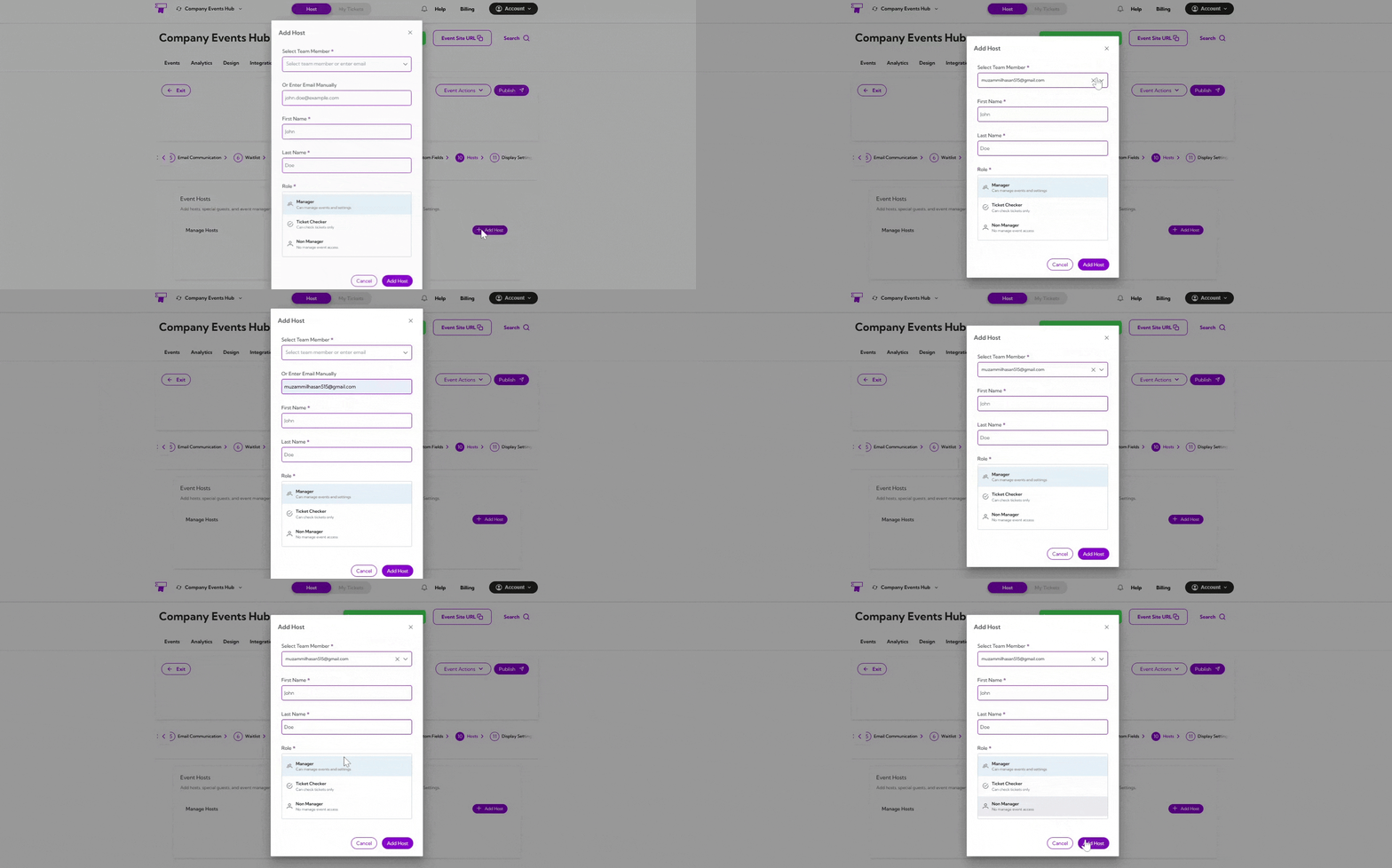
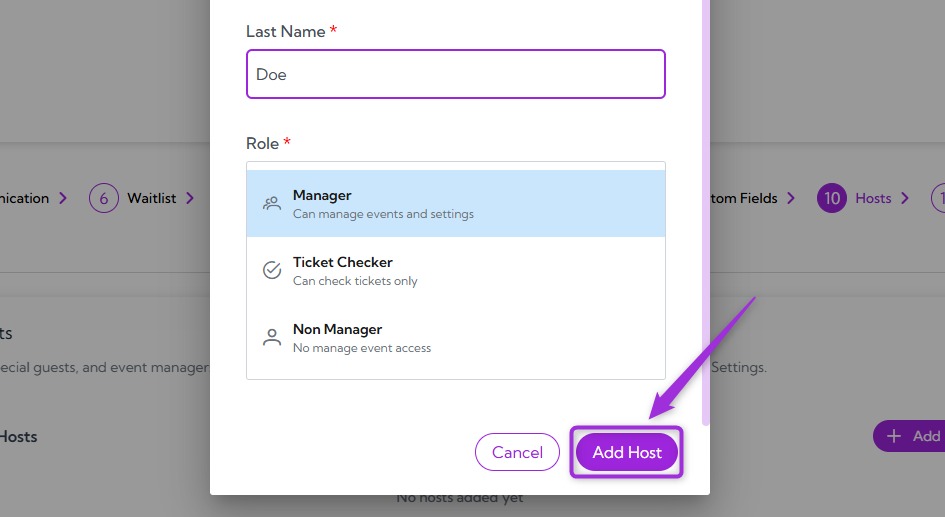
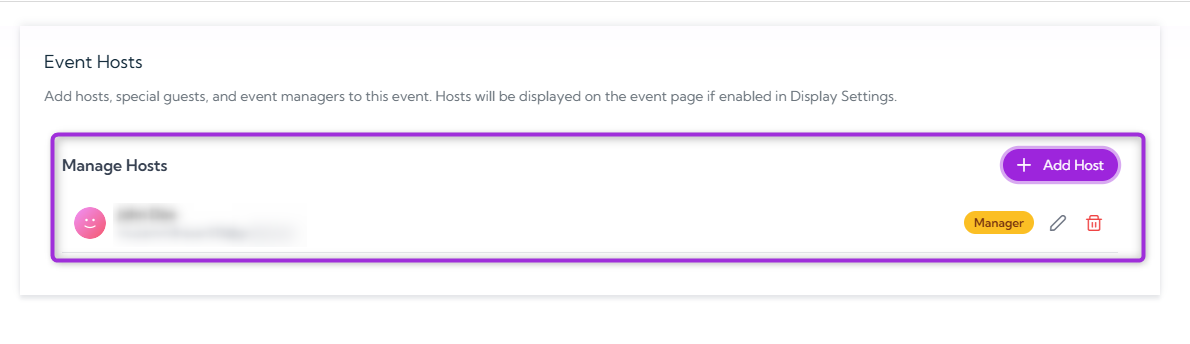
Note: You can add as many hosts as needed for the event and assign each one a specific role.
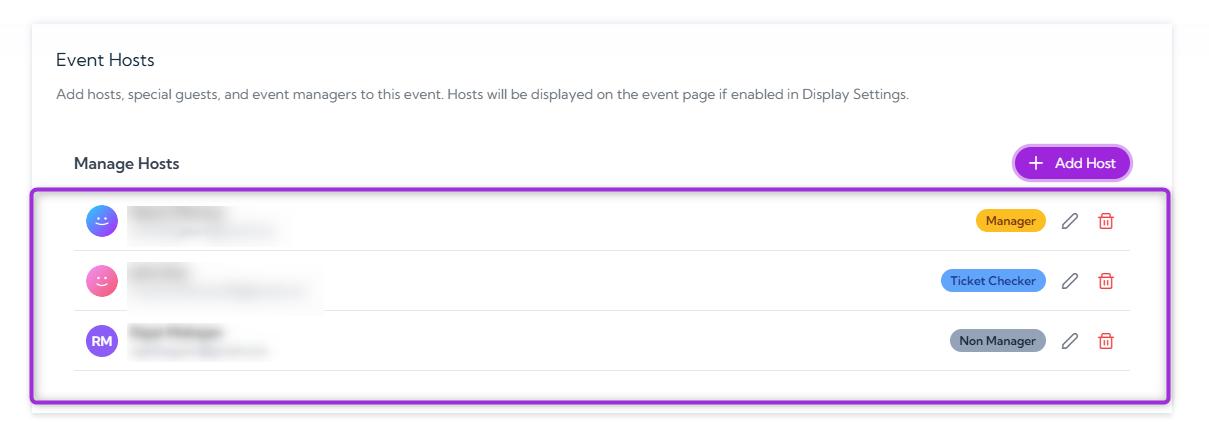
Manage Hosts
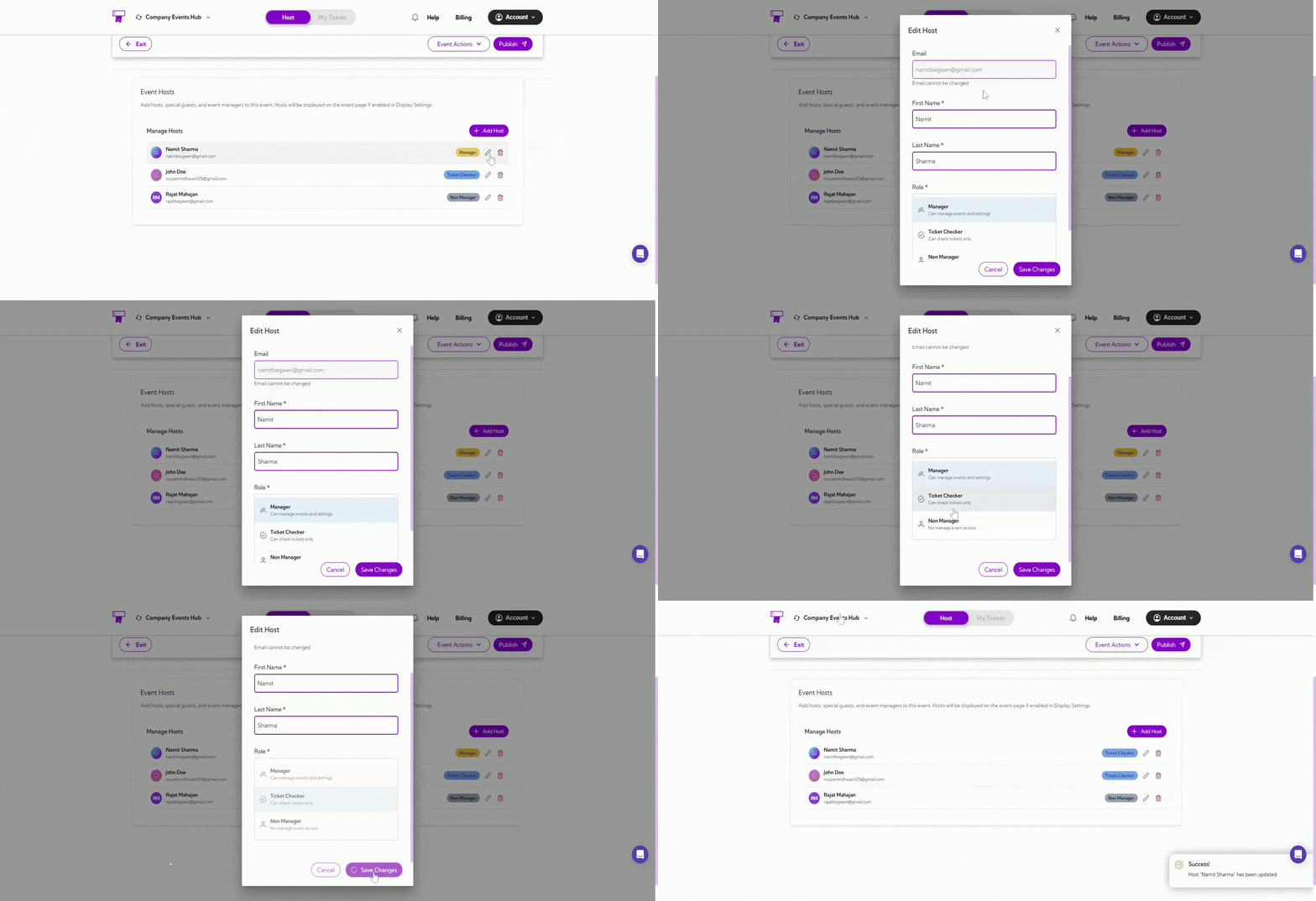
Manage Hosts is where you can update or remove hosts already added to the event. You can edit a host to change their name or role, or remove them entirely if they no longer need access.Edit Host
- Click the Edit icon next to the host you want to update.
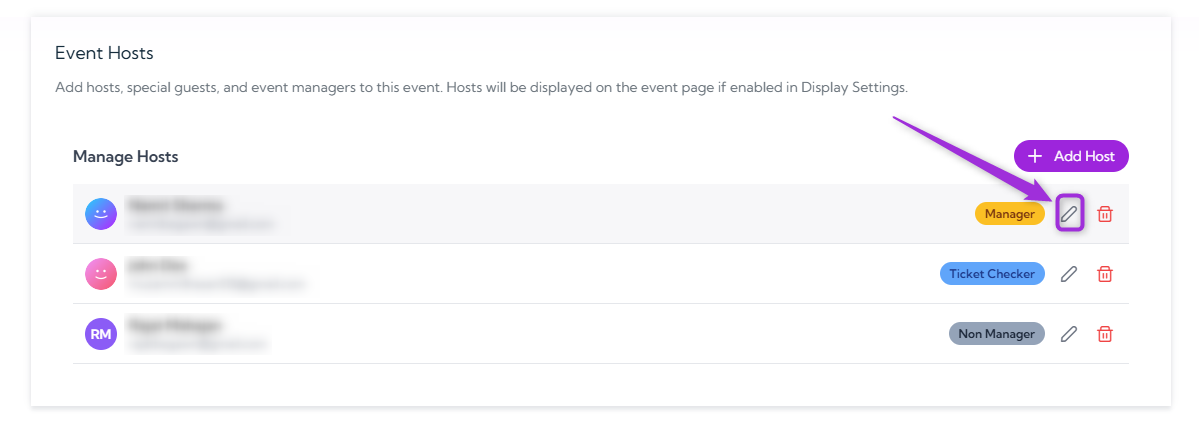
- Update the First Name, Last Name, or Role, then click Save Changes to apply the update.
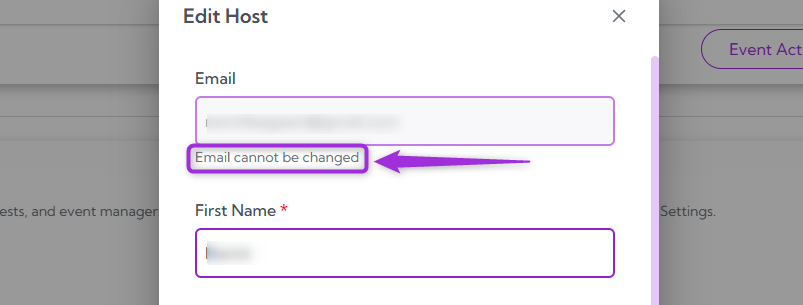
Note: The host’s email address cannot be edited after the host is created. You can only update their first name, last name, and role.
Delete Host
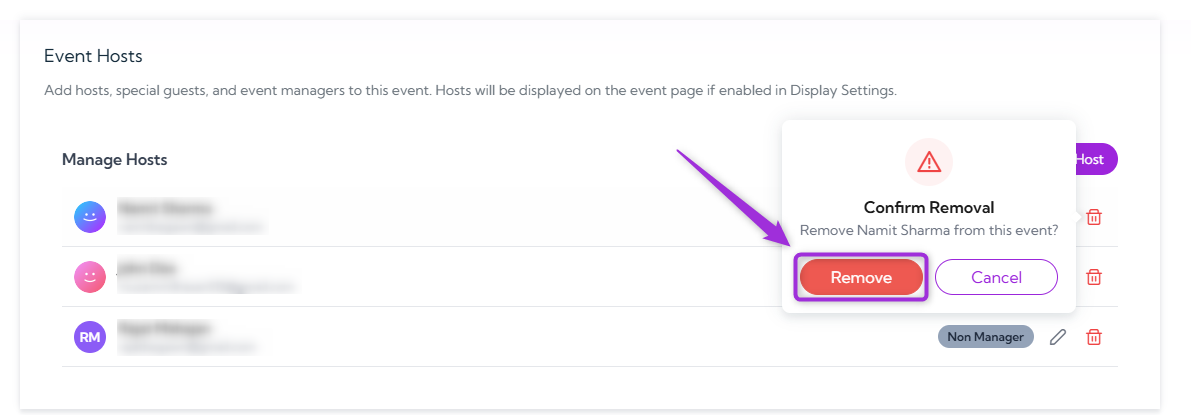
- Click the Delete icon next to the host you want to remove.
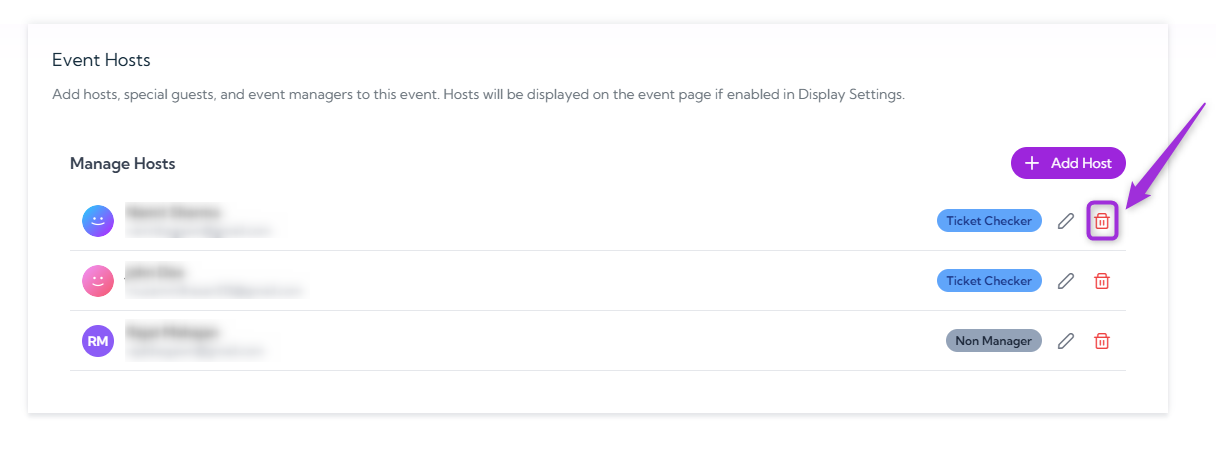
- A confirmation pop-up will appear asking if you want to remove the selected host from the event—click Remove to confirm.