
Tags
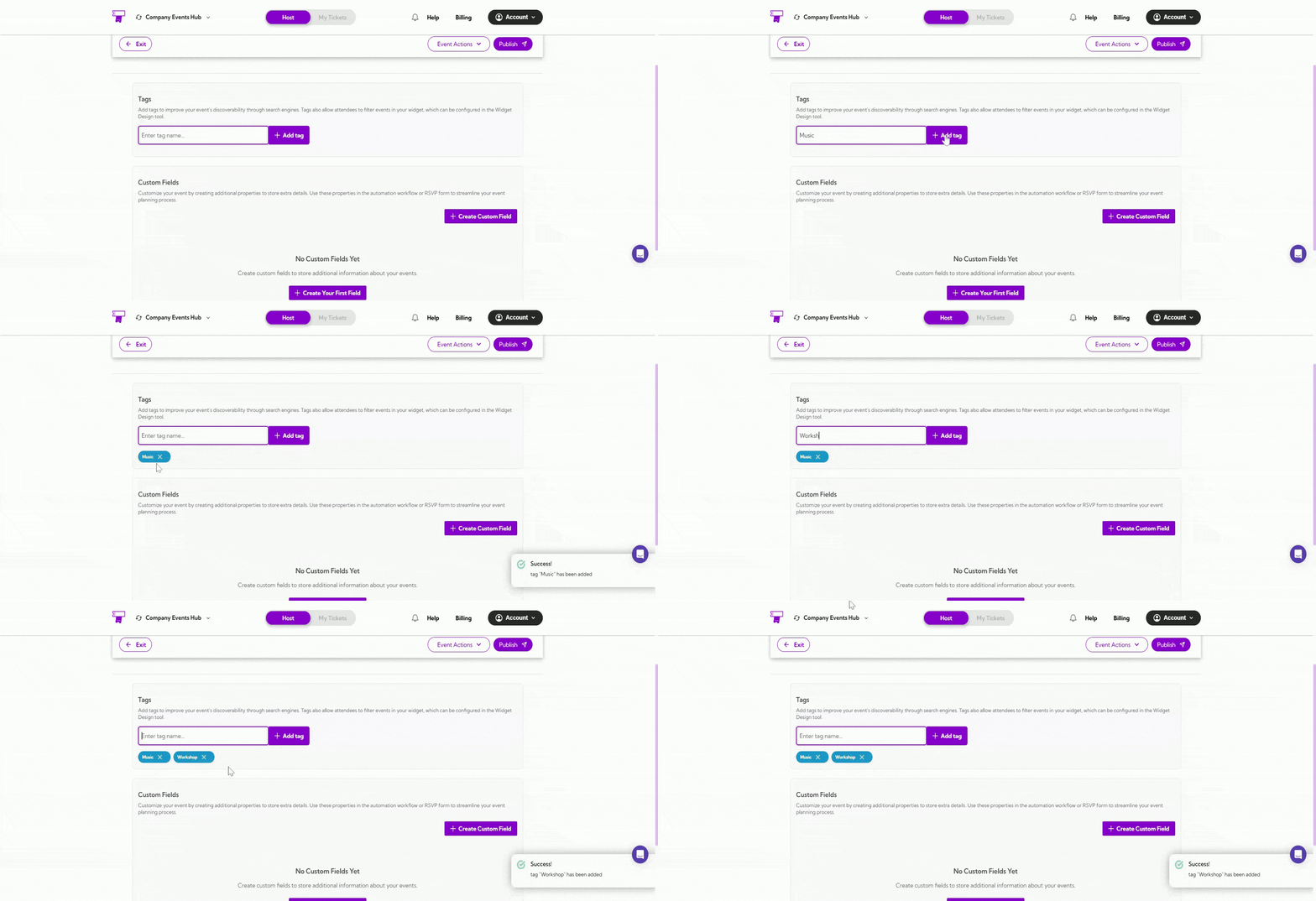
Tags help improve your event’s visibility in search engines and make it easier for attendees to filter events inside your widget (configured in the Widget Design tool). Adding relevant tags ensures your events are easier to find and categorize. How to Add a Tag- Enter the tag name you want to add. This can be any keyword that describes your event—for example: Music, Workshop, Tech, Festival, Networking, etc.
- Click the Add Tag button to save and apply the tag to your event.
Custom Fields
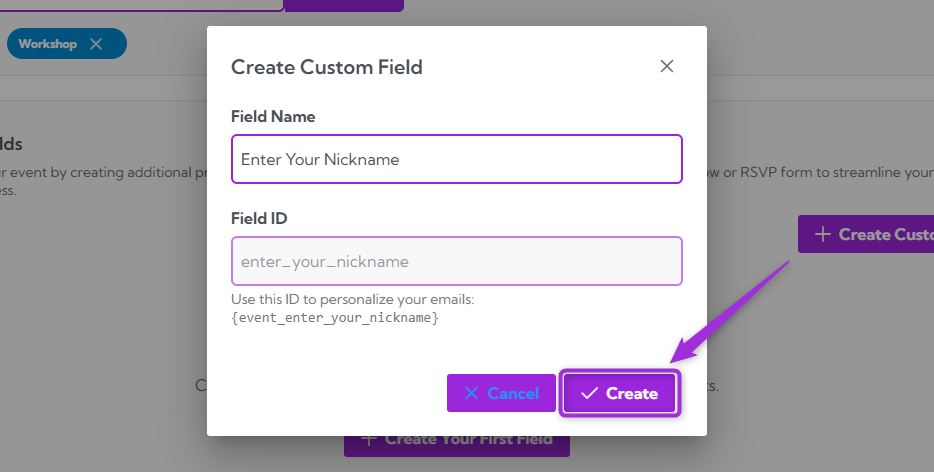
Custom Fields are used to add extra information to your event that isn’t included in the default fields. These fields can store any additional details you need and can also be used in automation workflows or RSVP forms to help you manage event data more effectively. How to Add Custom Fields Step 1: Click the Create Custom Field button to start adding a new field for your event.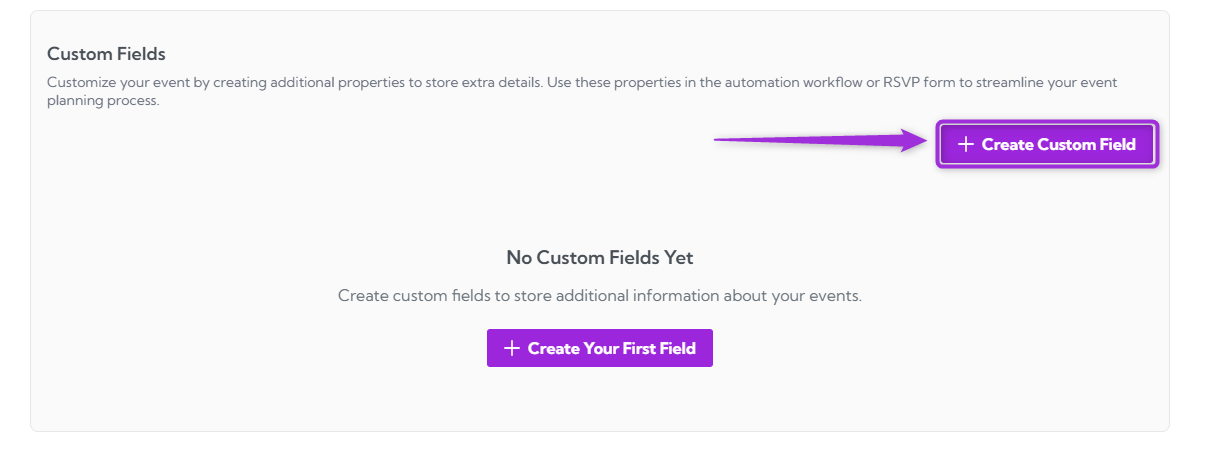
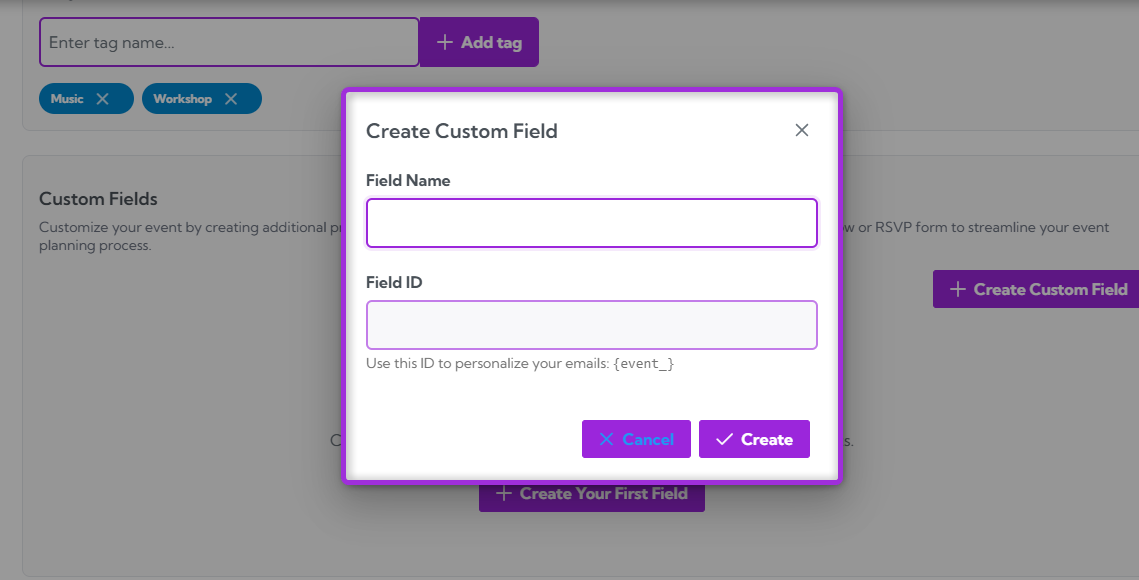
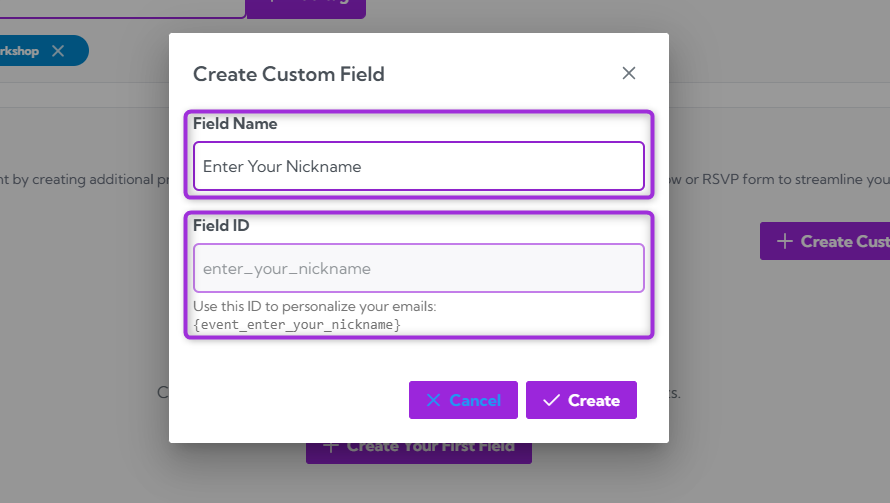
Field Name: Enter Your Nickname
Field ID: enter_your_nickname
Use this ID to personalize your emails:
event_enter_your_nickname
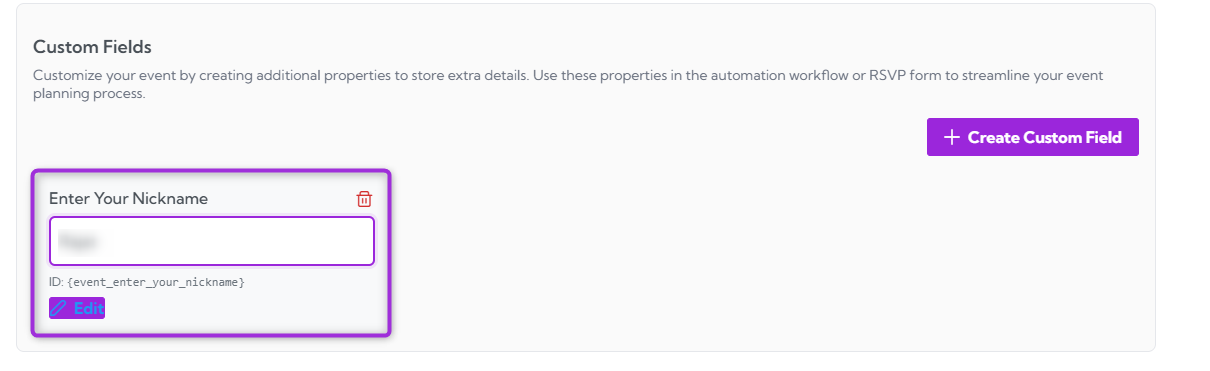
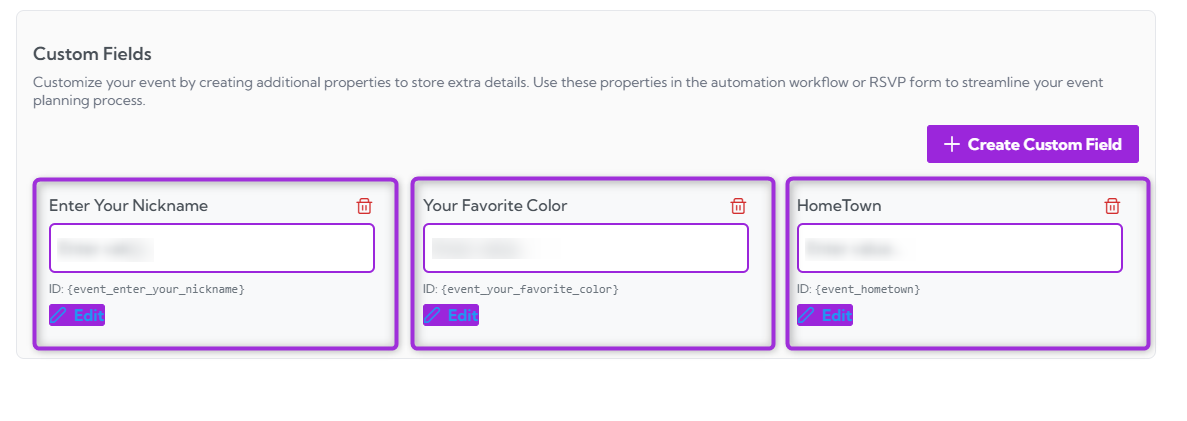
Manage Custom Fields
The Manage Custom Fields section allows you to update or remove any custom fields you’ve created. This helps you keep your event data organized and ensures only relevant fields remain active.Edit a Custom Field
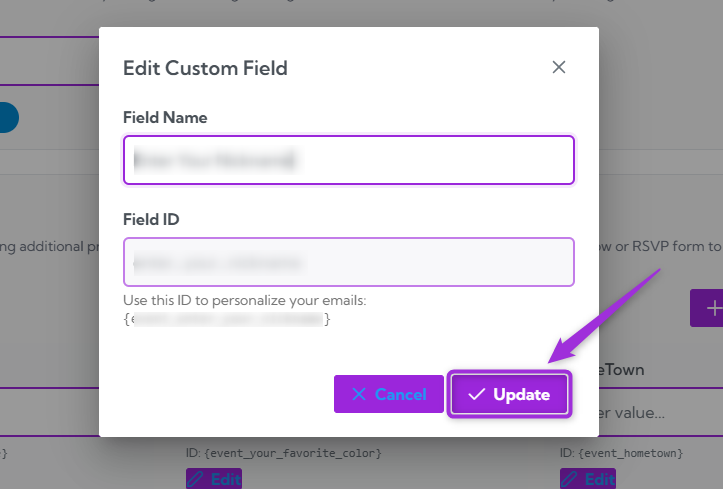
- Click the Edit button located below the custom field title you want to modify.
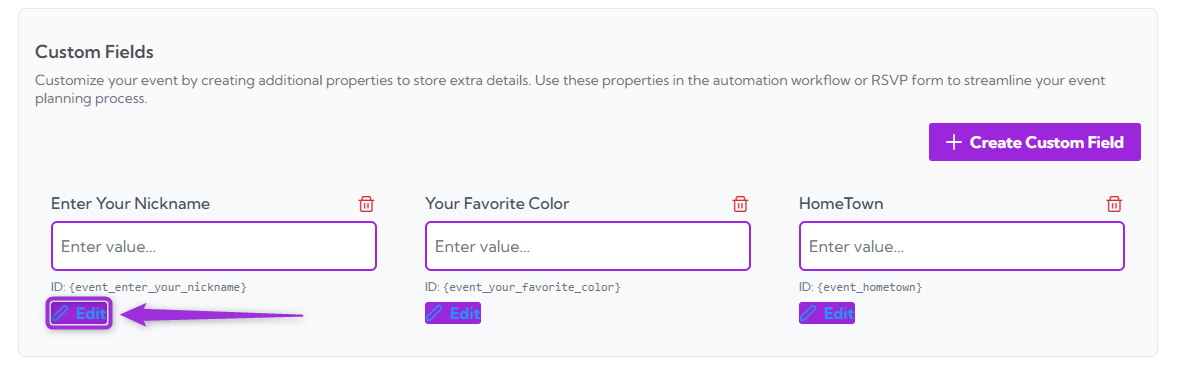
- Update the Field Name with the new label you want attendees to see, then click the Update button to apply your changes.
Delete a Custom Field
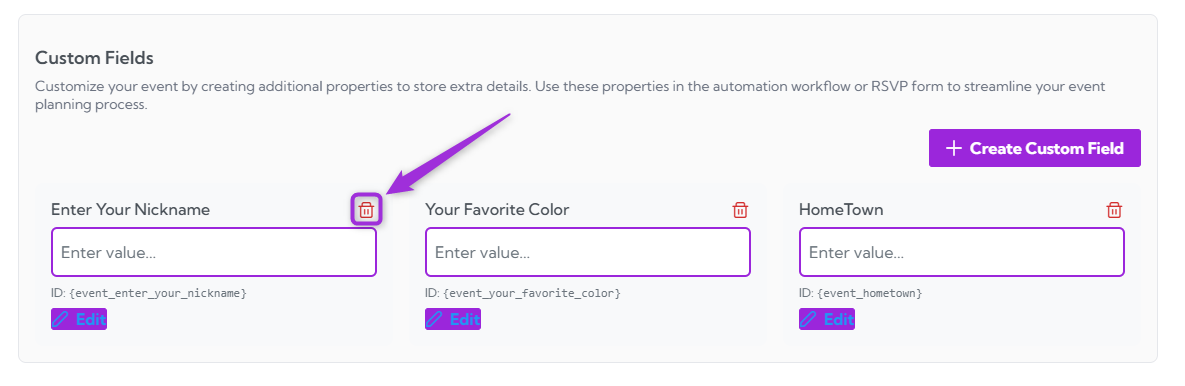
- Click the Delete button next to the field you want to remove.
- A confirmation message will appear: “Are you sure you want to delete this custom field?” Click Yes to proceed.
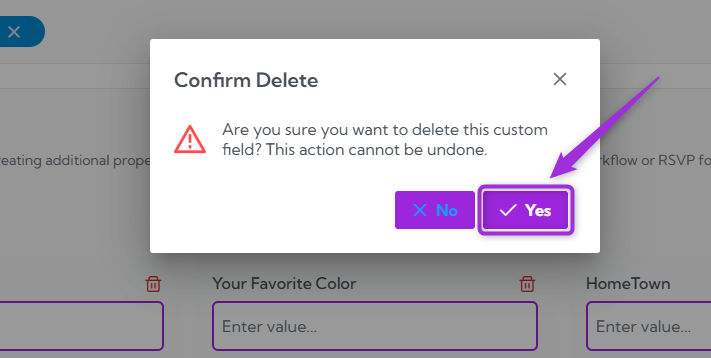
Note: This action cannot be undone, so make sure you no longer need the field before deleting it.Your tags and custom fields are now fully set up. You can edit, update, or remove them anytime to keep your event information organized and easy to manage.