The Ticket Spot Mobile App is designed to help event staff manage on-site operations directly from their phones. With the app, you can access your Sites, review event details, view attendee lists, and complete check-ins without needing a laptop or desktop dashboard. This guide provides a clear overview of the main screens and navigation structure, so you know where to find each option and how to move through the app during event day activities. Let’s get started 🚀

Installing the App

TicketSpot supports both iOS and Android environments, allowing you to install the Mobile App on any device you use for on-site event management.

iOS

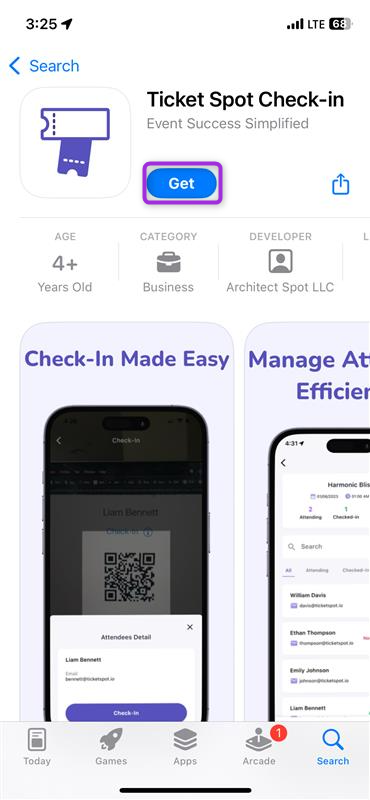
To install the app on an iPhone, open the App Store, search for Ticket Spot, and tap Get to download it. ios-get
Android

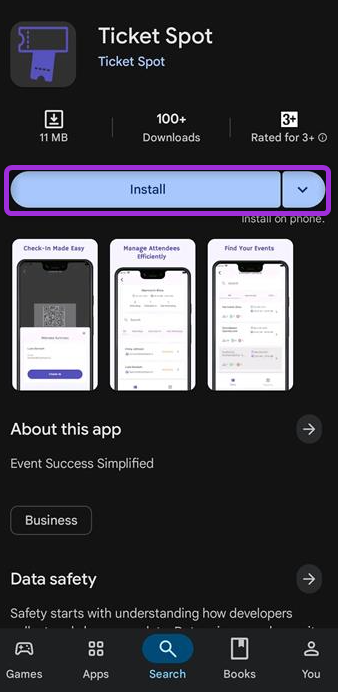
To install the app on an Android device, open the Google Play Store, search for Ticket Spot, and tap Install to add it to your device. install-andriod
Log In to the Mobile App

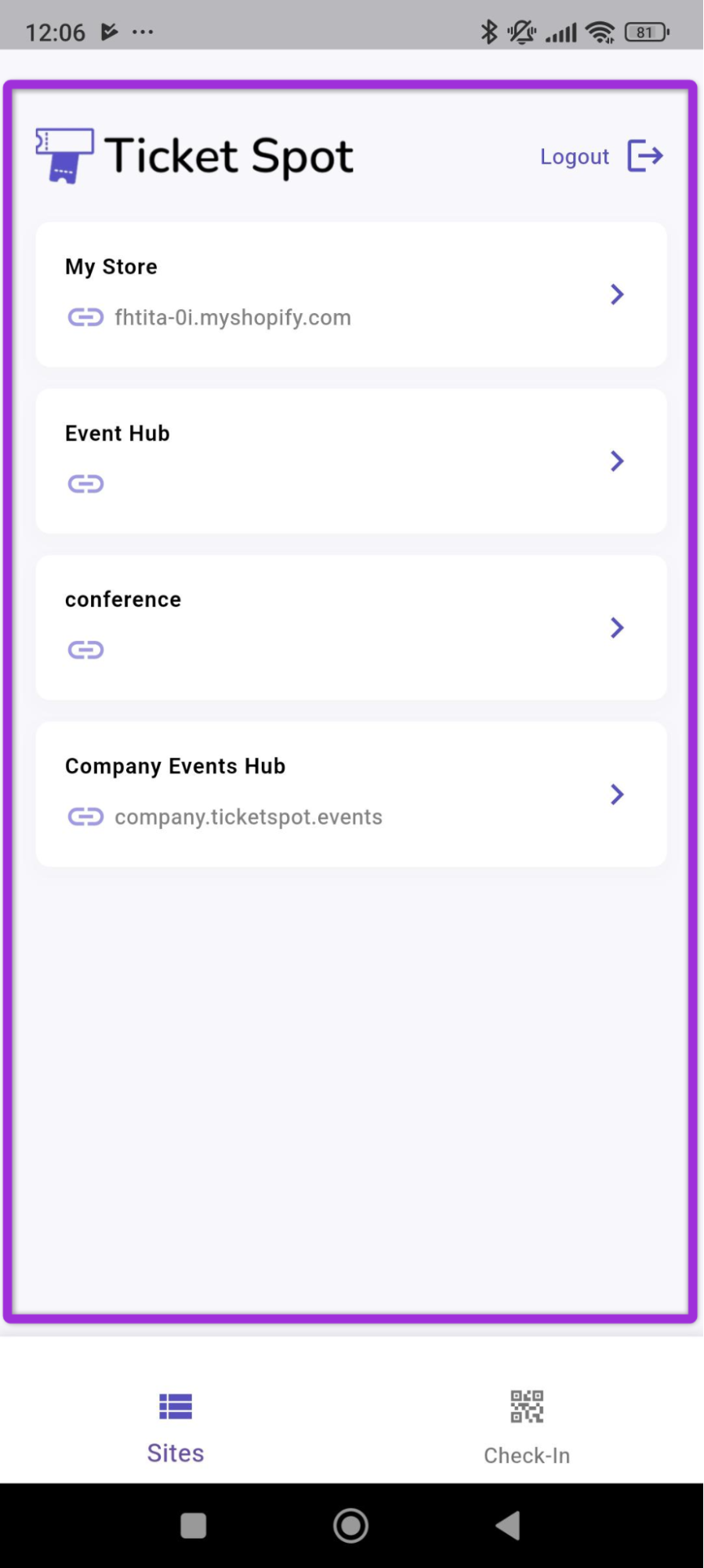
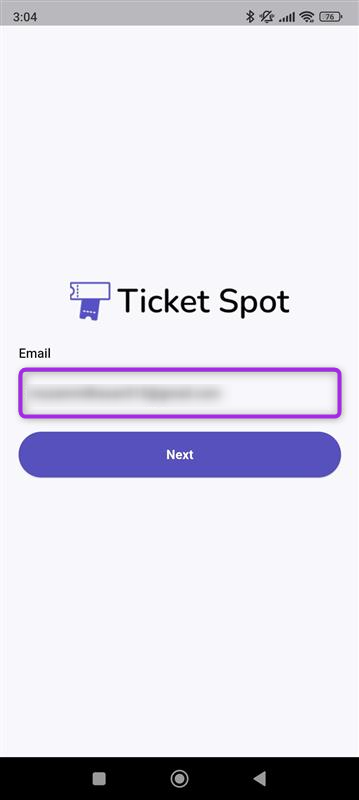
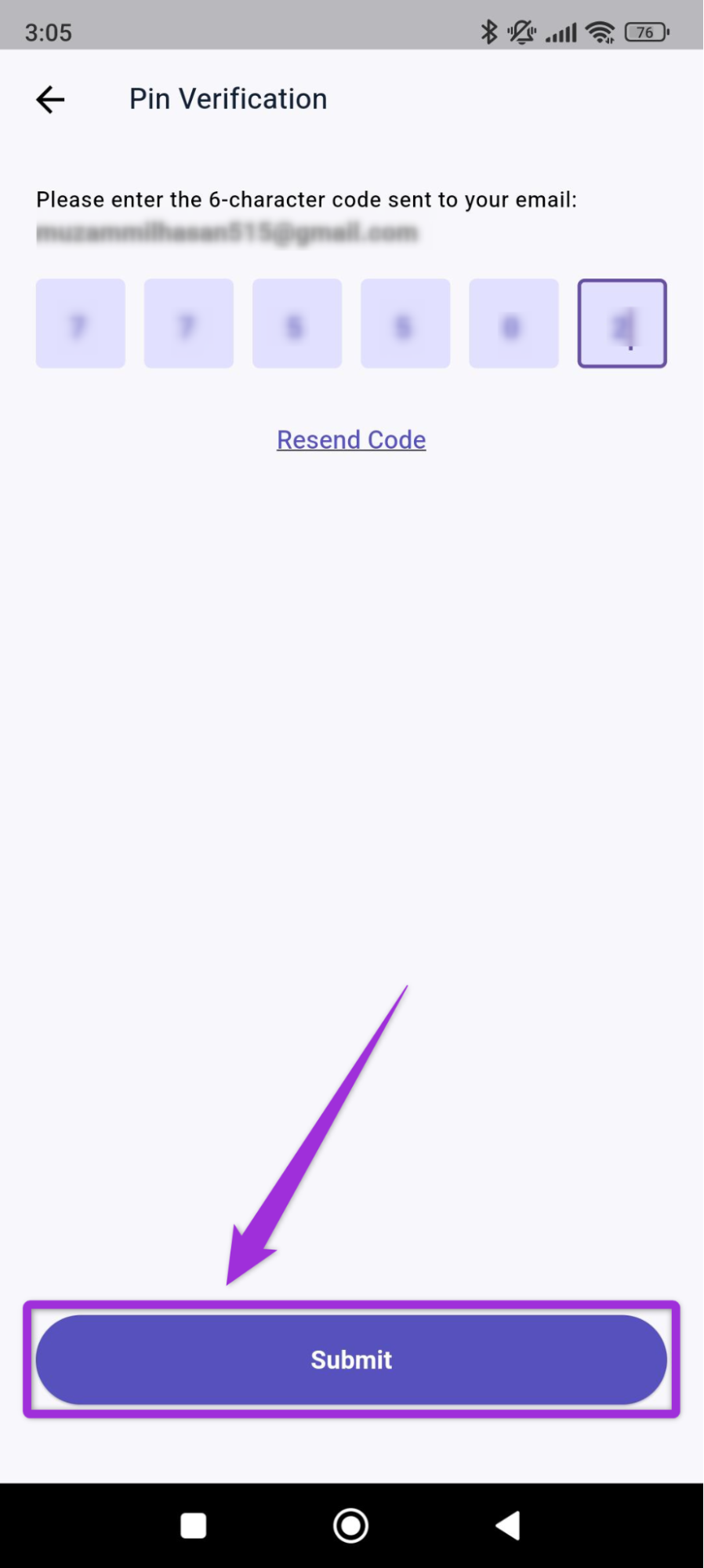
Step 1:Open the Ticket Spot Mobile App and enter your email address to proceed with the login process. enter-email Step 2: Enter the one-time password (OTP) received in your registered email and click Submit. otp-submit You will be redirected to the Ticket Spot home dashboard, where you can view all your sites, check their details, and manage attendee check-ins. sites-dashboard
App Navigation

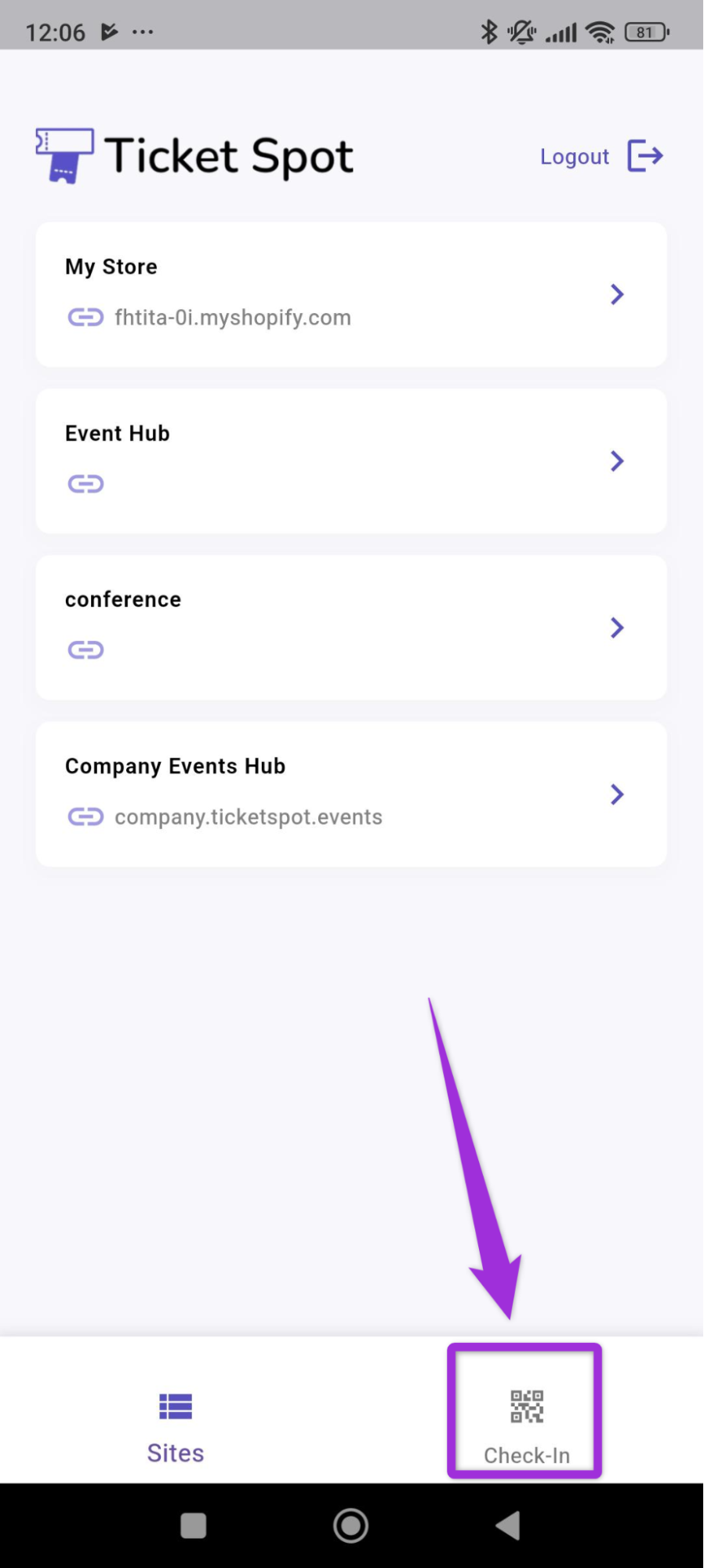
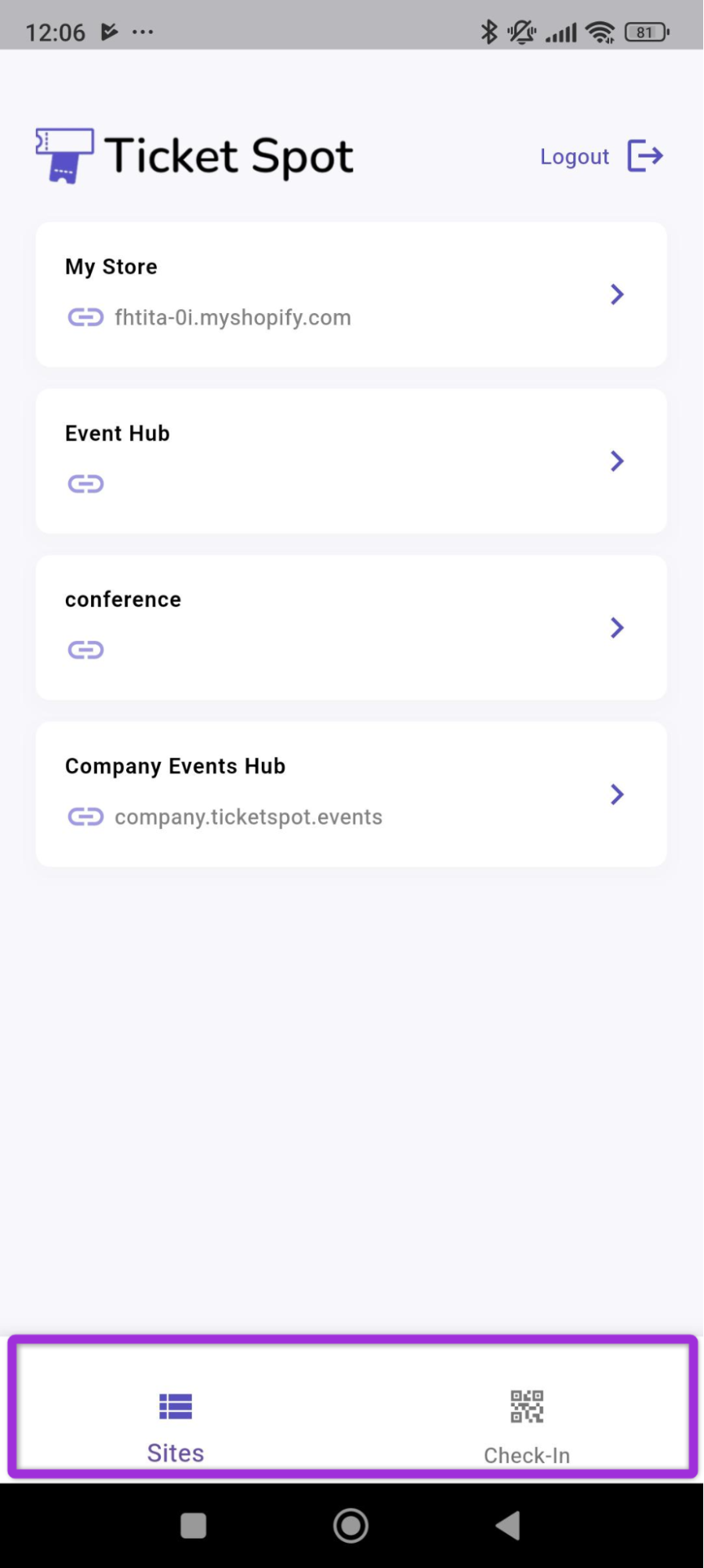
There are two main tabs at the bottom of the mobile app: Sites and Check-In, which help you move between your event list and your on-site check-in tools. bottom-tab
Sites

The Sites tab shows all the sites linked to your TicketSpot account. Each site contains its own events, and you can select any site to view the events created under it. click-site A dashboard will open showing all the events inside the selected site. Events are grouped into three tabs, making it easy to find the one you want.
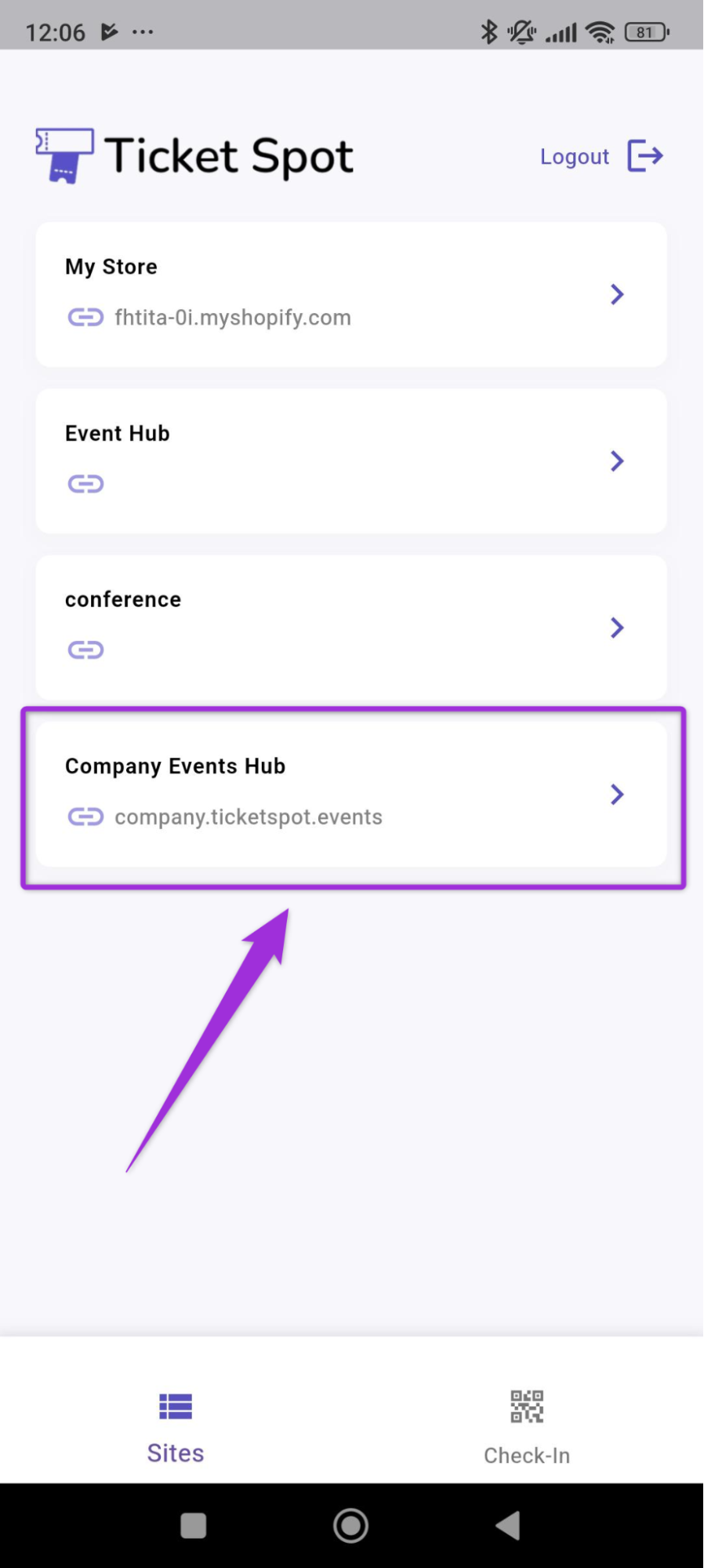
  • All - Displays every event created under the site.
  • Upcoming - Shows events that are scheduled for a future date.
  • Past - Lists events that have already been completed.
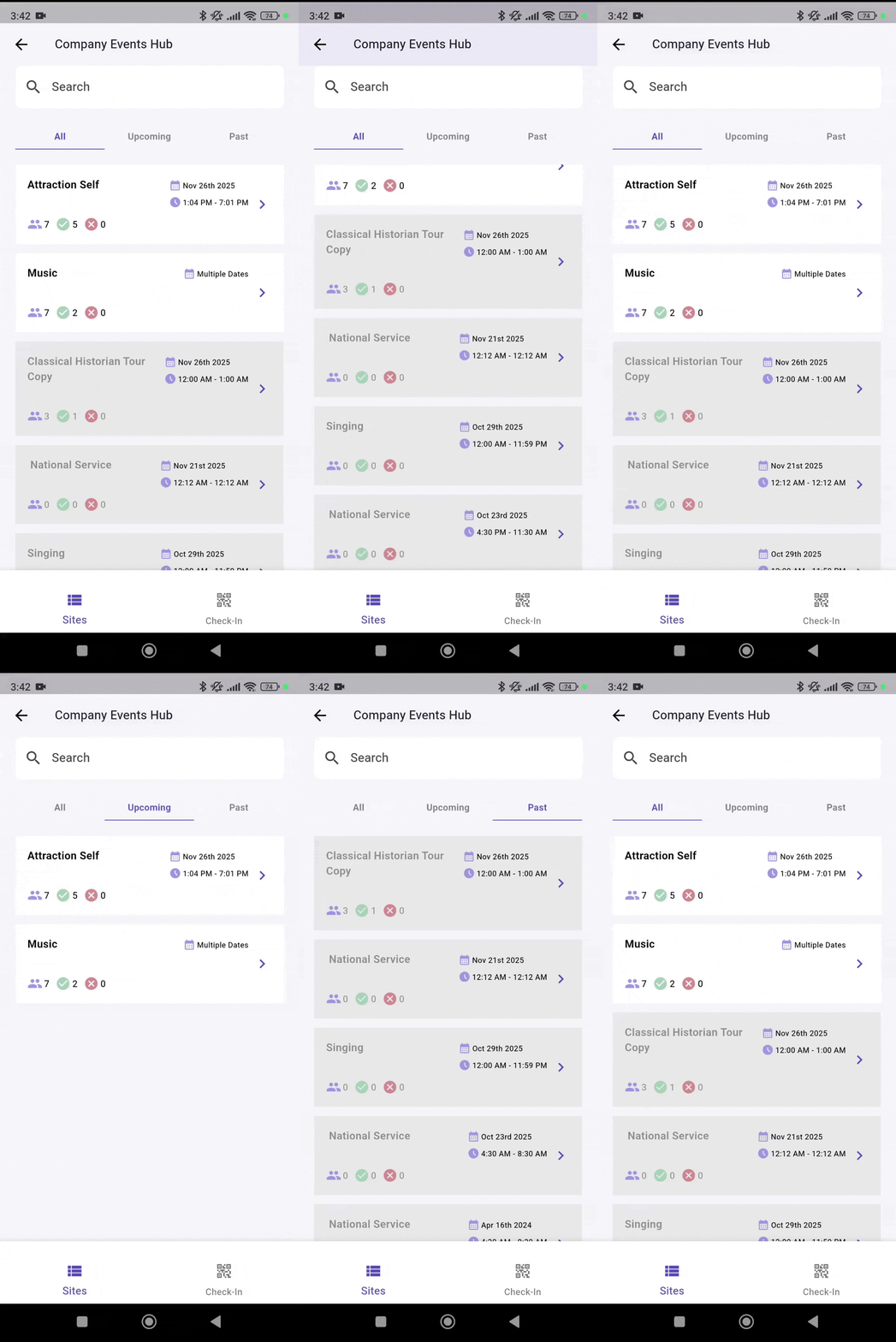
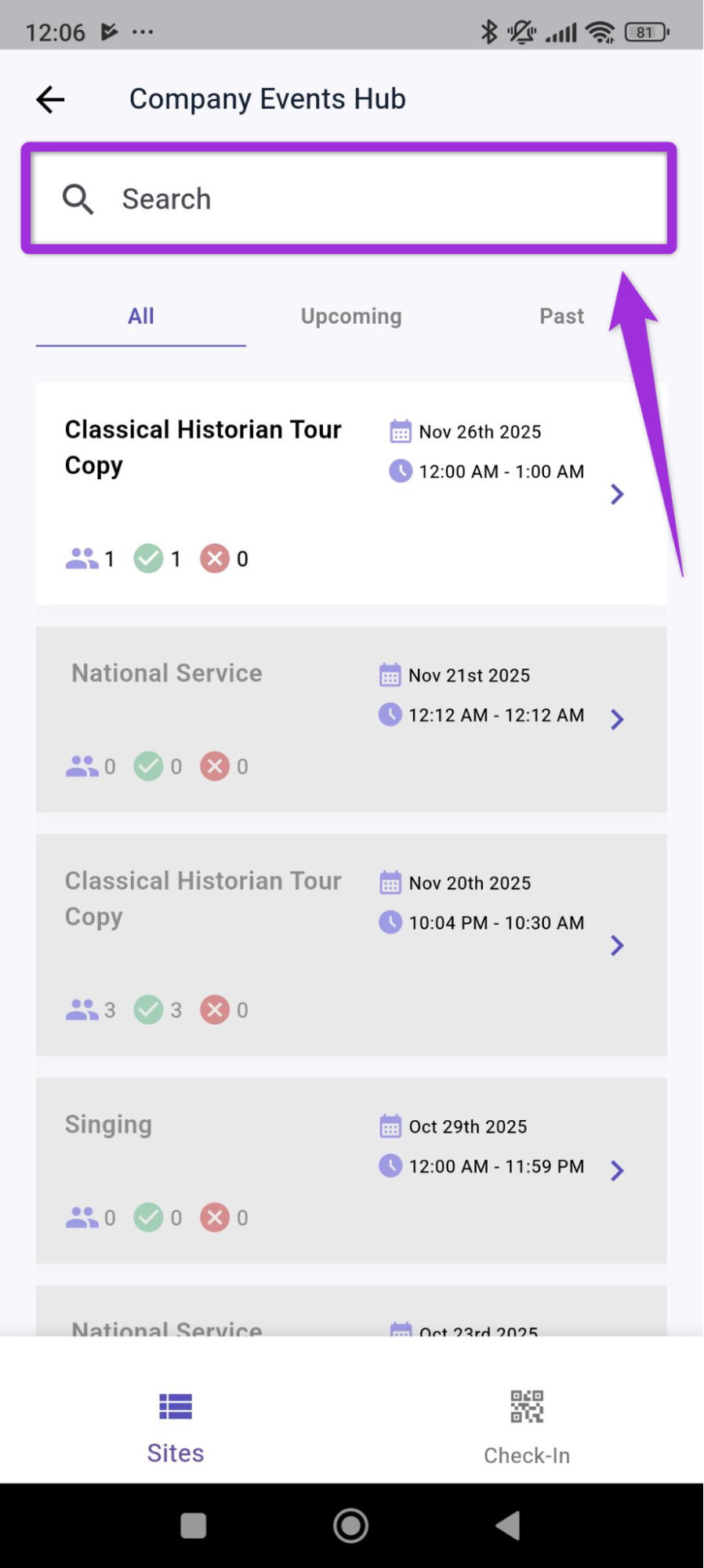
iall-upcoming-past-event You can also use the search bar at the top to quickly locate a specific event by typing its name, even if you have many events listed under your site. search You can also view check-in information and attendee details from the event dashboard. For more information on attendee records, refer to the Attendee Details documentation.

Check-In

The Check-In tab provides quick access to all tools used during on-site entry. This screen allows you to scan attendee QR codes, search for attendees manually, and update their check-in status in real time. You can switch to this tab at any time from the bottom navigation bar to begin scanning tickets or verifying attendees. click-checkin-btn For more detailed instructions on scanning and check-in workflows, refer to the Mobile Check-In documentation.