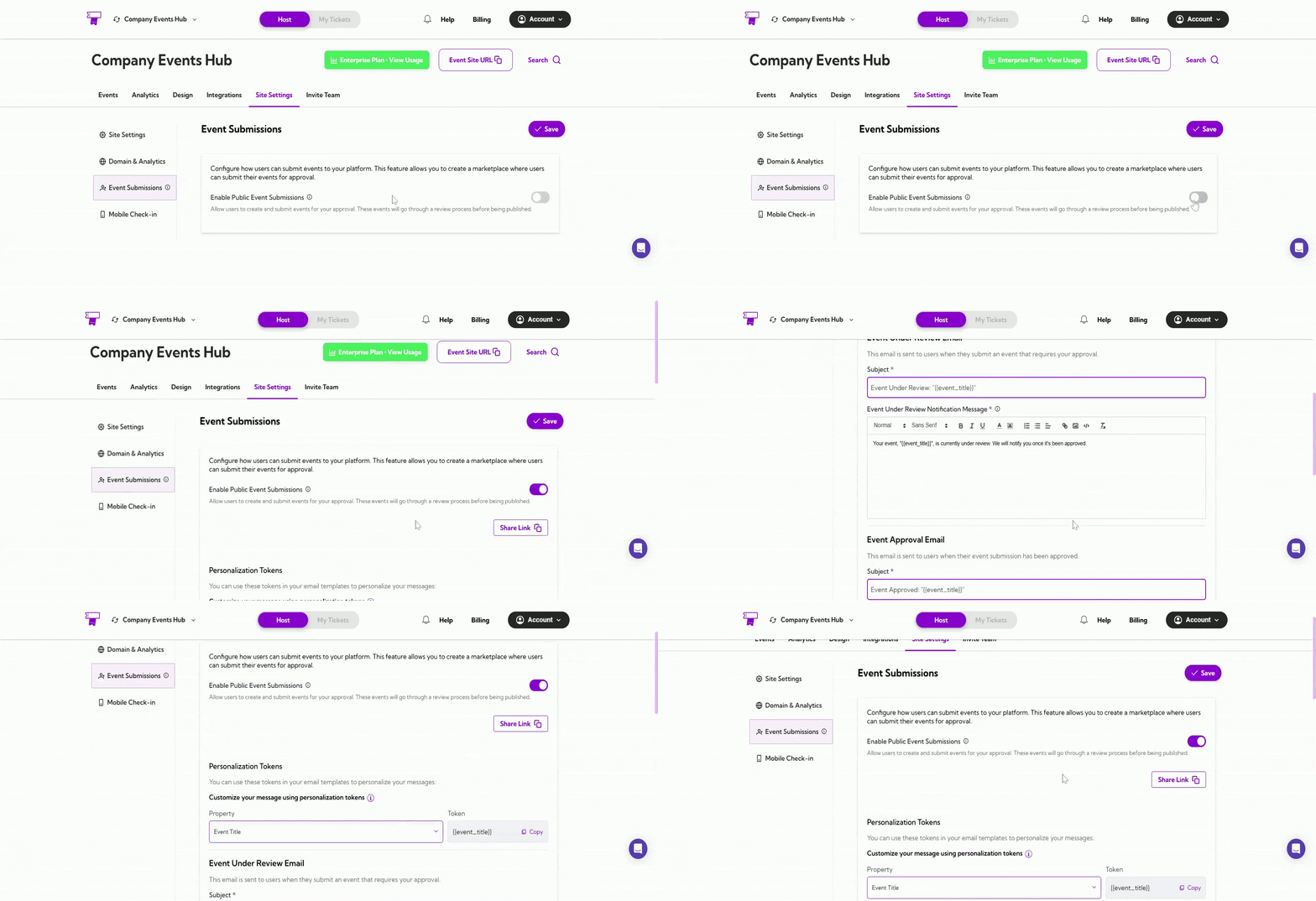
Personalization Tokens
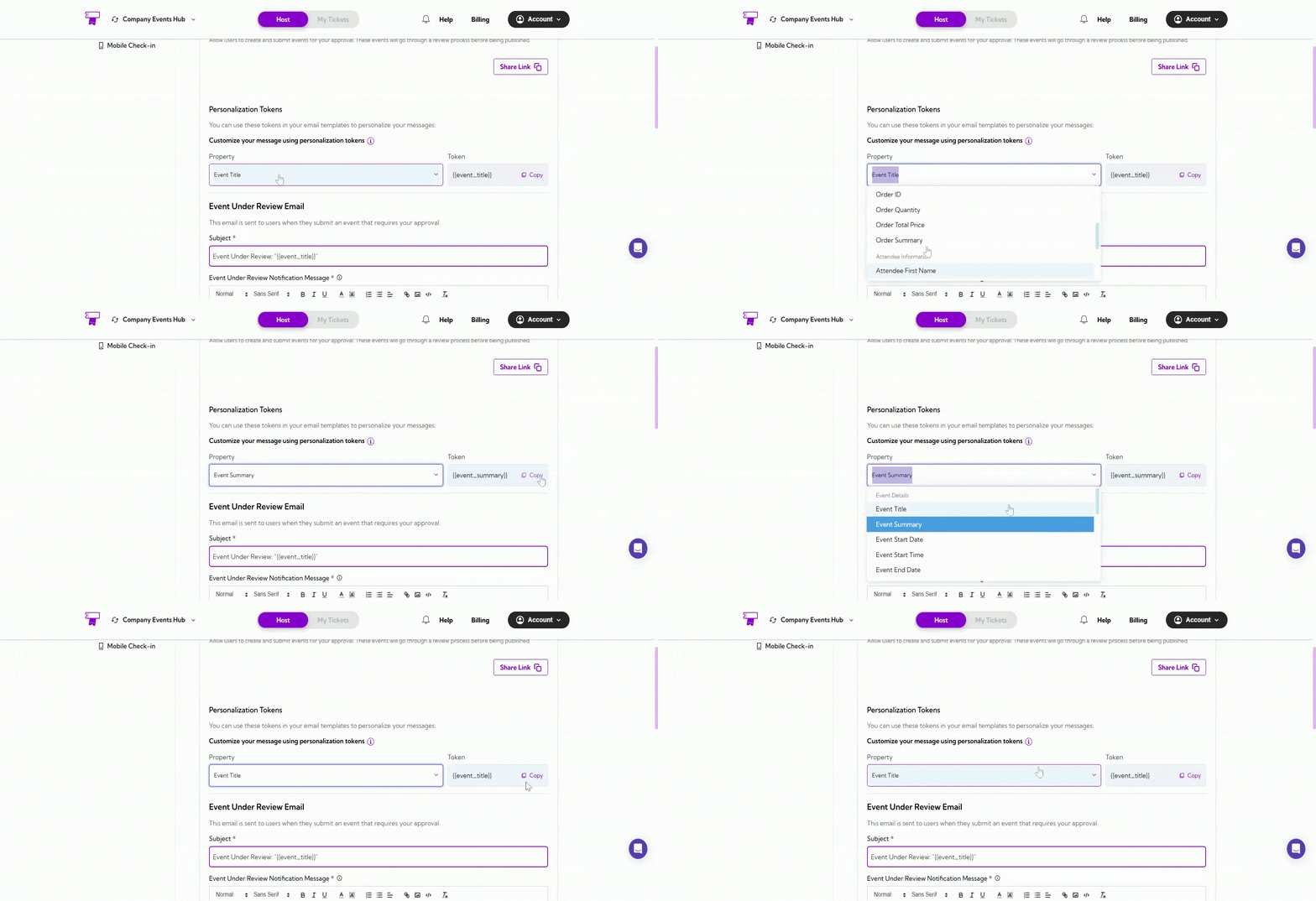
You can use Personalization Tokens in your email templates to personalize your messages. For example, you can use tokens like the Event Title to dynamically insert event-specific information into your emails. How to Use Personalization Tokens- Select the Token: From the Property dropdown, choose the token you want to use (e.g., Event Title, Event Summary).
- Copy the Token: After selecting the token, click the Copy button to copy it to your clipboard.
- Use in Emails: Paste the copied token (e.g.,
event_title) into your email template where you want to display the personalized event information.
Event Under Review Email
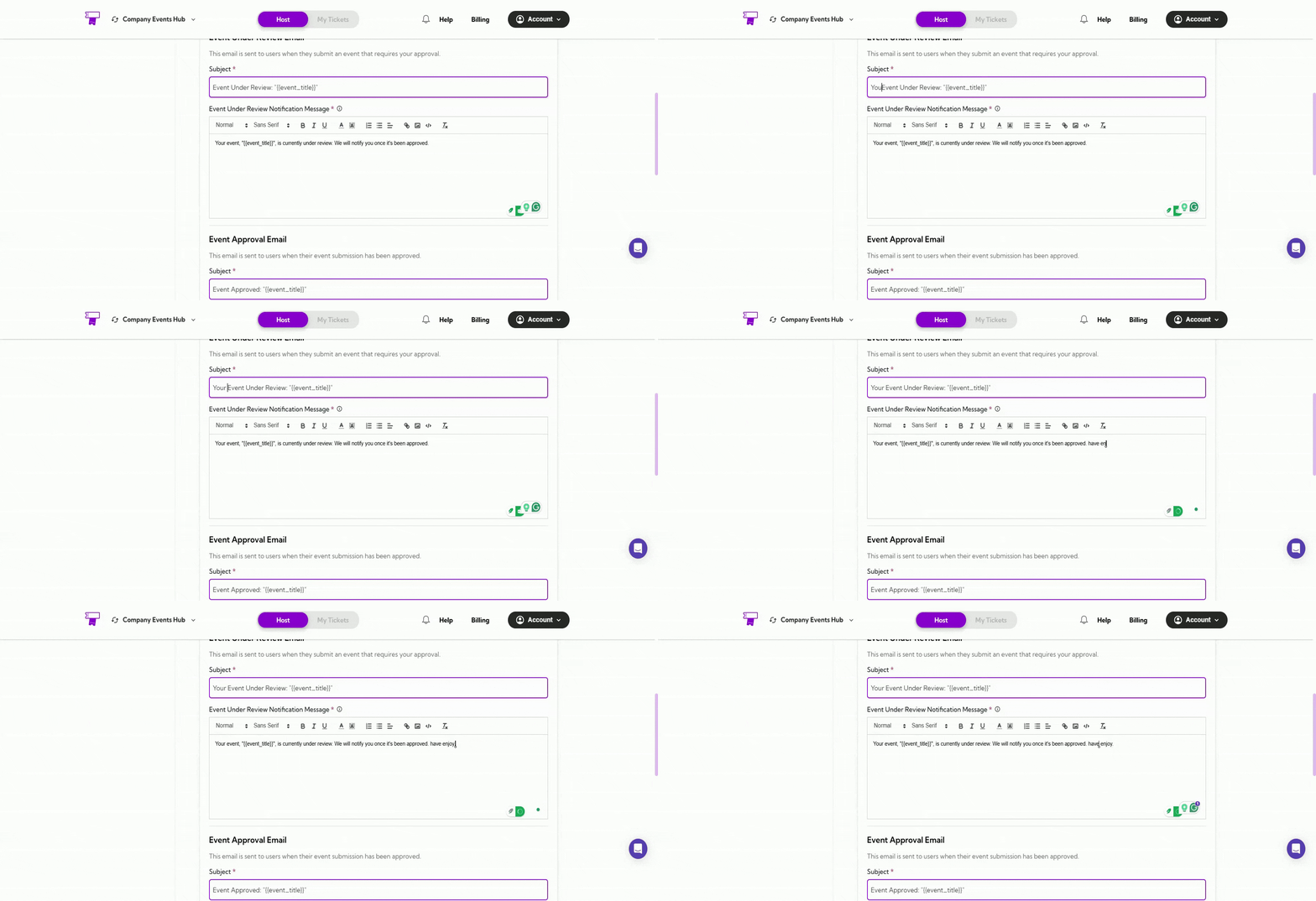
This email is sent to users when they submit an event that requires your approval. You can customize the subject and message of this email using personalization tokens for dynamic content, such as the event title. You can also customize this template if you’d like to change the message or use a different tone.- Email Subject: Use the personalization token for the event title:
event_title
- Email Message: Customize the notification message that informs users their event is under review:
event_title, is currently under review. We will notify you once it’s been approved.”
Event Approval Email
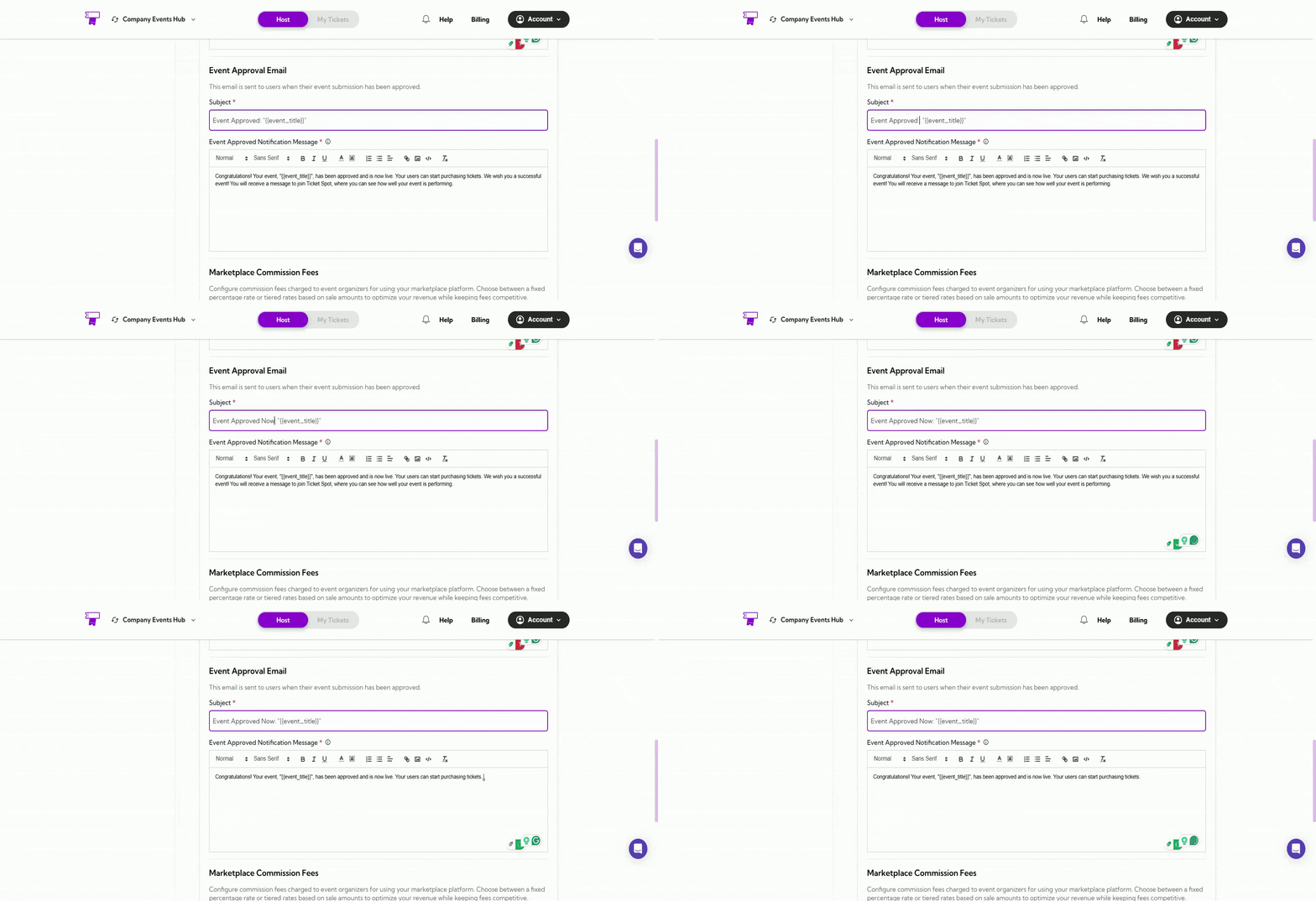
This email is sent to users once their event submission is approved. It notifies them that their event is live, allowing users to start purchasing tickets. You can customize the notification message to suit your needs:-
Email Subject: Use the personalization token for the event title and customize the subject:
_ Example:_ Event Approved:event_title - Email Message:* Customize the notification message that informs users their event has been approved:
event_title, has been approved and is now live. Your users can start purchasing tickets. We wish you a successful event!”
Tip: You can modify this template to better suit your communication style or include additional information for your users.
Marketplace Commission Fees
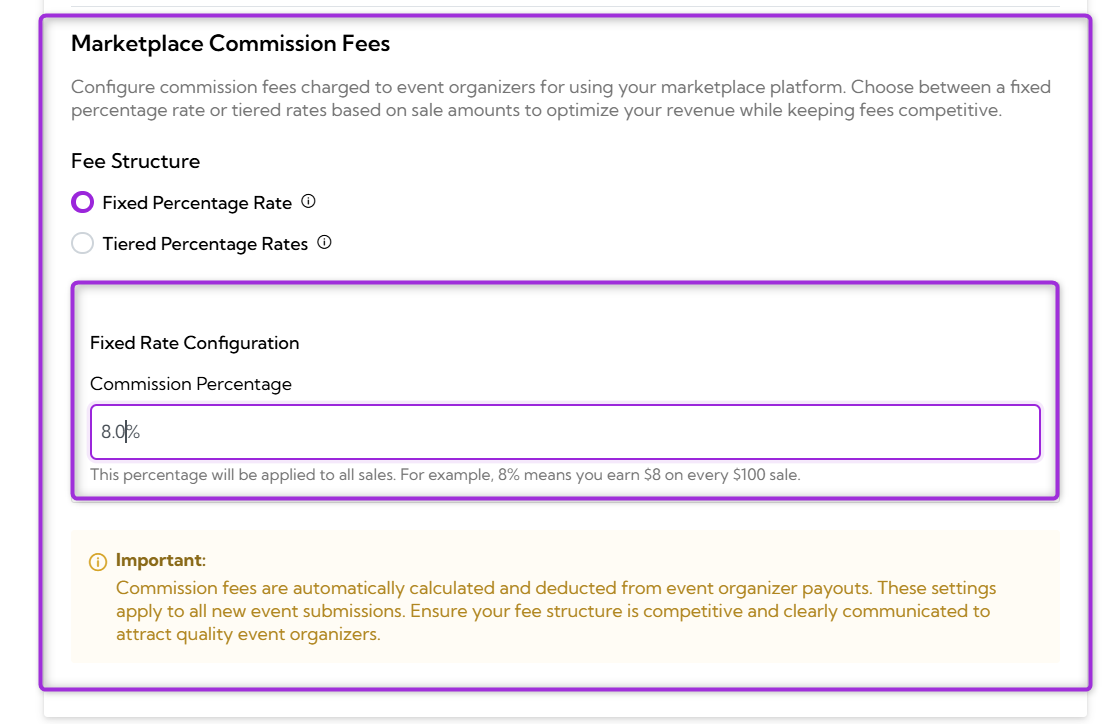
This section allows you to configure commission fees charged to event organizers using your marketplace platform. You can choose between a Fixed Percentage Rate or Tiered Percentage Rates based on sale amounts, helping you optimize your revenue while keeping fees competitive.Fixed Percentage Rate
The Fixed Percentage Rate option charges a consistent commission rate on all sales. This rate will be applied to every sale, regardless of the amount. Commission Percentage:Enter the desired percentage (e.g., 8%). For example, with an 8% commission, you earn 100 sale.
Tiered Percentage Rates
The Tiered Percentage Rates option allows you to set different commission rates based on the sale amount. Higher tiers typically have lower rates to encourage larger transactions. This feature gives you flexibility in charging event organizers depending on how much they sell.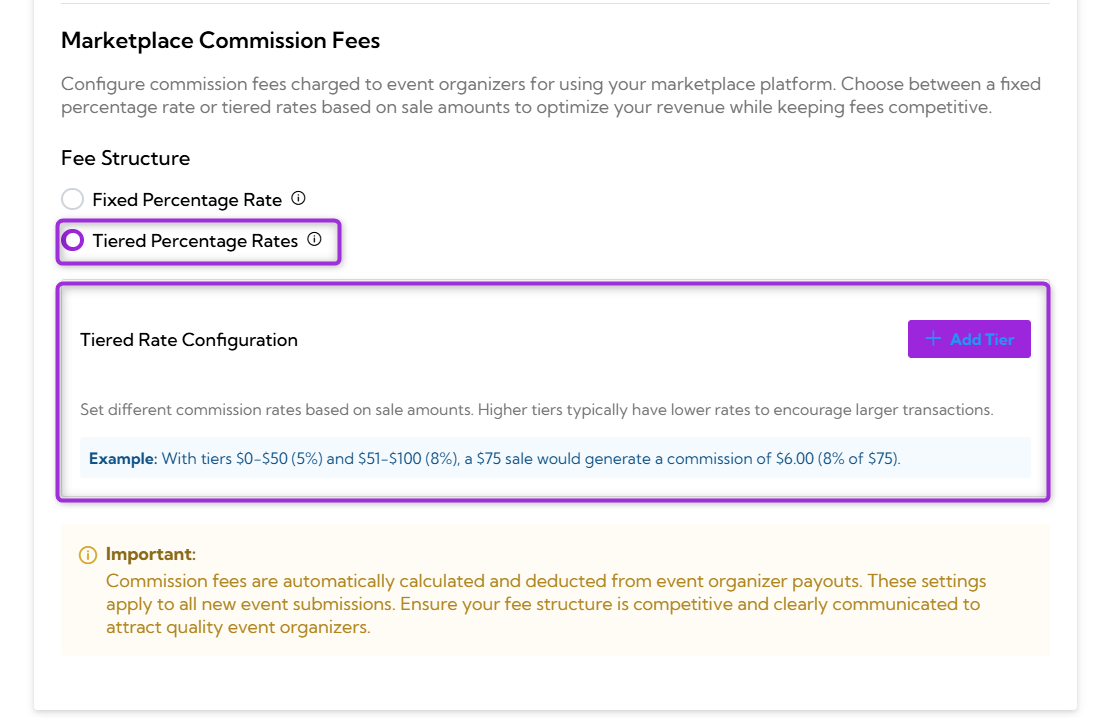
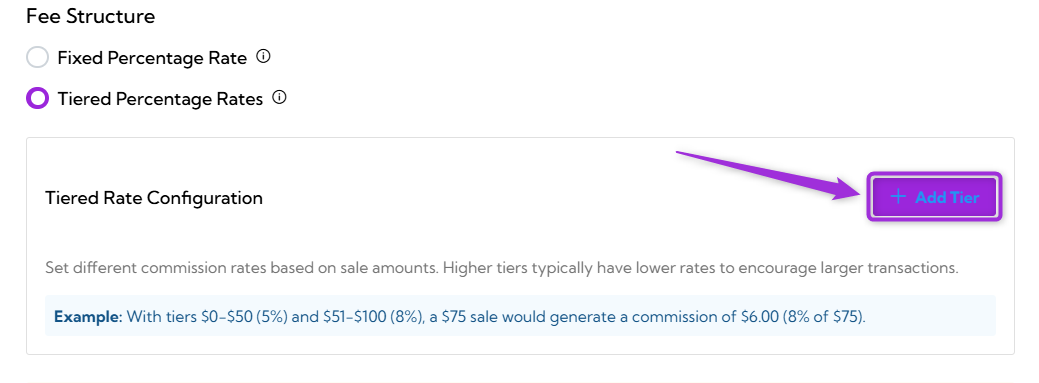
- Click the Add Tier button to add additional tiers as needed, each with its own sale range and commission rate.
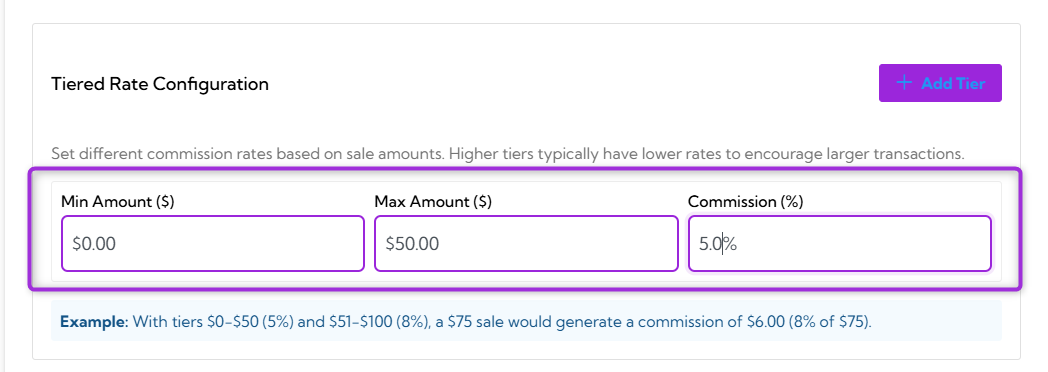
- Min Amount ($): The minimum sale amount for this tier.
- Max Amount ($): The maximum sale amount for this tier.
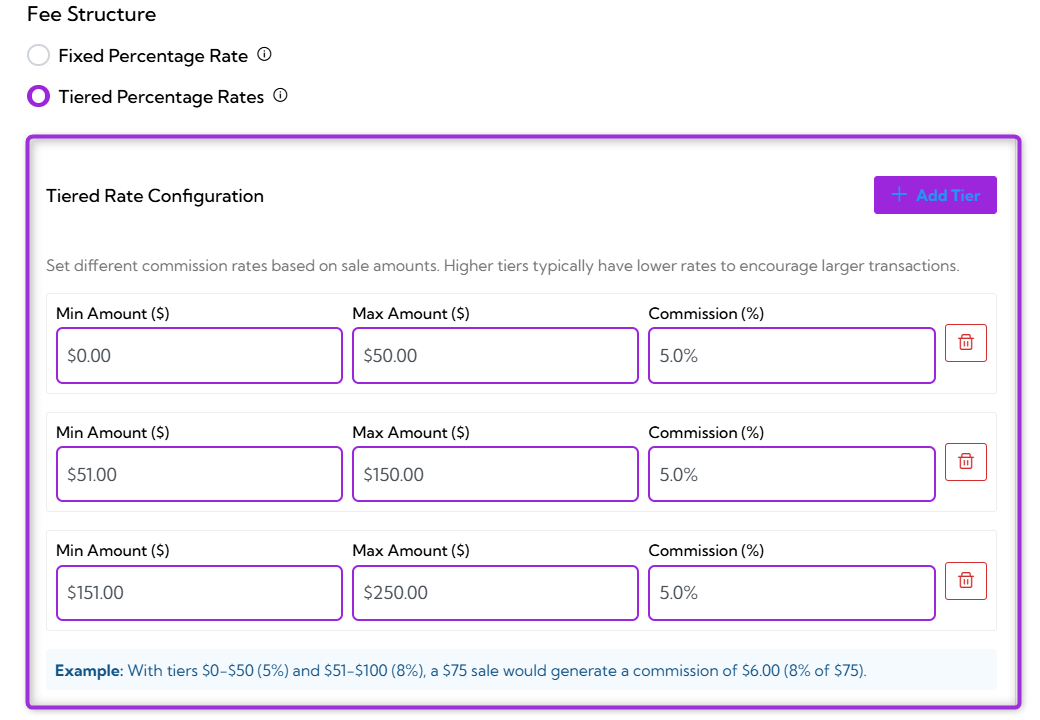
Important: Commission fees are automatically calculated and deducted from event organizer payouts. These settings apply to all new event submissions. Ensure your fee structure is competitive and clearly communicated to attract quality event organizers.
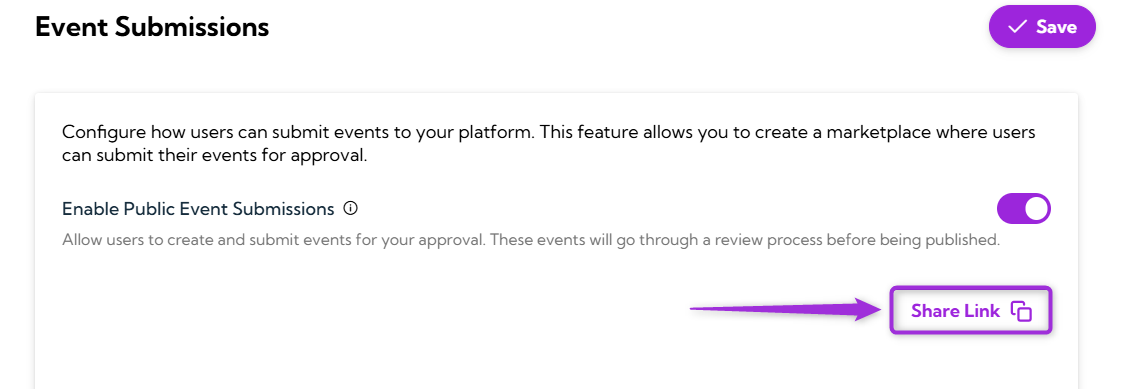
Share Link
The Share Link button allows you to easily copy and share the event submission page link with users. This helps guide them directly to the page where they can submit their events for approval.