Change Role
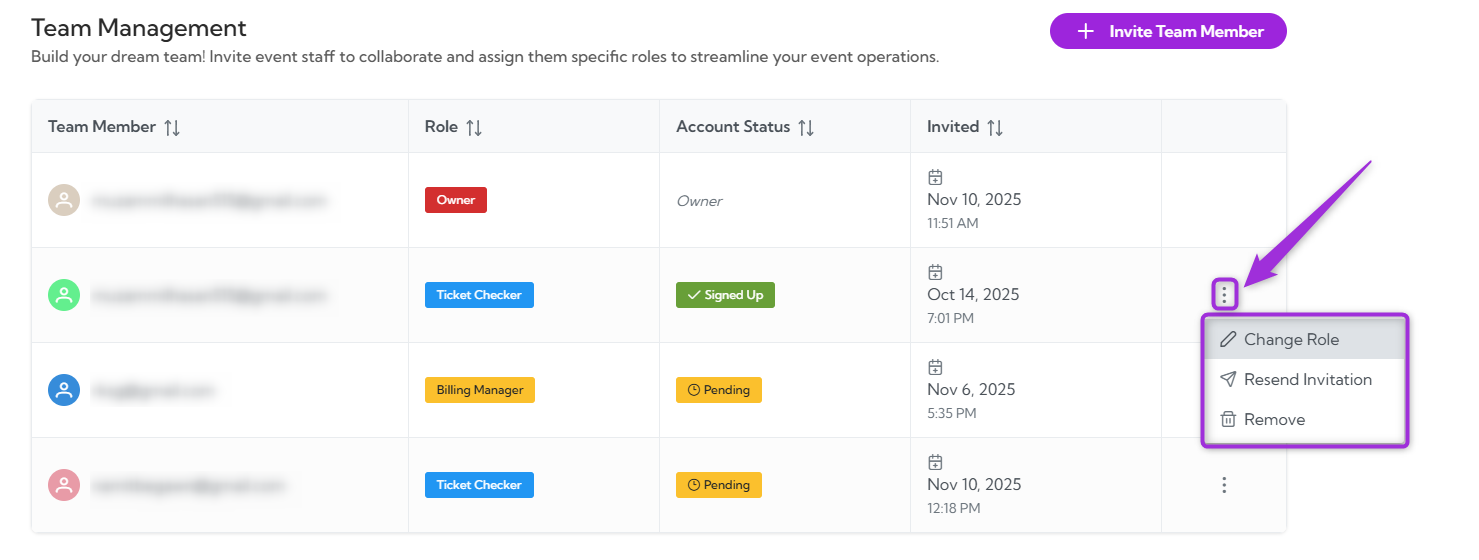
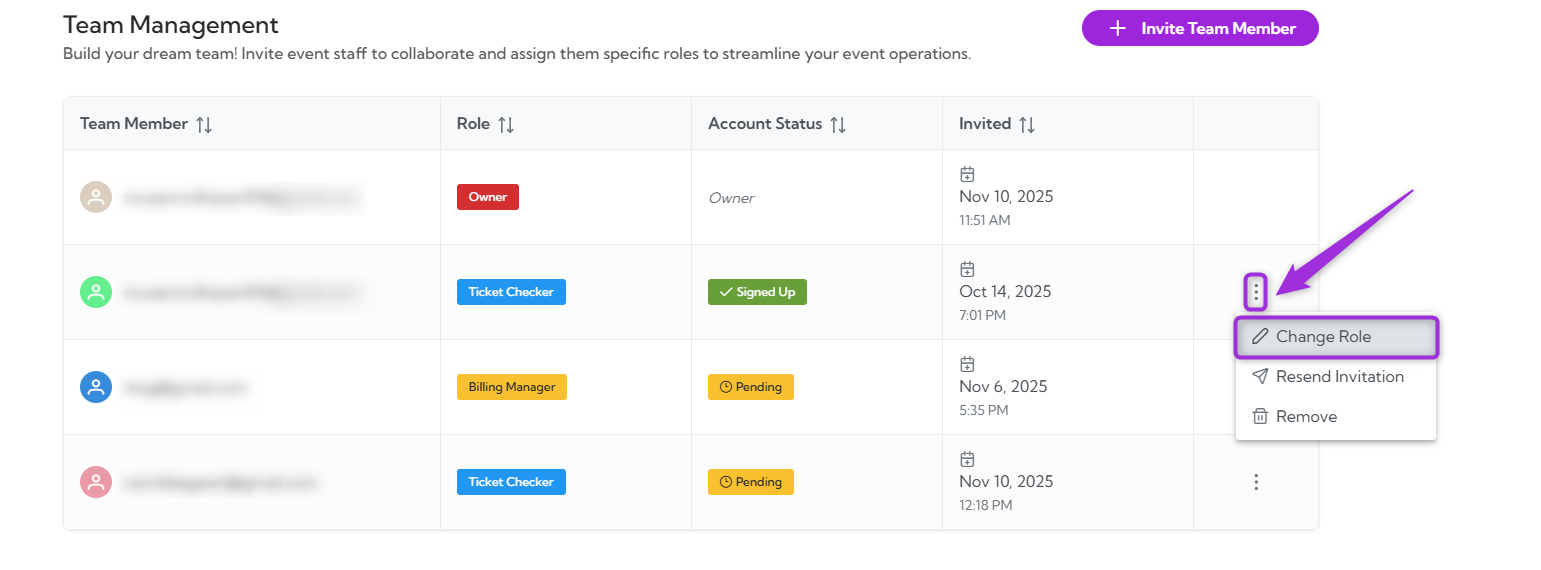
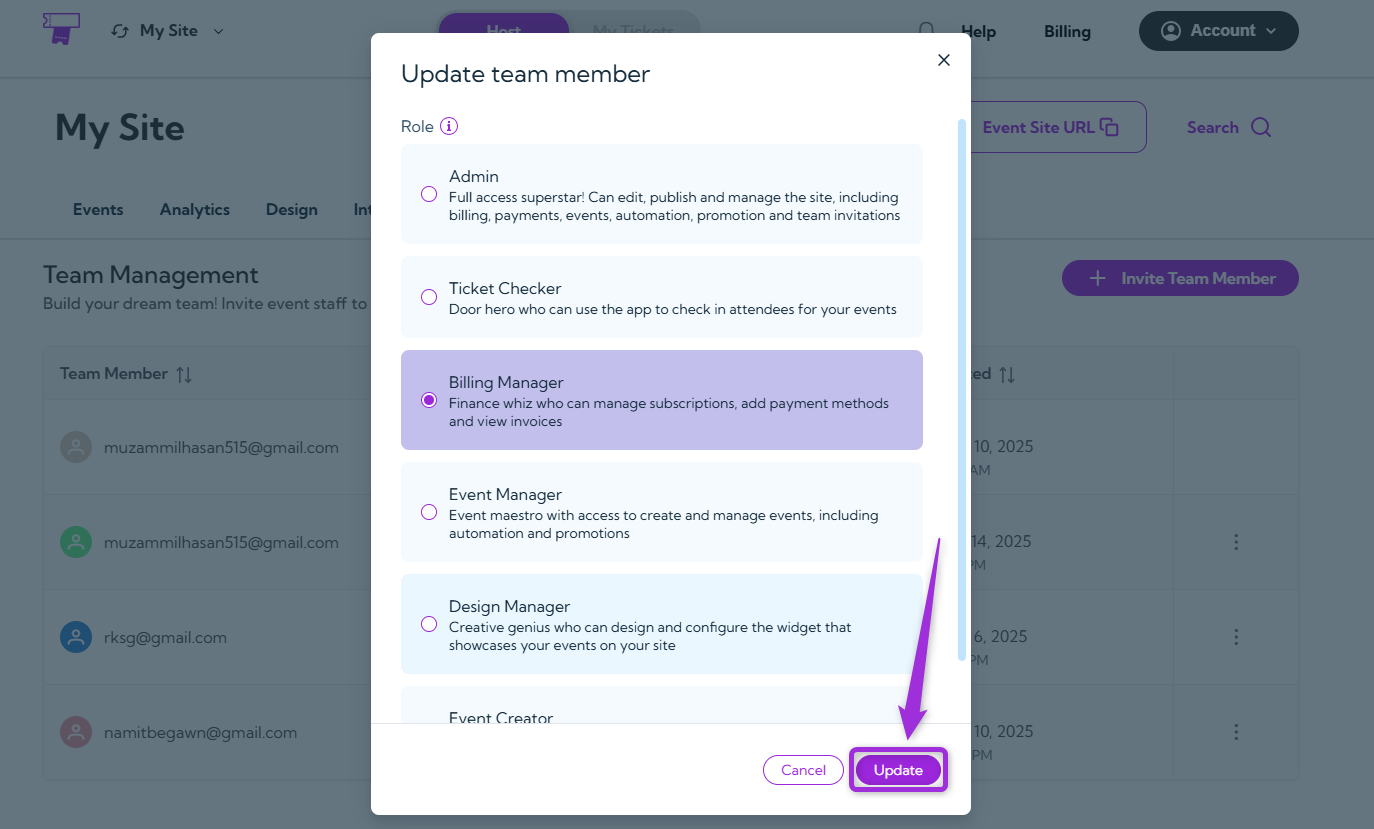
Select Change Role to update the team member’s access. This option lets you assign a new role if their responsibilities change or if they need more (or less) permission within your Ticket Spot account.- Select Change Role from the list of options to update the member’s access level.
- Choose the new role from the list to update the team member’s permissions, then click Update to save the changes.
Resend Invitation
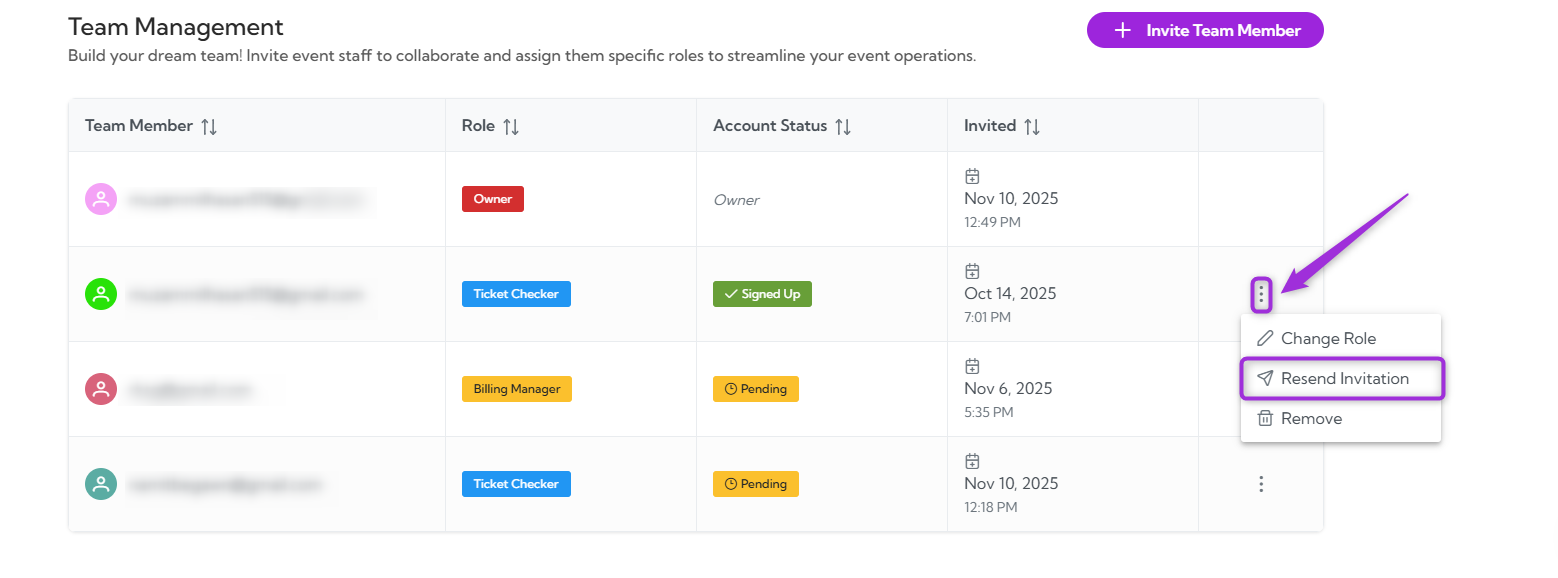
Use this option when a team member hasn’t accepted their invite or missed the original email.-
Select Resend Invitation from the list of options to send a new invite link to the team member.
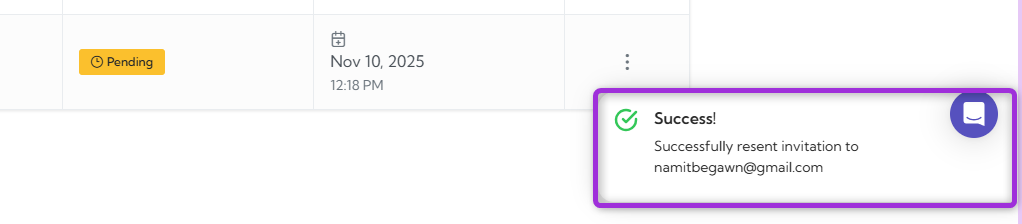
- The system will resend the invitation to their email so they can join your team, and a confirmation message will appear once the invite is sent.
Remove
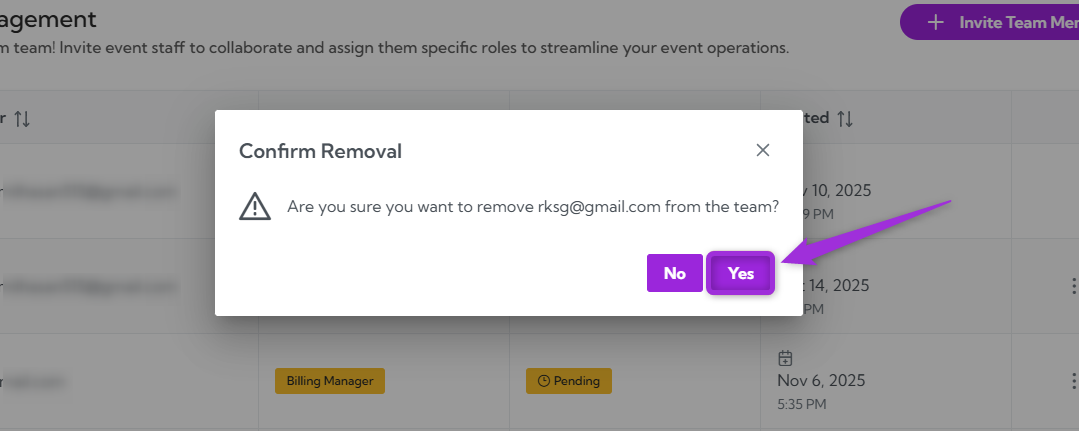
Use this option to delete a pending or existing team member from your list and remove their access.- Select Remove from the list of options to delete the team member from your account.
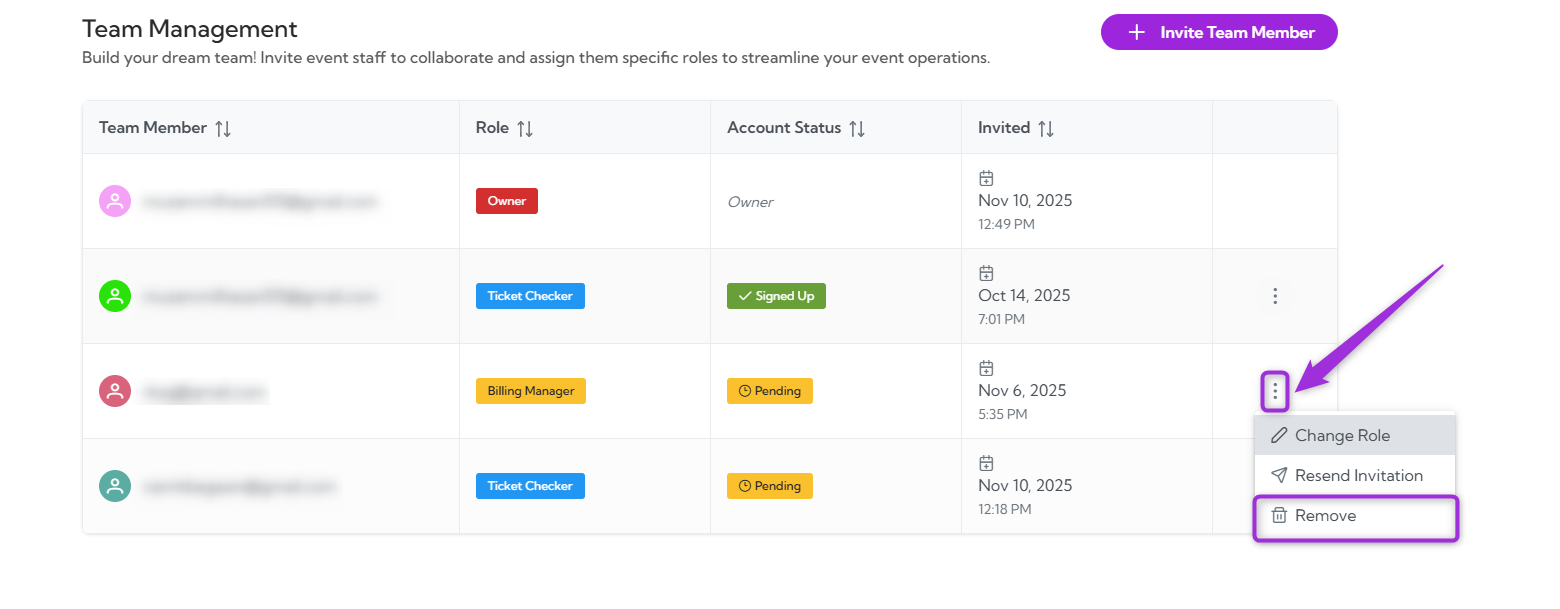
- A confirmation window will appear. Click Yes to remove the member or No to cancel the action.